
 SMS
Campaign Management
SMS
Campaign Management
Campaigns in Omnix allows users to create, manage, and execute automated communication campaigns across WhatsApp, SMS, and Email channels. It helps businesses run large-scale customer engagement campaigns, promotional messaging and automated communication workflows efficiently.
SMS Campaign Overview
The SMS Campaign module allows users to manage SMS communication and campaign activities from a centralized platform. Users can create concise text messages, send bulk campaigns, personalize content with variables, and track message delivery efficiently.
Send instant GSM cellular text messages, use dynamic personalization, target specific audiences, and schedule campaigns for optimal customer engagement through the Concise SMS channel.
1. Create SMS Campaign
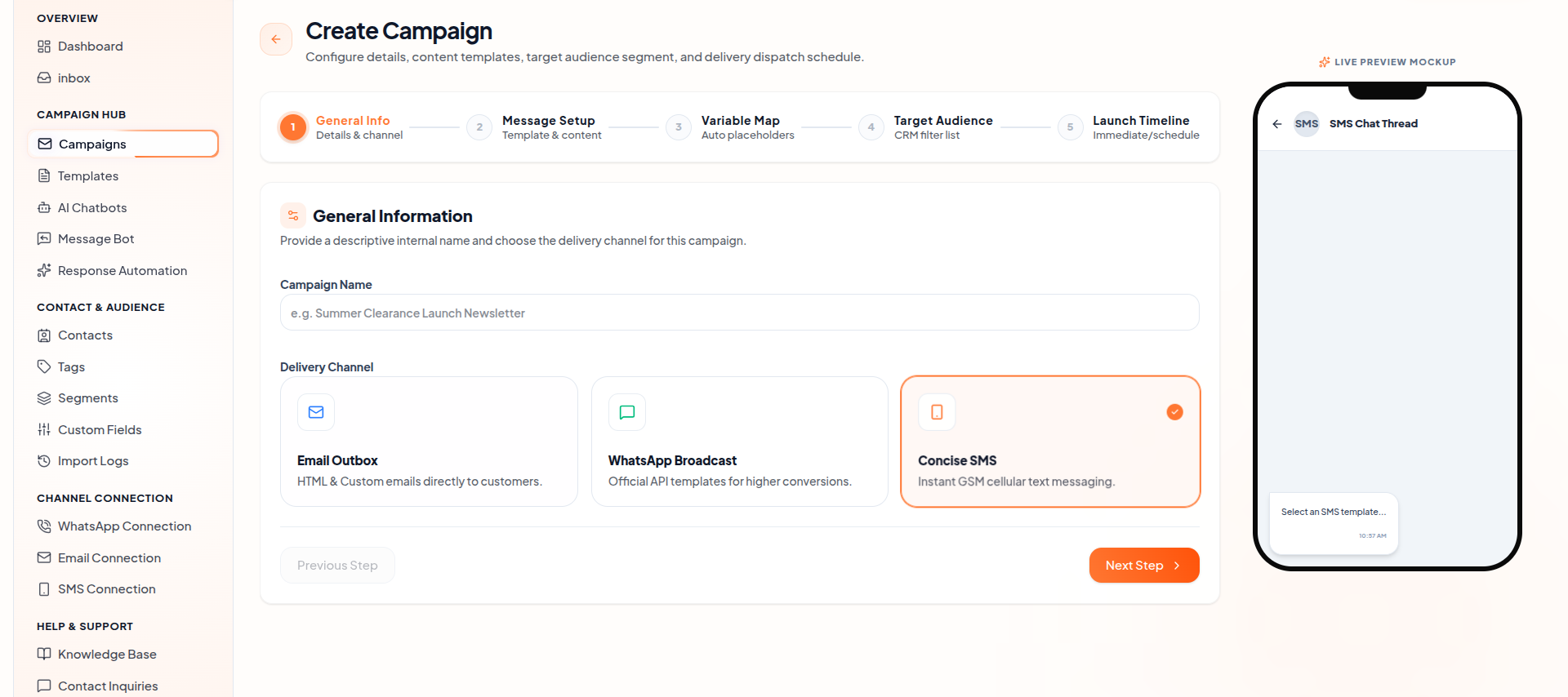
1. General Information
- Campaign Name : feedback
- Delivery Channel : Concise SMS
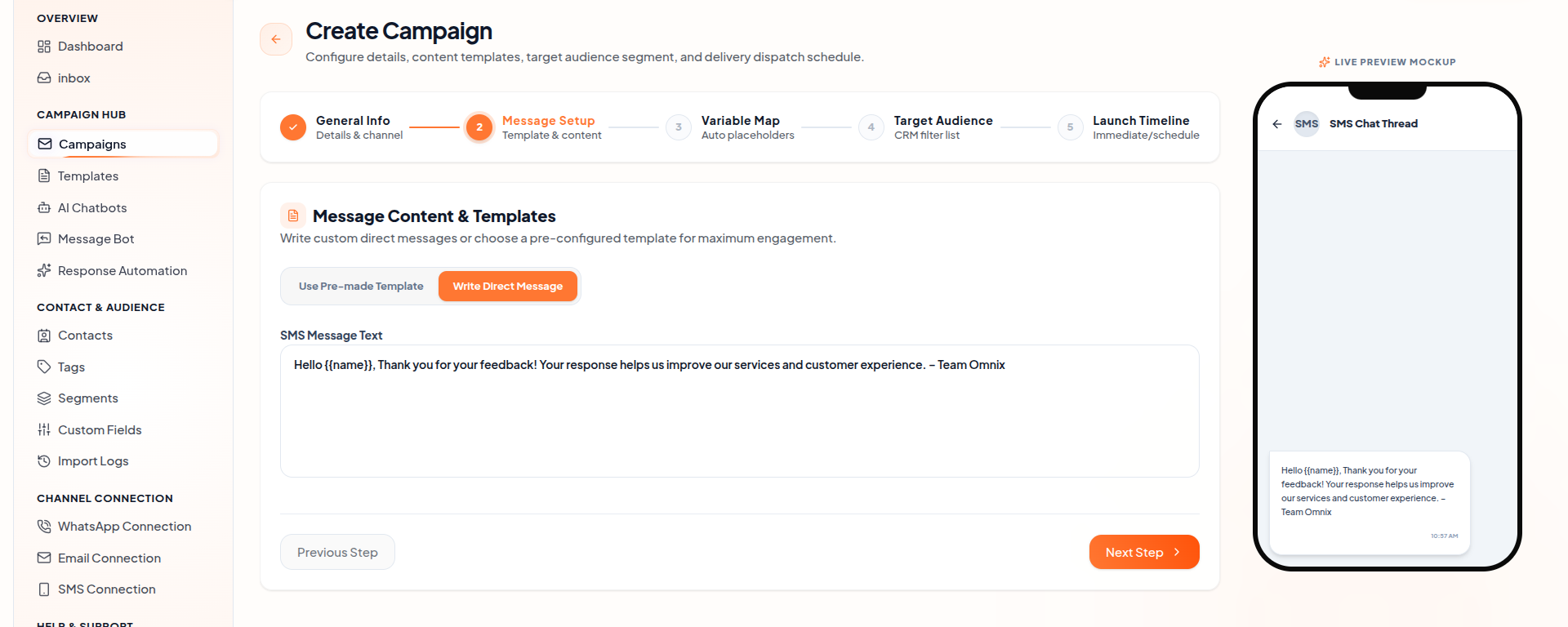
2. Message Content & Templates
- Message Type : Write Direct Message
- SMS Message Text : Write Down the SMS for sending to customers
- Live Preview Status : Updated and visible in the right panel (Mobile Preview)
3. Variable Data Mapping
- Status : Dynamic Variables Detected
- Placeholder Found :
{{name}} - Mapping Type : Use Static Fallback Value
- Details : The variable
{{name}}is configured with a static fallback value for cases where contact name is not available.
4. Target Audience
- Audience Selection : All Contacts (Full Database Broadcasting)
- The campaign is configured to broadcast to the entire contact database. All active contacts registered in the workspace will receive the SMS.
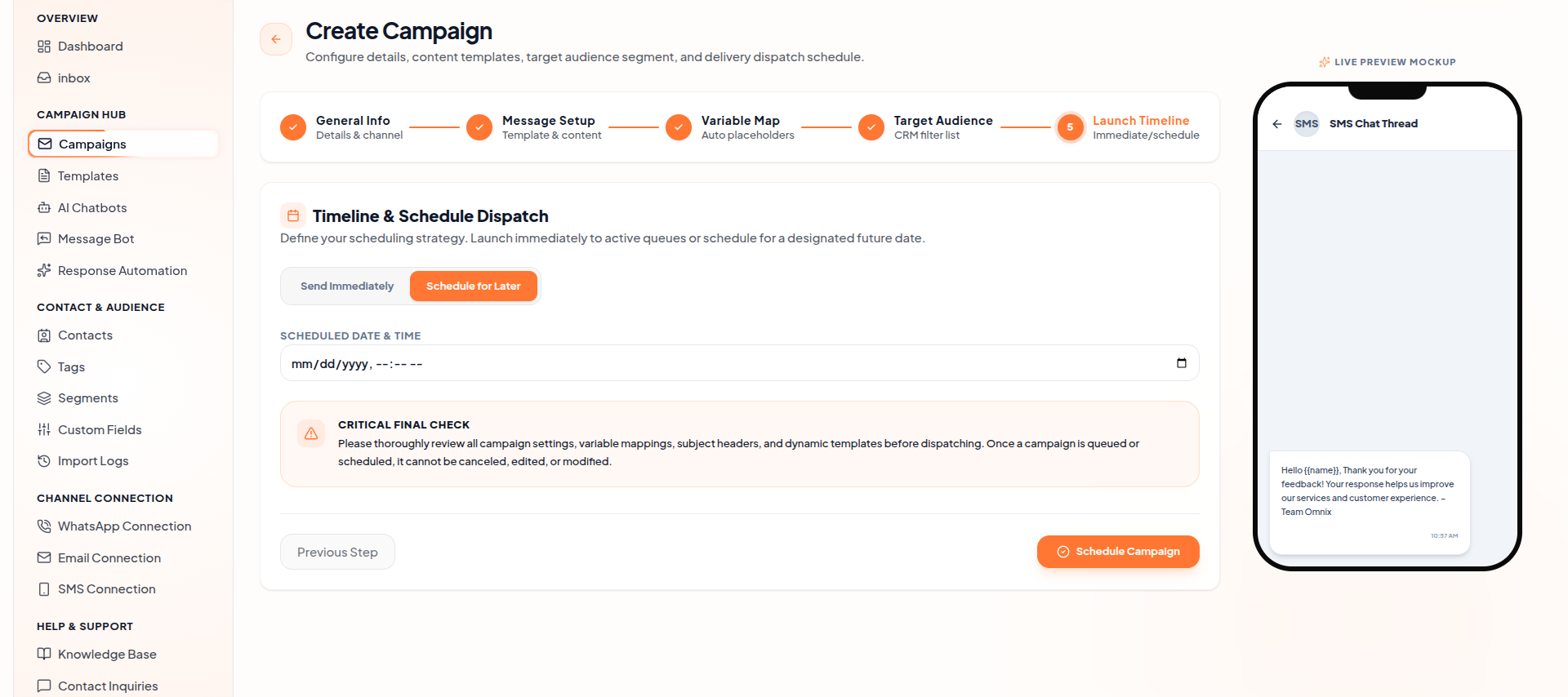
5. Launch Timeline & Schedule
- Scheduling Option : Schedule for Later
- Scheduled Date & Time : Add desired date and time
- Critical Final Check Note : Please thoroughly review all campaign settings, variable mappings, and message content before dispatching. Once a campaign is queued or scheduled, it cannot be canceled, edited, or modified.
- Action Button : Schedule Campaign

2. Edit SMS Campaign
To edit an existing SMS campaign, navigate to the Campaigns list and click the Edit option on the campaign card. You can modify the campaign name, SMS message content, variable mappings, target audience, or schedule. After making changes, click the Update Campaign button to save the modifications.
3. Delete SMS Campaign
To delete an SMS campaign, click the Delete option on the campaign card in the Campaigns list. A confirmation dialog will appear to prevent accidental deletion. Once confirmed, the campaign will be permanently removed from the system.
Key Features of SMS Campaign
- Create and manage SMS campaigns with concise message content and delivery channel selection.
- Use dynamic
personalization with variable placeholders like
{{name}}mapped to contact properties. - Advanced audience targeting — All Contacts, Segments, Tags, or Specific Recipients.
- Flexible scheduling: Send immediately or schedule for later with mobile live preview support.
What's Next?
Let's get started — your journey with Omnix begins here!


