Getting Started
1Introduction
Welcome to the official documentation for the Vastra Shopify theme. Vastra is a premium, high-performance theme designed for modern e-commerce stores. Whether you're building a fashion boutique, a tech outlet, or a general lifestyle brand, Vastra provides the tools and flexibility you need to succeed.
This guide will help you through every step of setting up your store, from the initial installation to advanced customization. We've designed Vastra to be intuitive, but this documentation is here to ensure you can maximize its potential.
2Features
Blazing Fast
Optimized for Google Lighthouse and Core Web Vitals to ensure the best possible SEO.
Mobile First
A seamless shopping experience across all mobile devices and screen sizes.
3Shopify Manual
Before diving deep into theme-specific settings, we recommend familiarizing yourself with the standard Shopify admin interface. Vastra integrates deeply with the Shopify Online Store 2.0 architecture, which means you can use the built-in sections and blocks feature to build your pages.
Note for beginners
If you are new to Shopify, check out the official Shopify Help Center for basic store management tasks like inventory and shipping.
4What You Get
- High-conversion product page templates
- Advanced filtering for collections
- Interactive mega-menu builder
- Optimized checkout styling
- Free lifetime updates and professional support
5Useful Resources
- Getting to know Shopify: https://shopify.pxf.io/doxgxq
- Shopify Apps: https://shopify.pxf.io/KeVmox
- Free tools to run your business: https://shopify.pxf.io/oqaVDe
- Free stock photos and images: https://shopify.pxf.io/GjaNAn
Theme Install
1Download The Theme Package
- Download the package from pixelstrap.com (the package is in zip format).
- Unzip the package you've just downloaded.
- Find this file, then you just need to upload .zip file to your Shopify store.
2Upload The Theme
- Please log in to your Shopify store, click Online Store → Themes.
- At Themes , click Import theme.
- choose Upload zip file.

- The Upload Themes dialog displays. Click
Add file or drop file to upload to select the
.zip file you just downloaded.

- Click Upload file.
- Wait until the uploading process finishes.
3Publish The Theme
- After upload, you will see Vastra in the Theme Library.
- Click Publish to set Vastra as your live theme.
Note: If you are not ready to publish yet, you can keep Vastra in the library and preview it first.
4Install App
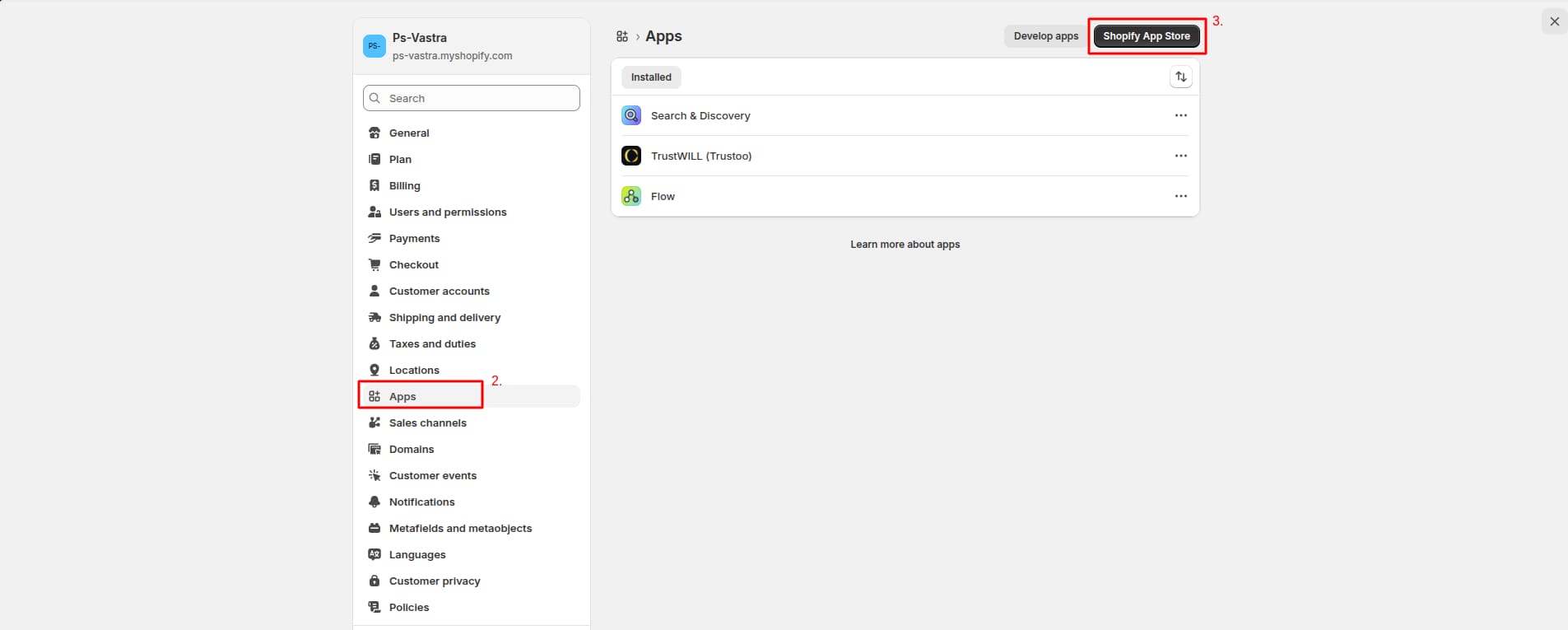
- Go to Admin Panel ->
Settings.

- In Settings, Find Apps.
- After that, click Shopify App
Store.
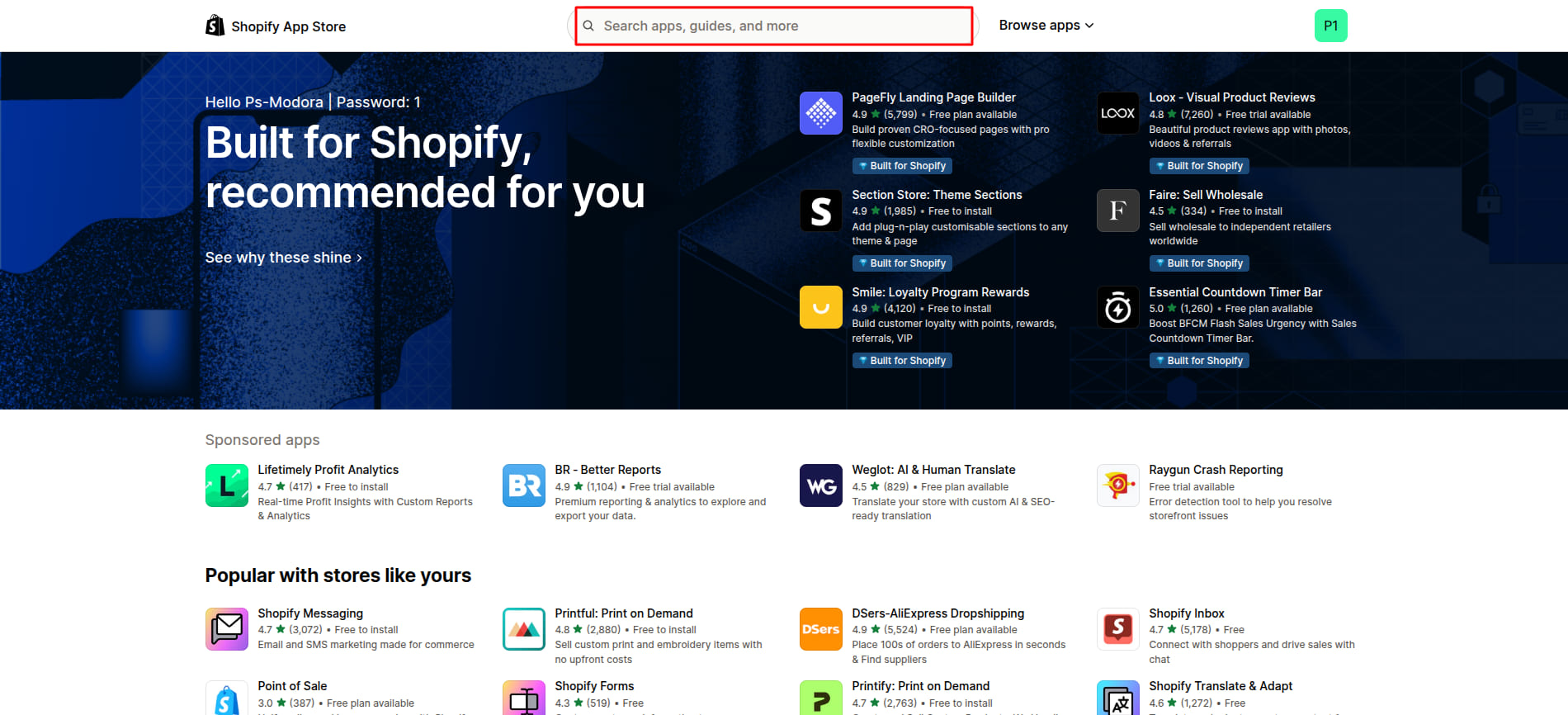
- Search for mentioned app (such as
TrustWILL (trustoo)).
- Click Install. for
installing the app.

Note: If you are using an app such as TrustWILL (Trustoo), go to Edit theme, open App embeds, and enable the app to display its features on the storefront.
5Add Currency
- Go to Admin Panel -> Markets.
- Click on Create market.

- Open New Market page then add Name of the market.
- After that, Add Condition. In this select region.
- Click on Currency and
select the currency.

6Add Language
- Go to Admin Panel -> settings.
- In Settings, Find Languages.
- After that, click on Add
Languages.

- Select the language and Publish that language.
Update Theme
Keeping your theme up to date ensures you get the latest features, performance improvements, and bug fixes.
1Before You Update
- Duplicate your current theme as a backup.
- Review any custom code changes you've made.
- Take note of installed apps or third-party scripts.
2Upload New Version
- Download the latest version of the theme.
- Go to Shopify Admin -> Online Store -> Themes.
- Click Add Theme -> Upload ZIP file.
- Upload the new theme file.
- Click Customize and review settings.
- Publish when ready.
3Replace Files
- Open your current theme code.
- Compare with the new version.
- Manually update required
files.
The settings_data.json file stores all your theme customization settings such as colors, layouts, and sections. Copying or reviewing this file helps retain your design when updating the theme.

The index.json file controls the homepage structure and section layout. Ensure this file is updated properly to maintain your homepage design.

- Test before publishing.
Important Notes
- Custom code changes are not automatically migrated
- Some settings may need reconfiguration
- Always test before going live
4Reapplying Customizations (if any)
- Re-add custom CSS/JS.
- Reconnect apps if required.
- Verify product, collection, and homepage layouts.
5Testing Checklist
- All pages load correctly.
- Product pages display properly.
- Cart and checkout work as expected.
- Mobile responsiveness is intact.
- Apps and integrations function correctly.
Theme Settings
1Logo And Favicon
- From your Shopify admin, go to Online Store -> Themes.
- Find the theme that you want to edit, and then click Edit Theme.
- Click Theme settings -> Logo and
Favicon

Logo and Favicon Settings
| Settings | Type | Default | Description |
|---|---|---|---|
| Light Mode Header Logo | image_picker | - | Logo shown in the header of your store when you are in light mode. |
| Dark Mode Header Logo | image_picker | - | Logo shown in the header of your store when you are in Dark mode. |
| Favicon | image_picker | - | Small icon shown in the browser tab and bookmarks, helping users quickly recognize your store. |
| Logo Width | range | 200px | Controls the width of your store logo. |
| Logo Height | range | 42px | controls the height of your store logo. |
2Custom Theme Color
- From your Shopify admin, go to Online Store -> Themes.
- Find the theme that you want to edit, and then click Edit Theme.
- Click Theme settings -> Custom
Theme Color
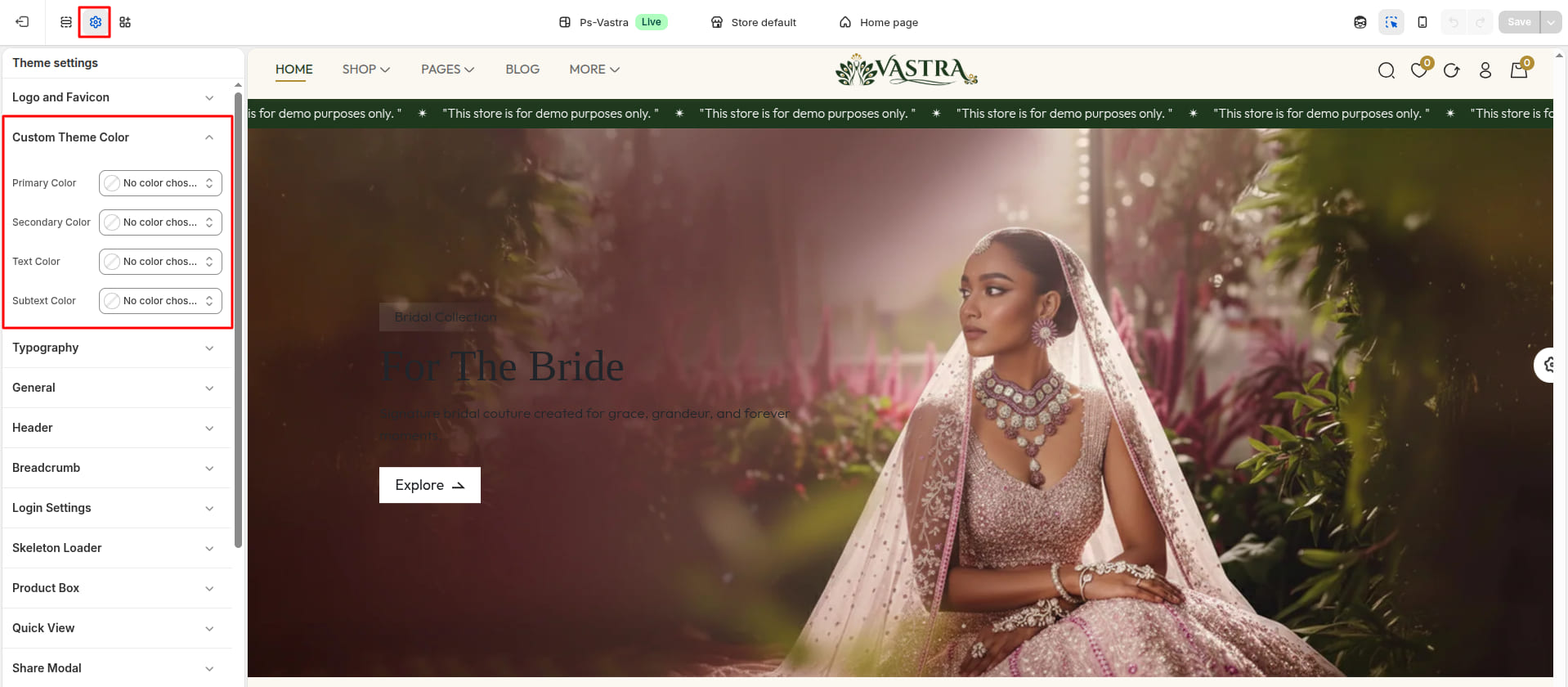
Custom Theme Color Settings
| Settings | Type | Default | Description |
|---|---|---|---|
| Primary Color | color_background | #b18e35 | Used across key elements like buttons, links, and highlights throughout the theme. |
| Secondary Color | color_background | #1e381e | Used for accents, backgrounds, and supporting UI elements across the theme. |
| Text Color | color_background | #212121 | Controls the color of headings and body text, ensuring clear readability and visual consistency across the store. |
| Subtext Color | color_background | #999999 | Used for secondary text such as descriptions, labels, and meta information to create visual hierarchy and improve readability. |
3Typography
- From your Shopify admin, go to Online Store -> Themes.
- Find the theme that you want to edit, and then click Edit Theme.
- Click Theme settings ->
Typography

Typography Settings
| Settings | Type | Description | Default |
|---|---|---|---|
| Headings Font | select | select the font style used for all headings across the theme. | Play Fair Display |
| Body Font | select | select the font used for main content text. | Outfit |
4General
- From your Shopify admin, go to Online Store -> Themes.
- Find the theme that you want to edit, and then click Edit Theme.
- Click Theme settings ->
General
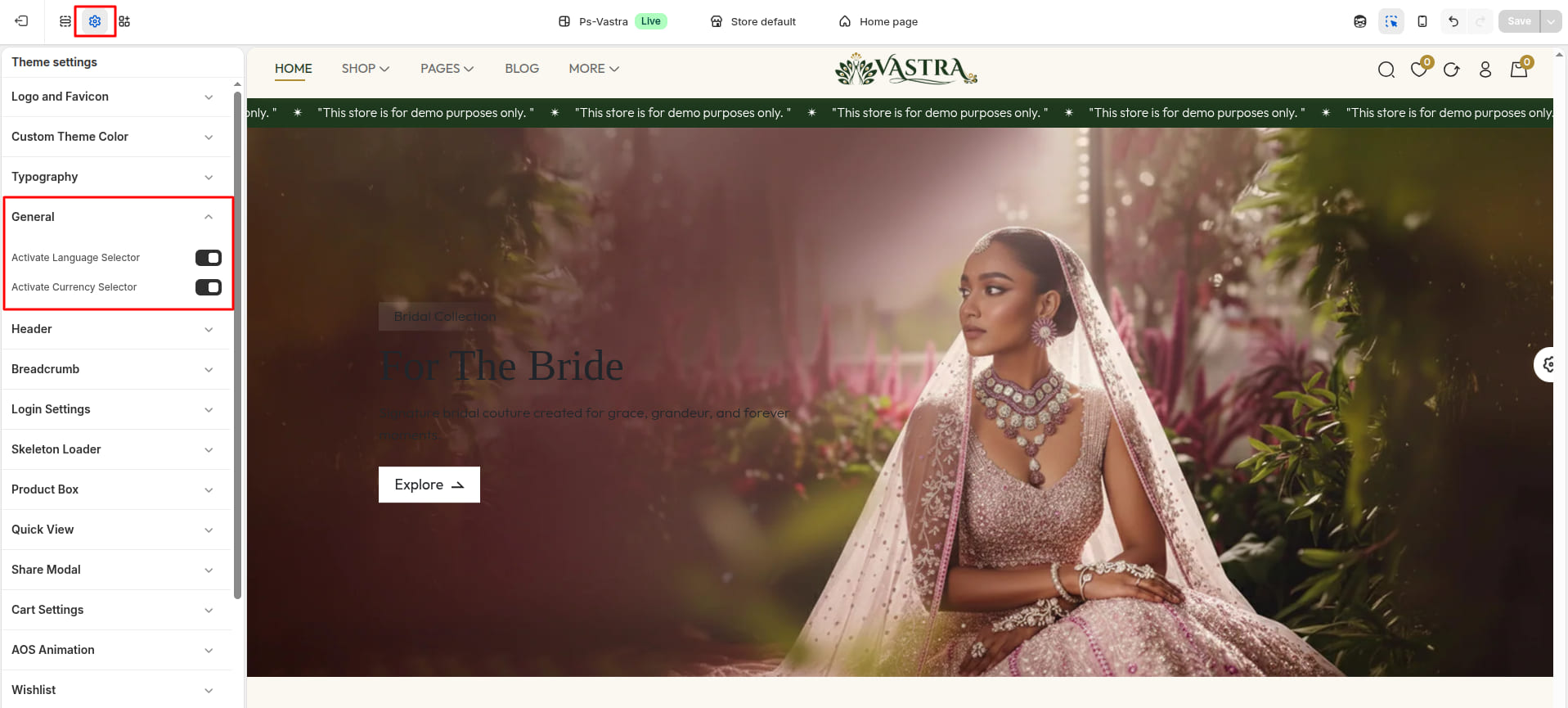
General Settings
| Settings | Type | Default | Description |
|---|---|---|---|
| Activate Language Selector | checkbox | true | Allowing customers to switch between available store languages easily. |
| Activate Currency Selector | checkbox | true | Enabling customers to view prices in their preferred currency. |
5Header
- From your Shopify admin, go to Online Store -> Themes.
- Find the theme that you want to edit, and then click Edit Theme.
- Click Theme settings ->
Header
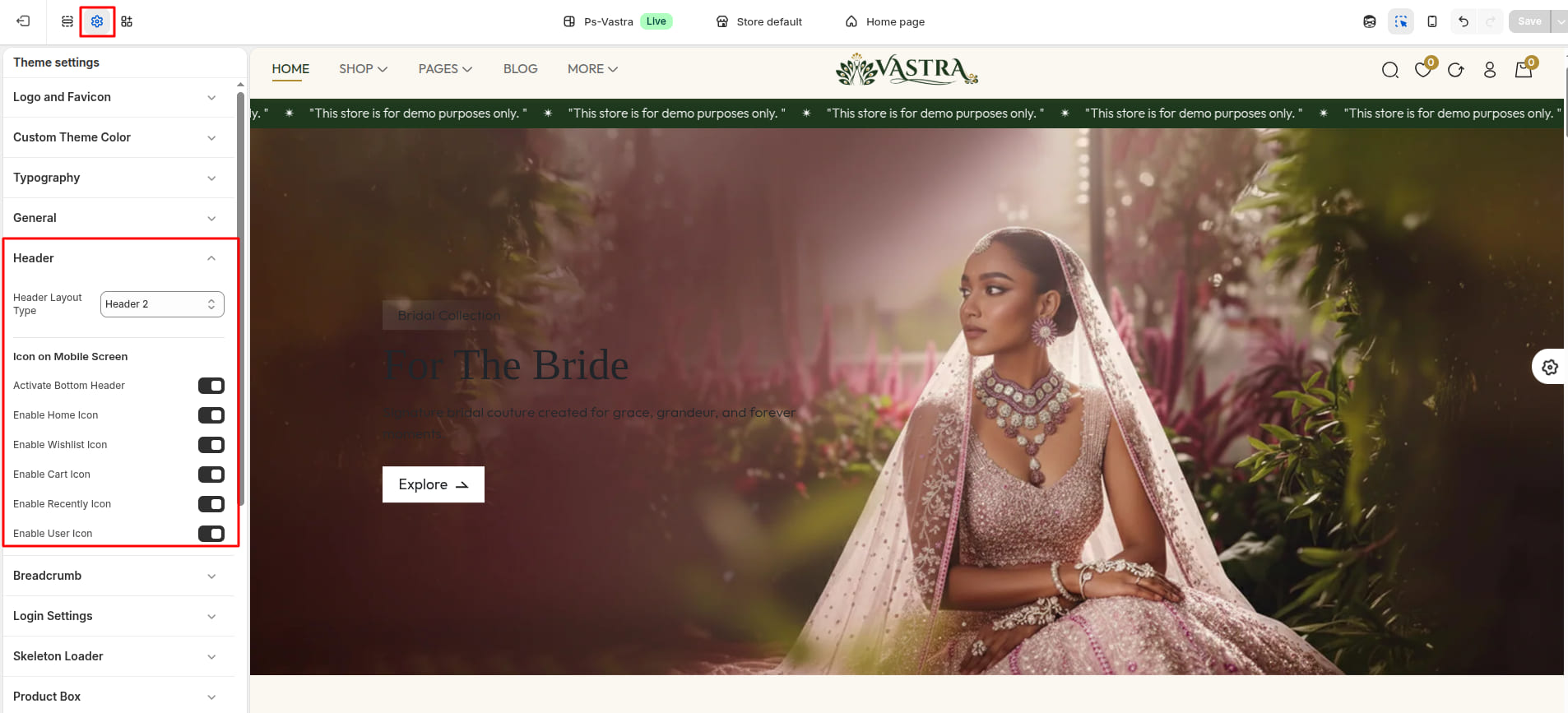
Header & Icon on Mobile Screen Settings
| Settings | Type | Description | Visibility |
|---|---|---|---|
| Header Layout Type | select | Controlling the placement of logo, navigation, and icons across the site. | Always Visible |
| Activate Bottom Header | checkbox | Ensuring a responsive and user-friendly layout on smaller devices. | Always Visible |
| Enable Home Icon | checkbox | Quickly return to the homepage from any page. | Visible when Active Bottom Header is true |
| Enable Wishlist Icon | checkbox | Quickly go to the wishlist from any page. | Visible when Active Bottom Header is true |
| Enable Cart Icon | checkbox | Quickly go to the cart from any page. | Visible when Active Bottom Header is true |
| Enable Search Icon | checkbox | Quickly access the store’s search functionality. | Visible when Active Bottom Header is true |
| Enable User Icon | checkbox | Quick access to login, register, or account pages. | Visible when Active Bottom Header is true |
6Breadcrumb
- From your Shopify admin, go to Online Store -> Themes.
- Find the theme that you want to edit, and then click Edit Theme.
- Click Theme settings ->
Breadcrumb

Breadcrumb Settings
| Settings | Type | Description | Visibility |
|---|---|---|---|
| Activate Breadcrumb | checkbox | page hierarchy to help users easily track their location within the store. | Always Visible |
| Breadcrumb Background | color_background | enhancing visibility and matching the store’s overall design. | Visible when Active Breadcrumb is true. |
| Breadcrumb Height | range | adjust the vertical size of the breadcrumb area on the page. | Visible when Active Breadcrumb is true. |
| Home Color | color_background | sets the color of the “Home” link in the breadcrumb. | Visible when Active Breadcrumb is true. |
| Home Font Size | range | controls the text size of the “Home” link. | Visible when Active Breadcrumb is true. |
| Home Font Weight | range | sets the thickness of the the “Home” link. | Visible when Active Breadcrumb is true. |
| Active Color | color_background | sets the color of the currently active page or link in the breadcrumb. | Visible when Active Breadcrumb is true. |
| Active Font Size | range | sets the tet size of the currently active page or link in the breadcrumb. | Visible when Active Breadcrumb is true. |
| Active Font Weight | range | sets the thickness of the currently active page or link in the breadcrumb. | Visible when Active Breadcrumb is true. |
7Skeleton Loader
- From your Shopify admin, go to Online Store -> Themes.
- Find the theme that you want to edit, and then click Edit Theme.
- Click Theme settings -> Skeleton
Loader
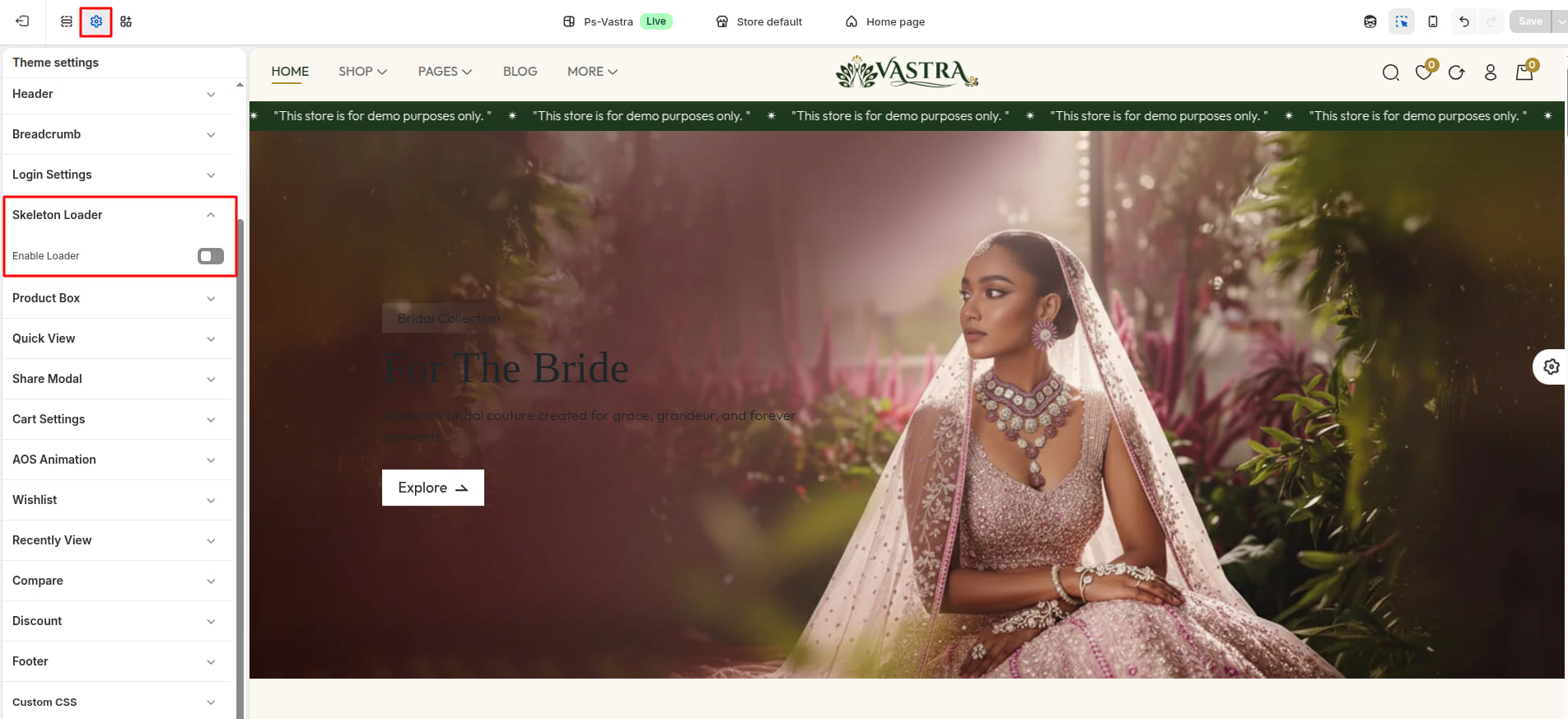
Skeleton Loader Settings
| Settings | Type | Description | visibility |
|---|---|---|---|
| Enable Loader | checkbox | appears while pages or content are loading, enhancing user experience. | Always Visible |
8Product Box
- From your Shopify admin, go to Online Store -> Themes.
- Find the theme that you want to edit, and then click Edit Theme.
- Click Theme settings -> Product
Box

Product Box Settings
| Settings | Type | Description | visibility |
|---|---|---|---|
| Enabled Variants | checkbox | Enable to show variants | Always Visible |
| Product Border Radius | range | Set the border radius of the product | Always Visible |
| Select Alignment | select (Start / Center / End) | Set the alignment of the product | Always Visible |
| Title Transform | select (Uppercase / Capitalize / Lowercase) | Set the text transform of the product title. | Always Visible |
| Title Color | color | Choose the color of the product title | Always Visible |
| Title Font Size | range | Set the font size of the product title | Always Visible |
| Title Font Weight | range | Set the font weight of the product title | Always Visible |
| Tag Color | color | Choose the color of the product tag | Always Visible |
| Tag Font Size | range | Set the font size of the product tag | Always Visible |
| Tag Font Weight | range | Set the font weight of the product tag | Always Visible |
| Price Color | color | Choose the color of the product price | Always Visible |
| Price Font Size | range | Set the font size of the product price | Always Visible |
| Price Font Weight | range | Set the font weight of the product price | Always Visible |
| Enable Compare Price | checkbox | Enable the compare price | Always Visible |
| Compare Price Color | color | Choose the color of the product compare price | visible when enable compare price is true. |
| Compare Price Font Size | range | Set the font size of the product compare price | visible when enable compare price is true. |
| Compare Price Font Weight | range | Set the font weight of the product compare price | visible when enable compare price is true. |
9Quick View
- From your Shopify admin, go to Online Store -> Themes.
- Find the theme that you want to edit, and then click Edit Theme.
- Click Theme settings -> quick
View

Quick View Settings
| Settings | Type | Description | visibility |
|---|---|---|---|
| Quick View Type | select (Modal / Offcanvas) | choose what type of quick view you want to use. | Always Visible |
10Share Modal
- From your Shopify admin, go to Online Store -> Themes.
- Find the theme that you want to edit, and then click Edit Theme.
- Click Theme settings -> Share
Modal

Share Modal Settings
| Settings | Type | Description | visibility |
|---|---|---|---|
| Enable Share Modal | checkbox | quickly share products or pages on social media platforms. | Always Visible |
| Modal Title | text | providing context or instructions for the content inside. | Visible when Enable Share Modal is true. |
| Facebook Link | url | Sets the URL for Facebook page. | Visible when Enable Share Modal is true. |
| Pintreset Link | url | Sets the URL for Pintreset page. | Visible when Enable Share Modal is true. |
| Twitter Link | url | Sets the URL for Twitter page. | Visible when Enable Share Modal is true. |
| Instagram Link | url | Sets the URL for Instagram page. | Visible when Enable Share Modal is true. |
11Cart Settings
- From your Shopify admin, go to Online Store -> Themes.
- Find the theme that you want to edit, and then click Edit Theme.
- Click Theme settings -> Cart
Settings

Cart Settings
| Settings | Type | Description | visibility |
|---|---|---|---|
| Cart Icon Action | select (Offcanvas / Popup / Page) | choose what happens when the cart icon is clicked. | Always Visible |
| Empty Cart GIF | image_picker | image or GIF displayed when the cart is empty. | Always Visible |
| Enable Cart Timer | checkbox | encouraging customers to complete their purchase faster. | Always Visible |
| Cart Timer Text | text | customize the message displayed when the cart timer is active. | Visible when Enable Cart Timer is true. |
| Cart Expiry Text | text | message shown when the cart timer expires. | Visible when Enable Cart Timer is true. |
| Cart Countdown Time in Seconds | text | defines how long the cart timer runs before expiring. | Visible when Enable Cart Timer is true. |
| You may like Type | select (Vertical / Horizontal) | how recommended products are displayed. | Always Visible |
12AOS Animation
- From your Shopify admin, go to Online Store -> Themes.
- Find the theme that you want to edit, and then click Edit Theme.
- Click Theme settings -> AOS
Animation
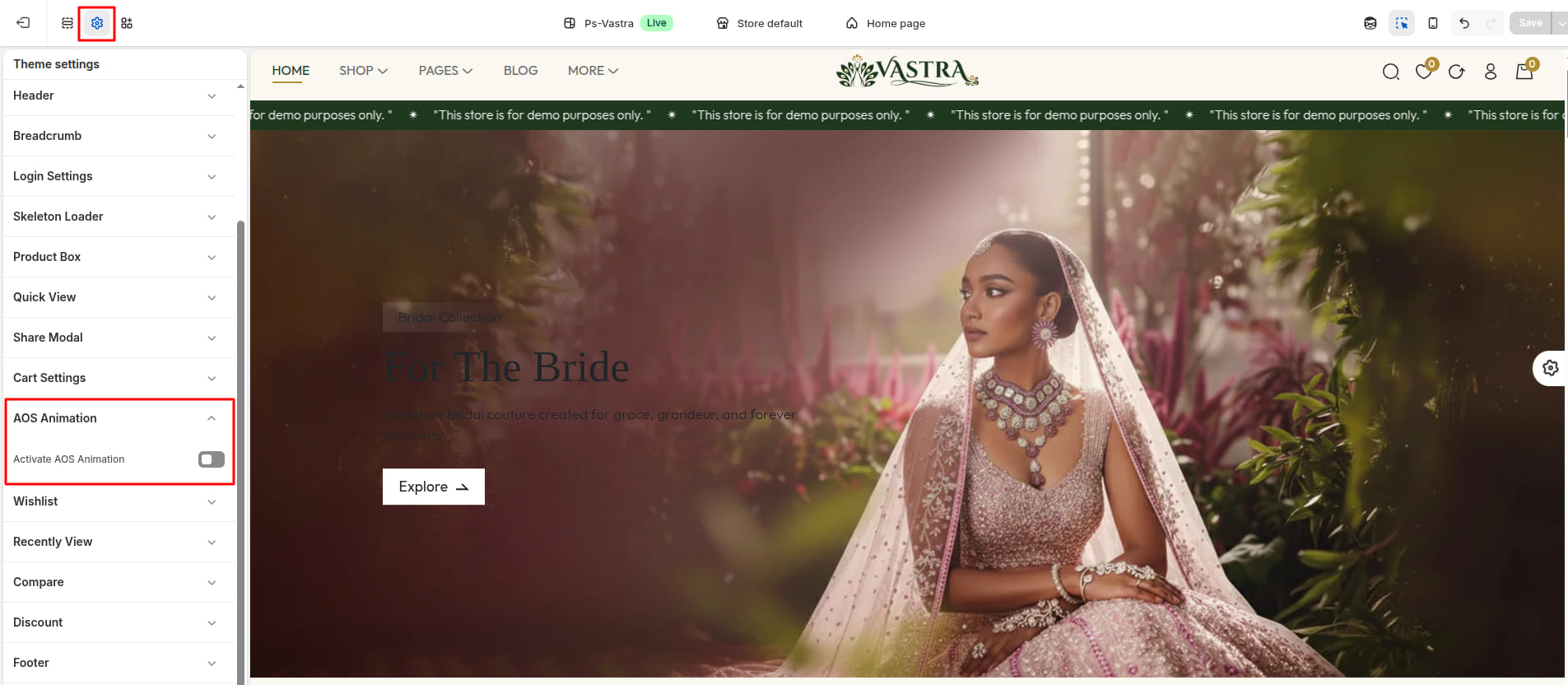
AOS Animation Settings
| Settings | Type | Description | visibility |
|---|---|---|---|
| Activate AOS Animation | checkbox | Adding smooth motion effects to elements as they appear while scrolling. | Always Visible |
13Product Zoom
- From your Shopify admin, go to Online Store -> Themes.
- Find the theme that you want to edit, and then click Edit Theme.
- Click Theme settings -> Product
Zoom

Product Zoom Settings
| Settings | Type | Description | visibility |
|---|---|---|---|
| Activate Product Media Zoom | checkbox | Adding a zoom effect to product media. | Always Visible |
14Wishlist
- From your Shopify admin, go to Online Store -> Themes.
- Find the theme that you want to edit, and then click Edit Theme.
- Click Theme settings ->
Wishlist

Wishlist Settings
| Settings | Type | Description | visibility |
|---|---|---|---|
| Empty Wishlist GIF | image_picker | GIF displayed when the wishlist is empty. | Always Visible |
15Recently View
- From your Shopify admin, go to Online Store -> Themes.
- Find the theme that you want to edit, and then click Edit Theme.
- Click Theme settings -> Recently
View
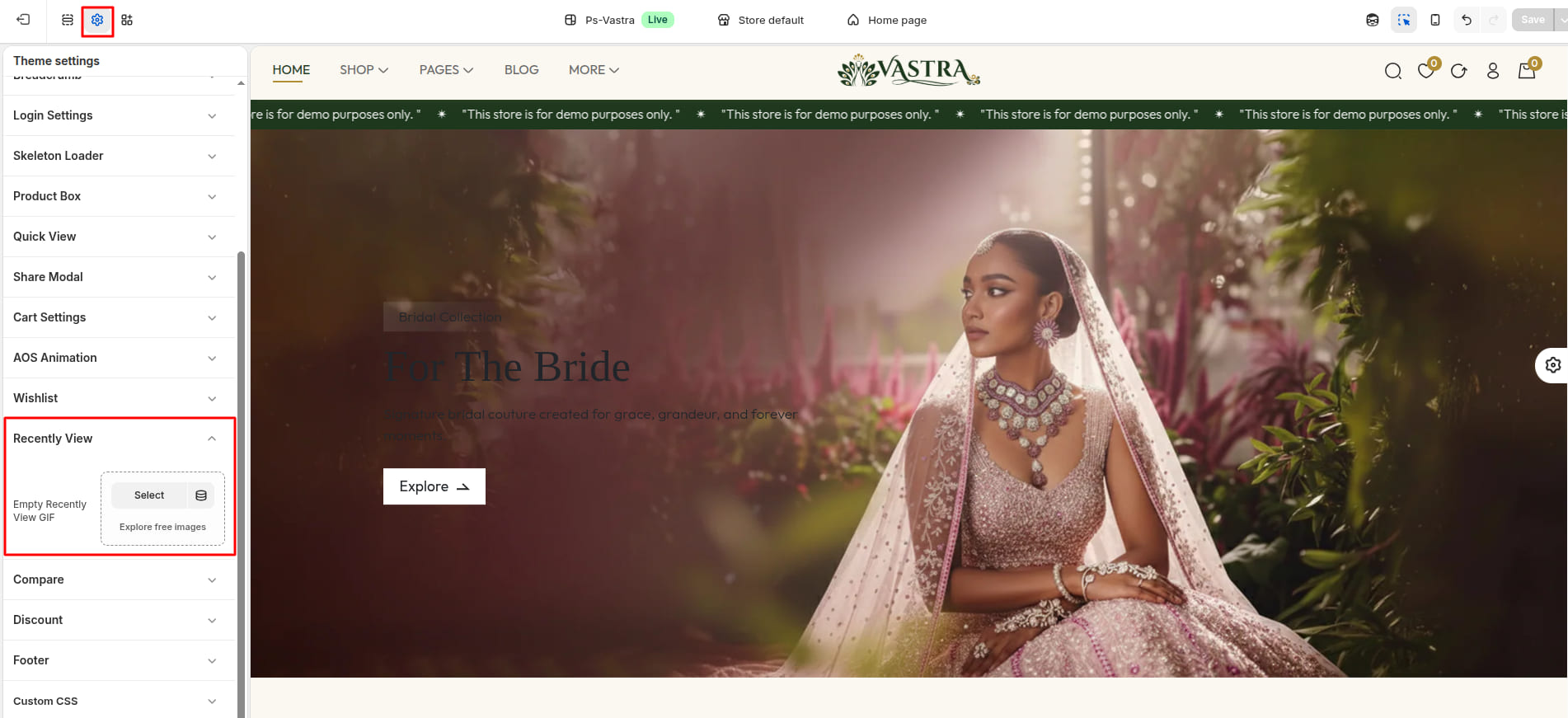
Recently View Settings
| Settings | Type | Description | visibility |
|---|---|---|---|
| Empty Recently View GIF | image_picker | GIF displayed when the recently view is empty. | Always Visible |
16Compare
- From your Shopify admin, go to Online Store -> Themes.
- Find the theme that you want to edit, and then click Edit Theme.
- Click Theme settings ->
Compare

Compare Settings
| Settings | Type | Description | visibility |
|---|---|---|---|
| Empty Compare GIF | image_picker | GIF displayed when the Compare is empty. | Always Visible |
17Discount
- From your Shopify admin, go to Online Store -> Themes.
- Find the theme that you want to edit, and then click Edit Theme.
- Click Theme settings ->
Discount

Discount Settings
| Settings | Type | Description | visibility |
|---|---|---|---|
| No. of Discount | Select | Select how many discount offers you want to display (up to 4). | Always Visible |
| Discount 1 – Quantity | Text | Enter the minimum product quantity required to apply the first discount. | Always Visible |
| Discount 1 – Discount | Text | Set the discount percentage for the first offer. | Always Visible |
| Discount 1 – Code | Text | Enter the discount coupon code for the first offer. | Always Visible |
| Discount 2 – Quantity | Text | Enter the quantity required to unlock the second discount offer. | Visible if No. of Discount > 1 |
| Discount 2 – Discount | Text | Set the discount percentage for the second offer. | Visible if No. of Discount > 1 |
| Discount 2 – Code | Text | Enter the discount coupon code for the second offer. | Visible if No. of Discount > 1 |
| Discount 3 – Quantity | Text | Enter the quantity required to unlock the third discount offer. | Visible if No. of Discount > 2 |
| Discount 3 – Discount | Text | Set the discount percentage for the third offer. | Visible if No. of Discount > 2 |
| Discount 3 – Code | Text | Enter the discount coupon code for the third offer. | Visible if No. of Discount > 2 |
| Discount 4 – Quantity | Text | Enter the quantity required to unlock the fourth discount offer. | Visible if No. of Discount > 3 |
| Discount 4 – Discount | Text | Set the discount percentage for the fourth offer. | Visible if No. of Discount > 3 |
| Discount 4 – Code | Text | Enter the discount coupon code for the fourth offer. | Visible if No. of Discount > 3 |
18Footer
- From your Shopify admin, go to Online Store -> Themes.
- Find the theme that you want to edit, and then click Edit Theme.
- Click Theme settings ->
Footer

Footer Settings
| Settings | Type | Description | visibility |
|---|---|---|---|
| Light Mode Footer Logo | image_picker | Upload an image to display brand logo in light mode. | Always Visible |
| Dark Mode Footer Logo | image_picker | Upload an image to display brand logo in Dark mode. | Always Visible |
Setup Pages
1Create Custom Page
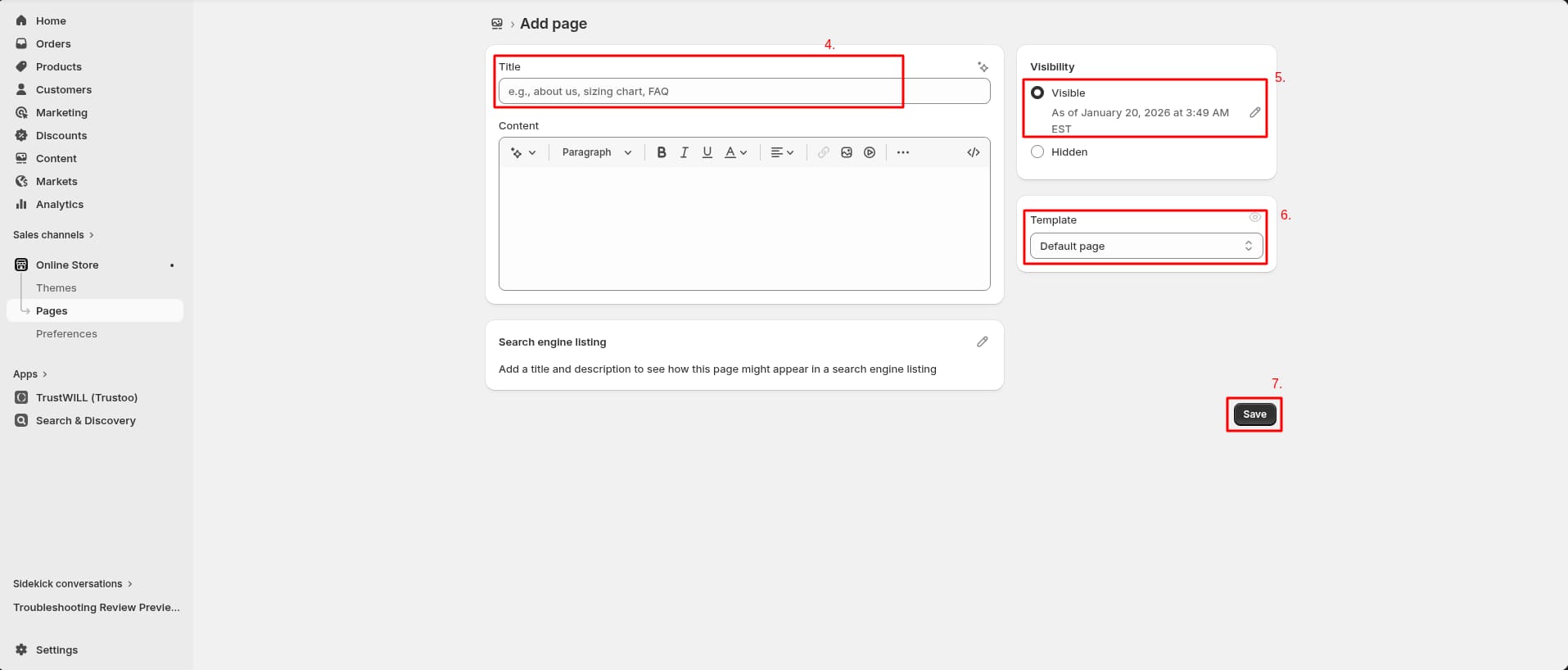
- Go to Admin Panel -> Online Store.
- Find and Select Pages.
- Click Add Page.

- After that, Enter title for the page.
- Set the page Visibility.
- Select template for which page you want to create.
- Click Save.
2About Us

Create About Us Page
- Go to Admin Panel -> Online Store.
- Find and Select Pages -> Add Page.
- After that, Enter Title (ex. About Us). Set the page Visibility.
- Select template for which page you want to create.
- Click Save.

Install Layout
- Click the file name to open and download the corresponding JSON layout in a new tab.(page.about-us.json)
- SELECT ALL and COPY.
- From your Shopify admin, go to
Themes -> Actions -> Edit Code.

- Find folder templates
-> Open file page.about-us.json -> SELECT
ALL and DELETE. PASTE the copied
preset from the external file.

Custom About Us Page
- Go to Admin Panel -> Online Store.
- Find and Select themes -> Edit Theme.
- Choose Pages from the
dropdown window.
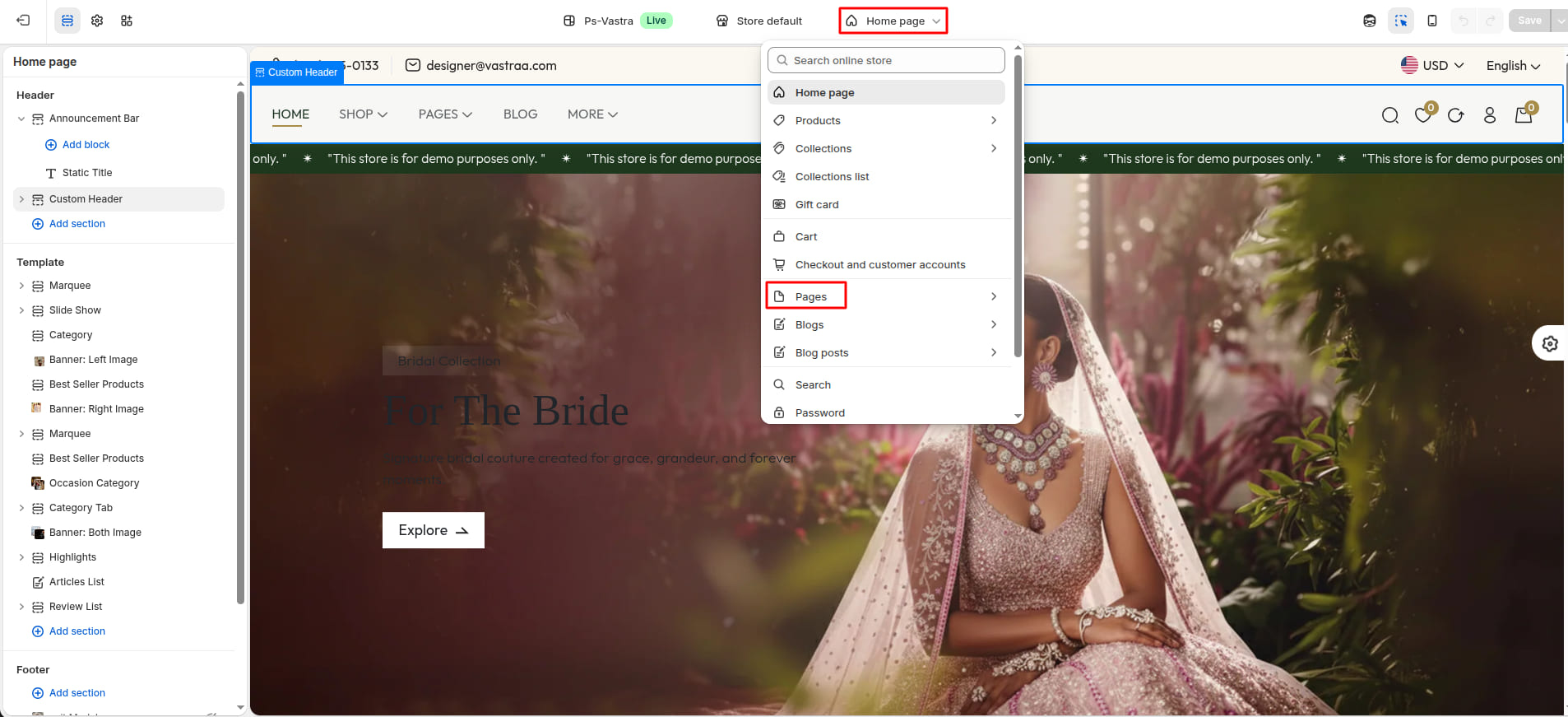
- After that, Choose template
about-us.

3Contact

Create Contact Page
- Go to Admin Panel -> Online Store.
- Find and Select Pages -> Add Page.
- After that, Enter Title (ex. Contact). Set the page Visibility.
- Select template for which page you want to create.
- Click Save.

Install Layout
- Click the file name to open and download the corresponding JSON layout in a new tab.(page.contact.json)
- SELECT ALL and COPY.
- From your Shopify admin, go to
Themes -> Actions -> Edit Code.
- Find folder templates
-> Open file page.contact.json -> SELECT
ALL and DELETE. PASTE the copied
preset from the external file.

Custom Contact Page
- Go to Admin Panel -> Online Store.
- Find and Select themes -> Edit Theme.
- Choose Pages from the
dropdown window.
- After that, Choose template
contact.

4Bundle Builder

Create Bundle Builder Page
- Go to Admin Panel -> Online Store.
- Find and Select Pages -> Add Page.
- After that, Enter Title (ex. Bundle Builder). Set the page Visibility.
- Select template for which page you want to create.
- Click Save.

Install Layout
- Click the file name to open and download the corresponding JSON layout in a new tab.(page.bundle-builder.json)
- SELECT ALL and COPY.
- From your Shopify admin, go to
Themes -> Actions -> Edit Code.
- Find folder templates
-> Open file page.bundle-builder.json ->
SELECT ALL and DELETE. PASTE the
copied preset from the external file.

Custom Bundle Builder Page
- Go to Admin Panel -> Online Store.
- Find and Select themes -> Edit Theme.
- Choose Pages from the
dropdown window.
- After that, Choose template
bundle-builder.

5Wishlist

Create Wishlist Page
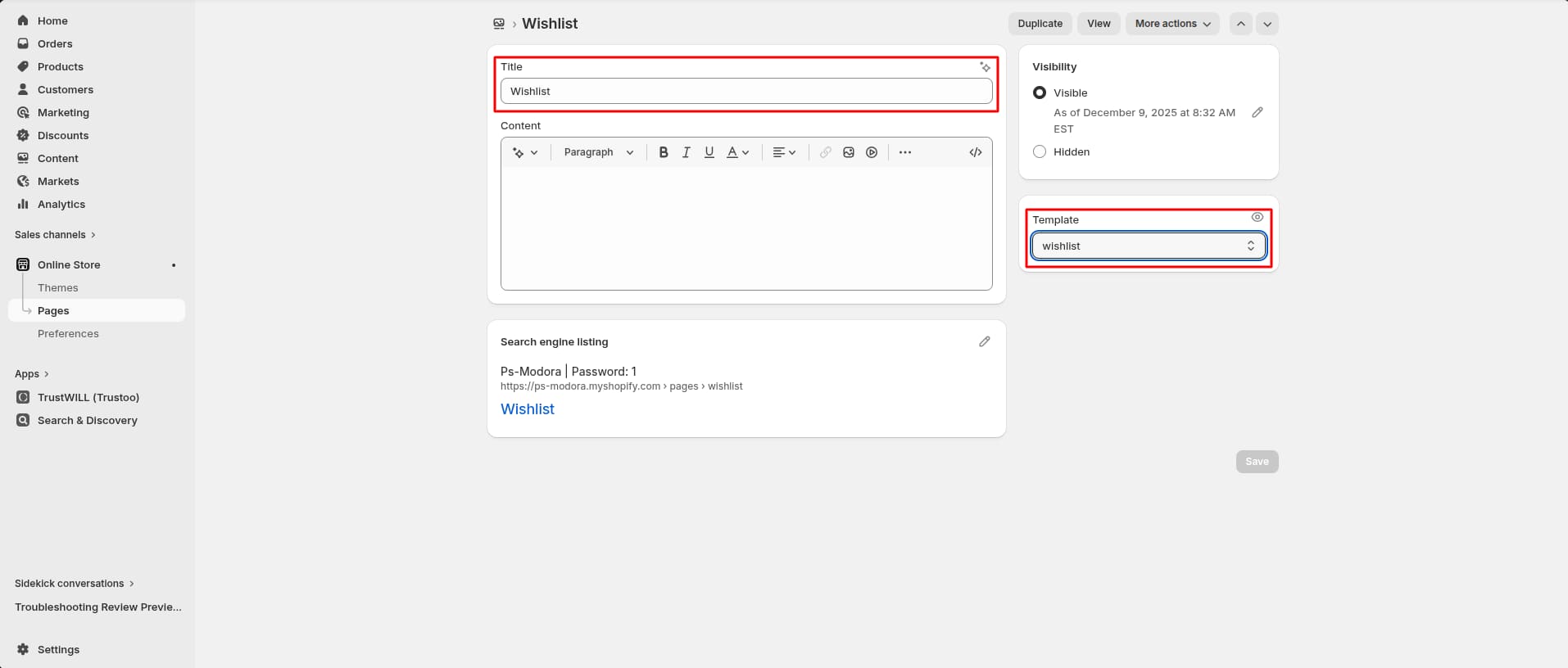
- Go to Admin Panel -> Online Store.
- Find and Select Pages -> Add Page.
- After that, Enter Title (ex. Wishlist). Set the page Visibility.
- Select template for which page you want to create.
- Click Save.
Install Layout
- Click the file name to open and download the corresponding JSON layout in a new tab.(page.wishlist.json)
- SELECT ALL and COPY.
- From your Shopify admin, go to
Themes -> Actions -> Edit Code.
- Find folder templates
-> Open file page.wishlist.json -> SELECT
ALL and DELETE. PASTE the copied
preset from the external file.

Custom Wishlist Page
- Go to Admin Panel -> Online Store.
- Find and Select themes -> Edit Theme.
- Choose Pages from the
dropdown window.
- After that, Choose template
wishlist.

6Compare

Create Compare Page
- Go to Admin Panel -> Online Store.
- Find and Select Pages -> Add Page.
- After that, Enter Title (ex. Compare). Set the page Visibility.
- Select template for which page you want to create.
- Click Save.

Install Layout
- Click the file name to open and download the corresponding JSON layout in a new tab.(page.compare.json)
- SELECT ALL and COPY.
- From your Shopify admin, go to
Themes -> Actions -> Edit Code.
- Find folder templates
-> Open file page.compare.json -> SELECT
ALL and DELETE. PASTE the copied
preset from the external file.

Custom Compare Page
- Go to Admin Panel -> Online Store.
- Find and Select themes -> Edit Theme.
- Choose Pages from the
dropdown window.
- After that, Choose template
compare.

7FAQ

Create FAQ Page
- Go to Admin Panel -> Online Store.
- Find and Select Pages -> Add Page.
- After that, Enter Title (ex. FAQ). Set the page Visibility.
- Select template for which page you want to create.
- Click Save.

Install Layout
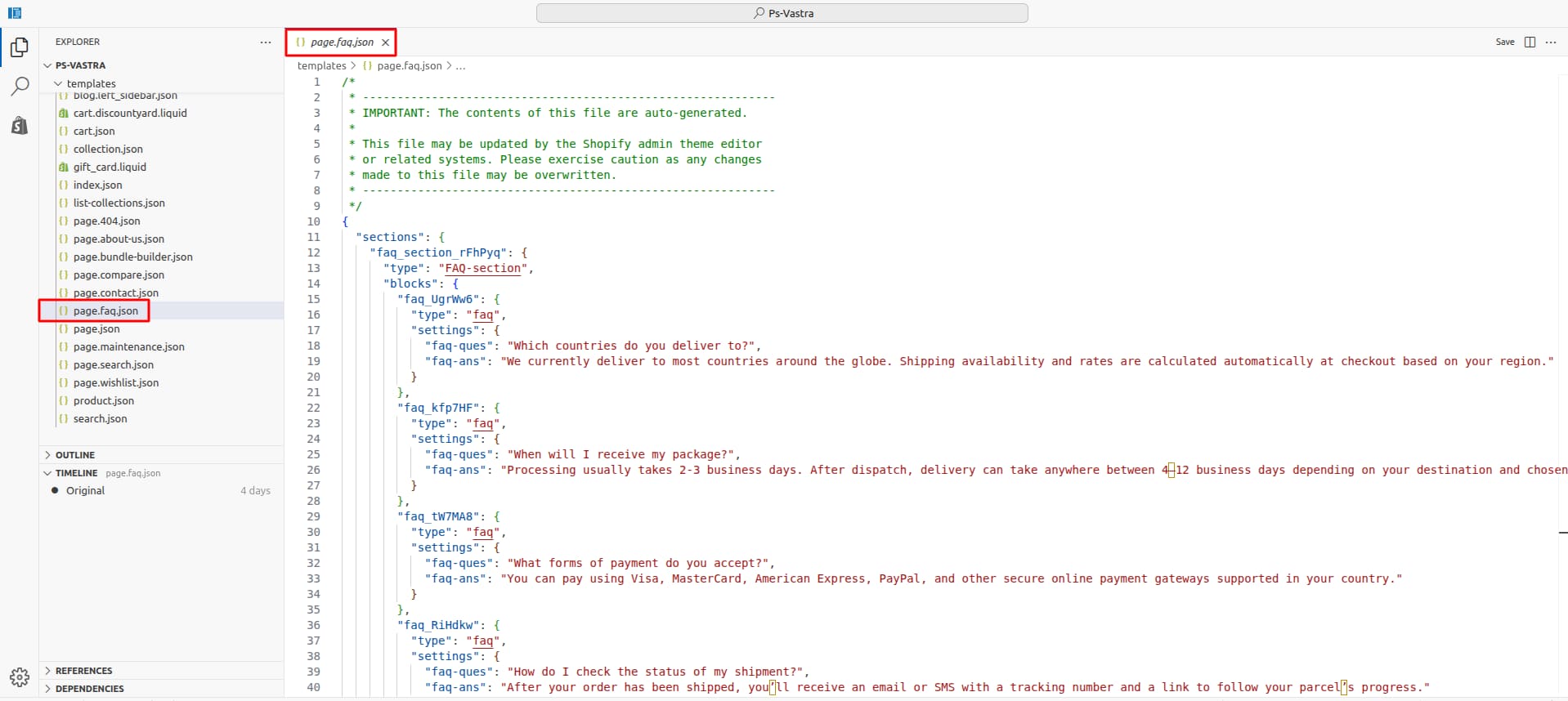
- Click the file name to open and download the corresponding JSON layout in a new tab.(page.faq.json)
- SELECT ALL and COPY.
- From your Shopify admin, go to
Themes -> Actions -> Edit Code.
- Find folder templates
-> Open file page.faq.json -> SELECT
ALL and DELETE. PASTE the copied
preset from the external file.
Custom FAQ Page
- Go to Admin Panel -> Online Store.
- Find and Select themes -> Edit Theme.
- Choose Pages from the
dropdown window.
- After that, Choose template
faq.

8404

Create 404 Page
- Go to Admin Panel -> Online Store.
- Find and Select Pages -> Add Page.
- After that, Enter Title (ex. 404). Set the page Visibility.
- Select template for which page you want to create.
- Click Save.

Install Layout
- Click the file name to open and download the corresponding JSON layout in a new tab.(page.404.json)
- SELECT ALL and COPY.
- From your Shopify admin, go to
Themes -> Actions -> Edit Code.
- Find folder templates
-> Open file page.404.json -> SELECT
ALL and DELETE. PASTE the copied
preset from the external file.

Custom 404 Page
- Go to Admin Panel -> Online Store.
- Find and Select themes -> Edit Theme.
- Choose Pages from the
dropdown window.
- After that, Choose template
404.

9Search

Install Layout
- Click the file name to open and download the corresponding JSON layout in a new tab.(search.json)
- SELECT ALL and COPY.
- From your Shopify admin, go to
Themes -> Actions -> Edit Code.
- Find folder templates
-> Open file search.json -> SELECT
ALL and DELETE. PASTE the copied
preset from the external file.

Custom search Page
- Go to Admin Panel -> Online Store.
- Find and Select themes -> Edit Theme.
- Choose search from the
dropdown window.

Header Section
1Install Layout
- Click the file name to open and download the corresponding JSON layout in a new tab.(header-group.json)
- SELECT ALL and COPY.
- From your Shopify admin, go to
Themes -> Actions -> Edit Code.
- Find folder section ->
Open file header-group.json -> SELECT ALL and
DELETE. PASTE the copied preset from the
external file.

2Announcement Bar
- From your Shopify admin, go to Themes -> Edit Theme.
- Click Add section and
choose "Announcement bar".

Supported Blocks
- Click Add block and
choose "Slider Title/ Static Title" according
to your requirement.

| Block Type | Setting Type | Description |
|---|---|---|
| Slider Title | text | Select Slider Text for scrolling text. |
| Static Title | text | Select Static Text for a fixed display. |
Section settings
Section settings make it easy to control how content appears on your store pages. Update text, images, and layout directly from the Theme Editor. Adjust spacing, colors, and alignment to match your brand style. Changes are applied instantly with live preview support.

| Settings | Type | Description | visibility |
|---|---|---|---|
| Background Color | color_background | Choose the background color for the announcement bar. | Always Visible |
| Height | range(px) | Set the height of the announcement bar. | Always Visible |
| Text Color | color_background | Set the text color to ensure readability and brand consistency. | Always Visible |
| Font Size | range(px) | Adjust the font size of the announcement text. | Always Visible |
| Font Weight | range | Adjust the font weight of the announcement text. | Always Visible |
| Marquee Display Mode | select (Static / Slider) | Choose how the announcement text is displayed. | Always Visible |
| Toggle Phone Visibility | checkbox | option to show or hide the announcement bar on phones. | Always Visible |
| Customer Phone Number | text | Add a phone number that customers can use to contact your store. | Visible When Customer Phone Number is true. |
| Toggle Email Visibility | checkbox | option to show or hide the announcement bar on Email. | Always Visible |
| Customer Email Address | color_background | Add a Email Address that customers can use to contact your store. | Visible When Customer Email Address is true |
| Font Size | range(px) | Adjust the font size of Language Selector. | Always Visible |
| Font Weight | range | Adjust the font weight of Language Selector. | Always Visible |
| Flag Border Radius | range(px) | Adjust the border radius of the Flag Selector. |
3Custom Header
- From your Shopify admin, go to Themes -> Edit Theme.
- Click Add section and
choose "Custom Header".

Supported Blocks
- Click Add block and
choose "Main Menu" according to your
requirement.

Block Settings
Add the Main Menu block to your header section.
Using the available settings inside this block, you can create
different types of menus such as single
links,dropdown menus, and
mega menus.
The same Main Menu block can be added
multiple times to build a fully customized navigation structure.
| Settings | Type | Description | Visibility |
|---|---|---|---|
| Navigation Menu Title | text | Set the heading or label displayed for this navigation menu. | Always Visible |
| Menu Display Type | select(Only Link / Dropdown / Mega Menu) | display style for this menu, such as a single link, dropdown, or mega menu. | Always Visible |
| Navigation Menu Link | url | Select the link for this navigation menu item. | Always Visible |
| Select Submenu | link_list | Select Slider Text for scrolling text. | Pick a submenu that will appear under the main menu item. |
| Select Mega Menu | link_list | Pick a mega menu that displays multiple columns and rich content. | Visible when menu type is mega menu. |
| Mega Menu Image 1 | image_picker | Upload an image for the first mega menu column. | Visible when menu type is mega menu. |
| Image 1 Link | url | Choose a page, collection, or URL to link with the first mega menu image. | Visible when menu type is mega menu. |
| Mega Menu Image 2 | image_picker | Upload an image for the second mega menu column. | Visible when menu type is mega menu. |
| Image 2 Link | url | Choose a page, collection, or URL to link with the second mega menu image. | Visible when menu type is mega menu. |
| Mega Menu Image 3 | image_picker | Upload an image for the third mega menu column. | Visible when menu type is mega menu. |
| Image 3 Link | url | Choose a page, collection, or URL to link with the third mega menu image. | Visible when menu type is mega menu. |
| Show Badge | checkbox | Enable or disable the badge for this menu item. | Always Visible |
| Text | text | Add custom text that will appear on menu item. | Visible when Show Badge is true. |
| Background Color | color_background | Set a background color for the badge. | Visible when Show Badge is true. |
| Color | color_background | Set a text color for the badge. | Visible when Show Badge is true. |
| DropDown Badge | checkbox | Enable or disable the badge for dropdown or mega menu items. | Visible when menu type is dropdown or mega menu. |
| Dropdown Badge Text | text | Add custom text that will appear on dropdown or mega menu item. | Visible when DropDown Badge is true. |
| Number | text | Specify the position where the badge should appear. | Visible when DropDown Badge is true. |
| Background Color | color_background | Set a background color for the dropdown badge. | Visible when DropDown Badge is true. |
| Color | color_background | Set a text color for the dropdown badge. | Visible when DropDown Badge is true. |
| Another Badge | checkbox | Enable a second badge for dropdown or mega menu item. | Visible when menu type is dropdown or mega menu. |
| Dropdown Badge Text | text | Add custom text that will appear on dropdown or mega menu item. | Visible when Another Badge is true. |
| Another Badge Number | text | Specify the position where the badge should appear. | Visible when Another Badge is true. |
| Background Color | color_background | Set a background color for the another badge. | Visible when Another Badge is true. |
| Color | color_background | Set a text color for the another badge. | Visible when Another Badge is true. |
Section settings
Section settings make it easy to control how content appears on your store pages. Update text, images, and layout directly from the Theme Editor. Adjust spacing, colors, and alignment to match your brand style. Changes are applied instantly with live preview support.
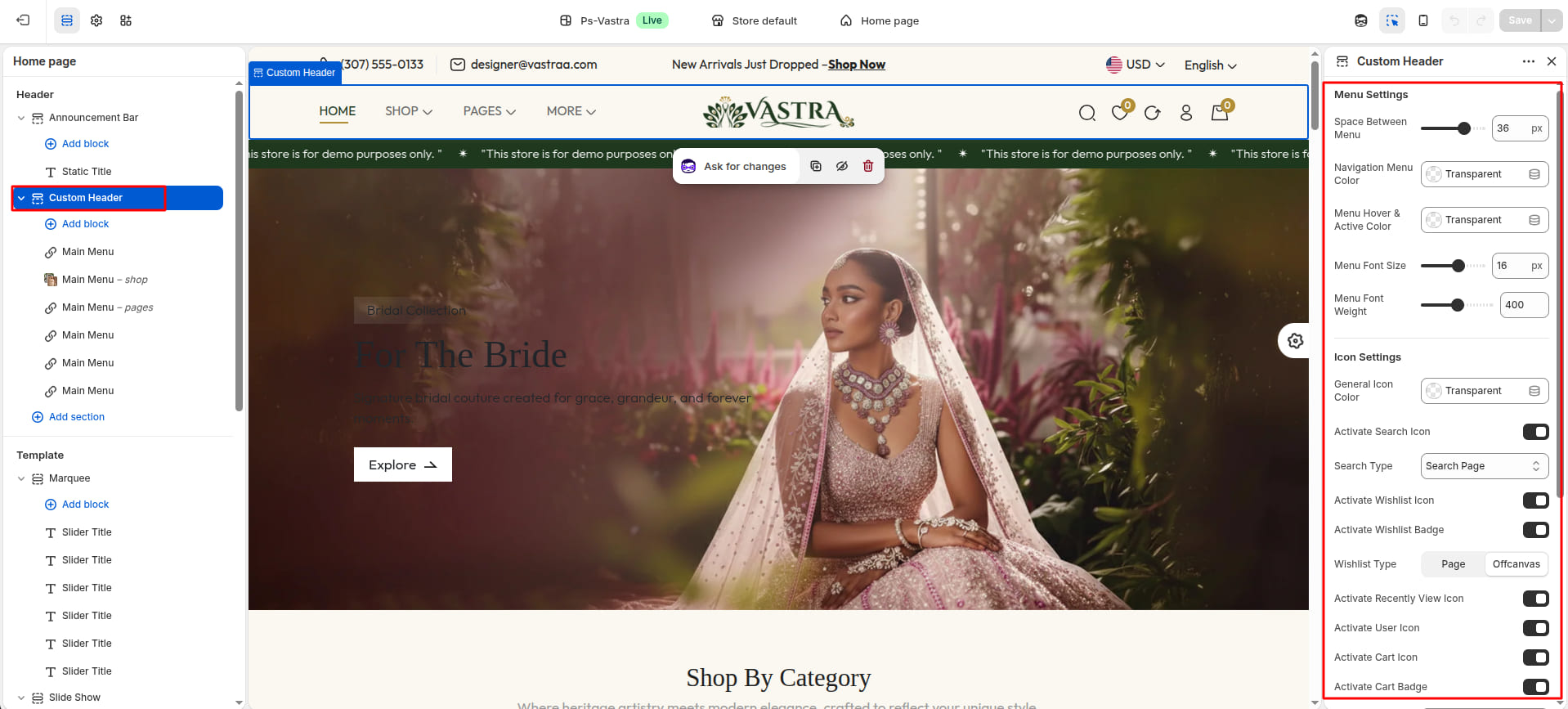
| Settings | Type | Description | visibility |
|---|---|---|---|
| Space Between Menu | range(px) | Adjust the spacing between menu items. | Always Visible |
| Navigation Menu Color | color_background | Set the menu text color to match your header design. | Always Visible |
| Menu Hover & Active Color | color_background | Set the hover and active color to highlight the selected menu item. | Always Visible |
| Menu Font Size | range(px) | Adjust the font size of the menu text. | Always Visible |
| Menu Font Weight | range | Adjust the font weight of the menu text. | Always Visible |
| General Icon Color | color_background | Set a consistent color for all icons to match your store’s design. | Always Visible |
| Activate Search Icon | checkbox | Enable or disable the search icon in the header. | Always Visible |
| Search Type | select (modal / page / offcanvas) | Choose how the search feature is displayed on your store. | Visible When Activate Search Icon is true. |
| Activate Wishlist Icon | checkbox | Enable or disable the wishlist icon in the header. | Always Visible |
| Activate Wishlist Badge | checkbox | Enable or disable the wishlist badge on wishlist Icon. | Visible When Activate Wishlist Icon is true |
| Wishlist Type | select (page / offcanvas) | Choose how the wishlist feature is displayed on your store. | Visible When Activate Wishlist Icon is true |
| Activate Recently View Icon | checkbox | Enable or disable the recently view icon in the header. | Always Visible |
| Activate Cart Icon | checkbox | Enable or disable the cart icon in the header. | Always Visible |
| Activate User Icon | checkbox | Enable or disable the user icon in the header. | Always Visible |
| Activate Cart Badge | checkbox | Enable or disable the cart badge on cart Icon. | Visible When Activate Cart Icon is true |
| Badge Background Color | color_background | Set a color that makes the badge stand out and matches your store design. | Always Visible |
| Badge Text Color | color_background | Set a badge text color that makes the badge stand out. | Always Visible |
| Badge Font Size | range(px) | Adjust the font size of the badge text. | Always Visible |
| Badge Font Weight | range | Adjust the font weight of the badge text. | Always Visible |
Footer Section
1Install Layout
- Click the file name to open and download the corresponding JSON layout in a new tab.(footer-group.json)
- SELECT ALL and COPY.
- From your Shopify admin, go to
Themes -> Actions -> Edit Code.
- Find folder section ->
Open file footer-group.json -> SELECT ALL and
DELETE. PASTE the copied preset from the
external file.

2Footer
- From your Shopify admin, go to Themes -> Edit Theme.
- Click Add section and
choose "Footer".

Supported Blocks
- Click Add block and
choose "Footer Navigation" according to your
requirement.

Block Settings
Use the Footer Navigation block to add footer navigation links. To configure the block, use the following settings:
| Settings | Type | Description | Visibility |
|---|---|---|---|
| Select Footer Menu | link_list | Choose the footer menu to be displayed. | Always Visible |
| Color | color | Choose the color of the Menu title text. | Always Visible |
| Font Size | range(px) | Adjust the font size of the Menu title text. | Always Visible |
| Font Weight | range | Adjust the font weight of the Menu title text. | Always Visible |
| Color | color | Choose the color of the Menu link. | Always Visible |
| Font Size | range(px) | Adjust the font size of the Menu link. | Always Visible |
| Font Weight | range | Adjust the font weight of the Menu link. | Always Visible |
Section settings
Section settings make it easy to control how content appears on your store pages. Update text, images, and layout directly from the Theme Editor. Adjust spacing, colors, and alignment to match your brand style. Changes are applied instantly with live preview support.

| Settings | Type | Description | visibility |
|---|---|---|---|
| Footer Layout | Select (Footer 1 / Footer 2 / Footer 3) | Choose the layout of the footer section. | Always Visible |
| Background Color | color_background | Choose the background color for the subscribe section. | Always Visible |
| Subscribe Text | text | Customize the message encouraging users to subscribe to your newsletter. | Always Visible |
| Text Color | color | Set the color of the subscribe title text. | Always Visible |
| Text Font Size | range(px) | Adjust the font size of the subscribe title text. | Always Visible |
| Text Font Weight | range | Adjust the font weight of the subscribe title text. | Always Visible |
| Input Background Color | color_background | Choose the background color for input fields. | Always Visible |
| Input Placeholder Color | color | Choose the placeholder color for input fields. | Always Visible |
| Input Placeholder Font Size | range(px) | Adjust the font size of the input placeholder. | Always Visible |
| Input Placeholder Font Weight | range | Adjust the font weight of the input placeholder. | Always Visible |
| Input Caret Color | color | Choose the caret color for input fields. | Always Visible |
| Subscribe Input Button Text | text | Customize the label for the subscription button to submit their email. | Always Visible |
| Subscribe Button Color | color | Choose the background color for the subscribe button. | Always Visible |
| Subscribe Button Font Size | range(px) | Adjust the font size of the subscribe button. | Always Visible |
| Subscribe Button Font Weight | range | Adjust the font weight of the subscribe button. | Always Visible |
| Subscribe Icon Color | color | Choose the icon color for the subscribe button. | Always Visible |
| Background Color | color_background | Choose the background color for the footer section. | Always Visible |
| Footer Description | text | Add a description for your store. | Always Visible |
| Customer Phone Number | text | Add a contact number that customers can use to reach your store. | Always Visible |
| Customer Email Address | text | Add a contact email that customers can use to reach your store. | Always Visible |
| Description Color | color | Choose the text color for the footer description. | Always Visible |
| Description Font Size | range(px) | Adjust the font size of the footer description. | Always Visible |
| Description Font weight | range | Adjust the font weight of the footer description. | Always Visible |
| Activate Facebook | checkbox | Enable or disable the Facebook link or icon. | Always Visible |
| Facebook Icon | html | Add custom HTML for the Facebook icon (e.g., SVG or icon class) to match your brand design and styling. | Visible When Activate Facebook is true |
| Facebook Link | url | Add the full link to your Facebook profile so customers can follow or visit your page. | Visible When Activate Facebook is true |
| Activate Twitter | checkbox | Enable or disable the Twitter link or icon. | Always Visible |
| Twitter Icon | html | Add custom HTML for the Twitter icon (e.g., SVG or icon class) to match your brand design and styling. | Visible When Activate Twitter is true |
| Twitter Link | url | Add the full link to your Twitter profile so customers can follow or visit your page. | Visible When Activate Twitter is true |
| Activate Instagram | checkbox | Enable or disable the Instagram link or icon. | Always Visible |
| Instagram Icon | html | Add custom HTML for the Instagram icon (e.g., SVG or icon class) to match your brand design and styling. | Visible When Activate Twitter is true |
| Instagram Link | url | Add the full link to your Instagram profile so customers can follow or visit your page. | Visible When Activate Twitter is true |
| Activate Youtube | checkbox | Enable or disable the Youtube link or icon. | Always Visible |
| Youtube Icon | html | Add custom HTML for the Youtube icon (e.g., SVG or icon class) to match your brand design and styling. | Visible When Activate Youtube is true |
| Youtube Link | url | Add the full link to your Youtube profile so customers can follow or visit your page. | Visible When Activate Twitter is true |
| Activate Pinterest | checkbox | Enable or disable the Pinterest link or icon. | Always Visible |
| Pinterest Icon | html | Add custom HTML for the Pinterest icon (e.g., SVG or icon class) to match your brand design and styling. | Visible When Activate Pinterest is true |
| Pinterest Link | url | Add the full link to your Pinterest profile so customers can follow or visit your page. | Visible When Activate Pinterest is true |
| Copyright Text | text | Add copyright information such as © year and store name. | Always Visible |
3Product popup
- From your Shopify admin, go to Themes -> Edit Theme.
- Click Add section and
choose "Product Popup".

Section settings
Section settings make it easy to control how content appears on your store pages. Update text, images, and layout directly from the Theme Editor. Adjust spacing, colors, and alignment to match your brand style. Changes are applied instantly with live preview support.

| Settings | Type | Description | visibility |
|---|---|---|---|
| Font Size | range(px) | Adjust the font size of the Badge text. | Always Visible |
| Font Weight | range | Adjust the font weight of the Badge text. | Always Visible |
| Background Color | color_background | Choose the background color for Badge text. | Always Visible |
| Color | color | Choose the text color for Badge text. | Always Visible |
| Border Radius | range(px) | Adjust the border radius of the Badge. | Always Visible |
| Space below Content | range(px) | Adjust the spacing below the content of the badge. | Always Visible |
| Font Size | range(px) | Adjust the font size of the message text. | Always Visible |
| Font Weight | range | Adjust the font weight of the message text. | Always Visible |
| Color | color | Choose the text color for message text. | Always Visible |
| Space below Content | range(px) | Adjust the spacing below the content of the message. | Always Visible |
| Font Size | range(px) | Adjust the font size of the product title. | Always Visible |
| Font Weight | range | Adjust the font weight of the product title. | Always Visible |
| Color | color | Choose the text color for product title. | Always Visible |
| Space below Content | range(px) | Adjust the spacing below the content of the product title. | Always Visible |
| Font Size | range(px) | Adjust the font size of the time text. | Always Visible |
| Font Weight | range | Adjust the font weight of the time text. | Always Visible |
| Color | color | Choose the text color for time text. | Always Visible |
| Font Size | range(px) | Adjust the font size of the icon. | Always Visible |
| Font Weight | range | Adjust the font weight of the icon. | Always Visible |
| Color | color | Choose the text color for icon. | Always Visible |
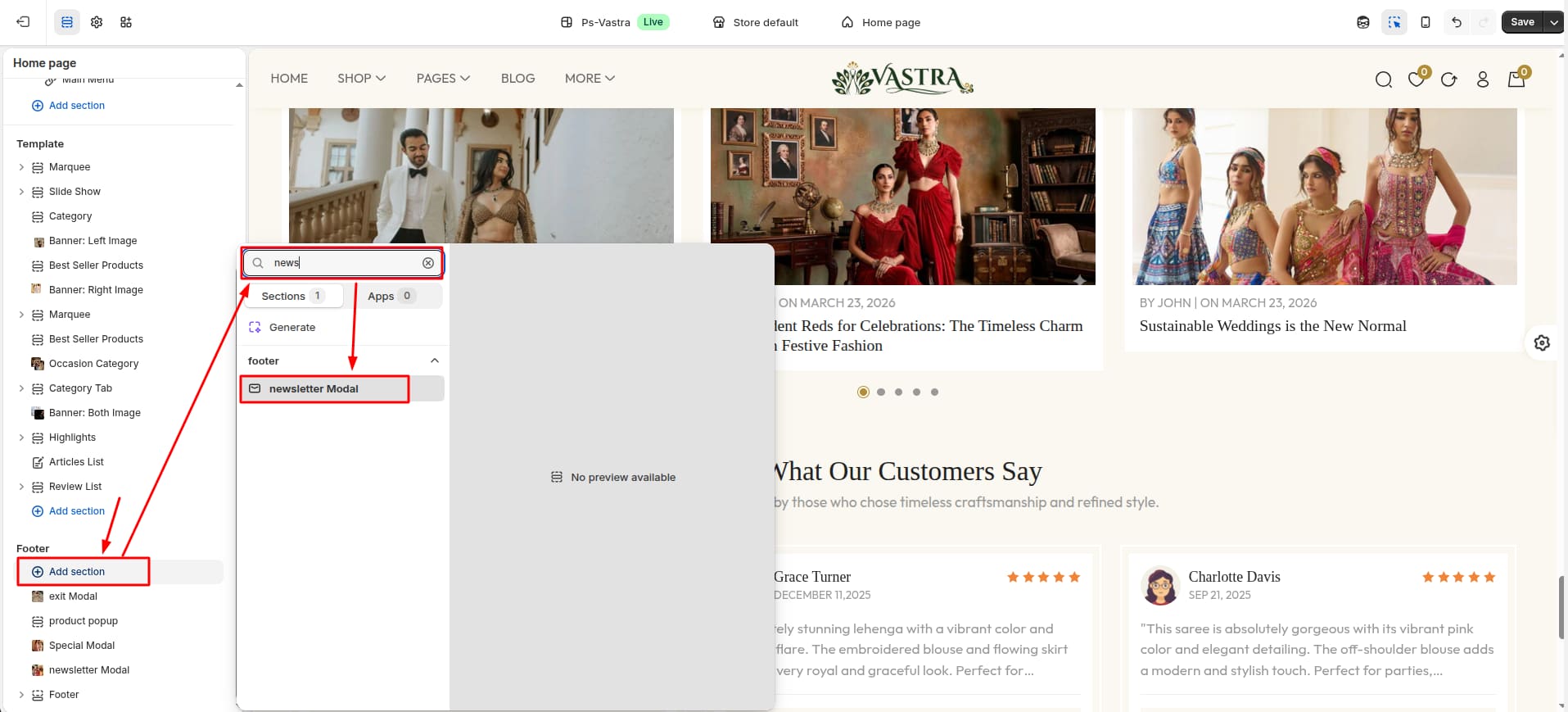
4Newsletter Modal
- From your Shopify admin, go to Themes -> Edit Theme.
- Click Add section and
choose "Newsletter Modal".
Section settings
Section settings make it easy to control how content appears on your store pages. Update text, images, and layout directly from the Theme Editor. Adjust spacing, colors, and alignment to match your brand style. Changes are applied instantly with live preview support.

| Settings | Type | Description | visibility |
|---|---|---|---|
| Select | select(Image / Video) | Select image or video for the newsletter modal. | Always Visible |
| Modal Image | image_picker | select image for the newsletter modal. | Visible when image is selected |
| Modal Video | video | select video for the newsletter modal. | Visible when video is selected |
| Text | text | Set the title text displayed in the newsletter modal. | Always Visible |
| Position | text_alignment | Adjust the title position in the newsletter modal. | Always Visible |
| Font Size | range(px) | Adjust the font size of the title text. | Always Visible |
| Font Weight | range | Adjust the font weight of the title text. | Always Visible |
| Color | color | Choose the text color for title text. | Always Visible |
| Space below Content | range(px) | Adjust the spacing below the content of the title. | Always Visible |
| Text | text | Set the description text displayed in the newsletter modal. | Always Visible |
| Font Size | range(px) | Adjust the font size of the description. | Always Visible |
| Font Weight | range | Adjust the font weight of the description. | Always Visible |
| Color | color | Choose the text color for description. | Always Visible |
| Space below Content | range(px) | Adjust the spacing below the content of the description. | Always Visible |
| Text | text | Set the email text displayed in the newsletter modal. | Always Visible |
| Text Position | text_alignment | Adjust the email box position in the newsletter modal. | Always Visible |
| Color | color | Choose the text color for email content. | Always Visible |
| Border Radius | range(px) | Adjust the border radius of the email input. | Always Visible |
| Space below Content | range(px) | Adjust the spacing below the content of the email. | Always Visible |
| Text | text | Set the button text displayed in the newsletter modal. | Always Visible |
| Font Size | range(px) | Adjust the font size of the button text. | Always Visible |
| Font Weight | range | Adjust the font weight of the button text. | Always Visible |
| Background Color | color_background | Choose the background color for button. | Always Visible |
| Color | color | Choose the text color for button. | Always Visible |
| Space below Content | range(px) | Adjust the spacing below the content of the button. | Always Visible |
| Checkbox Color | color_background | Choose the background color for the checkbox. | Always Visible |
5Exit Modal
- From your Shopify admin, go to Themes -> Edit Theme.
- Click Add section and
choose "Exit Modal".

Section settings
Section settings make it easy to control how content appears on your store pages. Update text, images, and layout directly from the Theme Editor. Adjust spacing, colors, and alignment to match your brand style. Changes are applied instantly with live preview support.
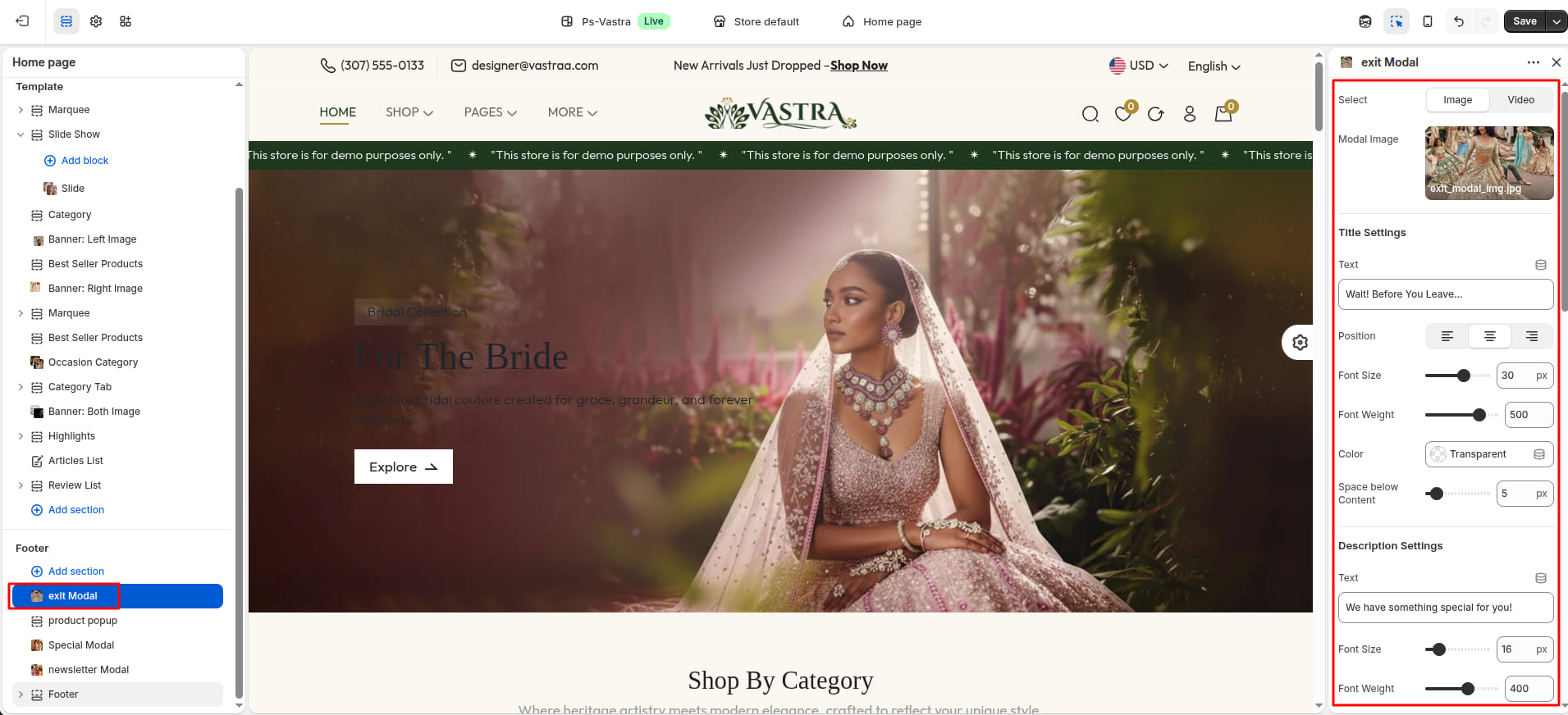
| Settings | Type | Description | visibility |
|---|---|---|---|
| Select | select(Image / Video) | Select image or video for the exit modal. | Always Visible |
| Modal Image | image_picker | select image for the exit modal. | Visible when image is selected |
| Modal Video | video | select video for the exit modal. | Visible when video is selected |
| Text | text | Set the title text displayed in the exit modal. | Always Visible |
| Position | text_alignment | Adjust the title position in the exit modal. | Always Visible |
| Font Size | range(px) | Adjust the font size of the title text. | Always Visible |
| Font Weight | range | Adjust the font weight of the title text. | Always Visible |
| Color | color | Choose the text color for title text. | Always Visible |
| Space below Content | range(px) | Adjust the spacing below the content of the title. | Always Visible |
| Text | text | Set the description text displayed in the exit modal. | Always Visible |
| Font Size | range(px) | Adjust the font size of the description. | Always Visible |
| Font Weight | range | Adjust the font weight of the description. | Always Visible |
| Color | color | Choose the text color for description. | Always Visible |
| Space below Content | range(px) | Adjust the spacing below the content of the description. | Always Visible |
| Text | text | Set the code text displayed in the exit modal. | Always Visible |
| Text Position | text_alignment | Adjust the code box position in the exit modal. | Always Visible |
| Background Color | color_background | Choose the background color for code content. | Always Visible |
| Color | color | Choose the text color for code content. | Always Visible |
| Border Radius | range(px) | Adjust the border radius of the code box. | Always Visible |
| Border Color | color | Choose the border color for code content. | Always Visible |
| Space below Content | range(px) | Adjust the spacing below the content of the code. | Always Visible |
| Text | text | Set the Discount Description text displayed in the exit modal. | Always Visible |
| Font Size | range(px) | Adjust the font size of the discount description. | Always Visible |
| Font Weight | range | Adjust the font weight of the discount description. | Always Visible |
| Color | color | Choose the text color for discount description content. | Always Visible |
| Space below Content | range(px) | Adjust the spacing below the content of the discount description. | Always Visible |
| Text | text | Set the button text displayed in the exit modal. | Always Visible |
| Font Size | range(px) | Adjust the font size of the button text. | Always Visible |
| Font Weight | range | Adjust the font weight of the button text. | Always Visible |
| Background Color | color_background | Choose the background color for button. | Always Visible |
| Color | color | Choose the text color for button. | Always Visible |
6Special Modal
- From your Shopify admin, go to Themes -> Edit Theme.
- Click Add section and
choose "Special Modal".

Section settings
Section settings make it easy to control how content appears on your store pages. Update text, images, and layout directly from the Theme Editor. Adjust spacing, colors, and alignment to match your brand style. Changes are applied instantly with live preview support.

| Settings | Type | Description | visibility |
|---|---|---|---|
| Select | select(Image/Video) | Select image or video for the special modal. | Always Visible |
| Modal Image | image_picker | select image for the special modal. | Visible when image is selected |
| Modal Video | video | select video for the special modal. | Visible when video is selected |
| Select Collection | collection | select collection for the special modal in show products. | Always Visible |
| Text | text | Set the title text displayed in the special modal. | Always Visible |
| Position | text_alignment | Adjust the title position in the special modal. | Always Visible |
| Font Size | range(px) | Adjust the font size of the title text. | Always Visible |
| Font Weight | range | Adjust the font weight of the title text. | Always Visible |
| Color | color | Choose the text color for title text. | Always Visible |
| Space below Content | range(px) | Adjust the spacing below the content of the title. | Always Visible |
| Text | text | Set the description text displayed in the special modal. | Always Visible |
| Font Size | range(px) | Adjust the font size of the description. | Always Visible |
| Font Weight | range | Adjust the font weight of the description. | Always Visible |
| Color | color | Choose the text color for description. | Always Visible |
| Space below Content | range(px) | Adjust the spacing below the content of the description. | Always Visible |
| Text | text | Set the code text displayed in the special modal. | Always Visible |
| Text Position | text_alignment | Adjust the code box position in the special modal. | Always Visible |
| Color | color | Choose the text color for code content. | Always Visible |
| Border Radius | range(px) | Adjust the border radius of the code box. | Always Visible |
| Border Color | color | Choose the border color for code content. | Always Visible |
| Space below Content | range(px) | Adjust the spacing below the content of the code. | Always Visible |
| Font Size | range(px) | Adjust the font size of the product title. | Always Visible |
| Font Weight | range | Adjust the font weight of product title. | Always Visible |
| Color | color | Choose the text color for product title. | Always Visible |
| Font Size | range(px) | Adjust the font size of the product price. | Always Visible |
| Font Weight | range | Adjust the font weight of product price. | Always Visible |
| Color | color | Choose the text color for product price. | Always Visible |
| Space below Content | range(px) | Adjust the spacing below the content of the product. | Always Visible |
| Text | text | Set the button text displayed in the special modal. | Always Visible |
| Font Size | range(px) | Adjust the font size of the button text. | Always Visible |
| Font Weight | range | Adjust the font weight of the button text. | Always Visible |
| Background Color | color_background | Choose the background color for button. | Always Visible |
| Color | color | Choose the text color for button. | Always Visible |
Home Section
1Install Layout
- Click the file name to open and download the corresponding JSON layout in a new tab.(index.json)
- SELECT ALL and COPY.
- From your Shopify admin, go to
Themes -> Actions -> Edit Code.
- Find folder templates
-> Open file index.json -> SELECT
ALL and DELETE. PASTE the copied
preset from the external file.
2Marquee
- From your Shopify admin, go to Themes -> Edit Theme.
- Click Add section and
choose "Marquee".

Supported Blocks
- Click Add block and
choose "Slider Title/ Static Title" according
to your requirement.

| Block Type | Setting Type | Description |
|---|---|---|
| Slider Title | text | Select Slider Text for scrolling text. |
| Static Title | text | Select Static Text for a fixed display. |
Section settings
Section settings make it easy to control how content appears on your store pages. Update text, images, and layout directly from the Theme Editor. Adjust spacing, colors, and alignment to match your brand style. Changes are applied instantly with live preview support.

| Settings | Type | Description | visibility |
|---|---|---|---|
| Background Color | color_background | Choose the background color for the marquee. | Always Visible |
| Height | range(px) | Set the height of the marquee. | Always Visible |
| Text Color | color | Set the text color to ensure readability and brand consistency. | Always Visible |
| Font Size | range(px) | Adjust the font size of the marquee text. | Always Visible |
| Font Weight | range | Adjust the font weight of the marquee text. | Always Visible |
| Marquee Display Mode | select (Static / Slider) | Choose how the marquee text is displayed. | Always Visible |
| Marquee Speed | range | Adjust the speed at which the marquee scrolls. | Visible when Marquee Display Mode is set to Slider. |
3Slide Show - Classic
- From your Shopify admin, go to Themes -> Edit Theme.
- Click Add section and
choose "Slide Show-Classic".

Supported Blocks
- Click Add block and
choose "Slider" according to your requirement.

Block Settings
Use the Slider block to add multiple Slide in a single section.Also, for customizing the slide, use the following settings:
| Settings | Type | Description | Visibility |
|---|---|---|---|
| Background Image | image_picker | Upload an background image for the banner. | Always Visible |
| Show Other Image | checkbox | When enabled, the other image will be visible. | Always Visible |
| Other Image | image_picker | Upload an other image for the banner. | Visible when Show Other Image is true. |
| Other Image Position | text_alignment | Choose the position of the other image. | Visible when Show Other Image is true. |
| Text | text | Enter the text for the slider sub heading. | Always Visible |
| Font Size | range(px) | Adjust the font size of the slider sub heading. | Always Visible |
| Font Weight | range | Adjust the font weight of the slider sub heading. | Always Visible |
| Color | color | Choose the color of the slider sub heading. | Always Visible |
| Text | text | Enter the text for the slider heading. | Always Visible |
| Font Size | range(px) | Adjust the font size of the slider heading. | Always Visible |
| Font Weight | range | Adjust the font weight of the slider heading. | Always Visible |
| Color | color | Choose the text color of the slider heading. | Always Visible |
| Top Space | range(px) | Adjust the top space of the slider heading and sub heading. | Always Visible |
| Text Transform | select (Uppercase / Lowercase / Capitalize / auto) | Choose the text transform of the slider heading and sub heading. | Always Visible |
| Text Alignment | text_alignment | Choose the text alignment of the slider heading and sub heading. | Always Visible |
| Text | text | Enter the text for the slider description. | Always Visible |
| Font Size | range(px) | Adjust the font size of the slider description. | Always Visible |
| Font Weight | range | Adjust the font weight of the slider description. | Always Visible |
| Color | color | Choose the text color of the slider description. | Always Visible |
| Bottom Border Width | range(px) | Adjust the bottom border width of the slider description. | Always Visible |
| Border Color | color | Choose the border color of the slider description. | Always Visible |
| Text | text | Enter the text for the slider button. | Always Visible |
| URL | url | Select the URL for the slider button. | Always Visible |
| Font Size | range(px) | Adjust the font size of the slider button. | Always Visible |
| Font Weight | range | Adjust the font weight of the slider button. | Always Visible |
| Background Color | color_background | Choose the background color of the slider button. | Always Visible |
| Color | color | Choose the text color of the slider button. | Always Visible |
| Position | text_alignment | Choose the position of the slider description and button. | Always Visible |
| Left / Right Space | range(px) | Adjust the left / right space of the slider description and button. | Always Visible |
| Space Between Text and Button | range(px) | Adjust the space between the slider description and button. | Always Visible |
| Text Alignment | text_alignment | Choose the text alignment of the slider description and button. | Always Visible |
Section settings
Section settings make it easy to control how content appears on your store pages. Update text, images, and layout directly from the Theme Editor. Adjust spacing, colors, and alignment to match your brand style. Changes are applied instantly with live preview support.

| Settings | Type | Description | visibility |
|---|---|---|---|
| Show Features Box | checkbox | When enabled, the features box will be visible. | Always Visible |
| Features Outer Box Color | color | Choose the color of the features outer box. | Visible when Show Features Box is true. |
| Features Inner Box Color | color | Choose the color of the features inner box. | Visible when Show Features Box is true. |
| Icon Position | select(Top / Center / End / New Line) | Choose the position of the icon. | Visible when Show Features Box is true. |
| Text Alignment | text_alignment | Choose the text alignment of the features box. | Visible when Icon Position is New Line. |
| Border Color | color | Choose the color of the features between border. | Visible when Show Features Box is true. |
| Show First Feature | checkbox | When enabled, the first feature will be visible. | Visible when Show Features Box is true. |
| Image | image_picker | Upload an image to be displayed in the first features box. | Visible when Show First Features is true. |
| Title | text | Enter the title of the first features box. | Visible when Show First Features is true. |
| Description | text | Enter the description of the first features box. | Visible when Show First Features is true. |
| Show Second Feature | checkbox | When enabled, the second feature will be visible. | Visible when Show Features Box is true. |
| Image | image_picker | Upload an image to be displayed in the second features box. | Visible when Show Second Features is true. |
| Title | text | Enter the title of the second features box. | Visible when Show Second Features is true. |
| Description | text | Enter the description of the second features box. | Visible when Show Second Features is true. |
| Show Third Feature | checkbox | When enabled, the third feature will be visible. | Visible when Show Features Box is true. |
| Image | image_picker | Upload an image to be displayed in the third features box. | Visible when Show Third Features is true. |
| Title | text | Enter the title of the third features box. | Visible when Show Third Features is true. |
| Description | text | Enter the description of the third features box. | Visible when Show Third Features is true. |
| Font Size | range(px) | Adjust the font size of the feature title. | Visible when Show Features Box is true. |
| Font Weight | range | Adjust the font weight of the feature title. | Visible when Show Features Box is true. |
| Color | color | Choose the color of the feature title. | Visible when Show Features Box is true. |
| Font Size | range(px) | Adjust the font size of the feature description. | Visible when Show Features Box is true. |
| Font Weight | range | Adjust the font weight of the feature description. | Visible when Show Features Box is true. |
| Color | color | Choose the color of the feature description. | Visible when Show Features Box is true. |
| Activate Slider Dots | checkbox | When enabled, the slider dots will be visible. | Always Visible |
| Active Color | color_background | Choose the color of the active slider dot. | Visible when Active Slider Dots is true. |
| Inactive Color | color_background | Choose the color of the inactive slider dot. | Visible when Active Slider Dots is true. |
4Category
- From your Shopify admin, go to Themes -> Edit Theme.
- Click Add section and
choose "Category".

Section settings
Section settings make it easy to control how content appears on your store pages. Update text, images, and layout directly from the Theme Editor. Adjust spacing, colors, and alignment to match your brand style. Changes are applied instantly with live preview support.

| Settings | Type | Description | visibility |
|---|---|---|---|
| Select Alignment | text_alignment | Select the alignment of the section heading. | Always Visible |
| Text | text | Enter the section heading. | Always Visible |
| Color | color | Choose the color for the section heading. | Always Visible |
| Font Size | range(px) | Adjust the font size for the section heading. | Always Visible |
| Font Weight | range | Adjust the font weight for the section heading. | Always Visible |
| Text | text | Enter the section Description. | Always Visible |
| Color | color | Choose the color for the section description. | Always Visible |
| Font Size | range(px) | Adjust the font size for the section description. | Always Visible |
| Font Weight | range | Adjust the font weight for the section description. | Always Visible |
| Collection Type | Select | Select whether the collection is displayed as a Slider or Static layout. | Always Visible |
| collections | collection_list | Select the collections you want to display. | Always Visible |
| Collections per Row | range | Adjust the number of collections displayed per row. | Visible when Collection Type is set to static. |
| Slides Visible | range | Adjust the number of slides displayed. | Visible when Collection Type is set to slider. |
| Slides Per Scroll | range | Adjust the number of slides displayed per scroll. | Visible when Collection Type is set to slider. |
| Autoplay Mode | checkbox | When enabled, the collection slider plays automatically. | Visible when Collection Type is set to slider. |
| Autoplay Interval Speed | range | Set the time interval between each slide transition. | Visible when Collection Type is set to slider and Autoplay Mode is true |
| Loop Slides (Infinite Scroll) | checkbox | When enabled, slides restart automatically after the last item. | Visible when Collection Type is set to slider. |
| Activate Slider Arrows | checkbox | When enabled, slider arrows are displayed. | Visible when Collection Type is set to slider. |
| Activate Slider Dots | checkbox | When enabled, slider dots are displayed. | Visible when Collection Type is set to slider. |
| Active Dot Color | color | Choose the color of the active slider dot. | Visible when Active slider dot is enabled. |
| Inactive Dot Color | color | Choose the color of the inactive slider dot. | Visible when Active slider dot is enabled. |
| Category Border Color | color | Choose the border color of the category. | Always Visible |
| Category Gradiant Color | color | Choose the Gradiant color of the category. | Always Visible |
| Background Color | color_background | Choose the background color of the category title. | Always Visible |
| Text Color | color | Choose the color of the category title text. | Always Visible |
| Font Size | range(px) | Adjust the font size of the category title. | Always Visible |
| Font Weight | range | Adjust the font weight of the category title. | Always Visible |
| Border Color | color | Choose the border color of the category title. | Always Visible |
5Banner: Left Image
- From your Shopify admin, go to Themes -> Edit Theme.
- Click Add section and
choose "Banner: Left Image".

Section settings
Section settings make it easy to control how content appears on your store pages. Update text, images, and layout directly from the Theme Editor. Adjust spacing, colors, and alignment to match your brand style. Changes are applied instantly with live preview support.

| Settings | Type | Description | visibility |
|---|---|---|---|
| Select Left Image | image_picker | Select the left image for the section. | Always Visible |
| Select Right Bg Image | image_picker | Select the right background image for the section. | Always Visible |
| Text | text | Enter the banner caption text. | Always Visible |
| Color | color | Choose the color for the banner caption text. | Always Visible |
| Font Size | range(px) | Adjust the font size for the banner caption. | Always Visible |
| Font Weight | range | Adjust the font weight for the banner caption. | Always Visible |
| Text | text | Enter the banner title text. | Always Visible |
| Color | color | Choose the color for the banner title text. | Always Visible |
| Font Size | range(px) | Adjust the font size for the banner title. | Always Visible |
| Font Weight | range | Adjust the font weight for the banner title. | Always Visible |
| Text | text | Enter the banner subtitle text. | Always Visible |
| Color | color | Choose the color for the banner subtitle text. | Always Visible |
| Font Size | range(px) | Adjust the font size for the banner subtitle. | Always Visible |
| Font Weight | range | Adjust the font weight for the banner subtitle. | Always Visible |
| Text | text | Enter the banner button text. | Always Visible |
| Url | url | Enter the url for the banner button. | Always Visible |
| Background Color | color_background | Choose the background color for the banner button. | Always Visible |
| Color | color | Choose the color for the banner button text. | Always Visible |
| Font Size | range(px) | Adjust the font size for the banner button. | Always Visible |
| Font Weight | range | Adjust the font weight for the banner button. | Always Visible |
6Best Seller Products
- From your Shopify admin, go to Themes -> Edit Theme.
- Click Add section and
choose "Best seller Products".

Section settings
Section settings make it easy to control how content appears on your store pages. Update text, images, and layout directly from the Theme Editor. Adjust spacing, colors, and alignment to match your brand style. Changes are applied instantly with live preview support.

| Settings | Type | Description | visibility |
|---|---|---|---|
| Select Collection | collection | Select the collection you want to display. | Always Visible |
| Select Alignment | text_alignment | Select the alignment of the section heading. | Always Visible |
| Text | text | Enter the section heading. | Always Visible |
| Color | color | Choose the color for the section heading. | Always Visible |
| Font Size | range(px) | Adjust the font size for the section heading. | Always Visible |
| Font Weight | range | Adjust the font weight for the section heading. | Always Visible |
| Text | text | Enter the section Description. | Always Visible |
| Color | color | Choose the color for the section description. | Always Visible |
| Font Size | range(px) | Adjust the font size for the section description. | Always Visible |
| Font Weight | range | Adjust the font weight for the section description. | Always Visible |
| Enable Product Variants | checkbox | When enabled, the product variants will be displayed. | Always Visible |
| Variant Outline Color | color_background | Choose the color of the product variant outline. | Visible when Enable Product Variants is true. |
| Variant Border Radius | range(px) | Adjust the border radius of the product variant. | Visible when Enable Product Variants is true. |
| Variant Background Color | color_background | Choose the background color of the product variant. | Visible when Enable Product Variants is true. |
| Variant Position | text_alignment | Choose the position of the product variant. | Visible when Enable Product Variants is true. |
| Enable Sale Tag | checkbox | When enabled, the sale tag will be displayed. | Always Visible |
| Badge Text Font Size | range(px) | Adjust the font size of the badge text. | Visible when Enable Sale Tag is true. |
| Badge Text Font Weight | range | Adjust the font weight of the badge text. | Visible when Enable Sale Tag is true. |
| Enable Timer | checkbox | When enabled, the timer will be displayed. | Always Visible |
| Timer Background | color_background | Choose the background color of the timer. | Visible when Enable Timer is true |
| Timer Text Font Size | range(px) | Adjust the font size of the timer text. | Visible when Enable Timer is true |
| Timer Text Font Weight | range | Adjust the font weight of the timer text. | Visible when Enable Timer is true |
| Timer Text Color | color | Choose the text color of the timer text. | Visible when Enable Timer is true |
7Banner: Right Image
- From your Shopify admin, go to Themes -> Edit Theme.
- Click Add section and
choose "Banner: Right Image".

Section settings
Section settings make it easy to control how content appears on your store pages. Update text, images, and layout directly from the Theme Editor. Adjust spacing, colors, and alignment to match your brand style. Changes are applied instantly with live preview support.

| Settings | Type | Description | visibility |
|---|---|---|---|
| Select Left Bg Image | image_picker | Select the left background image for the section. | Always Visible |
| Banner-1 Type | select (Image / Video) | Select the banner-1 type. | Always Visible |
| Banner Video | video | Select the first right video for the section. | Visible when banner-1 type is Video. |
| Select Right Image 1 | image_picker | Select the first right image for the section. | Visible when banner-1 type is Image. |
| Select Right Image 2 | image_picker | Select the second right image for the section. | Always Visible |
| Text | text | Enter the banner caption text. | Always Visible |
| Color | color | Choose the color for the banner caption text. | Always Visible |
| Font Size | range(px) | Adjust the font size for the banner caption. | Always Visible |
| Font Weight | range | Adjust the font weight for the banner caption. | Always Visible |
| Text | text | Enter the banner title text. | Always Visible |
| Color | color | Choose the color for the banner title text. | Always Visible |
| Font Size | range(px) | Adjust the font size for the banner title. | Always Visible |
| Font Weight | range | Adjust the font weight for the banner title. | Always Visible |
| Text | text | Enter the banner subtitle text. | Always Visible |
| Color | color | Choose the color for the banner subtitle text. | Always Visible |
| Font Size | range(px) | Adjust the font size for the banner subtitle. | Always Visible |
| Font Weight | range | Adjust the font weight for the banner subtitle. | Always Visible |
| Text | text | Enter the banner button text. | Always Visible |
| Url | url | Enter the url for the banner button. | Always Visible |
| Background Color | color_background | Choose the background color for the banner button. | Always Visible |
| Color | color | Choose the color for the banner button text. | Always Visible |
| Font Size | range(px) | Adjust the font size for the banner button. | Always Visible |
| Font Weight | range | Adjust the font weight for the banner button. | Always Visible |
8Occasion Category
- From your Shopify admin, go to Themes -> Edit Theme.
- Click Add section and
choose "Occasion Category".

Section settings
Section settings make it easy to control how content appears on your store pages. Update text, images, and layout directly from the Theme Editor. Adjust spacing, colors, and alignment to match your brand style. Changes are applied instantly with live preview support.

| Settings | Type | Description | visibility |
|---|---|---|---|
| Select Alignment | text_alignment | Select the alignment of the section heading. | Always Visible |
| Text | text | Enter the section heading. | Always Visible |
| Color | color | Choose the color for the section heading. | Always Visible |
| Font Size | range(px) | Adjust the font size for the section heading. | Always Visible |
| Font Weight | range | Adjust the font weight for the section heading. | Always Visible |
| Text | text | Enter the section Description. | Always Visible |
| Color | color | Choose the color for the section description. | Always Visible |
| Font Size | range(px) | Adjust the font size for the section description. | Always Visible |
| Font Weight | range | Adjust the font weight for the section description. | Always Visible |
| Image | image_picker | Select the first occasion image. | Always Visible |
| Text | text | Enter the first occasion text. | Always Visible |
| Font Size | range(px) | Adjust the font size for the first occasion text. | Always Visible |
| Font Weight | range | Adjust the font weight for the first occasion text. | Always Visible |
| Color | color | Choose the color for the first occasion text. | Always Visible |
| Image | image_picker | Select the second occasion image. | Always Visible |
| Text | text | Enter the second occasion text. | Always Visible |
| Font Size | range(px) | Adjust the font size for the second occasion text. | Always Visible |
| Font Weight | range | Adjust the font weight for the second occasion text. | Always Visible |
| Color | color | Choose the color for the second occasion text. | Always Visible |
| Image | image_picker | Select the third occasion image. | Always Visible |
| Text | text | Enter the third occasion text. | Always Visible |
| Font Size | range(px) | Adjust the font size for the third occasion text. | Always Visible |
| Font Weight | range | Adjust the font weight for the third occasion text. | Always Visible |
| Color | color | Choose the color for the third occasion text. | Always Visible |
| Image | image_picker | Select the fourth occasion image. | Always Visible |
| Text | text | Enter the fourth occasion text. | Always Visible |
| Font Size | range(px) | Adjust the font size for the fourth occasion text. | Always Visible |
| Font Weight | range | Adjust the font weight for the fourth occasion text. | Always Visible |
| Color | color | Choose the color for the fourth occasion text. | Always Visible |
9Category Tab
- From your Shopify admin, go to Themes -> Edit Theme.
- Click Add section and
choose "Category Tab".
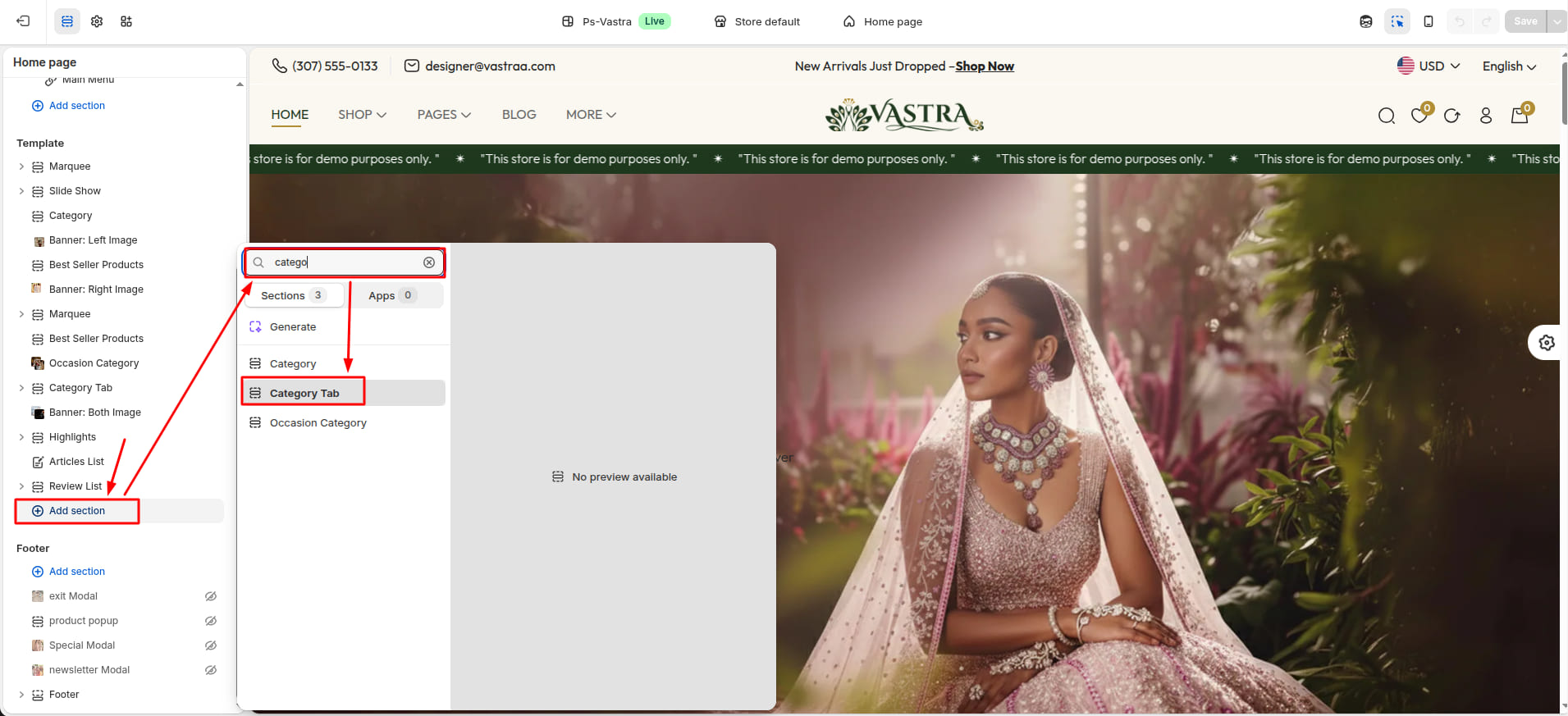
Supported Blocks
- Click Add block and
choose "Tab" according to your requirement.

Block Settings
| Setting | Type | Description | Visibility |
|---|---|---|---|
| Text | text | Enter the text for the tab. | Always Visible |
| Collection | collection | Select a collection to display in the tab. | Always Visible |
Section settings
Section settings make it easy to control how content appears on your store pages. Update text, images, and layout directly from the Theme Editor. Adjust spacing, colors, and alignment to match your brand style. Changes are applied instantly with live preview support.

| Settings | Type | Description | visibility |
|---|---|---|---|
| Select Alignment | text_alignment | Select the alignment of the section heading. | Always Visible |
| Text | text | Enter the section heading. | Always Visible |
| Color | color | Choose the color for the section heading. | Always Visible |
| Font Size | range(px) | Adjust the font size for the section heading. | Always Visible |
| Font Weight | range | Adjust the font weight for the section heading. | Always Visible |
| Text | text | Enter the section Description. | Always Visible |
| Color | color | Choose the color for the section description. | Always Visible |
| Font Size | range(px) | Adjust the font size for the section description. | Always Visible |
| Font Weight | range | Adjust the font weight for the section description. | Always Visible |
| Font Size | range(px) | Adjust the font size for the category tab title. | Always Visible |
| Font Weight | range | Adjust the font weight for the category tab title. | Always Visible |
| Color | color | Choose the color for the category tab title. | Always Visible |
| Active Tab Color | color | Choose the color for the active category tab title. | Always Visible |
| Active Tab Border Color | color | Choose the border color for the active category tab title. | Always Visible |
| Enable Product Variants | checkbox | When enabled, the product variants will be displayed. | Always Visible |
| Variant Outline Color | color_background | Choose the color of the product variant outline. | Visible when Enable Product Variants is true. |
| Variant Border Radius | range(px) | Adjust the border radius of the product variant. | Visible when Enable Product Variants is true. |
| Variant Background Color | color_background | Choose the background color of the product variant. | Visible when Enable Product Variants is true. |
| Variant Position | text_alignment | Choose the position of the product variant. | Visible when Enable Product Variants is true. |
| Enable Sale Tag | checkbox | When enabled, the sale tag will be displayed. | Always Visible |
| Badge Text Font Size | range(px) | Adjust the font size of the badge text. | Visible when Enable Sale Tag is true. |
| Badge Text Font Weight | range | Adjust the font weight of the badge text. | Visible when Enable Sale Tag is true. |
| Enable Timer | checkbox | When enabled, the timer will be displayed. | Always Visible |
| Timer Background | color_background | Choose the background color of the timer. | Visible when Enable Timer is true |
| Timer Text Color | color | Choose the text color of the timer text. | Visible when Enable Timer is true |
| Timer Text Font Size | range(px) | Adjust the font size of the timer text. | Visible when Enable Timer is true |
| Timer Text Font Weight | range | Adjust the font weight of the timer text. | Visible when Enable Timer is true |
10Banner: Both Image
- From your Shopify admin, go to Themes -> Edit Theme.
- Click Add section and
choose "Banner: Both Image".

Section settings
Section settings make it easy to control how content appears on your store pages. Update text, images, and layout directly from the Theme Editor. Adjust spacing, colors, and alignment to match your brand style. Changes are applied instantly with live preview support.

| Settings | Type | Description | visibility |
|---|---|---|---|
| Select Left Image | image_picker | Select the left image for the section. | Always Visible |
| Text | text | Enter the left banner caption text. | Always Visible |
| Color | color | Choose the color for the left banner caption text. | Always Visible |
| Font Size | range(px) | Adjust the font size for the left banner caption. | Always Visible |
| Font Weight | range | Adjust the font weight for the left banner caption. | Always Visible |
| Text | text | Enter the left banner title text. | Always Visible |
| Color | color | Choose the color for the left banner title text. | Always Visible |
| Font Size | range(px) | Adjust the font size for the left banner title. | Always Visible |
| Font Weight | range | Adjust the font weight for the left banner title. | Always Visible |
| Text | text | Enter the left banner button text. | Always Visible |
| Url | url | Enter the url for the left banner button. | Always Visible |
| Background Color | color_background | Choose the background color for the left banner button. | Always Visible |
| Color | color | Choose the color for the left banner button text. | Always Visible |
| Font Size | range(px) | Adjust the font size for the left banner button. | Always Visible |
| Font Weight | range | Adjust the font weight for the left banner button. | Always Visible |
| Select Right Image | image_picker | Select the right image for the section. | Always Visible |
| Text | text | Enter the right banner caption text. | Always Visible |
| Color | color | Choose the color for the right banner caption text. | Always Visible |
| Font Size | range(px) | Adjust the font size for the right banner caption. | Always Visible |
| Font Weight | range | Adjust the font weight for the right banner caption. | Always Visible |
| Text | text | Enter the right banner title text. | Always Visible |
| Color | color | Choose the color for the right banner title text. | Always Visible |
| Font Size | range(px) | Adjust the font size for the right banner title. | Always Visible |
| Font Weight | range | Adjust the font weight for the right banner title. | Always Visible |
| Text | text | Enter the right banner button text. | Always Visible |
| Url | url | Enter the url for the right banner button. | Always Visible |
| Background Color | color_background | Choose the background color for the right banner button. | Always Visible |
| Color | color | Choose the color for the right banner button text. | Always Visible |
| Font Size | range(px) | Adjust the font size for the right banner button. | Always Visible |
| Font Weight | range | Adjust the font weight for the right banner button. | Always Visible |
11Highlights
- From your Shopify admin, go to Themes -> Edit Theme.
- Click Add section and
choose "Highlights".

Supported Blocks
- Click Add block and
choose "Highlight Product" according to your
requirement.

Block Settings
| Setting | Type | Description | Visibility |
|---|---|---|---|
| Video (MP4 format) | video | Select a video to be played. | Always Visible |
| Choose Product | product | Select a product to be displayed. | Always Visible |
Section settings
Section settings make it easy to control how content appears on your store pages. Update text, images, and layout directly from the Theme Editor. Adjust spacing, colors, and alignment to match your brand style. Changes are applied instantly with live preview support.

| Settings | Type | Description | visibility |
|---|---|---|---|
| Select Alignment | select | Select the alignment of the section heading. | Always Visible |
| Text | text | Set the text for the section heading. | Always Visible |
| Color | color | Choose the color of the section heading. | Always Visible |
| Font Size | range(px) | Adjust the font size of the section heading. | Always Visible |
| Font Weight | range | Adjust the font weight of the section heading. | Always Visible |
| Text | text | Set the text for the section description. | Always Visible |
| Color | color | Choose the color of the section description. | Always Visible |
| Font Size | range(px) | Adjust the font size of the section description. | Always Visible |
| Font Weight | range | Adjust the font weight of the section description. | Always Visible |
| Product Position | select(Top / Bottom) | Select the position of the product. | Always Visible |
| Image Width | range(px) | Adjust the width of the product image. | Always Visible |
| Image Height | range(px) | Adjust the height of the product image. | Always Visible |
| Title Color | color | Choose the color of the product title. | Always Visible |
| Title Font Size | range(px) | Adjust the font size of the product title. | Always Visible |
| Title Font Weight | range | Adjust the font weight of the product title. | Always Visible |
| Price Color | colo | Choose the color of the product price. | Always Visible |
| Price Font Size | range(px) | Adjust the font size of the product price. | Always Visible |
| Price Font Weight | range | Adjust the font weight of the product price. | Always Visible |
| Quick View Icon Color | color | Choose the color of the product quick view icon. | Always Visible |
| Compare Price Color | color | Choose the color of the product compare price. | Always Visible |
| Compare Price Font Size | range(px) | Adjust the font size of the product compare price. | Always Visible |
| Compare Price Font Weight | range | Adjust the font weight of the product compare price. | Always Visible |
| Activate Badge | checkbox | When enabled, the badge will be displayed. | Always Visible |
| Font Size | range(px) | Adjust the font size of the badge text. | Visible when Activate Badge is true. |
| Font Weight | range | Adjust the font weight of the badge text. | Visible when Activate Badge is true. |
| Color | color | Choose the color of the badge text. | Visible when Activate Badge is true. |
| Background Color | color_background | Choose the background color of the badge. | Visible when Activate Badge is true. |
| Activate Viewer | checkbox | When enabled, the viewer will be displayed. | Always Visible |
| Font Size | range(px) | Adjust the font size of the viewer text. | Visible when Activate viewer is true. |
| Font Weight | range | Adjust the font weight of the viewer text. | Visible when Activate viewer is true. |
| Color | color/td> | Choose the color of the viewer text. | Visible when Activate viewer is true. |
| Background color | color_background | Choose the background color of the viewer. | Visible when Activate viewer is true. |
| Background Color | color_background | Choose the color for the video play button. | Always Visible |
| Width | range(px) | Adjust the width of the video play button. | Always Visible |
| Height | range(px) | Adjust the height of the video play button. | Always Visible. |
| Animation Background Color | color_background | Choose the color for the video play button animation. | Always Visible. |
| Animation Circle Width | range(px) | Adjust the width of the video play button animation. | Always Visible. |
| Animation Circle Height | range(px) | Adjust the height of the video play button animation. | Always Visible |
| Button Icon Color | color_background | Choose the color of the video play button icon. | Always Visible |
12Artical List
- From your Shopify admin, go to Themes -> Edit Theme.
- Click Add section and
choose "Artical List".

Section settings
Section settings make it easy to control how content appears on your store pages. Update text, images, and layout directly from the Theme Editor. Adjust spacing, colors, and alignment to match your brand style. Changes are applied instantly with live preview support.

| Settings | Type | Description | visibility |
|---|---|---|---|
| Select Alignment | select | Select the alignment of the section heading. | Always Visible |
| Text | text | Set the text for the section heading. | Always Visible |
| Color | color | Choose the color of the section heading. | Always Visible |
| Font Size | range(px) | Adjust the font size of the section heading. | Always Visible |
| Font Weight | range | Adjust the font weight of the section heading. | Always Visible |
| Text | text | Set the text for the section description. | Always Visible |
| Color | color | Choose the color of the section description. | Always Visible |
| Font Size | range(px) | Adjust the font size of the section description. | Always Visible |
| Font Weight | range | Adjust the font weight of the section description. | Always Visible |
| Select Blog | blog | Select the blog to display it's posts. | Always Visible |
| Image Border Radius | range(px) | Adjust the border radius of the blog image. | Always Visible |
| Author Color | color_background | Choose the color of the blog author. | Always Visible |
| Author Font Size | range(px) | Adjust the font size of the blog author. | Always Visible |
| Author Font Weight | range | Adjust the font weight of the blog author. | Always Visible |
| Title Color | color_background | Choose the color of the blog title. | Always Visible |
| Title Font Size | range(px) | Adjust the font size of the blog title. | Always Visible |
| Title Font Weight | range | Adjust the font weight of the blog title. | Always Visible |
| Description Color | color_background | Choose the color of the blog description. | Always Visible |
| Description Font Size | range(px) | Adjust the font size of the blog description. | Always Visible |
| Description Font Weight | range | Adjust the font weight of the blog description. | Always Visible |
| Active Slider Dot Color | color | Choose the color of the active slider dot. | Always Visible |
| Inactive Slider Dot Color | color | Choose the color of the inactive slider dot. | Always Visible |
13Review List
- From your Shopify admin, go to Themes -> Edit Theme.
- Click Add section and
choose "Review List".

Supported Blocks
- Click Add block and
choose "Review Box" according to your
requirement.

Block Settings
| Setting | Type | Description | Visibility |
|---|---|---|---|
| Background Color | color_background | Choose the background color for the review box. | Always Visible |
| Review Image | image_picker | Select the image for the review author. | Always Visible |
| Name | text | Enter the name of the reviewer. | Always Visible |
| Name Color | color_background | Choose the color for the name. | Always Visible |
| Name Font Size | range(px) | Adjust the font size of the name. | Always Visible |
| Name Font Weight | range | Adjust the font weight of the name. | Always Visible |
| Review Date | text | Enter the date of the review. | Always Visible |
| Date Color | color_background | Choose the color for the date. | Always Visible |
| Date Font Size | range(px) | Adjust the font size of the date. | Always Visible |
| Date Font Weight | range | Adjust the font weight of the date. | Always Visible |
| Rating Color | color | Choose the color for the rating star. | Always Visible |
| Description | text | Enter the description regarding review. | Always Visible |
| Description Color | color_background | Choose the color for the description. | Always Visible |
| Description Font Size | range(px) | Adjust the font size of the description. | Always Visible |
| Description Font Weight | range | Adjust the font weight of the description. | Always Visible |
| Select Product | product | Select the product to be displayed in the review box. | Always Visible |
| Background Color | color_background | Choose the background color of the product. | Always Visible |
| Title Color | color_background | Choose the color of the product title. | Always Visible |
| Title Font Size | range(px) | Adjust the font size of the product title. | Always Visible |
| Title Font Weight | range | Adjust the font weight of the product title. | Always Visible |
| Price Color | color_background | Choose the color of the product price. | Always Visible |
| Price Font Size | range(px) | Adjust the font size of the product price. | Always Visible |
| Price Font Weight | range | Adjust the font weight of the product price. | Always Visible |
| Compare Price Color | color_background | Choose the color of the product compare price. | Always Visible |
| Compare Price Font Size | range(px) | Adjust the font size of the product compare price. | Always Visible |
| Compare Price Font Weight | range | Adjust the font weight of the product compare price. | Always Visible |
Section settings
Section settings make it easy to control how content appears on your store pages. Update text, images, and layout directly from the Theme Editor. Adjust spacing, colors, and alignment to match your brand style. Changes are applied instantly with live preview support.

| Settings | Type | Description | visibility |
|---|---|---|---|
| Select Alignment | select | Select the alignment of the section heading. | Always Visible |
| Text | text | Set the text for the section heading. | Always Visible |
| Color | color | Choose the color of the section heading. | Always Visible |
| Font Size | range(px) | Adjust the font size of the section heading. | Always Visible |
| Font Weight | range | Adjust the font weight of the section heading. | Always Visible |
| Text | text | Set the text for the section description. | Always Visible |
| Color | color | Choose the color of the section description. | Always Visible |
| Font Size | range(px) | Adjust the font size of the section description. | Always Visible |
| Font Weight | range | Adjust the font weight of the section description. | Always Visible |
| Active Slider Dot Color | color | Choose the color of the active slider dot. | Always Visible |
| Inactive Slider Dot Color | color | Choose the color of the inactive slider dot. | Always Visible |
14Slide Show
- From your Shopify admin, go to Themes -> Edit Theme.
- Click Add section and
choose "Slide Show".

Supported Blocks
- Click Add block and
choose "Slide" according to your requirement.
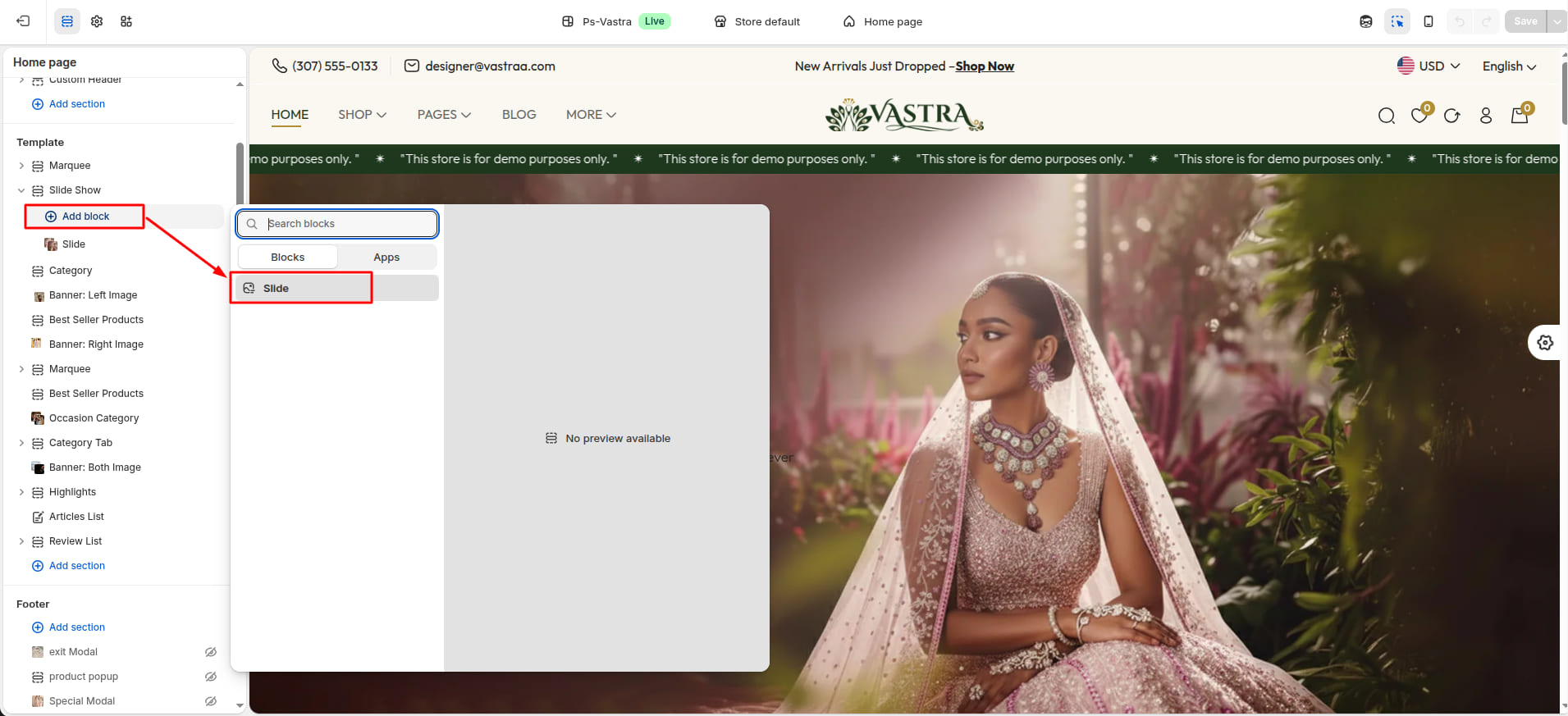
Block Settings
Use the Slide block to add multiple Slide in a single section.Also, for customizing the slide, use the following settings:
| Settings | Type | Description | Visibility |
|---|---|---|---|
| Select Image | image_picker | Upload an image for the banner. | Always Visible |
| Select Image For Mobile | image_picker | Upload an image for the banner on mobile. | Always Visible |
| Text | text | Enter the text for the caption. | Always Visible |
| Color | color | Choose the color of the caption text. | Always Visible |
| Font Size | range(px) | Adjust the font size of the caption text. | Always Visible |
| Font Weight | range | Adjust the font weight of the caption text. | Always Visible |
| Text | text | Enter the text for the slide title. | Always Visible |
| Color | color | Choose the text color of the slide title. | Always Visible |
| Font Size | range(px) | Adjust the font size of the slide title. | Always Visible |
| Font Weight | range | Adjust the font weight of the slide title. | Always Visible |
| Text | text | Enter the text for the slide subtitle. | Always Visible |
| Color | color | Choose the text color of the slide subtitle. | Always Visible |
| Font Size | range(px) | Adjust the font size of the slide subtitle. | Always Visible |
| Font Weight | range | Adjust the font weight of the slide subtitle. | Always Visible |
| Text | text | Enter the text for the slide button. | Always Visible |
| Url | url | Select the URL for the slide button. | Always Visible |
| Background Color | color_background | Choose the background color of the slide button. | Always Visible |
| Color | color | Choose the text color of the slide button. | Always Visible |
| Font Size | range(px) | Adjust the font size of the slide button. | Always Visible |
| Font Weight | range | Adjust the font weight of the slide button. | Always Visible |
Section settings
Section settings make it easy to control how content appears on your store pages. Update text, images, and layout directly from the Theme Editor. Adjust spacing, colors, and alignment to match your brand style. Changes are applied instantly with live preview support.

| Settings | Type | Description | visibility |
|---|---|---|---|
| Activate Slider Dots | checkbox | When enabled, the slider dots will be visible. | Always Visible |
| Active Color | color_background | Choose the color of the active slider dot. | Visible when Active Slider Dots is true. |
| Inactive Color | color_background | Choose the color of the inactive slider dot. | Visible when Active Slider Dots is true. |
15Count Down Banner
- From your Shopify admin, go to Themes -> Edit Theme.
- Click Add section and
choose "Count Down Banner".
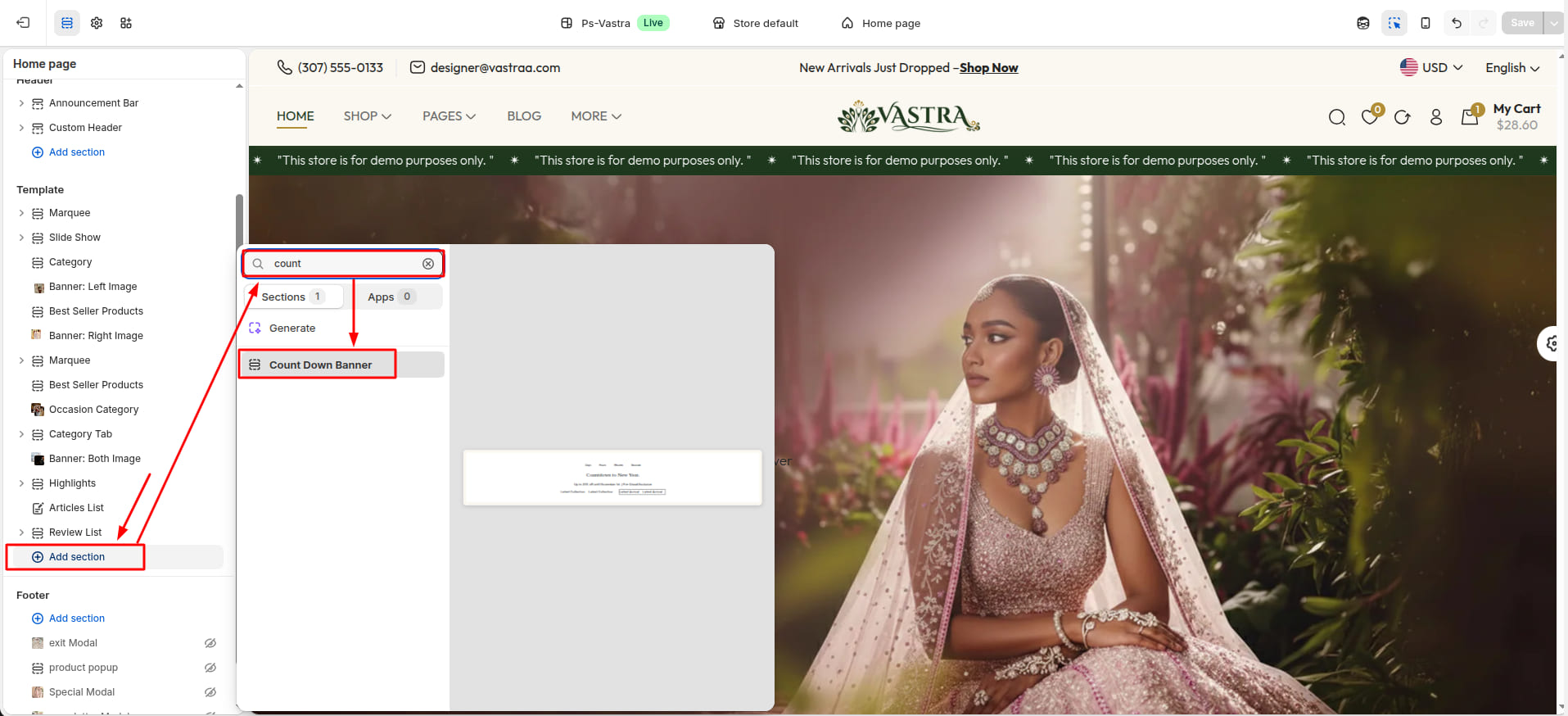
Section settings
Section settings make it easy to control how content appears on your store pages. Update text, images, and layout directly from the Theme Editor. Adjust spacing, colors, and alignment to match your brand style. Changes are applied instantly with live preview support.

| Settings | Type | Description | visibility |
|---|---|---|---|
| Countdown Date | text | Set the date for the countdown. | Always Visible |
| Timer Background Color | color | Choose the background color of the timer. | Always Visible |
| Border Radius | range(px) | Adjust the border radius of the timer. | Always Visible |
| Width | range(px) | Adjust the width of the timer(add spacing). | Always Visible |
| Height | range(px) | Adjust the height of the timer(add spacing). | Always Visible |
| Font Size | range(px) | Adjust the font size of date number. | Always Visible |
| Font Weight | range | Adjust the font weight of the date number. | Always Visible |
| Color | color | Choose the color of the date number. | Always Visible |
| Font Size | range(px) | Adjust the font size of date text. | Always Visible |
| Font Weight | range | Adjust the font weight of the date text. | Always Visible |
| Color | color | Choose the color of the date text. | Always Visible |
| Text | text | Set the text of the title. | Always Visible |
| Font Size | range(px) | Adjust the font size of the title. | Always Visible |
| Font Weight | range | Adjust the font weight of the title. | Always Visible |
| Color | color | Choose the color of the title. | Always Visible |
| Block Space Content | range(px) | Adjust the block space of content. | Always Visible |
| Text | text | Set the text of the desciption. | Always Visible |
| Font Size | range(px) | Adjust the font size of the desciption. | Always Visible |
| Font Weight | range | Adjust the font weight of the desciption. | Always Visible |
| Color | color | Choose the color of the desciption. | Always Visible |
| Space Below Content | range(px) | Adjust the below space of content. | Always Visible |
| Buttons Font Size | range(px) | Adjust the font size of the buttons. | Always Visible |
| Buttons Font Weight | range | Adjust the font weight of the buttons. | Always Visible |
| Text | text | Set the text of the first button. | Always Visible |
| Render page link | url | Set the link of the first button. | Always Visible |
| Background Color | color | Choose the background color of the first button. | Always Visible |
| Color | color | Choose the color of the first button. | Always Visible |
| Text | text | Set the text of the second button. | Always Visible |
| Render page link | url | Set the link of the second button. | Always Visible |
| Background Color | color | Choose the background color of the second button. | Always Visible |
| Color | color | Choose the color of the second button. | Always Visible |
16Lookbook
- From your Shopify admin, go to Themes -> Edit Theme.
- Click Add section and
choose "Lookbook".

Supported Blocks
- Click Add block and
choose "Product Box" according to your
requirement.

Block Settings
| Setting | Type | Description | Visibility |
|---|---|---|---|
| Select Product | product | Choose the product to be displayed in the block. | Always Visible |
| Position Top (%) | text | Set the top position of the block point. | Always Visible |
| Position Left (%) | text | Set the left position of the block point. | Always Visible |
Section settings
Section settings make it easy to control how content appears on your store pages. Update text, images, and layout directly from the Theme Editor. Adjust spacing, colors, and alignment to match your brand style. Changes are applied instantly with live preview support.

| Settings | Type | Description | visibility |
|---|---|---|---|
| Select Alignment | text_alignment | Select the alignment of the section heading. | Always Visible |
| Section Heading | text | Enter the section heading. | Always Visible |
| Heading Color | color | Choose the color for the section heading. | Always Visible |
| Heading Font Size | range(px) | Adjust the font size for the section heading. | Always Visible |
| Heading Font Weight | range | Adjust the font weight for the section heading. | Always Visible |
| Section Description | text | Enter the section Description. | Always Visible |
| Description Color | color | Choose the color for the section description. | Always Visible |
| Description Font Size | range(px) | Adjust the font size for the section description. | Always Visible |
| Description Font Weight | range | Adjust the font weight for the section description. | Always Visible |
| Product Position | select(Right / Left) | Select the position of the product. | Always Visible |
| Background Image | image_picker | Select the background image for the section. | Always Visible |
| Lookbook Point Background | color | Choose the background color for the lookbook point. | Always Visible |
| Enable Product Variants | checkbox | When enabled, the product variants will be displayed. | Always Visible |
| Variant Outline Color | color_background | Choose the color of the product variant outline. | Visible when Enable Product Variants is true. |
| Variant Border Radius | range(px) | Adjust the border radius of the product variant. | Visible when Enable Product Variants is true. |
| Variant Background Color | color_background | Choose the background color of the product variant. | Visible when Enable Product Variants is true. |
| Variant Position | text_alignment | Choose the position of the product variant. | Visible when Enable Product Variants is true. |
| Enable Sale Tag | checkbox | When enabled, the sale tag will be displayed. | Always Visible |
| Badge Text Font Size | range(px) | Adjust the font size of the badge text. | Visible when Enable Sale Tag is true. |
| Badge Text Font Weight | range | Adjust the font weight of the badge text. | Visible when Enable Sale Tag is true. |
| Enable Timer | checkbox | When enabled, the timer will be displayed. | Always Visible |
| Timer Background | color_background | Choose the background color of the timer. | Visible when Enable Timer is true |
| Timer Text Font Size | range(px) | Adjust the font size of the timer text. | Visible when Enable Timer is true |
| Timer Text Font Weight | range | Adjust the font weight of the timer text. | Visible when Enable Timer is true |
| Timer Text Color | color | Choose the text color of the timer text. | Visible when Enable Timer is true |
17Services
- From your Shopify admin, go to Themes -> Edit Theme.
- Click Add section and
choose "Services".

Supported Blocks
- Click Add block and
choose "Service" according to your requirement.

Block Settings
| Setting | Type | Description | Visibility |
|---|---|---|---|
| Service Icon | image_picker | Upload the icon for the service. | Always Visible |
| Service Icon Background | color_background | Choose the background color for the service icon. | Always Visible |
| Service Icon Width | range(px) | Adjust the width of the service icon. | Always Visible |
| Service Icon Height | range(px) | Adjust the height of the service icon. | Always Visible |
| Service Icon Border Radius | range(px) | Adjust the border radius of the service icon. | Always Visible |
| Service Border Color | color_background | Choose the color for the service border. | Always Visible |
| Name | text | Set the name of the service. | Always Visible |
| Name Color | color_background | Choose the color for the service name. | Always Visible |
| Name Font Size | range(px) | Adjust the font size of the service name. | Always Visible |
| Name Font Weight | range | Adjust the font weight of the service name. | Always Visible |
| Description | text | Set the description of the service. | Always Visible |
| Description Color | color_background | Choose the color for the service description. | Always Visible |
| Description Font Size | range(px) | Adjust the font size of the service description. | Always Visible |
| Description Font Weight | range | Adjust the font weight of the service description. | Always Visible |
Section settings
Section settings make it easy to control how content appears on your store pages. Update text, images, and layout directly from the Theme Editor. Adjust spacing, colors, and alignment to match your brand style. Changes are applied instantly with live preview support.

| Settings | Type | Description | visibility |
|---|---|---|---|
| Service Type | select | select the type of service to display. | Always Visible |
| Enable Gift Card | checkbox | When enabled, the gift card service will be displayed. | Always Visible |
| Gift Card Image | image_picker | Upload the gift card image. | Visible when Enable Gift Card is true. |
| Gift Card Border Radius | range(px) | Adjust the border radius of the gift card image. | Visible when Enable Gift Card is true. |
| Gift Card Title | text | Set the title of the gift card. | Visible when Enable Gift Card is true. |
| Title Color | color_background | Choose the color for the gift card title. | Visible when Enable Gift Card is true. |
| Title Font Size | range(px) | Adjust the font size of the gift card title. | Visible when Enable Gift Card is true. |
| Title Font Weight | range | Adjust the font weight of the gift card title. | Visible when Enable Gift Card is true. |
| Gift Card Description | text | Set the description of the gift card. | Visible when Enable Gift Card is true. |
| Gift Card Description Color | color_background | Choose the color for the gift card description. | Visible when Enable Gift Card is true. |
| Gift Card Description Font Size | range(px) | Adjust the font size of the gift card description. | Visible when Enable Gift Card is true. |
| Gift Card Description Font Weight | range | Adjust the font weight of the gift card description. | Visible when Enable Gift Card is true. |
| Gift Card Button Text | text | Set the button text for the gift card. | Visible when Enable Gift Card is true. |
| Button Text Color | color_background | Choose the color for the gift card button text. | Visible when Enable Gift Card is true. |
| Button Text Font Size | range(px) | Adjust the font size of the gift card button text. | Visible when Enable Gift Card is true. |
| Button Text Font Weight | range | Adjust the font weight of the gift card button text. | Visible when Enable Gift Card is true. |
| Service Position | select | select the position of the service box content. | Always Visible |
Collections pages
1Create Collection
- Go to Admin Panel -> Products.
- Find and Select Collections.
- Click Add Collections.

- After that redirect to the Add collection.
Add Collection
- Add collection title.
- Upload the image.
- Select template for which page you want to create.
- Choose the Collection Type for add products.
- If Choose Manual the Click on
Browse. After that Select the products and
Add products.

If Choose Smart then products are added based on specified Condition.
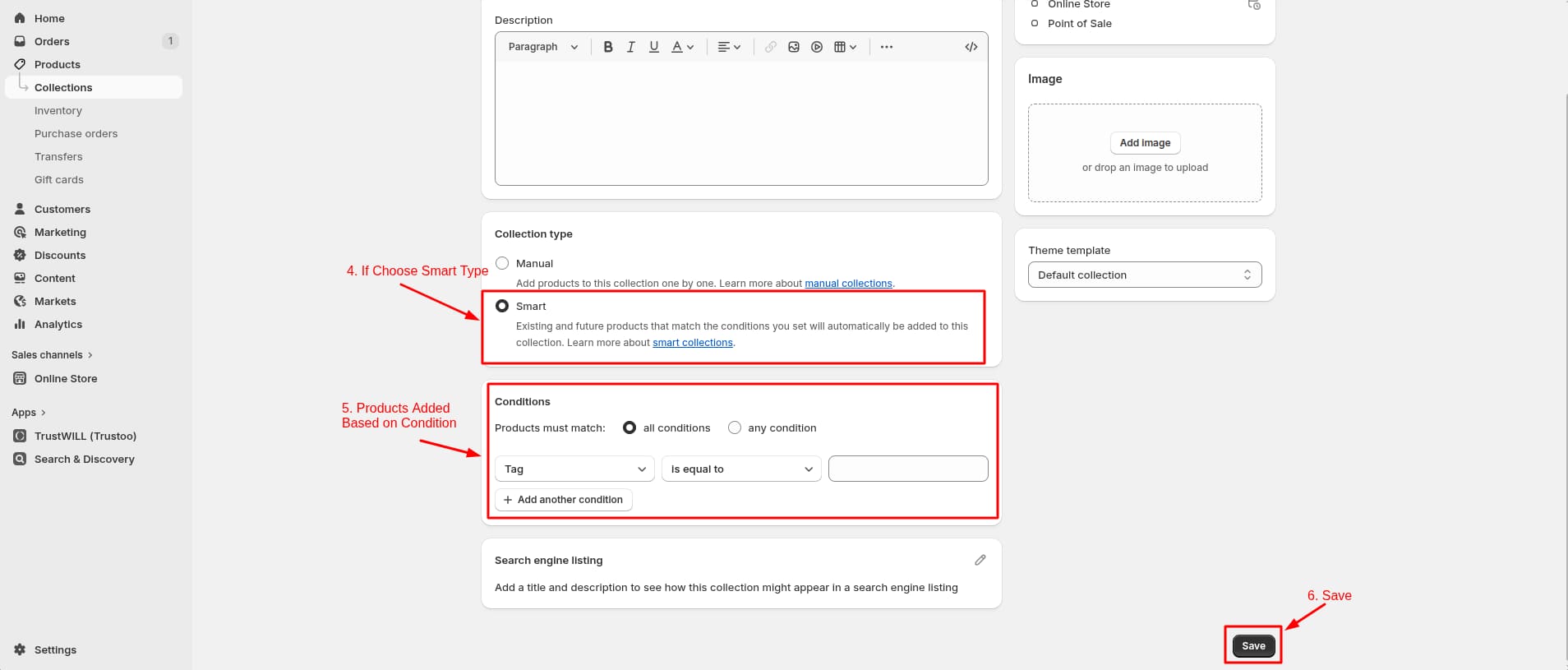
- Click Save.
2Collection List Settings
- Click the file name to open and download the corresponding JSON layout in a new tab.(list-collections.json)
- SELECT ALL and COPY.
- From your Shopify admin, go to
Themes -> Actions -> Edit Code.
- Find folder templates
-> Open file list-collections.json ->
SELECT ALL and DELETE. PASTE the
copied preset from the external file.

- From your Shopify admin, go to Themes -> Edit Theme.
- Choose Collection list
from the dropdown window.

- After that, Click Add
section and choose "Collection
List".
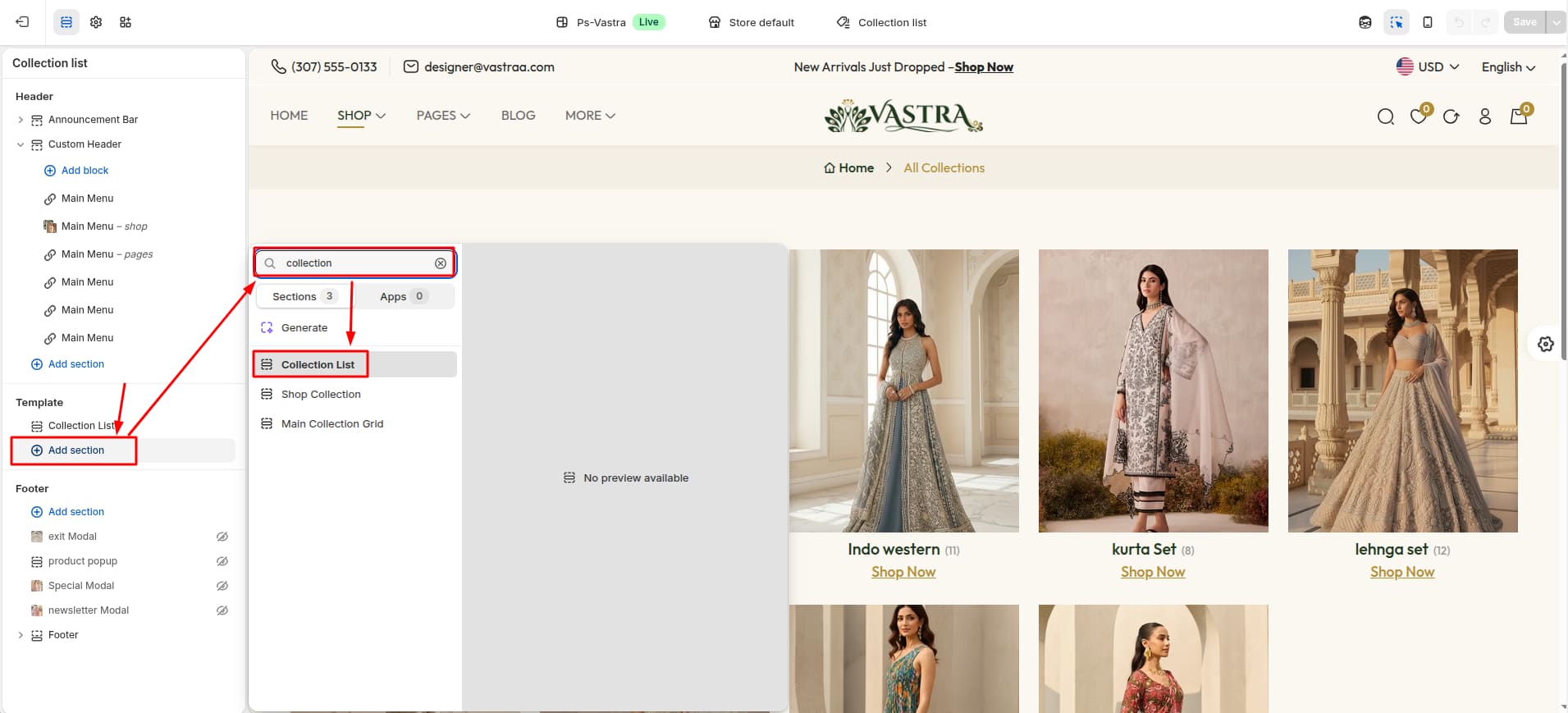
Section settings
Section settings make it easy to control how content appears on your store pages. Update text, images, and layout directly from the Theme Editor. Adjust spacing, colors, and alignment to match your brand style. Changes are applied instantly with live preview support.

| Settings | Type | Description | visibility |
|---|---|---|---|
| Select Collections | collection_list | Choose which collections appear in this section. | Always Visible |
| Show Heading | checkbox | Show or hide the heading text. | Always Visible |
| Text | text | Enter the heading text. | Visible when Show Heading is true |
| Font Size | range(px) | Adjust the font size of the heading text. | Visible when Show Heading is true |
| Font Weight | range | Adjust the font weight of the heading text. | Visible when Show Heading is true |
| Color | color | Choose the color of the heading text. | Visible when Show Heading is true |
| Background Color | color_background | Choose the background color of the collection title. | Always Visible |
| Color | color | Choose the color of the collection title. | Always Visible |
| Font Size | range(px) | Adjust the font size of the collection title. | Always Visible |
| Font Weight | range | Adjust the font weight of the collection title. | Always Visible |
| Text | text | Enter the button text. | Always Visible |
| Background Color | color_background | Choose the background color of the button. | Always Visible |
| Color | color | Choose the text color of the button. | Always Visible |
| Font Size | range(px) | Adjust the font size of the button text. | Always Visible |
| Font Weight | range | Adjust the font weight of the button text. | Always Visible |
3Collection Settings
- Click the file name to open and download the corresponding JSON layout in a new tab.(collection.json)
- SELECT ALL and COPY.
- From your Shopify admin, go to
Themes -> Actions -> Edit Code.
- Find folder templates
-> Open file collection.json -> SELECT
ALL and DELETE. PASTE the copied
preset from the external file.

- From your Shopify admin, go to Themes -> Edit Theme.
- Choose Collections from
the dropdown window.

- After that, choose Default
Collection.

Supported Sections
- Click Add section and
choose "Shop Collection".

Section settings
Section settings make it easy to control how content appears on your store pages. Update text, images, and layout directly from the Theme Editor. Adjust spacing, colors, and alignment to match your brand style. Changes are applied instantly with live preview support.

| Settings | Type | Description | visibility |
|---|---|---|---|
| Slide to Show | range | Adjust the number of collections to slide to show. | Always Visible |
| Slide to Scroll | range | Adjust the number of collections to slide to scroll. | Always Visible |
| Enable Autoplay | checkbox | When enabled, the collection will automatically scroll. | Always Visible |
| Autoplay Speed | range | Adjust the autoplay speed in milliseconds. | Visible when Enable Autoplay is true. |
| Enable Arrows | checkbox | When enabled, the collection will show navigation arrows. | Always Visible |
| Enable Dots | checkbox | When enabled, the collection will show navigation dots. | Always Visible |
| Infinite Scroll | checkbox | When enabled, the collection will scroll indefinitely. | Always Visible |
| Filter Side | select | Select the side for the product filters (left / right). | Visible when Filter Layout is vertical. |
| Responsive Slide to Show | range | Adjust then number of collections to slide to show on responsive devices. | Always Visible |
- Click Add section and
choose "Main Collection Grid".

Section settings
Section settings make it easy to control how content appears on your store pages. Update text, images, and layout directly from the Theme Editor. Adjust spacing, colors, and alignment to match your brand style. Changes are applied instantly with live preview support.
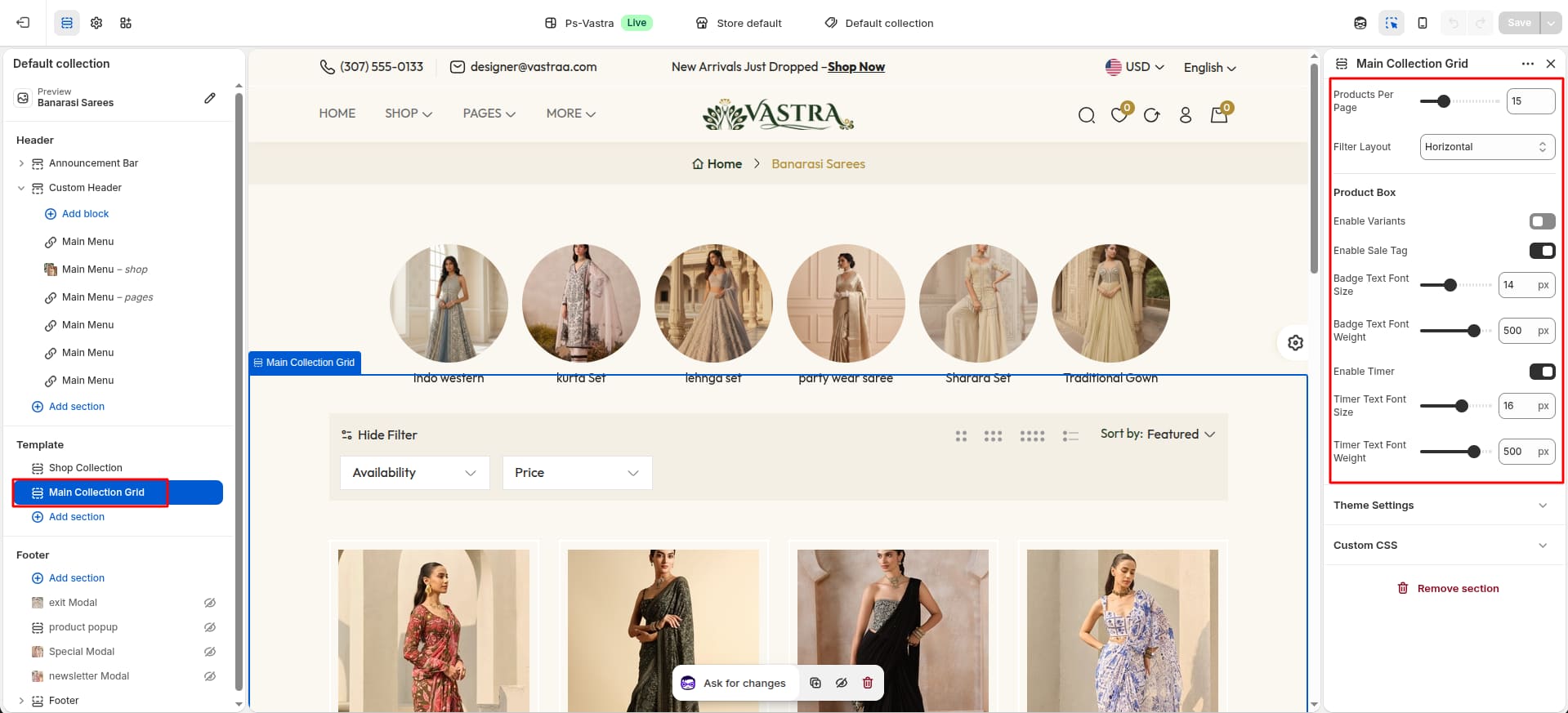
| Settings | Type | Description | visibility |
|---|---|---|---|
| Products Per Page | range | Select the number of products to display per page. | Always Visible |
| Filter Layout | select (vertical / horizontal / drawer) | Select the layout for the product filters. | Always Visible |
| Enable Variants | checkbox | When enabled, the variants will be visible on the product. | Always Visible |
| Enable Sale Tag | checkbox | When enabled, the sale tag will be visible on the product. | Always Visible |
| Badge Text Font Size | range(px) | Adjust the font size of the badge text. | Visible when Enable Sale Tag is true. |
| Badge Text Font Weight | range | Adjust the font weight of the badge text. | Visible when Enable Sale Tag is true. |
| Enable Timer | checkbox | When enabled, the timer will be visible on the product. | Always Visible |
| Timer Text Font Size | range(px) | Adjust the font size of the timer text. | visible when Enable Timer is true. |
| Timer Text Font Weight | range | Adjust the font weight of the timer text. | visible when Enable Timer is true. |
Filter Layout - Vertical Left

Filter Layout - Vertical Right

Filter Layout - Horizontal

Filter Layout - Drawer

4Filter
- Go to Admin Panel -> Apps.
- Find and Select Search & Discovery.
- After that, Select
Filters.
This page displays all currently active filters, and allows you to edit or remove them as needed. To edit or remove a filter, click on the filter label. If you want to add new filter then click on Add Filter.

Product Pages
1Create Product
- Go to Admin Panel -> Products.
- Click Add product.

- After that redirect to the Add Product.
Add Product
- Enter a clear and descriptive product title in the Title field.
- Use the description editor to explain your product in detail.
- Upload visual content in the Media section.
- Choose a product category from the dropdown.
- Enter a Product Type to group similar products.
- Specify the Vendor or brand name.
- Assign the product to one or more Collections.
- Add tags to describe your product..
- Choose a Theme template
for the product.
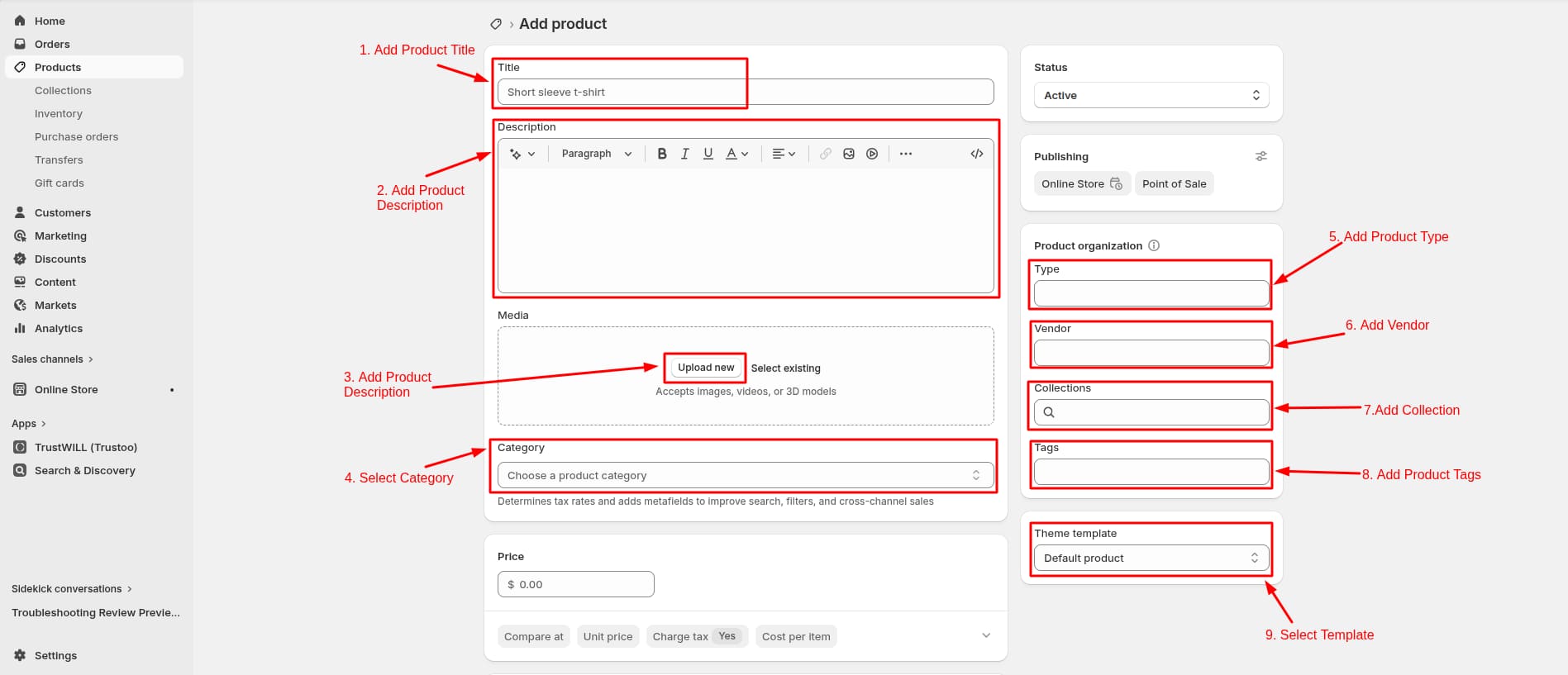
- Enter the selling price of the product in the Price field.
- Use the Compare-at price to show a discounted offer.
- Enable Inventory
tracked to let Shopify manage stock
automatically.
Then enter the Quantity available for the product at your shop location.
-
Enable Physical product if the item requires
shipping.
Then configure the Package by selecting or defining the box dimensions, and set the Product weight, which is required for accurate shipping rates.

- Create variants if your product comes in different options such as size, color, Material.
- Metafields allow you to
store additional custom product information that is not
available in standard Shopify fields.
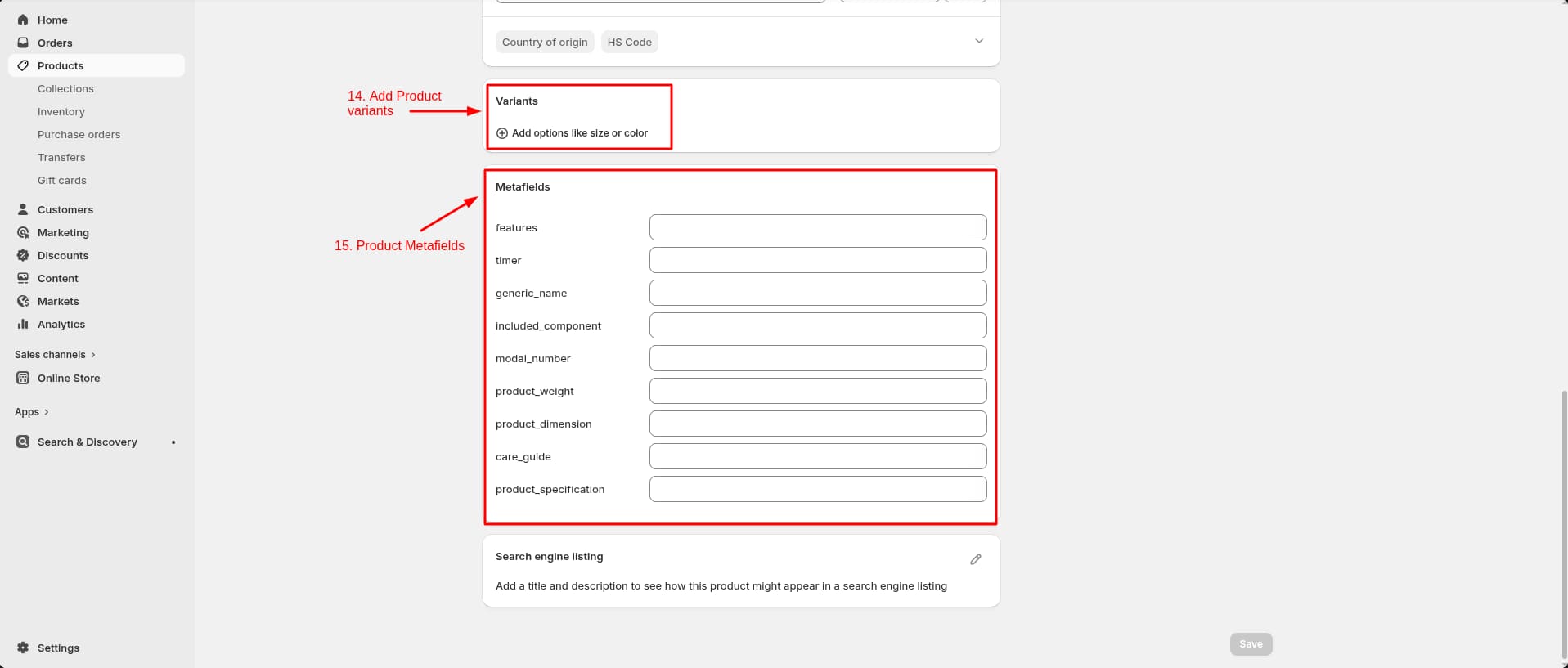
- Click Save.
3Product Page Layout
- Click the file name to open and download the corresponding JSON layout in a new tab.(product.json)
- SELECT ALL and COPY.
- From your Shopify admin, go to
Themes -> Actions -> Edit Code.
- Find folder templates
-> Open file product.json -> SELECT
ALL and DELETE. PASTE the copied
preset from the external file.

- From your Shopify admin, go to Themes -> Edit Theme.
- Choose Products from
the dropdown window.

- After that, choose Default
product.

4Custom Product Detail
- Choose Products -> default product from the dropdown window.
- In theTemplates -> Add
section and choose "Custom Product
Detail".

Supported Blocks
- Click Add block and
choose multiple blocks according to your requirement.

| Block | Description |
|---|---|
| Product Title | Displays the product title along with social sharing options. |
| Product Price | Displays the product price, compare-at price, and discount details. |
| Product Description | Shows the product description with detailed information. |
| Variant Selector | Allows customers to select available product variants such as size or color. |
| Stock | Shows the remaining inventory or stock availability of the product. |
| Discount | Display the available discount on the product. |
| Buttons | Displays action buttons such as Add to Cart, Buy Now, or Wishlist. |
| Other Buttons | Displays additional buttons such as Wishlist, Compare, share or Review . |
| Product Services | Displays a list of services provided by the product. |
| Product Details | Displays a list of details about the product. (e.g. SKU, Vendor) |
| Product Specification | Displays a list of specification of the product. (e.g. care guide, product dimensions) |
| Product Features | Highlights key features or benefits of the product |
| Product Bundle | Displays bundled products or special combo offers. |
| Paie well with | Shows the some related products. |
Product Title Block Settings

| Setting | Type | Description | Visibility |
|---|---|---|---|
| Font Size | range(px) | Adjust the font size of the product title. | Always Visible |
| Font Weight | range | Adjust the font weight of the product title. | Always Visible |
| Color | color | Choose the color for the product title. | Always Visible |
| Show Vendor | checkbox | When enabled, the vendor name will be displayed on the product page. | Always Visible |
| Font Size | range(px) | Adjust the font size of the vendor name. | Always Visible |
| Font Weight | range | Adjust the font weight of the vendor name. | Always Visible |
| Color | color | Choose the color for the vendor name. | Always Visible |
| Show Share Button | checkbox | When enabled, the share button will be displayed on the product page. | Always Visible |
| Spacing Between Title And Share | checkbox | When enabled, the share button and the product title will be separated by a space. | Visible when Show Share Button is true. |
| Width | range(px) | Adjust the width of the share button. | Visible when Show Share Button is true. |
| Height | range(px) | Adjust the height of the share button. | Visible when Show Share Button is true. |
| Color | color | Choose the color for the share button. | Visible when Show Share Button is true. |
| Background Color | color | Choose the background color for the share button. | Visible when Show Share Button is true. |
| Border Radius | range(px) | Adjust the border radius of the share button. | Visible when Show Share Button is true. |
| Layout | select | Select the layout for the share button (icon / text / both). | Visible when Show Share Button is true. |
| Text | text | Set the text for the share button. | Visible when Show Share Button is true and Layout is text. |
| Font Size | range(px) | Adjust the font size of the share button text and icon. | Visible when Show Share Button is true. |
| Font Weight | range | Adjust the font weight of the share button text and icon. | Visible when Show Share Button is true. |
| Show Border | checkbox | When enabled, the share button will have a border. | Visible when Show Share Button is true. |
| Border Width | range(px) | Adjust the border width of the share button. | Visible when Show Border is true. |
| Border Color | color | Adjust the border color of the share button. | Visible when Show Border is true. |
| Space Below Content | range(px) | Adjust the space beloe the share button and the content. | Always Visible |
Product Price Block Settings
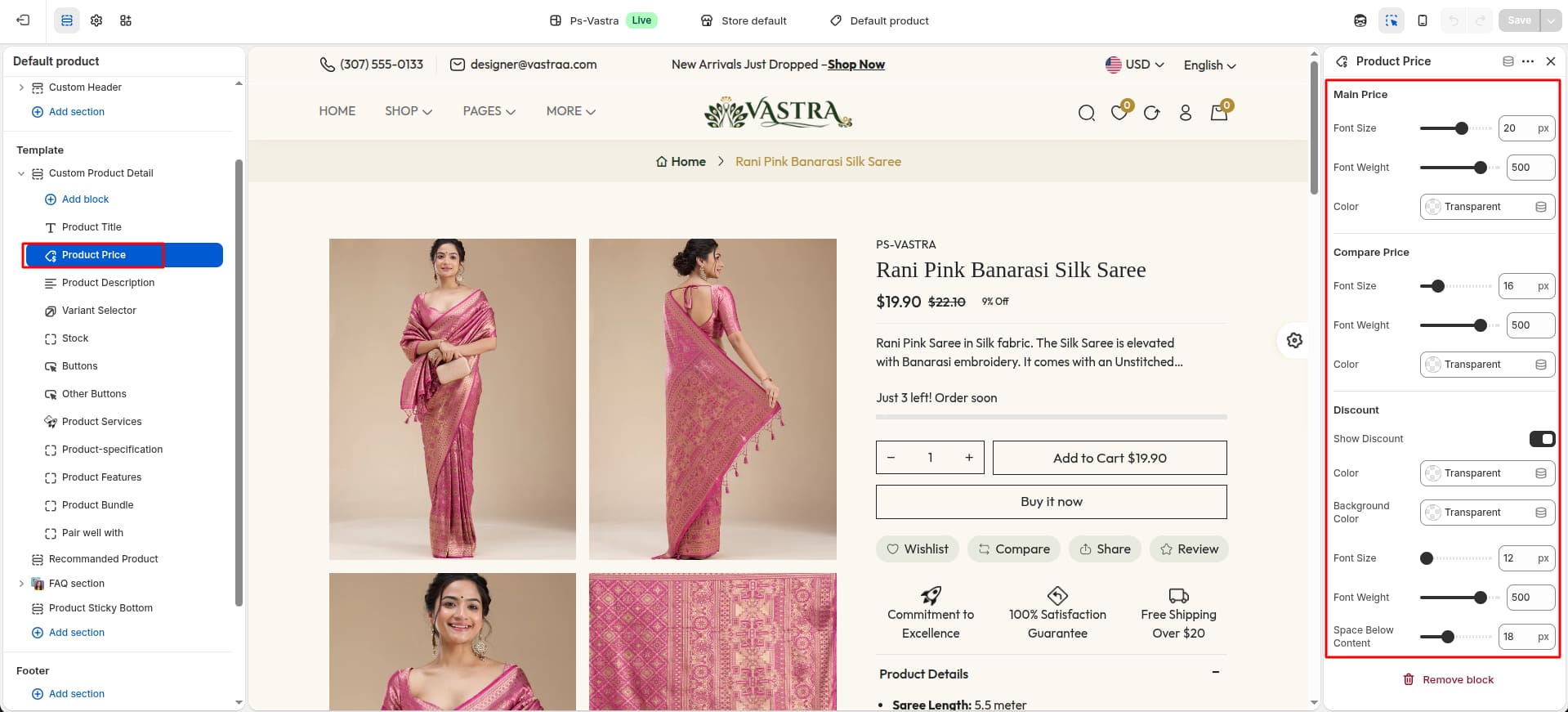
| Setting | Type | Description | Visibility |
|---|---|---|---|
| Font Size | range(px) | Adjust the font size of the product price. | Always Visible |
| Font Weight | range | Adjust the font weight of the product price. | Always Visible |
| Color | color | Choose the color for the product price. | Always Visible |
| Font Size | range(px) | Adjust the font size of the product compare price. | Always Visible |
| Font Weight | range | Adjust the font weight of the product compare price. | Always Visible |
| Color | color | Choose the color for the product compare price. | Always Visible |
| Show Discount | checkbox | When enabled, the product price will show discount. | Always Visible |
| Color | color | Choose the color for the product discount. | Visible when Show Discount is true. |
| Background Color | color | Choose the background color for the product discount. | Visible when Show Discount is true. |
| Font Size | range(px) | Adjust the font size of the product discount. | Visible when Show Discount is true. |
| Font Weight | range | Adjust the font weight of the product discount. | Visible when Show Discount is true. |
| Space Below Content | range(px) | Adjust the space below the product price. | Always Visible |
Product Description Block Settings

| Setting | Type | Description | Visibility |
|---|---|---|---|
| Font Size | range(px) | Adjust the font size of the product description. | Always Visible |
| Font Weight | range | Adjust the font weight of the product description. | Always Visible |
| Color | color | Choose the color for the product description. | Always Visible |
| Text Wrap | checkbox | When enabled, the product description will wrap. | Always Visible |
| Line | range(px) | Adjust the line of the product description. | Visible when Text Wrap is true. |
| Space Below Content | range(px) | Adjust the space below the product description content. | Always Visible |
Variant Selector Block Settings

| Setting | Type | Description | Visibility |
|---|---|---|---|
| Show Variant Headings | checkbox | When enabled, the product variant headings will show. | Always Visible |
| Heading Text Color | color | Choose the color for the product variant headings. | Visible when Show Variant Headings is true. |
| Heading Font Size | range(px) | Adjust the font size of the product variant headings. | Visible when Show Variant Headings is true. |
| Heading Font Weight | range | Adjust the font weight of the product variant headings. | Visible when Show Variant Headings is true. |
| Color Variant Picker Type | select (dropdown / images / square / pills) | Select the color variant picker type. | Always Visible |
| Size Variant Picker Type | select (dropdown / images / square / pills) | Selct the size variant picker type. | Always Visible |
Stock Block Settings

| Setting | Type | Description | Visibility |
|---|---|---|---|
| Font Size | range(px) | Adjust the font size of the product stock text. | Always Visible |
| Font Weight | range | Adjust the font weight of the product stock text. | Always Visible |
| Color | color | Choose the color for the product stock text. | Always Visible |
| Color | color | Choose the color for the progress bar. | Always Visible |
| Show Animation | checkbox | When enabled, the progress bar will animate. | Always Visible |
| Space Below Content | range(px) | Adjust the space below the product stock block. | Always Visible |
Discount Block Settings

| Setting | Type | Description | Visibility |
|---|---|---|---|
| Font Size | range(px) | Adjust the font size of the discount text. | Always Visible |
| Font Weight | range | Adjust the font weight of the discount text. | Always Visible |
| Color | color | Choose the color for the discount text. | Always Visible |
| Font Size | range(px) | Adjust the font size of the discount value. | Always Visible |
| Font Weight | range | Adjust the font weight of the discount value. | Always Visible |
| Color | color | Choose the color for the discount value. | Always Visible |
Buttons Block Settings

| Setting | Type | Description | Visibility |
|---|---|---|---|
| Qty Box Border Color | color | Choose the border color of the quantity box. | Always Visible |
| Qty Box Border Radius | range(px) | Adjust the border radius of the quantity box. | Always Visible |
| Font Size | range(px) | Adjust the font size of the quantity box buttons. | Always Visible |
| Font Weight | range | Adjust the font weight of the quantity box buttons. | Always Visible |
| Color | color | Choose the color of the quantity box buttons. | Always Visible |
| Background Color | color | Choose the background color of the quantity box buttons. | Always Visible |
| Border Radius | range(px) | Adjust the border radius of the quantity box buttons. | Always Visible |
| Buttons Border | checkbox | When enabled, the quantity box buttons will have a border. | Always Visible |
| Border Color | color | Choose the border color of the quantity box buttons. | Visible when Buttons Border is true. |
| Font Size | range(px) | Adjust the font size of te quantity input. | Always Visible |
| Font Weight | range | Adjust the font weight of te quantity input. | Always Visible |
| Color | color | Choose the color of the quantity input text. | Always Visible |
| Background Color | color | Choose the background color of the quantity input. | Always Visible |
| Add to Cart Button | checkbox | When enabled, the add to cart button will be visible. | Always Visible |
| Width | range(px) | Adjust the width of the add to cart button. | Visible when Add to Cart Button is true. |
| Height | range(px) | Adjust the height of the add to cart button. | Visible when Add to Cart Button is true. |
| Background Color | color | Choose the background color for the add to cart button. | Visible when Add to Cart Button is true. |
| Color | color | Choose the color for the add to cart button text. | Visible when Add to Cart Button is true. |
| Font size | range(px) | Adjust the font size of the add to cart button text. | Visible when Add to Cart Button is true. |
| Font Weight | range | Adjust the font weight of the add to cart button text. | Visible when Add to Cart Button is true. |
| Border Radius | range(px) | Adjust the border radius of the add to cart button. | Visible when Add to Cart Button is true. |
| Border | checkbox | When enabled, the add to cart button border will be visible. | Visible when Add to Cart Button is true. |
| Border Color | color | Choose the color for the add to cart button border. | Visible when Border is true. |
| Border width | range(px) | Adjust the border width of the add to cart button. | Visible when Border is true. |
| Buy Now Button | checkbox | When enabled, the buy now button will be visible. | Always Visible |
| Width | range(px) | Adjust the width of the buy now button. | Visible when Buy Now Button is true. |
| Height | range(px) | Adjust the height of the buy now button. | Visible when Buy Now Button is true. |
| Background Color | color | Choose the background color for the buy now button. | Visible when Buy Now Button is true. |
| Text | text | Set the text for the buy now button. | Visible when Buy Now Button is true. |
| Color | color | Choose the color for the buy now button text. | Visible when Buy Now Button is true. |
| Font size | range(px) | Adjust the font size of the buy now button. | Visible when Buy Now Button is true. |
| Font Weight | range | Adjust the font weight of the buy now button. | Visible when Buy Now Button is true. |
| Border Radius | range(px) | Adjust the border radius of the buy now button. | Visible when Buy Now Button is true. |
| Buy Button Border | checkbox | When enabled, the buy button border will be visible. | Visible when Buy Now Button is true. |
| Border Color | color | Choose the color for the buy button border. | Visible when Buy Button Border is true. |
| Border width | range(px) | Adjust the border width of the buy button. | Visible when Buy Button Border is true. |
| Space Below Button Content | range(px) | Adjust the space below the buy button content. | Always Visible |
Other Buttons Block Settings

| Setting | Type | Description | Visibility |
|---|---|---|---|
| Wishlist Text | text | Enter the text for the wishlist button. | Always Visible |
| Compare Text | text | Enter the text for the compare button. | Always Visible |
| Share Text | text | Enter the text for the share button. | Always Visible |
| Review Text | text | Enter the text for the review button. | Always Visible |
| Font Size | range(px) | Adjust the font size of the button text. | Always Visible |
| Font Weight | range | Adjust the font weight of the button text. | Always Visible |
| Color | color | Choose the color for the button. | Always Visible |
Product Services Block Settings

| Setting | Type | Description | Visibility |
|---|---|---|---|
| Image | image_picker | Choose the image for the excellence sevice. | Always Visible |
| Text | text | Enter the text for the excellence sevice. | Always Visible |
| Image | image_picker | Choose the image for the guarantee sevice. | Always Visible |
| Text | text | Enter the text for the guarantee sevice. | Always Visible |
| Image | image_picker | Choose the image for the Shipping sevice. | Always Visible |
| Text | text | Enter the text for the shipping sevice. | Always Visible |
| Font Size | range(px) | Adjust the font size of the icon. | Always Visible |
| Font Weight | range | Adjust the font weight of the icon. | Always Visible |
| Color | color | Choose the color for the icon. | Always Visible |
Product Details Block Settings

| Setting | Type | Description | Visibility |
|---|---|---|---|
| Font Size | range(px) | Adjust the font size of the heading text. | Always Visible |
| Font Weight | range | Adjust the font weight of the heading text. | Always Visible |
| Color | color | Choose the color for the heading text. | Always Visible |
| Font size | range(px) | Adjust the font size of the details text. | Always Visible |
| Font Weight | range | Adjust the font weight of the details text. | Always Visible |
| Color | color | Choose the color for the details text. | Always Visible |
| Space Below Every Text | range(px) | Adjust the space below every text. | Always Visible |
| Space Below Detail Content | range(px) | Adjust the space below the detail content. | Always Visible |
Product Specification Block Settings

| Setting | Type | Description | Visibility |
|---|---|---|---|
| Font Size | range(px) | Adjust the font size of the heading text. | Always Visible |
| Font Weight | range | Adjust the font weight of the heading text. | Always Visible |
| Color | color | Choose the color for the heading text. | Always Visible |
| Font size | range(px) | Adjust the font size of the description text. | Always Visible |
| Font Weight | range | Adjust the font weight of the description text. | Always Visible |
| Color | color | Choose the color for the description text. | Always Visible |
Product Features Block Settings

| Setting | Type | Description | Visibility |
|---|---|---|---|
| Show Heading | checkbox | Show or hide the heading. | Always Visible |
| Text | text | Enter the text for the heading. | Visible when show heading is true. |
| Font Size | range(px) | Adjust the font size of the heading. | Visible when show heading is true. |
| Font Weight | range | Adjust the font weight of the heading. | Visible when show heading is true. |
| Background Color | color | Choose the background color for the heading. | Visible when show heading is true. |
| Color | color_background | Choose the color for the heading. | Visible when show heading is true. |
| width | range(px) | Adjust the width of the Image. | Always Visible |
| Height | range(px) | Adjust the height of the Image. | Always Visible |
| Show Text | checkbox | When enabled, the text will be visible. | Always Visible |
| Font size | range(px) | Adjust the font size of the feature text. | Visible when Show Text is true. |
| Font Weight | range | Adjust the font weight of the feature text. | Visible when Show Text is true. |
| Color | color | Choose the color for the feature text. | Visible when Show Text is true. |
Product Bundle Block Settings

| Setting | Type | Description | Visibility |
|---|---|---|---|
| Show as a Section | checkbox | When enabled, the product bundle block will be visible as a section. | Always Visible |
| Bundle Layout | select (normal / with variant) | Select the layout for the product bundle's product. | Always Visible |
| Title Text | text | Set the text for the product bundle title. | Always Visible |
| Title Font Size | range(px) | Adjust the font size of the product bundle title. | Always Visible |
| Title Font Weight | range | Adjust the font weight of the product bundle title. | Always Visible |
| Title Color | color | Choose the color for the product bundle title. | Always Visible |
| Font size | range(px) | Adjust the font size of the product title. | Always Visible. |
| Font Weight | range | Adjust the font weight of the product title. | Always Visible |
| Color | color | Choose the color for the product title. | Always Visible |
| Font size | range(px) | Adjust the font size of the product price. | Always Visible. |
| Font Weight | range | Adjust the font weight of the product price. | Always Visible |
| Color | color | Choose the color for the product price. | Always Visible |
| Text | text | Set the text for the bundle total. | Always Visible |
| Font size | range(px) | Adjust the font size of the bundle total. | Always Visible. |
| Font Weight | range | Adjust the font weight of the bundle total. | Always Visible |
| Text Color | color | Choose the color for the bundle total. | Always Visible |
| Price Font Size | range(px) | Adjust the font size of the bundle total price. | Always Visible. |
| Price Font Weight | range | Adjust the font weight of the bundle total price. | Always Visible |
| Price Color | color | Choose the color for the bundle total price. | Always Visible |
| Background Color | color | Choose the background color for the bundle button. | Always Visible |
| Color | color | Choose the color for the bundle button. | Always Visible |
| Font size | range(px) | Adjust the font size of the bundle button. | Always Visible |
| Font Weight | range | Adjust the font weight of the bundle button. | Always Visible |
| Border Radius | range(px) | Adjust the border radius of the bundle button. | Always Visible |
Pair Well With Block Settings

| Setting | Type | Description | Visibility |
|---|---|---|---|
| Font size | range(px) | Adjust the font size of the heading text. | Always Visible. |
| Font Weight | range | Adjust the font weight of the heading text. | Always Visible |
| Color | color | Choose the color for the heading text. | Always Visible |
| Font size | range(px) | Adjust the font size of the product title. | Always Visible. |
| Font Weight | range | Adjust the font weight of the product title. | Always Visible |
| Color | color | Choose the color for the product title. | Always Visible |
| Font size | range(px) | Adjust the font size of the product price. | Always Visible. |
| Font Weight | range | Adjust the font weight of the product price. | Always Visible |
| Color | color | Choose the color for the product price. | Always Visible |
| Font Size | range(px) | Adjust the font size of the button. | Always Visible. |
| Font Weight | range | Adjust the font weight of the button. | Always Visible |
| Background Color | color | Choose the background color for the button. | Always Visible |
| Color | color | Choose the color for the button. | Always Visible |
Section settings
Section settings make it easy to control how content appears on your store pages. Update text, images, and layout directly from the Theme Editor. Adjust spacing, colors, and alignment to match your brand style. Changes are applied instantly with live preview support.

| Settings | Type | Description |
|---|---|---|
| Media Layout | select | Select the layout of the product images. Bottom Thumbnail(Classic) - Display the product images with a bottom thumbnail. Left Thumbnail - Display the product images with a left thumbnail. No Thumbnail(Slider) - Display the product images without a thumbnail slider. Full Width(Sticky) - Display the product images with a sticky slider. Only Image(Grid) - Display the product images in a grid layout. Media With Video - Display the product images with a video. |
| Select Image Position | select | Select the position of the product images (left / right). |
Media Layout - Bottom Thumbnail(Classic)

Media Layout - Left Thumbnail

Media Layout - No Thumbnail(Slider)

Media Layout - Full Width(Sticky)
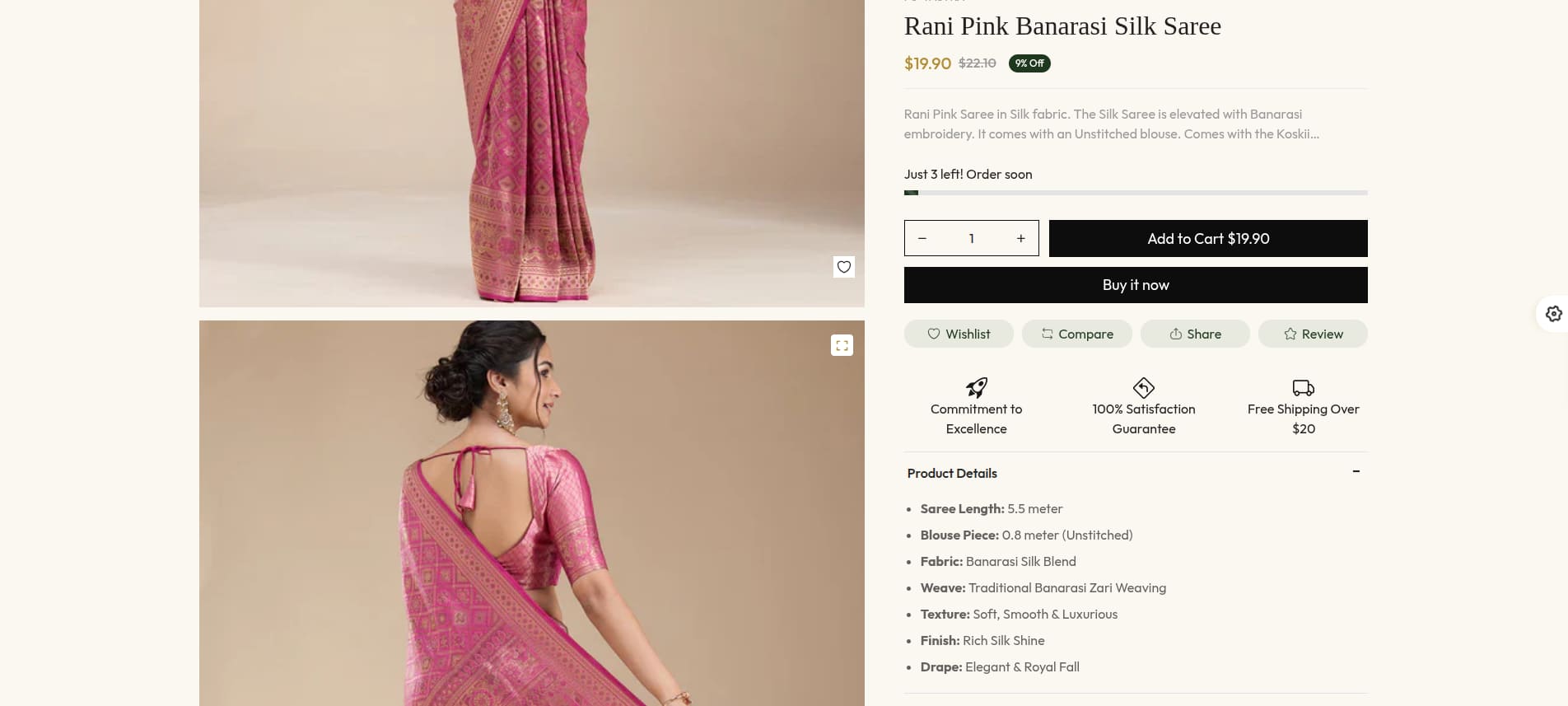
Media Layout - Only Image(Grid)

5Product Specification
- Choose Products -> default product from the dropdown window.
- In theTemplates -> Add
section and choose "Product
Specification".
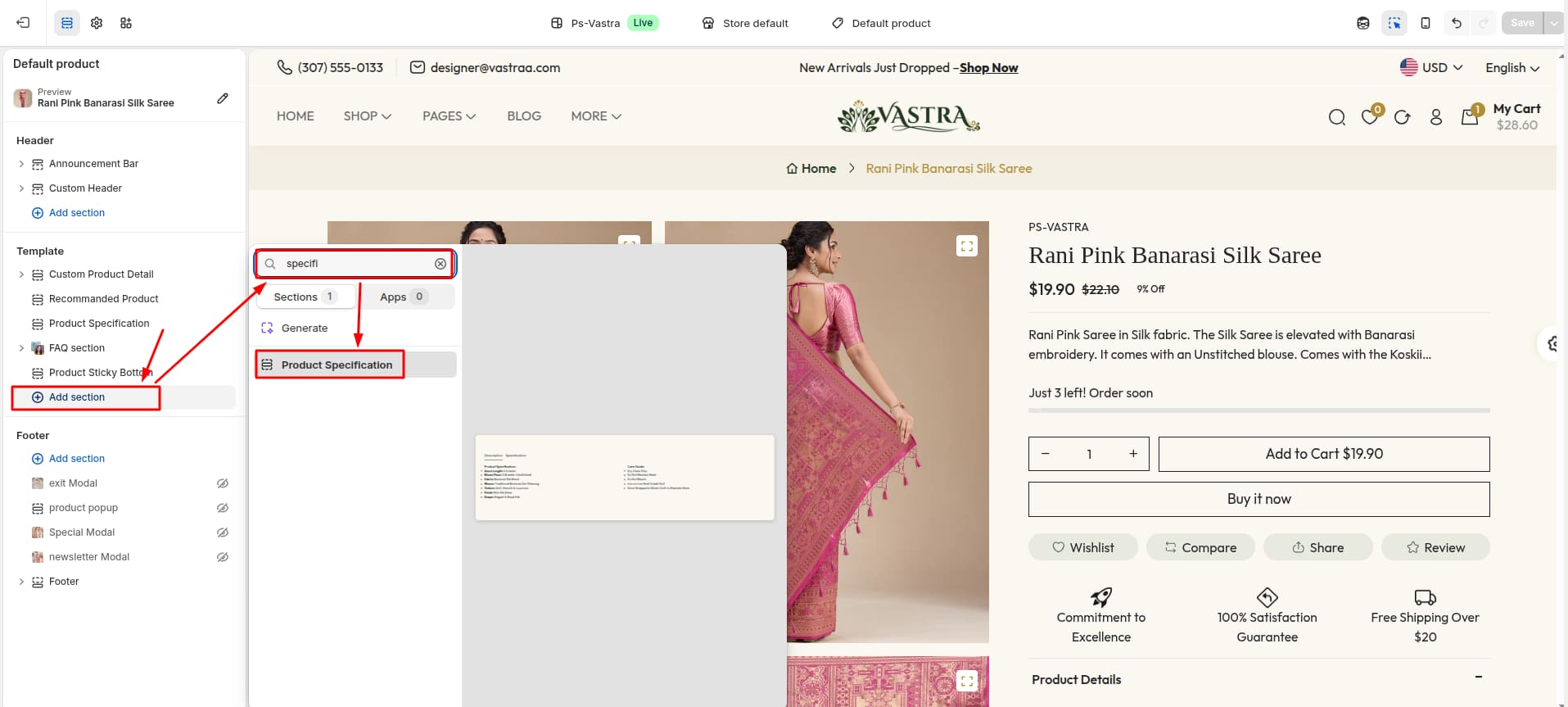
Section settings
Section settings make it easy to control how content appears on your store pages. Update text, images, and layout directly from the Theme Editor. Adjust spacing, colors, and alignment to match your brand style. Changes are applied instantly with live preview support.

| Settings | Type | Description | visibility |
|---|---|---|---|
| Font Size | range(px) | Adjust the font size of the tab buttons. | Always Visible |
| Font Weight | range | Adjust the font weight of the tab buttons. | Always Visible |
| Color | color | Choose the color of the tab buttons. | Always Visible |
| Active Tab Color | color | Choose the color of the active tab button. | Always Visible |
| Font Size | range(px) | Adjust the font size of the tab content title. | Always Visible |
| Font Weight | range | Adjust the font weight of the tab content title. | Always Visible |
| Color | color | Choose the color of the tab content title. | Always Visible |
| Font Size | range(px) | Adjust the font size of the tab content list. | Always Visible |
| Font Weight | range | Adjust the font weight of the tab content list. | Always Visible |
| Color | color | Choose the color of the tab content list. | Always Visible |
6Recommanded Products
- Choose Products -> default product from the dropdown window.
- In theTemplates -> Add
section and choose "Recommanded
Product".

Section settings
Section settings make it easy to control how content appears on your store pages. Update text, images, and layout directly from the Theme Editor. Adjust spacing, colors, and alignment to match your brand style. Changes are applied instantly with live preview support.

| Settings | Type | Description | visibility |
|---|---|---|---|
| Title Text | text | Set the text for the Section title. | Always Visible |
| Title Font Size | range(px) | Adjust the font size of the section title. | Always Visible |
| Title Font Weight | range | Adjust the font weight of the section title. | Always Visible |
| Title Color | color | Choose the color of the section title. | Always Visible |
| Font Size | range(px) | Adjust the font size of the product title. | Always Visible |
| Font Weight | range | Adjust the font weight of the product title. | Always Visible |
| Color | color | Choose the color of the product title. | Always Visible |
7FAQ Section
- Choose Products -> default product from the dropdown window.
- In theTemplates -> Add
section and choose "FAQ Section".

Supported Blocks
- Click Add block and
choose "FAQ" according to your requirement.
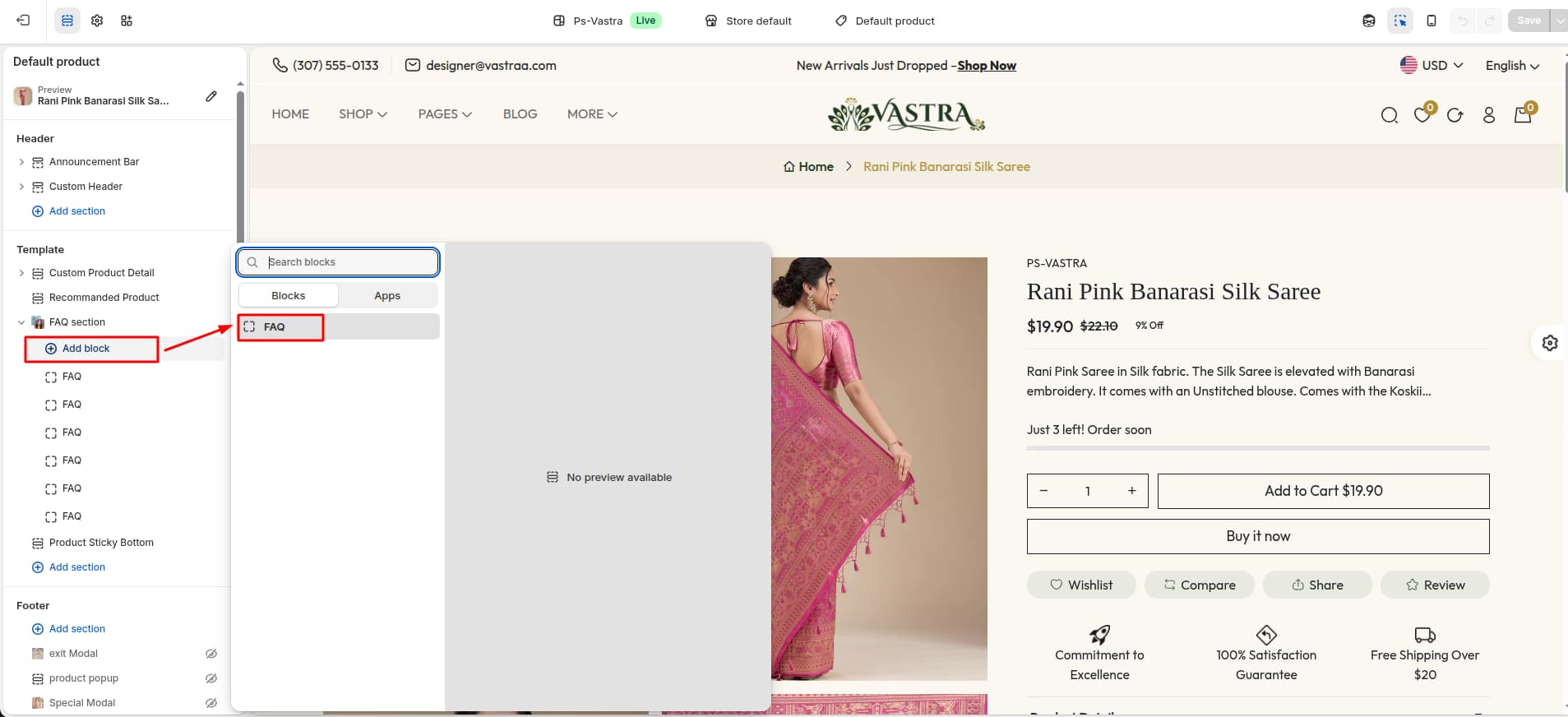
Block Settings
Each FAQ block includes two text fields—one for the question and one for the answer—allowing you to add multiple question-and-answer pairs easily.
| Settings | Type | Description | Visibility |
|---|---|---|---|
| FAQ Question | text | Enter the question you want to display in the FAQ. | Always Visible |
| FAQ Answer | text | Enter the answer corresponding to the FAQ question. | Always Visible |
Section settings
Section settings make it easy to control how content appears on your store pages. Update text, images, and layout directly from the Theme Editor. Adjust spacing, colors, and alignment to match your brand style. Changes are applied instantly with live preview support.

| Settings | Type | Description | visibility |
|---|---|---|---|
| Background Color | color | Set the background color for the section. | Always Visible |
| Heading Text | text | Set the text for the section heading. | Always Visible |
| Font Size | range(px) | Adjust the font size of the heading text. | Always Visible |
| Font weight | range | Adjust the font weight of the heading text. | Always Visible |
| Color | color | Set the color for the heading text. | Always Visible |
| Subheading Text | text | Set the text for the section subheading. | Always Visible |
| Font Size | range(px) | Adjust the font size of the subheading text. | Always Visible |
| Font weight | range | Adjust the font weight of the subheading text. | Always Visible |
| Color | color | Set the color for the subheading text. | Always Visible |
| Border color | color | Choose the color of the accordion border. | Always Visible |
| Border Radius | range(px) | Adjust the border radius of the accordion. | Always Visible |
| Background Color | color | Choose the background color of the questions. | Always Visible |
| Color | color | Set the color for the questions. | Always Visible |
| Font Size | range(px) | Adjust the font size of the questions. | Always Visible |
| Font weight | range | Adjust the font weight of the questions. | Always Visible |
| Background Color | color | Choose the background color of the answers. | Always Visible |
| Color | color | Set the color for the answers. | Always Visible |
| Font Size | range(px) | Adjust the font size of the answers. | Always Visible |
| Font weight | range | Adjust the font weight of the answers. | Always Visible |
| Heading Text | text | Enter the text of the form heading. | Always Visible |
| Font Size | range(px) | Adjust the font size of the form heading text. | Always Visible |
| Font weight | range | Adjust the font weight of the form heading text. | Always Visible |
| Color | color | Set the color for the form heading text. | Always Visible |
| Subheading Text | text | Enter the text of the form subheading. | Always Visible |
| Font Size | range(px) | Adjust the font size of the form subheading text. | Always Visible |
| Font weight | range | Adjust the font weight of the form subheading text. | Always Visible |
| Color | color | Set the color for the form subheading text. | Always Visible |
| User Image-1 | image_picker | Upload an image of the first user. | Always Visible |
| User Image-2 | image_picker | Upload an image of the second user. | Always Visible |
| User Image-3 | image_picker | Upload an image of the third user. | Always Visible |
| Font Size | range(px) | Adjust the font size of the form input. | Always Visible |
| Font weight | range | Adjust the font weight of the form input. | Always Visible |
| Background Color | color | Set the background color for the form input. | Always Visible |
| Color | color | Set the color for the form input. | Always Visible |
| Font Size | range(px) | Adjust the font size of the form button. | Always Visible |
| Font weight | range | Adjust the font weight of the form button. | Always Visible |
| Background Color | color | Set the background color for the form button. | Always Visible |
| Color | color | Set the color for the form button. | Always Visible |
8Product Bottom Sticky
- Choose Products -> default product from the dropdown window.
- In theTemplates -> Add
section and choose "Product Sticky
Bottom".

Section settings
Section settings make it easy to control how content appears on your store pages. Update text, images, and layout directly from the Theme Editor. Adjust spacing, colors, and alignment to match your brand style. Changes are applied instantly with live preview support.

| Settings | Type | Description | visibility |
|---|---|---|---|
| Select Layout | select (Full width / normal) | Select the layout for the product sticky bottom. | Always Visible |
| Position | Text_alignment | Set the position of the bottom product. | Visible when layout is normal selected. |
| Height | range(px) | Adjust the height of the section. | Always Visible |
| Image Width | range(px) | Adjust the width of the bottom product image. | Always Visible |
| Image Height | range(px) | Adjust the height of the bottom product image. | Always Visible |
| Image Radius | range(px) | Adjust the radius of the bottom product image. | Always Visible |
| Font Size | range(px) | Adjust the font size of the bottom product title text. | Always Visible |
| Font Weight | range | Adjust the font weight of the bottom product title text. | Always Visible |
| Color | color | Choose the color of the bottom product title text. | Always Visible |
| Font Size | range(px) | Adjust the font size of the bottom product price text. | Always Visible |
| Font Weight | range | Adjust the font weight of the bottom product price text. | Always Visible |
| Color | color | Choose the color of the bottom product price text. | Always Visible |
| Compare Font Size | range(px) | Adjust the font size of the bottom product compare price text. | Always Visible |
| Compare Font Weight | range | Adjust the font weight of the bottom product compare price text. | Always Visible |
| Compare Color | color | Choose the color of the bottom product compare price text. | Always Visible |
| Background Color | color | Choose the background color of the bottom product button. | Always Visible |
| Color | color | Choose the color of the bottom product button text. | Always Visible |
| Font Size | range(px) | Adjust the font size of the bottom product button text. | Always Visible |
| Font Weight | range | Adjust the font weight of the bottom product button text. | Always Visible |
| Border Radius | range(px) | Adjust the border radius of the bottom product button. | Always Visible |
Cart Pages
1Install Layout
- Click the file name to open and download the corresponding JSON layout in a new tab.(cart.json)
- SELECT ALL and COPY.
- From your Shopify admin, go to
Themes -> Actions -> Edit Code.
- Find folder templates
-> Open file cart.json -> SELECT
ALL and DELETE. PASTE the copied
preset from the external file.

- From your Shopify admin, go to Themes -> Edit Theme.
- Choose Cart from the
dropdown window.

- After that, Click Add
section and choose "Cart".
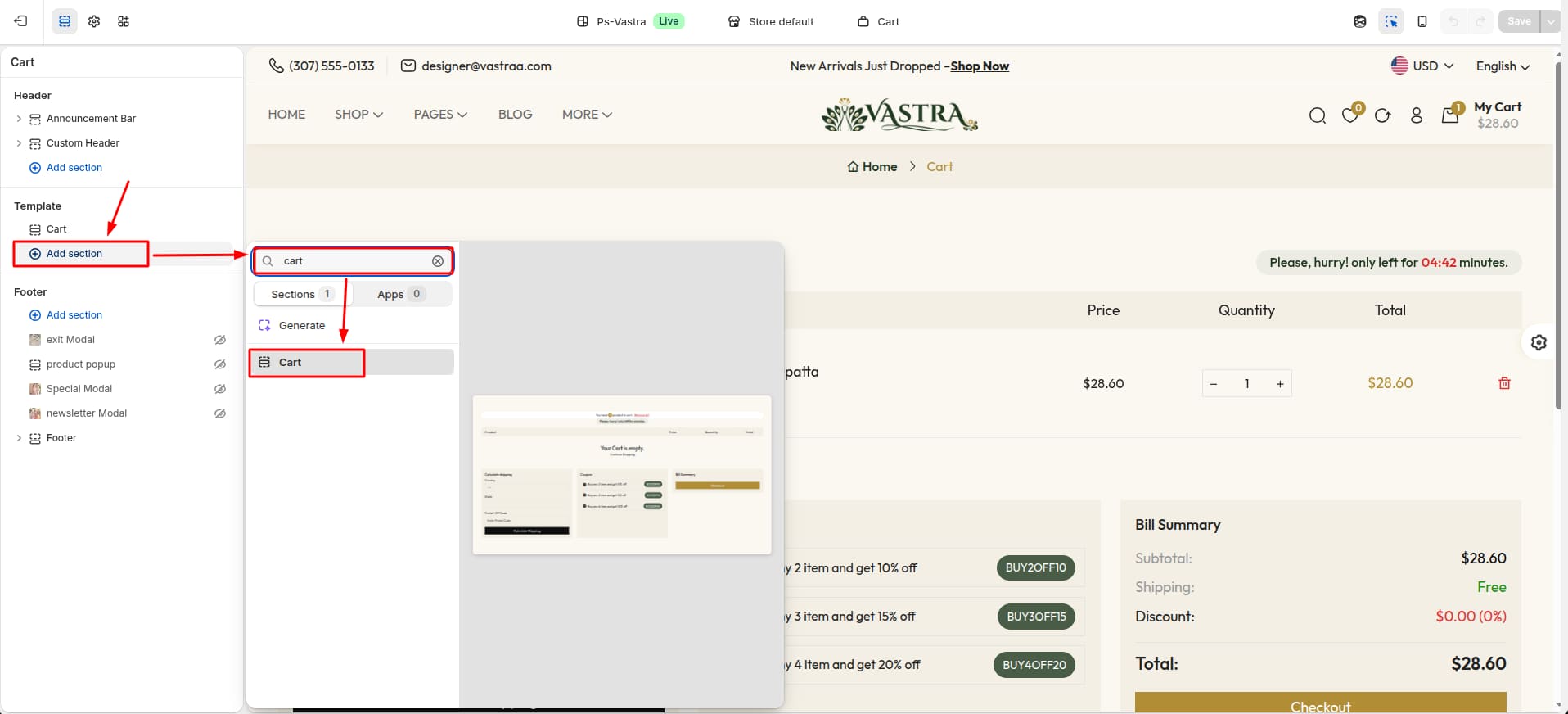
2Cart Timer
- From your Shopify admin, go to Themes -> Edit Theme.
- After that , Theme setting in Find Cart Settings.
- Then , Cart Page Countdown in add
Cart Timer Text and Cart Countdown Time
in Seconds.

Blog Settings
1Create Blog
- Go to Admin Panel -> Content.
- Find and Select Blog Posts.
- Click Manage blogs.

- After that, click Add
Blog.

- Enter a Title the blog.
- Click Save.

2Blog Settings
- Click the file name to open and download the corresponding JSON layout in a new tab.(blog.json)
- SELECT ALL and COPY.
- From your Shopify admin, go to
Themes -> Actions -> Edit Code.
- Find folder templates
-> Open file blog.json -> SELECT
ALL and DELETE. PASTE the copied
preset from the external file.

- From your Shopify admin, go to Themes -> Edit Theme.
- Choose Blogs from the
dropdown window.
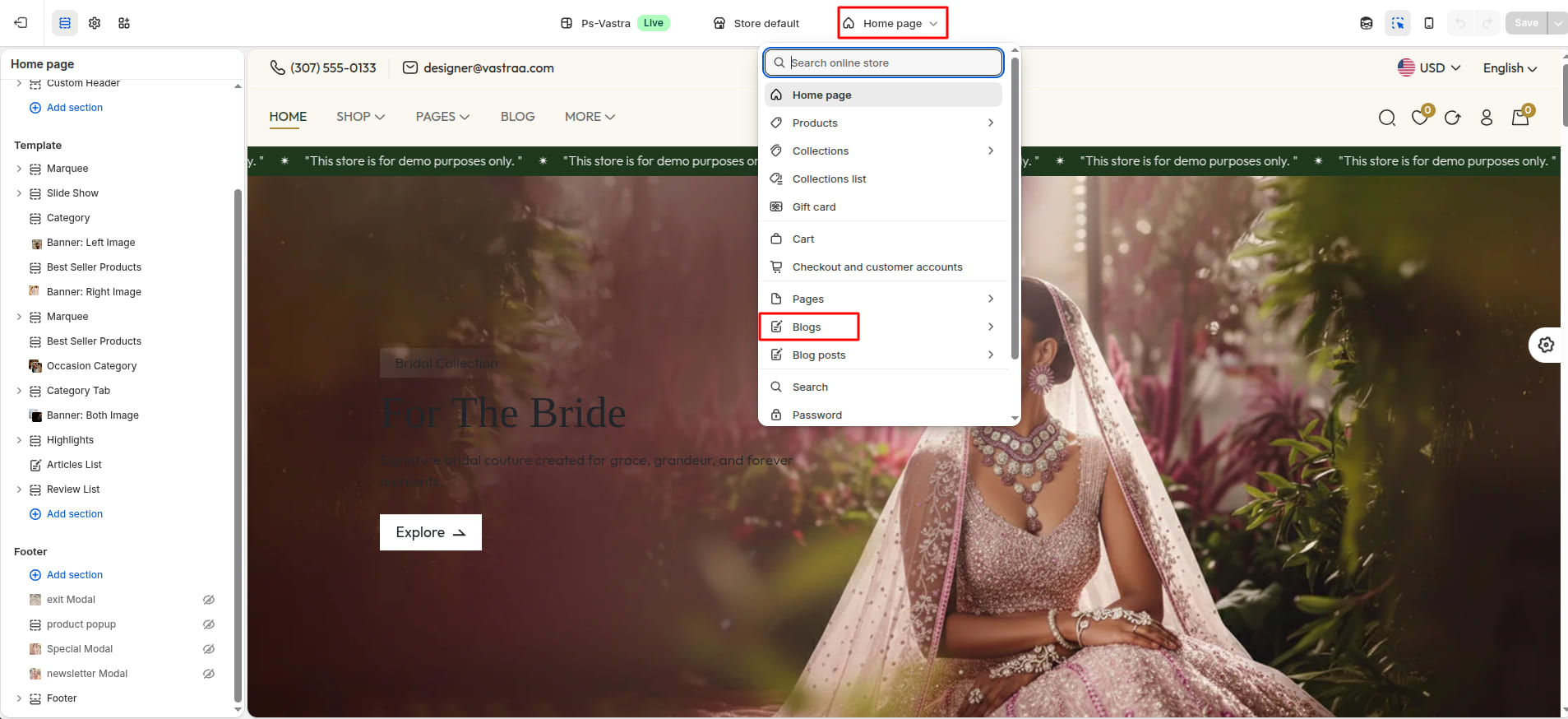
- After that, choose Default
Blog.

- Click Add section and
choose "Blog List(Multiple Blogs)".
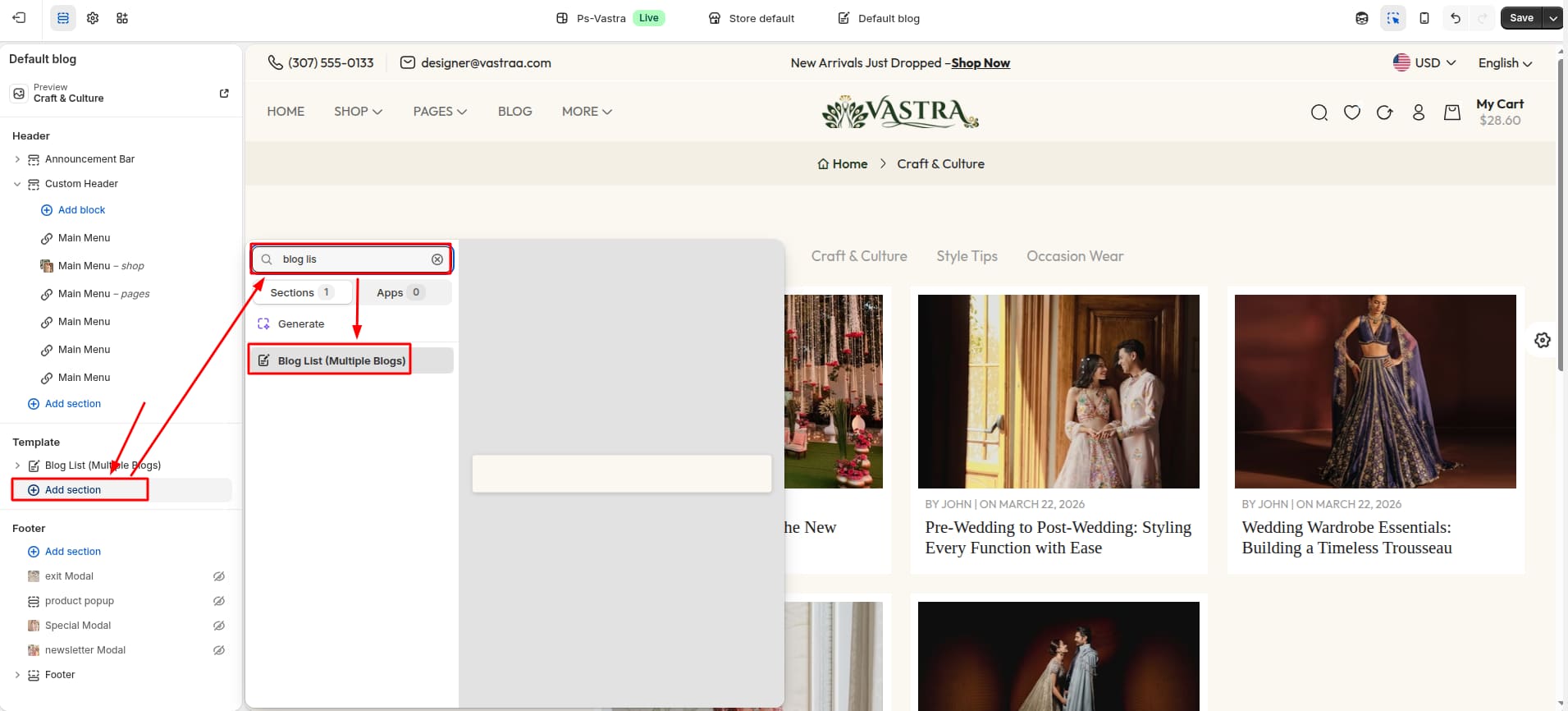
Supported Blocks
- Click Add block and
choose "Blog" according to your requirement.

| Block Type | Setting Type | Description |
|---|---|---|
| Blog | blog | Select a blog to display. |
Section settings
Section settings make it easy to control how content appears on your store pages. Update text, images, and layout directly from the Theme Editor. Adjust spacing, colors, and alignment to match your brand style. Changes are applied instantly with live preview support.
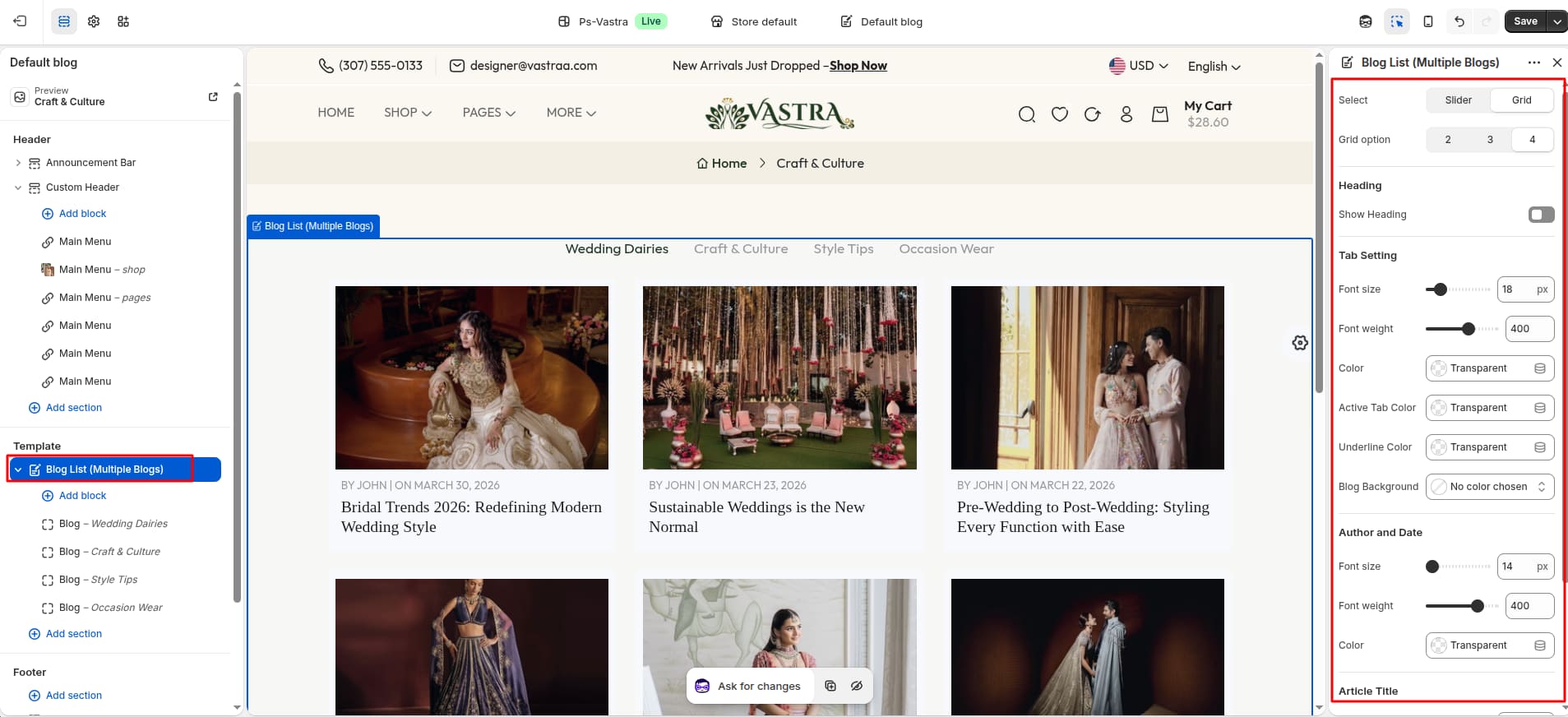
| Settings | Type | Description | visibility |
|---|---|---|---|
| Select | select( Slider / Grid) | Select a blog display layout. | Always Visible |
| Grid option | select(2 / 3 / 4) | Select a blog display layout. | Always Visible |
| Inactive Dot Color | color | Choose a color for inactive dots. | Visible when Slider is selected |
| Active Dot Color | color | Choose a color for active dots. | Visible when Slider is selected |
| Show Heading | checkbox | Show or hide the heading text. | Always Visible |
| Text | text | Enter the heading text. | Visible when Show Heading is true |
| Font Size | range(px) | Adjust the font size of the heading text. | Visible when Show Heading is true |
| Font Weight | range | Adjust the font weight of the heading text. | Visible when Show Heading is true |
| Color | color | Choose the color of the heading text. | Visible when Show Heading is true |
| Space below Content | range(px) | Adjust the space below the heading text. | Visible when Show Heading is true |
| Font Size | range(px) | Adjust the font size of the tab text. | Always Visible |
| Font Weight | range | Adjust the font weight of the tab text. | Always Visible |
| Color | color | Choose the color of the tab text. | Always Visible |
| Active Tab Color | color | Choose a color for active tab. | Always Visible |
| Underline Color | color | Choose a color for Active tab underline. | Always Visible |
| Blog Background | color_background | Choose the background color for a blogs. | Always Visible |
| Font Size | range(px) | Adjust the font size of the author and date text. | Always Visible |
| Font Weight | range | Adjust the font weight of the author and date text. | Always Visible |
| Color | color | Choose the color of the author and date text. | Always Visible |
| Font Size | range(px) | Adjust the font size of the article title. | Always Visible |
| Font Weight | range | Adjust the font weight of the article title. | Always Visible |
| Color | color | Choose the color of the article title. | Always Visible |
3Create Blog Post
- Go to Admin Panel -> Content.
- Find and Select Blog Posts.
- Click Add blog post.

Add Blog post Details
- Enter the Title of the blog post.
- Set Visibility to control whether the post is shown on the storefront.
- Upload a Image for the blog post.
- Select the appropriate Blog to group the post.
- Choose a Template for the blog layout.
- Click Save to publish
the blog post.

Add detailed content in the Content section. To display a short summary on the home page or blog listing, enter a brief description in the Excerpt field.
4Blog Post Settings
- Click the file name to open and download the corresponding JSON layout in a new tab.(article.json)
- SELECT ALL and COPY.
- From your Shopify admin, go to
Themes -> Actions -> Edit Code.
- Find folder templates
-> Open file article.json -> SELECT
ALL and DELETE. PASTE the copied
preset from the external file.

- From your Shopify admin, go to Themes -> Edit Theme.
- Choose Blog posts from
the dropdown window.

- After that, choose Default Blog
post.

- Click Add section and
choose "Blog Detail".
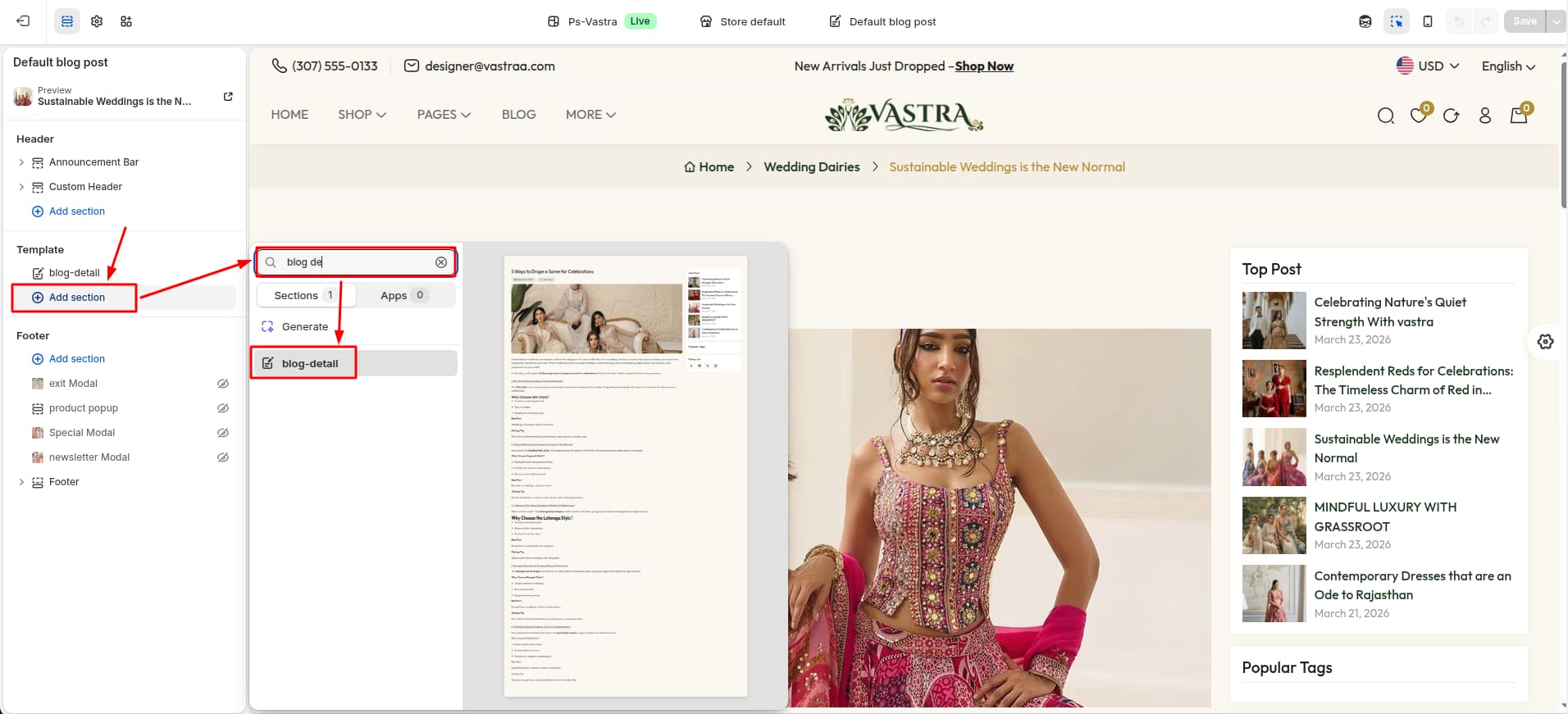
Section settings
Section settings make it easy to control how content appears on your store pages. Update text, images, and layout directly from the Theme Editor. Adjust spacing, colors, and alignment to match your brand style. Changes are applied instantly with live preview support.

| Settings | Type | Description | visibility |
|---|---|---|---|
| Alignment | text_alignment | Adjust the alignment of the blog title text. | |
| Font Size | range(px) | Adjust the font size of the blog title text. | Always Visible |
| Font Weight | range | Adjust the font weight of the blog title text. | Always Visible |
| Color | color | Choose the color of the blog title text. | Always Visible |
| Space below Content | range(px) | Adjust the spacing below the blog title text. | Always Visible |
| Font size | range(px) | Adjust the font size of the author and date text. | Always Visible |
| Font weight | range | Adjust the font weight of the author and date text. | Always Visible |
| Date Color | color | Choose the color of the date text. | Always Visible |
| Author Color | color | Choose the color of the author text. | Always Visible |
| Text Font Size | range(px) | Adjust the font size of description. | Always Visible |
| Text Font Weight | range | Adjust the font weight of the description. | Always Visible |
| Text Color | color | Choose the color of the desciption. | Always Visible |
| Heading Font Size | range(px) | Adjust the font size of description within the heading. | Always Visible |
| Heading Font Weight | range | Adjust the font weight of the description within the heading. | Always Visible |
| Heading Color | color | Choose the color of the desciption within the heading. | Always Visible |
| Sub Heading Font Size | range(px) | Adjust the font size of description within the subheading. | Always Visible |
| Sub Heading Font Weight | range | Adjust the font weight of the description within the subheading. | Always Visible |
| Sub Heading Color | color | Choose the color of the desciption within the subheading. | Always Visible |
| Background Color | color | Choose the background color of the sidebar. | Always Visible |
| Title Font Size | range(px) | Adjust the font size of the sidebar title. | Always Visible |
| Title Font Weight | range | Adjust the font weight of the sidebar title. | Always Visible |
| Title Color | color | Choose the color of the sidebar title. | Always Visible |
| Background Color | color_background | Choose the background color of the social icon and tag. | Always Visible |
| Color | color | Choose the color of the social icon and tag. | Always Visible |
| Border Color | color | Choose the border color of the social icon and tag. | Always Visible |
| Hover Background Color | color_background | Choose the background color of the social icon and tag when hover. | Always Visible |
| Hover Color | color | Choose the color of the social icon and tag when hover. | Always Visible |
| Font Size | range(px) | Adjust the font size of the post text. | Always Visible |
| Font Weight | range | Adjust the font weight of the post text. | Always Visible |
| Color | color | Choose the color of the post text. | Always Visible |
Theme Features
Blazing Fast
SEO-optimized for Lighthouse & Core Web Vitals.
Mobile First
Seamless shopping across all mobile devices.
Visual Builder
Build and customize your store visually.
Multi-language
Sell globally with multi-language support.
Products Bundle
Create and sell product bundles easily.
Smart Cart
Smart AJAX cart with upsells and shipping.
Mega Menus
Navigation menus with images, banners, and icons
Quick View
Instant product peek without leaving the page.
Reviews
To Build trust and social proof instantly.
Products Comparing
Side-by-side clarity for smarter choices.
Filters
Powerful Shopify filters to find products effortlessly.
Lookbook
Inspire shoppers with a stunning lookbook.
Lazy Loading
Load images only when needed for speed.
Dark Mode
Stylish dark mode for a modern shopping experience.
Troubleshooting
1Color
- Locate the Text Color field. Click on the color input (shows No color chosen).
- Inside the color picker By default, preset Gradient will appear.
- In the Gradient panel, click
CSS.

- The CSS Code input
field will become visible.Paste your CSS value into the CSS Code
field or write your own CSS code.

2Product Badge
To display a Discount badge on a specific product, follow the steps below:
- Go to Admin Panel -> products.
- Select the product that you want to edit.
- In the Pricing section, enter the original price in the Compare at price field and the discounted price in the Price field.
- The Discount badge will be displayed automatically when the difference between the Compare at price and the Price is 5% or more.
Change Log
Version 1.0.0 – Initial Release (April 2026)
1Initial Release
- First official release of the theme.
- Fully responsive and modern design.
- Optimized for performance and speed.
2Features
- Multiple homepage sections and flexible layouts.
- Product page with variant options (dropdown, swatch, image).
- Advanced product media support (image, video, 360° view).
- Collection page with filters (size, color, price, rating).
- Quick view and smooth navigation.
- Mobile-friendly and cross-browser compatible.
3Highlights
- Clean and minimal UI inspired by modern eCommerce trends.
- Easy customization through Shopify theme editor.
- SEO-friendly structure and fast loading.