
 Contacts
Overview
The Contacts module helps manage all your customer contacts from a centralized location. Users can store important details such as first name, last name, phone number, email address, and other custom fields for use in campaigns and automated workflows.
All contacts created or imported here become available during campaign creation, allowing you to easily select recipients for Email, SMS, and WhatsApp campaigns.
Dashboard
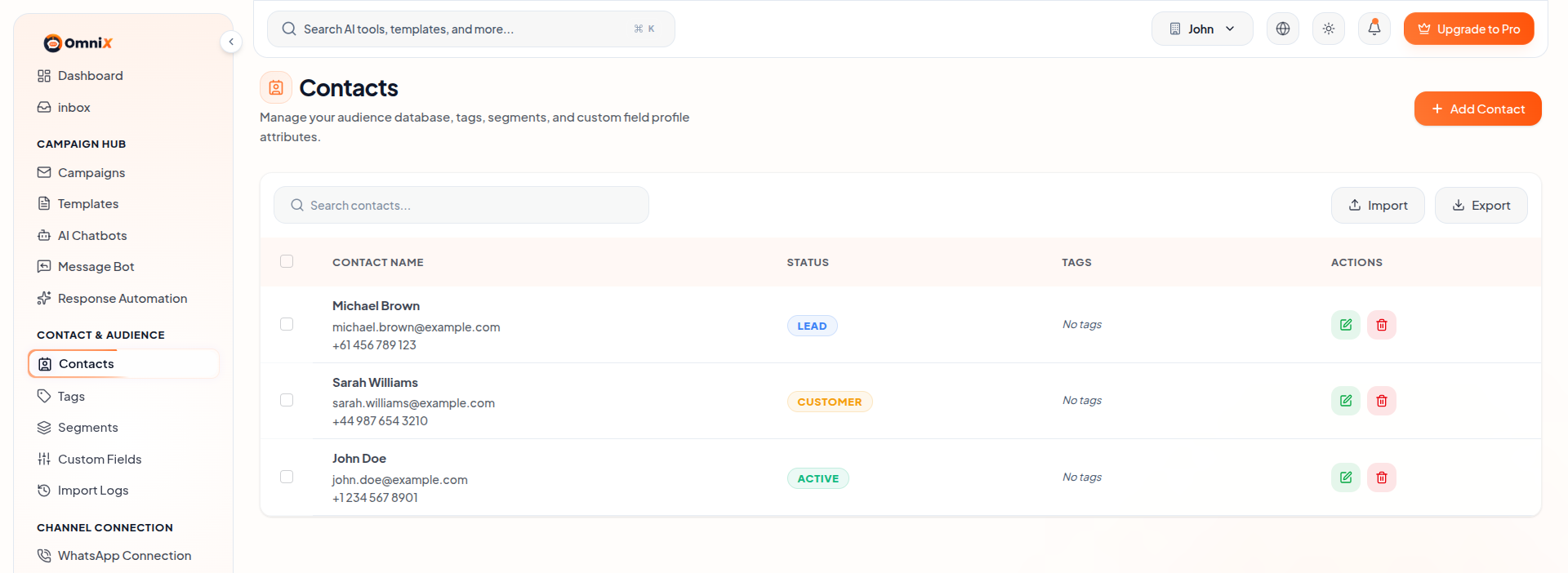
The Contacts Dashboard displays all saved contacts in a clean table view with details like Contact Name, Phone Number, Email, and quick action buttons. You can search contacts, import bulk data, export contacts, and manage them efficiently from one place.
The dashboard also supports bulk selection and bulk actions (delete, tag, etc.) for better contact management.
1. Create Contact
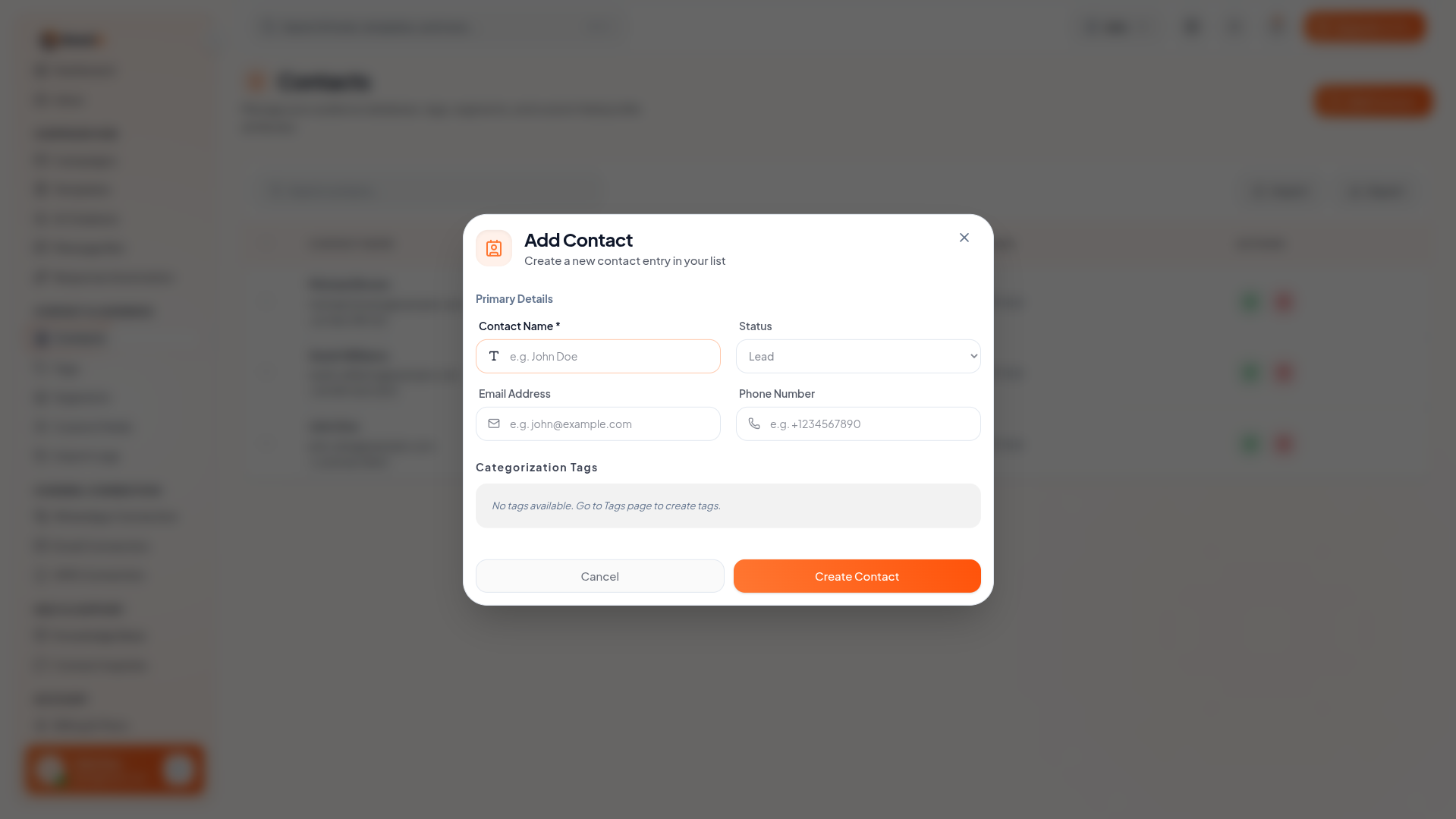
Click the Create Contact button to manually add a new contact. Fill in details such as First Name, Last Name, Phone Number, Email Address, and other custom fields.
After entering the information, click Save or Create Contact. The new contact will immediately become available for selection in campaigns.
2. Edit Contact
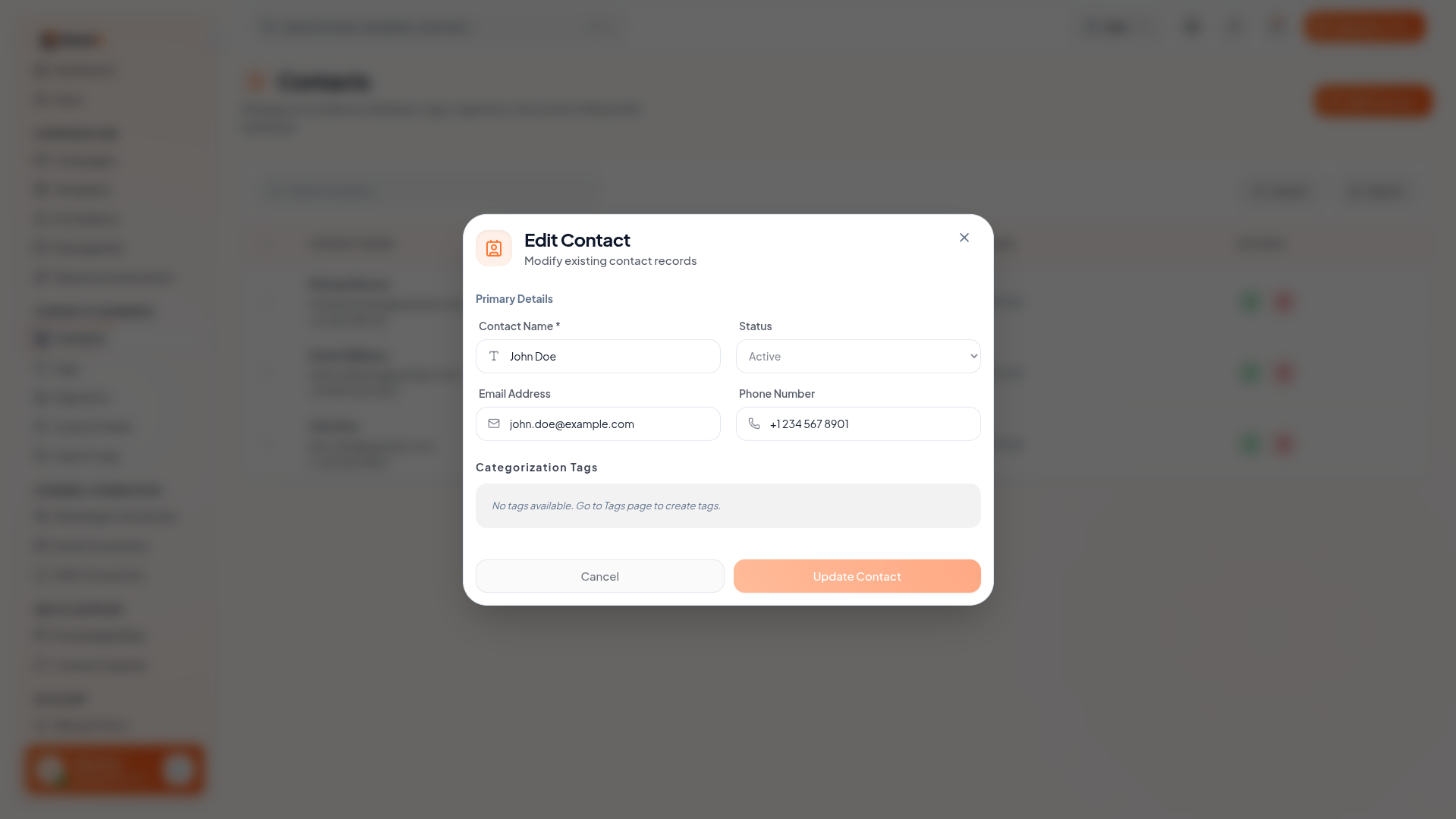
Click the Edit (pencil icon) next to any contact in the list to update their information. You can modify name, phone number, email, tags, or custom fields.
After making changes, click Save Changes to update the contact.
3. Delete Contact
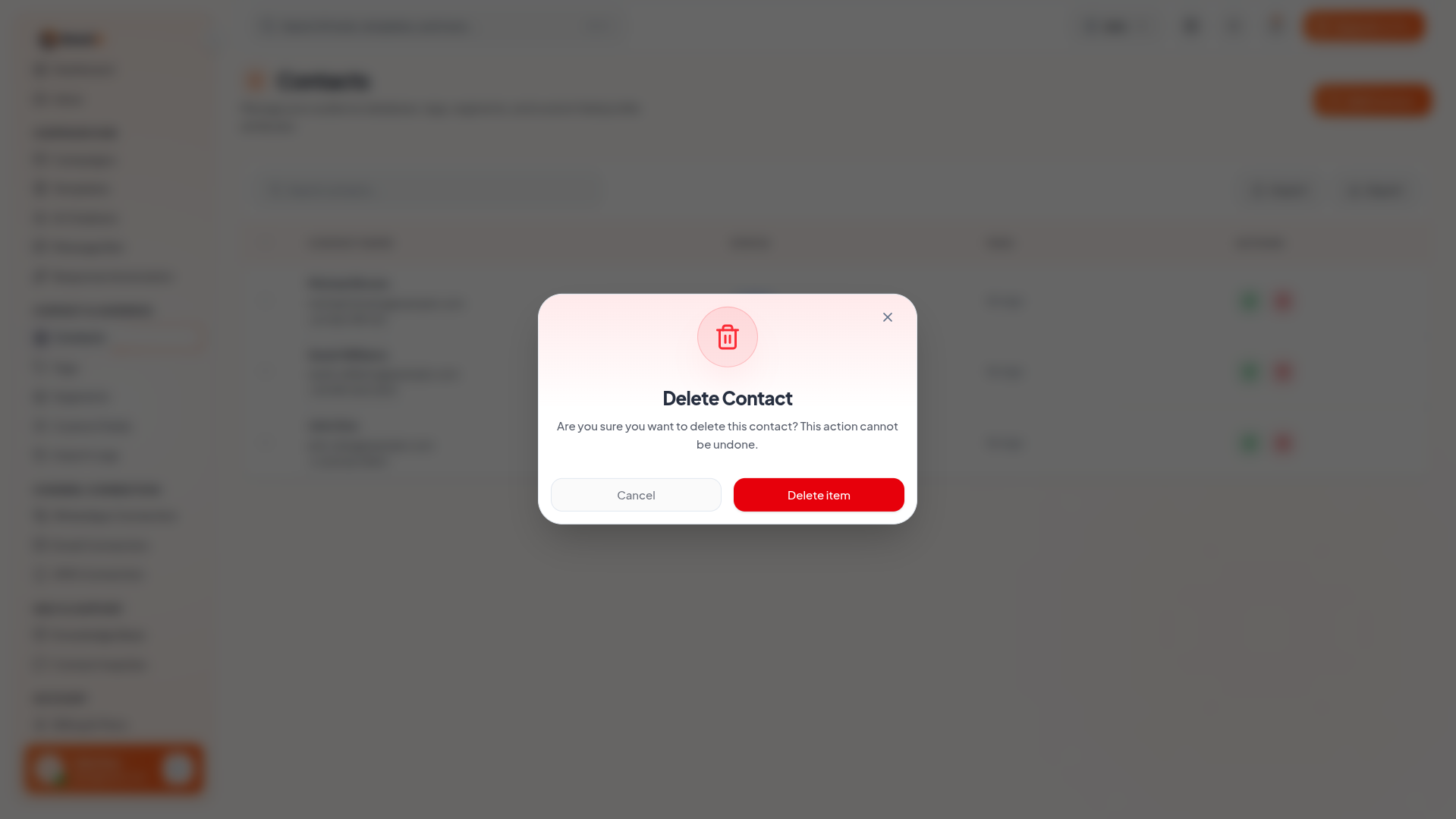
Click the Delete (trash icon) next to a contact to permanently remove it from the system. A confirmation dialog will appear to prevent accidental deletion.
Key Points
- Centralized management of all customer contacts.
- Quick search and filter options for easy access.
- Bulk Import & Export support for large contact lists.
- Direct integration with Campaigns for recipient selection.
- Bulk actions (Delete, Tag, Segment) for efficient management.
What's Next?
Continue exploring the Admin Module tools.


