
Advance UI Elements
Scrollable Preview link
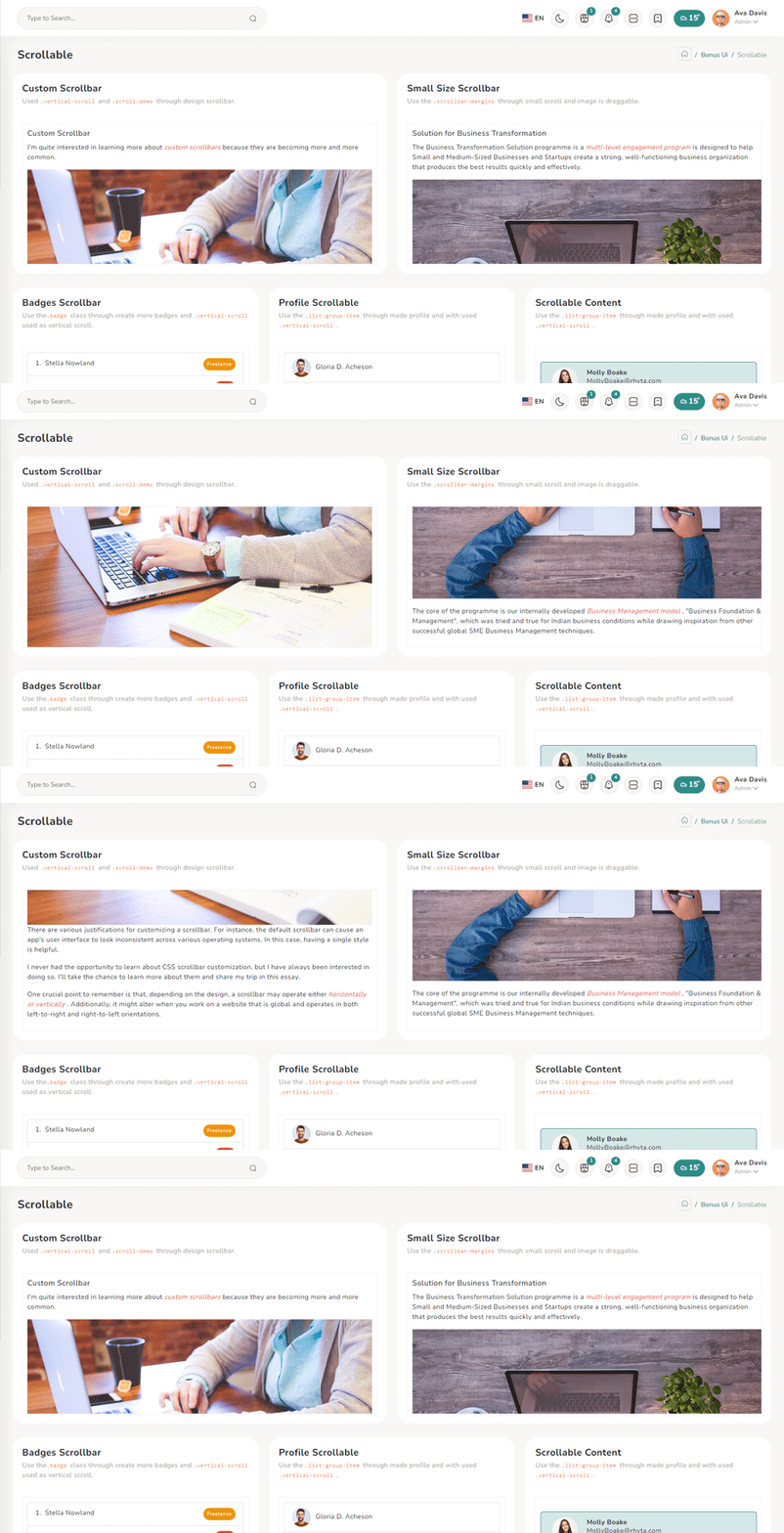
npm i vue3-perfect-scrollbarIn your main.ts file all the following code:
import PerfectScrollbar from 'vue3-perfect-scrollbar'
import 'vue3-perfect-scrollbar/dist/vue3-perfect-scrollbar.css'
.use(PerfectScrollbar)
Inside Your template tags add
<perfect-scrollbar class="vertical-scroll scroll-demo" :settings="settings4">
  <h5 class="pb-2">Custom Scrollbar </h5>
  <p>I'm quite interested in learning more about <em class="txt-danger">custom scrollbars</em> because
      they are becoming more and more common.</p>
  <div class="scrollbar-images"><img class="img-fluid" src="@/assets/images/banner/1.jpg" alt="banner">
  </div>
  <p>
      There are various justifications for customizing a scrollbar. For instance, the default scrollbar
      can cause an app's user interface to look inconsistent across various operating systems. In this
      case, having a single style is helpful.</p>
  <p>
      I never had the opportunity to learn about CSS scrollbar customization, but I have always been
      interested in doing so. I'll take the chance to learn more about them and share my trip in this
      essay.</p>
  <p>
      One crucial point to remember is that, depending on the design, a scrollbar may operate either <em
          class="txt-danger">horizontally or vertically</em> . Additionally, it might alter when you work
      on a website that is global and operates in both left-to-right and right-to-left orientations.</p>
</perfect-scrollbar>
Inside Your script tags add
const settings4 = {
 maxScrollbarLength: 60,
 suppressScrollY: true,
 suppressScrollX: false
}
Tree Offical link Preview link
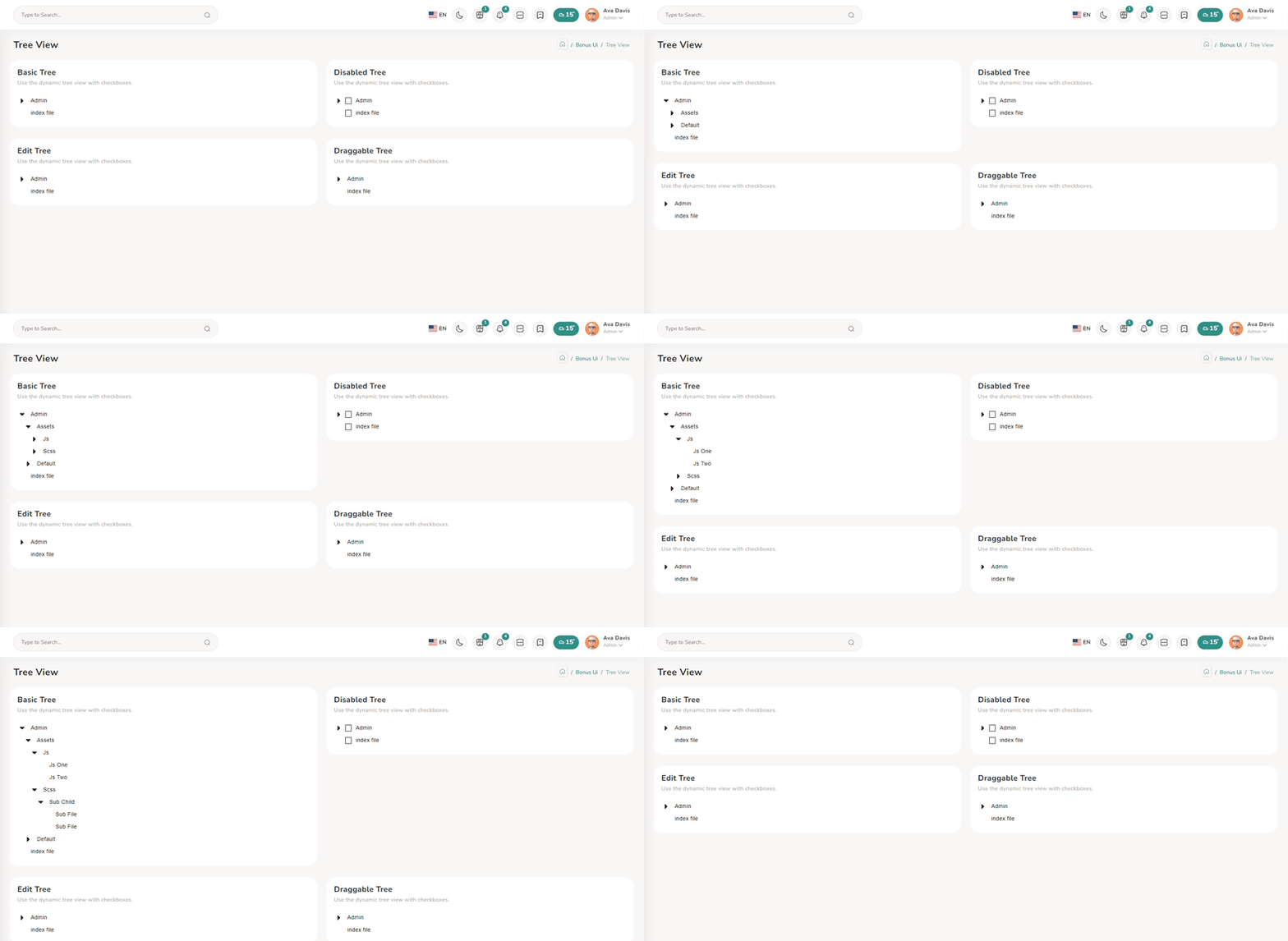
npm i vue3-treeviewInside Your template tags add
<treeview :nodes="nodes" :config="config"/>
Inside Your script tags add
import treeview from "vue3-treeview";
 import "vue3-treeview/dist/style.css";
 import { defineAsyncComponent, ref } from 'vue'
 const Card3 = defineAsyncComponent(() => import("@/components/common/card/CardData3.vue"))
 let desc = ref<string>("Use the dynamic tree view with checkboxes.")
   interface Node {
     text: string;
     children?: string[];
 }

 interface Nodes {
     [key: string]: Node;
 }
 let nodes = ref<Nodes>({
     id1: {
         text: "Admin",
         children: ["id11", "id12"],
     },
     id11: {
         text: "Assets",
         children: ["id113", "id118"],
     },
     id12: {
         text: "Default",
         children: ["id131", "id122"],
     },
     id111: {
         text: "CSS",
         children: ["id114", "id115"],
     },
     id114: {
         text: "Css One",
     },
     id115: {
         text: "Css Two",
     },
     id113: {
         text: "Js",
         children: ["id116", "id117"],
     },
     id116: {
         text: "Js One"
     },
     id117: {
         text: "Js Two"
     },
     id118: {
         text: "Scss",
         children: ["id119"]
     },
     id119: {
         text: "Sub Child",
         children: ["id120", "id121"]
     },
     id120: {
         text: "Sub File"
     },
     id121: {
         text: "Sub File"
     },
     id131: {
         text: "Dashboard"
     },
     id122: {
         text: "Typography"
     },
     id2: {
         text: "index file",
     },
 });

 let config = ref({
     roots: ["id1", "id2"],

 });
Toast Offical link Preview link
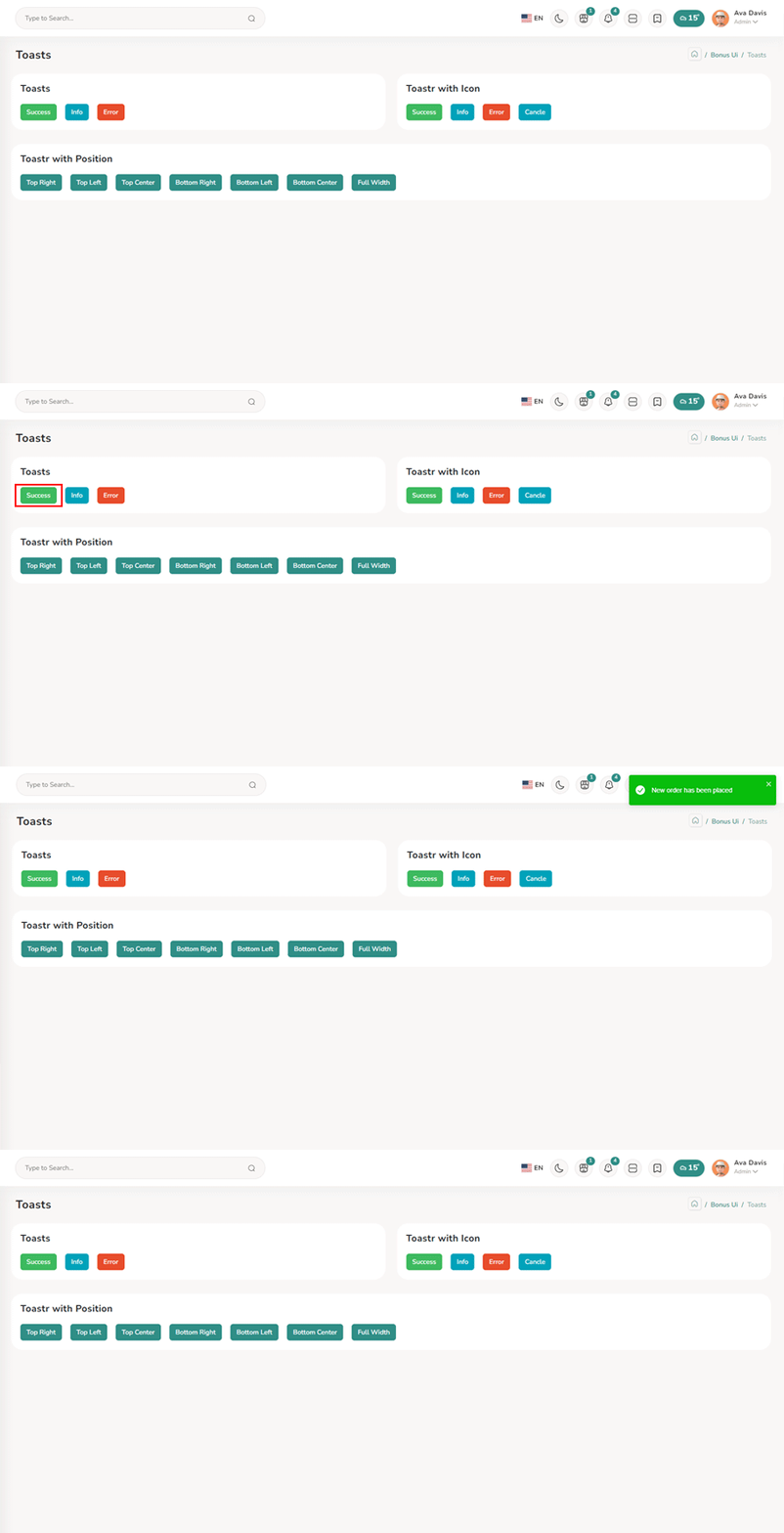
npm i vue3-toastifyInside Your template tags add
<class="btn btn-success " type="button" @click="success" variant="success">Success</Button>
Inside Your script tags add
import { toast } from 'vue3-toastify';
 import 'vue3-toastify/dist/index.css';
 function success() {
  toast.success(' New order has been placed ', {
      hideProgressBar: true, autoClose: 2000, theme: 'colored', position: 'top-right'
  });
}
Dropzone Offical link Preview link
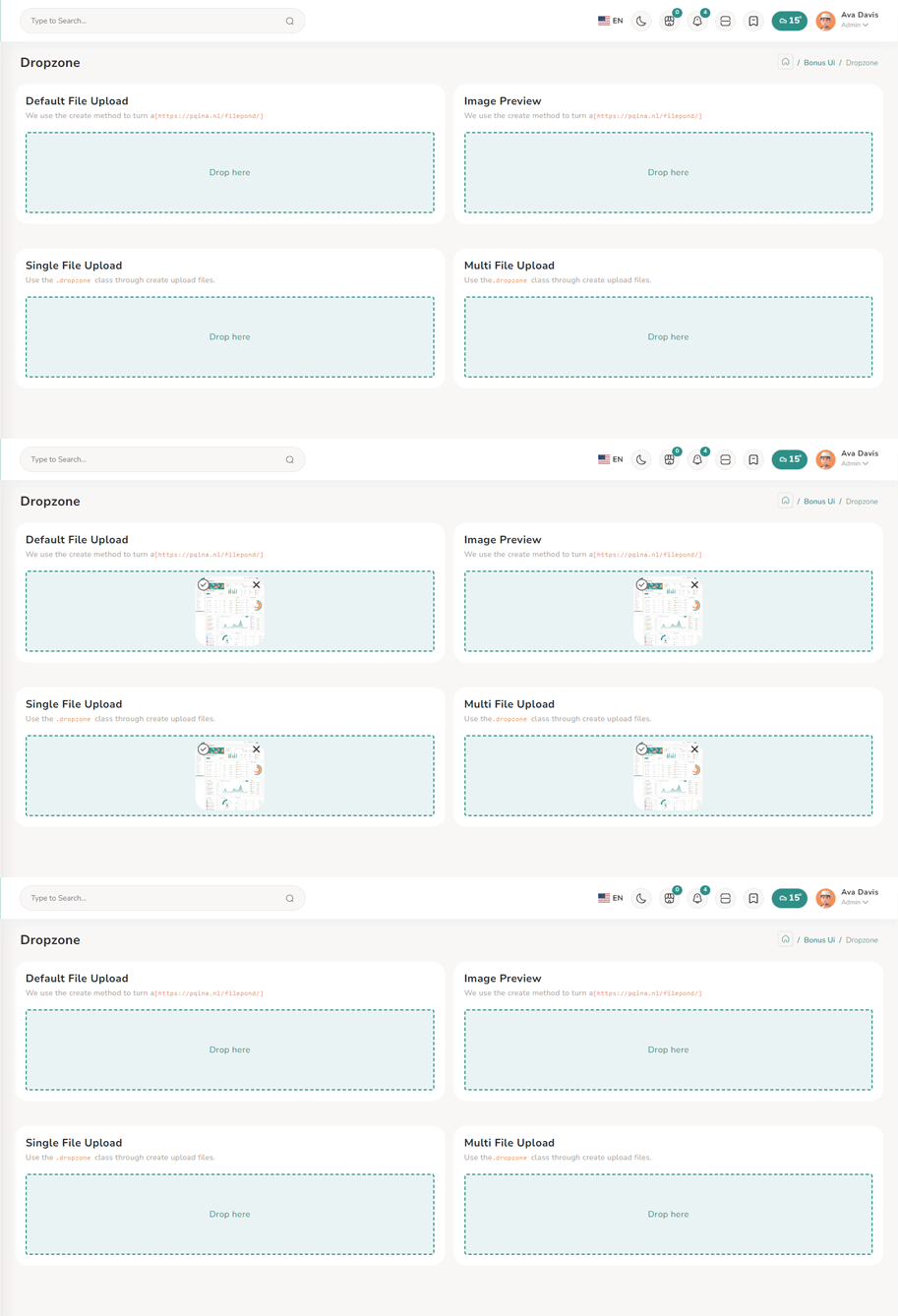
npm i dropzone-vueInside Your template tags add
<DropZone
:maxFileSize="Number(60000000)"
:uploadOnDrop="true"
:dropzoneMessageClassName="customClass" :maxFiles="1">
</DropZone>
Inside Your script tags add
import DropZone from "dropzone-vue";
Inside Your style tags add
@import 'dropzone-vue/dist/dropzone-vue.common.css';
Tour Offical link Preview link
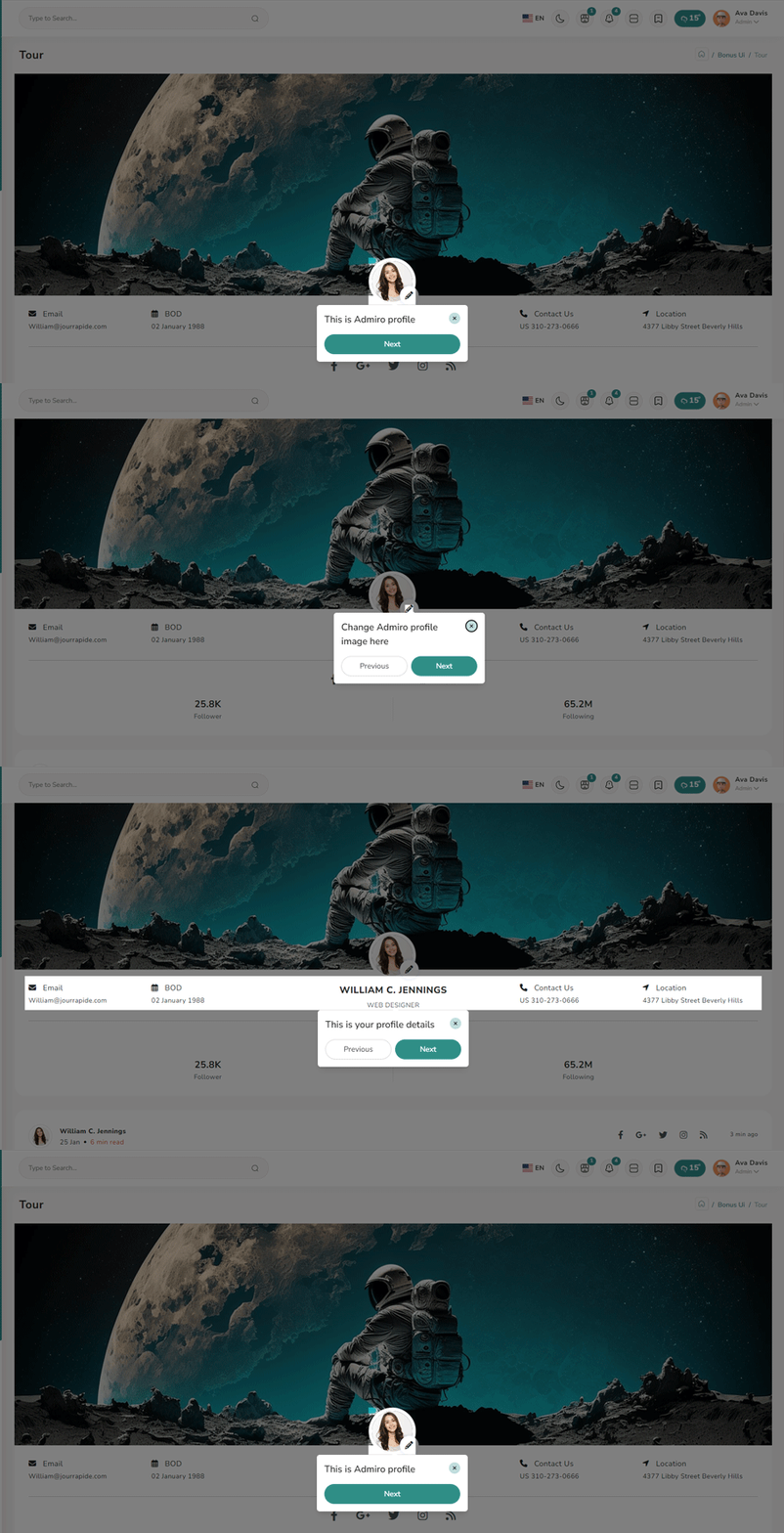
npm i v-onboardingInside Your template tags add
<img img class="img-fluid" alt="" src="@/assets/images/user/7.jpg" data-intro="This is Profile image">
<router-link class="icon-wrapper" id="update-profile-tour" to="/users/edit">
<i class="icofont icofont-pencil-alt-5" data-intro="Change Profile image here"  id="update-profile-tour" ></i>
</router-link>
<VOnboardingWrapper ref="wrapper" :steps="steps" class="tour-visit"/>
Inside Your script tags add
import { VOnboardingWrapper, useVOnboarding } from 'v-onboarding'
 import 'v-onboarding/dist/style.css'
 const { start, goToStep, finish } = useVOnboarding(wrapper)
 let steps = [
     {
         attachTo: { element: '#profiletour' }, content: { title: "This is Cion profile" }
     },
     {
         attachTo: { element: '#update-profile-tour' }, content: { title: "Change Cion profile image here" }
     }
 ]

 onMounted(() => {
     start()
 });
Sweetalert Offical link Preview link
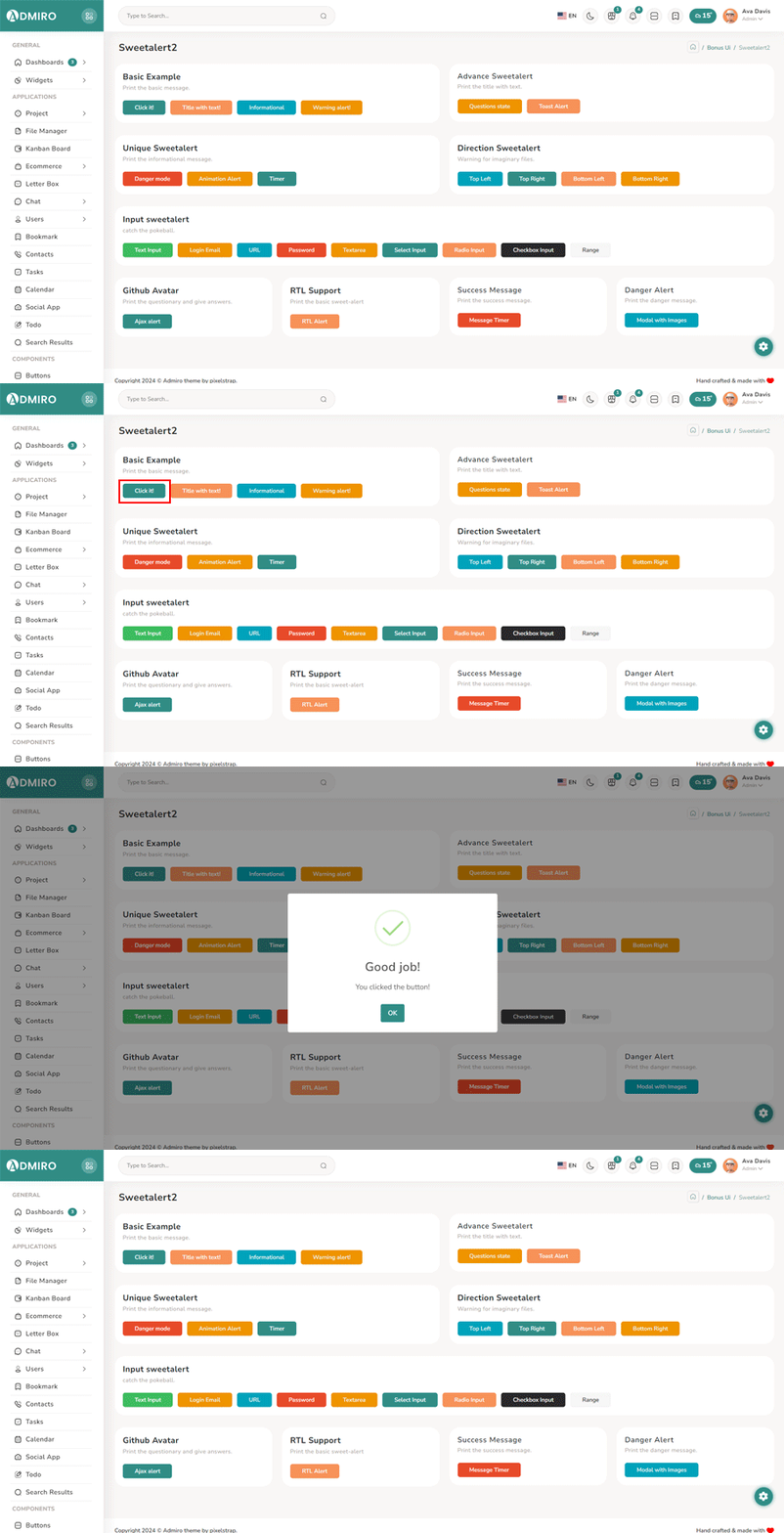
npm i sweetalert2Inside Your template tags add
<button class="btn btn-danger sweet-5" type="button" v-on:click="basic_warning_alert" >Warning alert</button>Inside Your script tags add
import Swal from 'sweetalert2'
function basic_warning_alert() {
Swal.fire({
icon: 'warning',
title: "Are you sure?",
text: 'Once deleted, you will not be able to recover this imaginary file!',
showCancelButton: true,
confirmButtonText: 'Ok',
confirmButtonColor: '#3e5fce',
cancelButtonText: 'Cancel',
cancelButtonColor: '#efefef',
}).then((result) => {
if (result.value) {
Swal.fire({
icon: 'success',
text: 'Poof! Your imaginary file has been deleted!',
confirmButtonColor: '#3e5fce',
});
} else {
Swal.fire({
text: 'Your imaginary file is safe!',
confirmButtonColor: '#3e5fce',
});
}
});
}
Range slider Offical link Preview link

npm i vue-slider-componentInside Your template tags add
<VueSlider v-model="one.value" :data="one.data" :tooltip="'always'" :tooltip-placement="'top'" ></VueSlider>Inside Your script tags add
import VueSlider from 'vue-slider-component'
 import 'vue-slider-component/theme/antd.css'
 import { ref } from "vue"
 const one = ref({
     value: 10,
     data: [10, 100]
 })
Image cropper Offical link Preview link
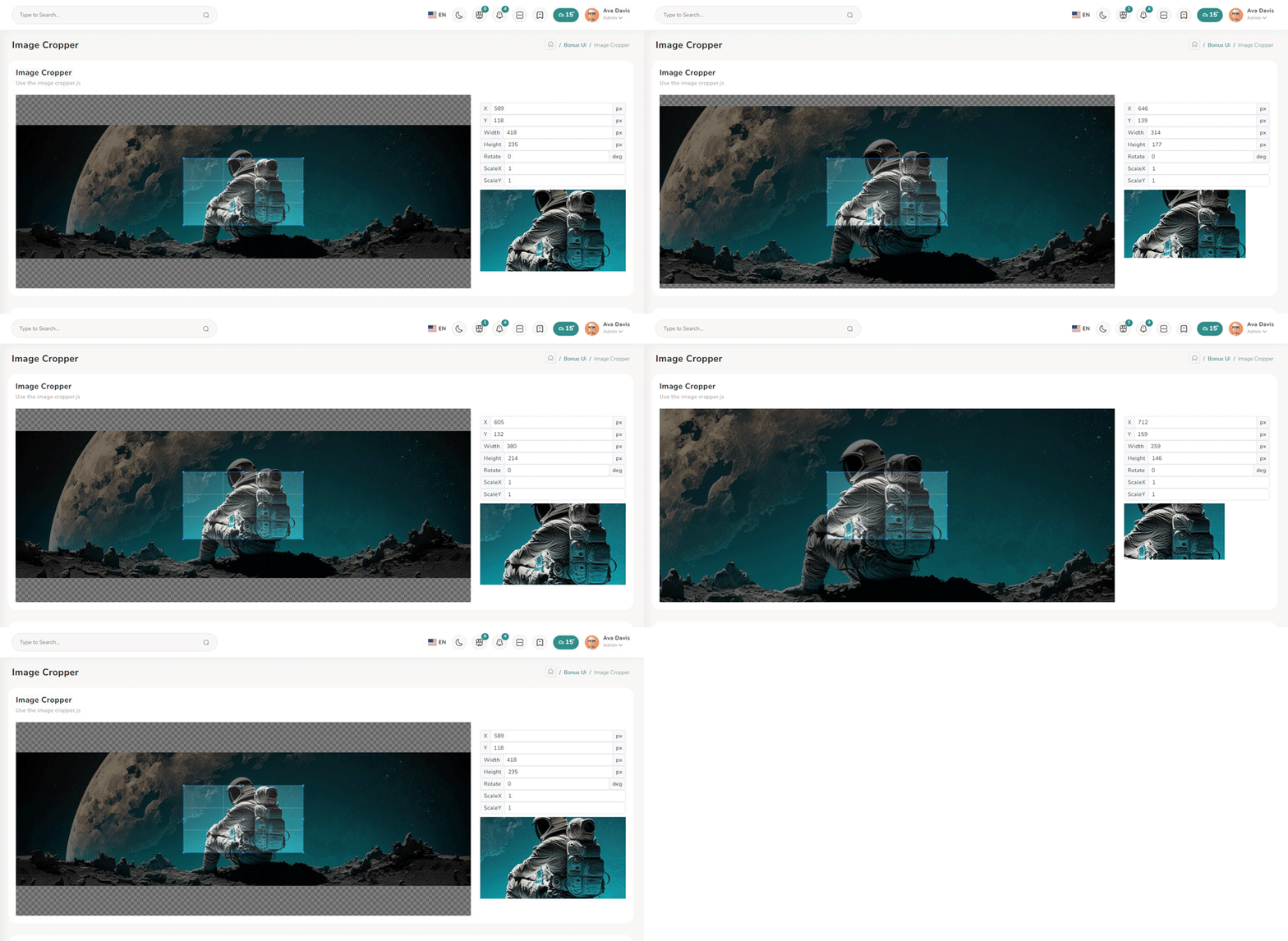
npm i vue-cropperjsInside Your template tags add
<vue-cropper
vue-cropper ref="cropper"
:guides="true"
:view-mode="viewmodeselected"
drag-mode="crop"
:aspectRatio="aspectRatioselected"
:auto-crop-area="0.5"
:min-container-width="250"
:min-container-height="180"
:background="true"
:rotatable="true"
:movable="true"
:src="getImgUrl(myimgSrc)"
alt="Source Image"
:ready="ready"
:crop="cropImage"
img-preview=".img-preview"
:img-style="{ width: '800px', height: '500px' }">
</vue-cropper>
Inside Your script tags add
import VueCropper from 'vue-cropperjs';
import 'cropperjs/dist/cropper.css';
import { Tooltip } from "bootstrap";
import { getImgUrl } from "@/composables/commen/imgMixin"
import { ref, onMounted } from "vue"
let myimgSrc = ref<string>('other-images/img-cropper.jpg')
let imageData = ref<any>({})
let containerData = ref<string>('')
let putData = ref<string>('')
let viewmodeselected = ref<number>(0)
let cropImg = ref<string>('')
let aspectRatioselected = ref<number>(1.7777777777777777)
let cropper = ref()
let convertNumber = (num?: number) => num != null ? Math.round(num) : undefined
function ready() {
containerData.value = cropper.value.getContainerData();
}
function cropImage() {

cropImg.value = cropper.value.getCroppedCanvas().toDataURL();
}
onMounted(() => {
new Tooltip(document.body, {
selector: "[data-bs-toggle='tooltip']",
})
})