Apps
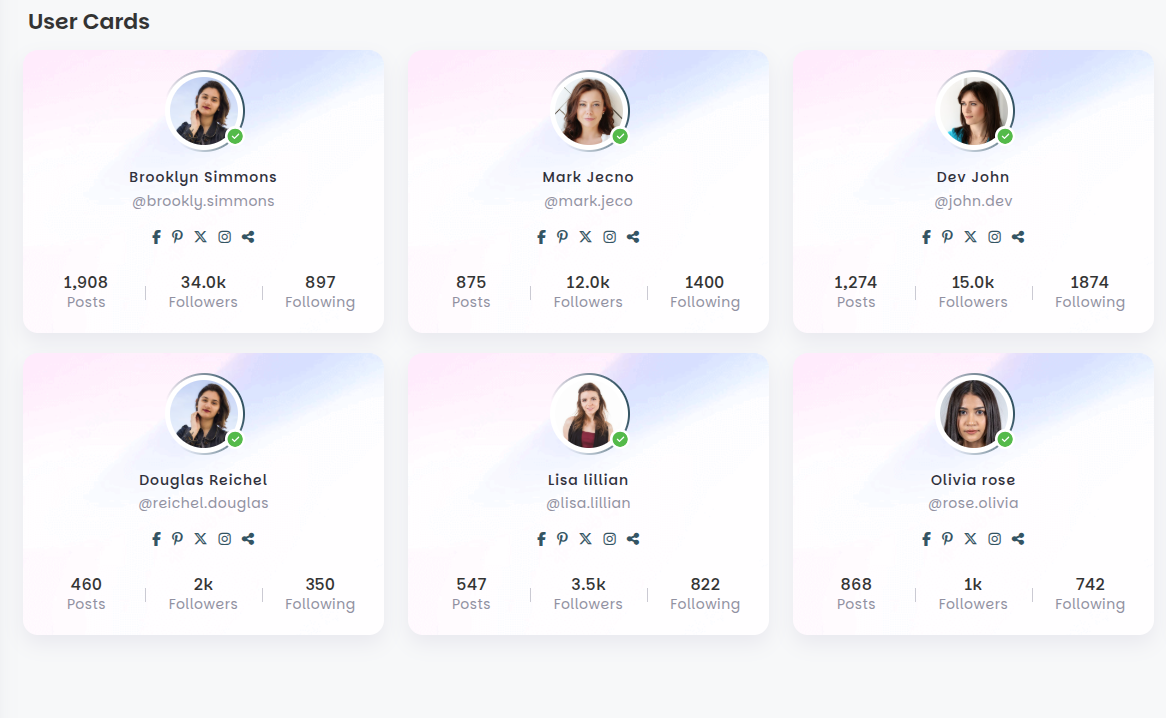
Users preview link

Calender Preview link
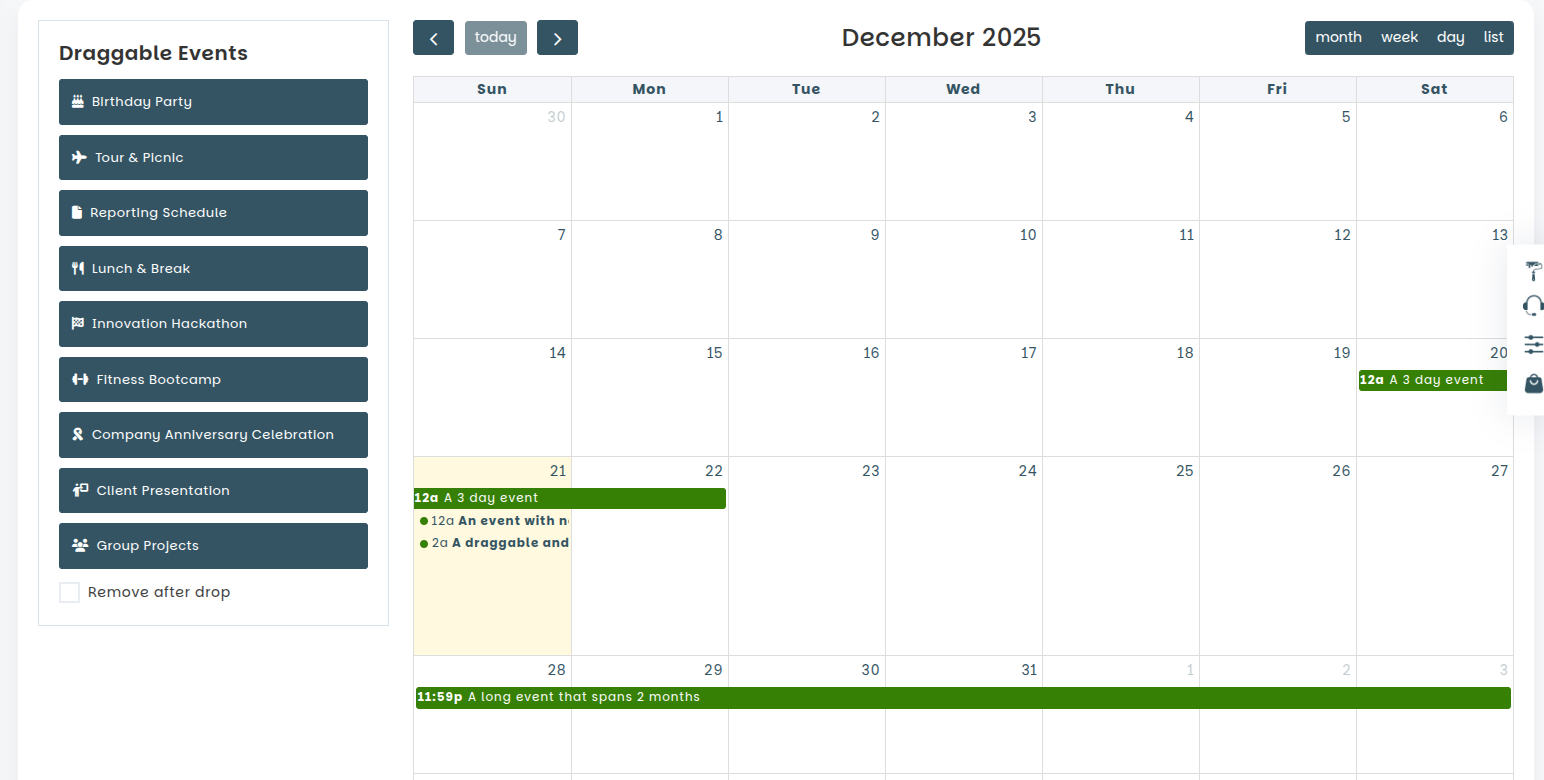
npm i @fullcalendar/vue3Inside Your template tags add
<FullCalendar :options="calendarOptions" /> Inside Your script tags add
import { ref, onMounted } from "vue";

import { Draggable } from "@fullcalendar/interaction";
import FullCalendar from "@fullcalendar/vue3";
import { startOfDay, addHours } from "date-fns";

import {
  calendarOptions,
  defaultEvents,
  events,
  removeAfterDrop,
} from "@/core/data/calendar";

import type { DateInput } from "@fullcalendar/core";

const defaultEventList = ref(defaultEvents);
const eventList = ref(events);
const externalEventsList = ref(null);

onMounted(() => {
  if (externalEventsList.value) {
    new Draggable(externalEventsList.value, {
      itemSelector: ".fc-event",
      eventData: function (eventEl) {
        return {
          title: eventEl.getAttribute("data-title") || "",
          backgroundColor: "#7366FF",
          borderColor: "#7366FF",
        };
      },
    });
  }
});

function addEvent() {
  const newEvent = {
    title: "New Event",
    start: addHours(startOfDay(new Date()), 1),
    end: addHours(startOfDay(new Date()), 2),
    backgroundColor: "#ffb829",
    borderColor: "#ffb829",
  };
  eventList.value.push(newEvent);
}

function formatDateInput(date: DateInput | undefined | null): string {
  if (!date) return "";
  const parsed = new Date(date as string | number | Date);
  if (isNaN(parsed.getTime())) return "";

  const pad = (n: number) => String(n).padStart(2, "0");
  const y = parsed.getFullYear();
  const m = pad(parsed.getMonth() + 1);
  const d = pad(parsed.getDate());
  const h = pad(parsed.getHours());
  const min = pad(parsed.getMinutes());
  return `${y}-${m}-${d}T${h}:${min}`;
}
Inside Your store ts tags add
export const calendarOptions = ref({
  plugins: [dayGridPlugin, timeGridPlugin, interactionPlugin, listPlugin],
  initialView: "dayGridMonth",
  headerToolbar: {
    left: "prev today next",
    center: "title",
    right: "dayGridMonth,timeGridWeek,timeGridDay,listWeek",
  },
  editable: true,
  selectable: true,
  droppable: true,

  drop(info: DropArg) {
    const title = info.draggedEl.getAttribute("data-title") ?? "";
    const newEvent: EventInput = {
      title,
      start: info.date,
      allDay: info.allDay,
      backgroundColor: "#7366FF",
      borderColor: "#7366FF",
    };
    events.value.push(newEvent);

    if (removeAfterDrop.value) {
      info.draggedEl.remove();
    }
  },

  eventColor: "#378006",

  // Bind dynamic events
  events: events.value,
});
Gallery Preview link

npm i vue-easy-lightboxIn your main.ts file all the following code:
import Lightbox from 'vue-easy-lightbox'
    .use(Lightbox)
Inside Your template tags add
<figure v-for="(src, index) in image" :key="index" class="col-xl-3 col-md-4 col-sm-6 xl-33 box-col-33 "
       @click="() => showImg(index)">
           <a itemprop="contentUrl" data-size="1600x950">
                <img :src="getImgUrl(src.image)" alt="Image description" class="img-thumbnail" />
          </a>
         <div class="caption">
        </div>
      </figure>
     <template #light-box>
        <vue-easy-lightbox :index="indexRef" :visible="visible" :imgs="lightBoxImages" @hide="handleHide">
        </vue-easy-lightbox>
     </template>
Inside Your script tags add
import { ref, onMounted, defineAsyncComponent } from "vue"
    import { image } from "@/core/data/masonry"

    let lightBoxImages = ref([])
      let visible = ref(false)
      let indexRef = ref(0)

      function showImg(index: number) {
          indexRef.value = index
          visible.value = true
      }
      function handleHide() {
          visible.value = false
      }
      function getImgUrl(path: string) {
          return require('@/assets/images/' + path);
      }
      onMounted(() => {
          masonryItems.forEach(item => {
              lightBoxImages.value.push({ src: require('@/assets/images/' + item.image) })

          })
      })
Inside Your ts tags add
interface item {
     image: string
   }
   export const image: item[] = [
   {
       image: "lightgallry/01.jpg"
   },
   {
       image: "lightgallry/02.jpg"
   },
   {
       image: "lightgallry/03.jpg"
   },
   {
       image: "lightgallry/04.jpg"
   },
   {
       image: "lightgallry/05.jpg"
   },
   {
       image: "lightgallry/011.jpg"
   },
   {
       image: "lightgallry/010.jpg"
   },
   {
       image: "lightgallry/08.jpg"
   },
   {
       image: "lightgallry/09.jpg"
   },
   {
       image: "lightgallry/010.jpg"
   },
   {
       image: "lightgallry/011.jpg"
   },
   {
       image: "lightgallry/012.jpg"
   }
  ]

npm i vue-easy-lightboxIn your main.ts file all the following code:
   import Lightbox from 'vue-easy-lightbox'
   .use(Lightbox)
Inside Your template tags add
   <figure v-for="(src, index) in imgs" :key="index" class="col-xl-3 col-sm-6 xl-33 box-col-33 "@click="() => showImg(index)">
    <a>
        <img :src="getImgUrl(src.image)" alt="Image description" class="img-fluid" />
          <div class="caption description">
              <h4>{{ src.title }}</h4>
              <p>{{ src.descr }}</p>
          </div>
    </a>
  </figure>
  <template #light-box>
      <vue-easy-lightbox :index="indexRef" :visible="visible" :imgs="lightBoxImages" @hide="handleHide">
      </vue-easy-lightbox>
  </template>
Inside Your script tags add
import { ref, onMounted, defineAsyncComponent } from "vue"
    import { imgs } from "@/core/data/masonry"

    let lightBoxImages = ref([])

    let visible = ref<boolean>(false)
    let indexRef = ref<number>(0)

    function showImg(index: number) {
        indexRef.value = index
        visible.value = true
    }
    function handleHide() {
        visible.value = false
    }

    function getImgUrl(path: string) {
        return require('@/assets/images/' + path);
    }
    onMounted(() => {
        masonryItems.forEach(item => {
            lightBoxImages.value.push({ src: require('@/assets/images/' + item.image), title: item.title })

        })
    })
Inside Your ts tags add
 interface photos {
    id?: number,
    title: string,
    descr: string,
    image: string
  }
                        export const imgs: photos[] = [
                        {
                            title: "Portfolio Title",
                            descr: "is simply dummy text of the printing and typesetting industry. Lorem Ipsum has been the industry's standard dummy.",
                            image: "lightgallry/01.jpg"
                        },
                        {
                            title: "Portfolio Title",
                            descr: "is simply dummy text of the printing and typesetting industry. Lorem Ipsum has been the industry's standard dummy.",
                            image: "lightgallry/02.jpg"
                        },
                        {
                            title: "Portfolio Title",
                            descr: "is simply dummy text of the printing and typesetting industry. Lorem Ipsum has been the industry's standard dummy.",
                            image: "lightgallry/03.jpg"
                        },
                        {
                            title: "Portfolio Title",
                            descr: "is simply dummy text of the printing and typesetting industry. Lorem Ipsum has been the industry's standard dummy.",
                            image: "lightgallry/04.jpg"
                        },
                        {
                            title: "Portfolio Title",
                            descr: "is simply dummy text of the printing and typesetting industry. Lorem Ipsum has been the industry's standard dummy.",
                            image: "lightgallry/05.jpg"
                        },
                        {
                            title: "Portfolio Title",
                            descr: "is simply dummy text of the printing and typesetting industry. Lorem Ipsum has been the industry's standard dummy.",
                            image: "lightgallry/011.jpg"
                        },
                        {
                            title: "Portfolio Title",
                            descr: "is simply dummy text of the printing and typesetting industry. Lorem Ipsum has been the industry's standard dummy.",
                            image: "lightgallry/010.jpg"
                        },
                        {
                            title: "Portfolio Title",
                            descr: "is simply dummy text of the printing and typesetting industry. Lorem Ipsum has been the industry's standard dummy.",
                            image: "lightgallry/08.jpg"
                        },
                        {
                            title: "Portfolio Title",
                            descr: "is simply dummy text of the printing and typesetting industry. Lorem Ipsum has been the industry's standard dummy.",
                            image: "lightgallry/01.jpg"
                        },
                        {
                            title: "Portfolio Title",
                            descr: "is simply dummy text of the printing and typesetting industry. Lorem Ipsum has been the industry's standard dummy.",
                            image: "lightgallry/02.jpg"
                        },
                        {
                            title: "Portfolio Title",
                            descr: "is simply dummy text of the printing and typesetting industry. Lorem Ipsum has been the industry's standard dummy.",
                            image: "lightgallry/03.jpg"
                        },
                        {
                            title: "Portfolio Title",
                            descr: "is simply dummy text of the printing and typesetting industry. Lorem Ipsum has been the industry's standard dummy.",
                            image: "lightgallry/04.jpg"
                        },
                        {
                            title: "Portfolio Title",
                            descr: "is simply dummy text of the printing and typesetting industry. Lorem Ipsum has been the industry's standard dummy.",
                            image: "lightgallry/05.jpg"
                        },
                        {
                            title: "Portfolio Title",
                            descr: "is simply dummy text of the printing and typesetting industry. Lorem Ipsum has been the industry's standard dummy.",
                            image: "lightgallry/011.jpg"
                        },
                        {
                            title: "Portfolio Title",
                            descr: "is simply dummy text of the printing and typesetting industry. Lorem Ipsum has been the industry's standard dummy.",
                            image: "lightgallry/010.jpg"
                        },
                        {
                            title: "Portfolio Title",
                            descr: "is simply dummy text of the printing and typesetting industry. Lorem Ipsum has been the industry's standard dummy.",
                            image: "lightgallry/08.jpg"
                        }
                    ]
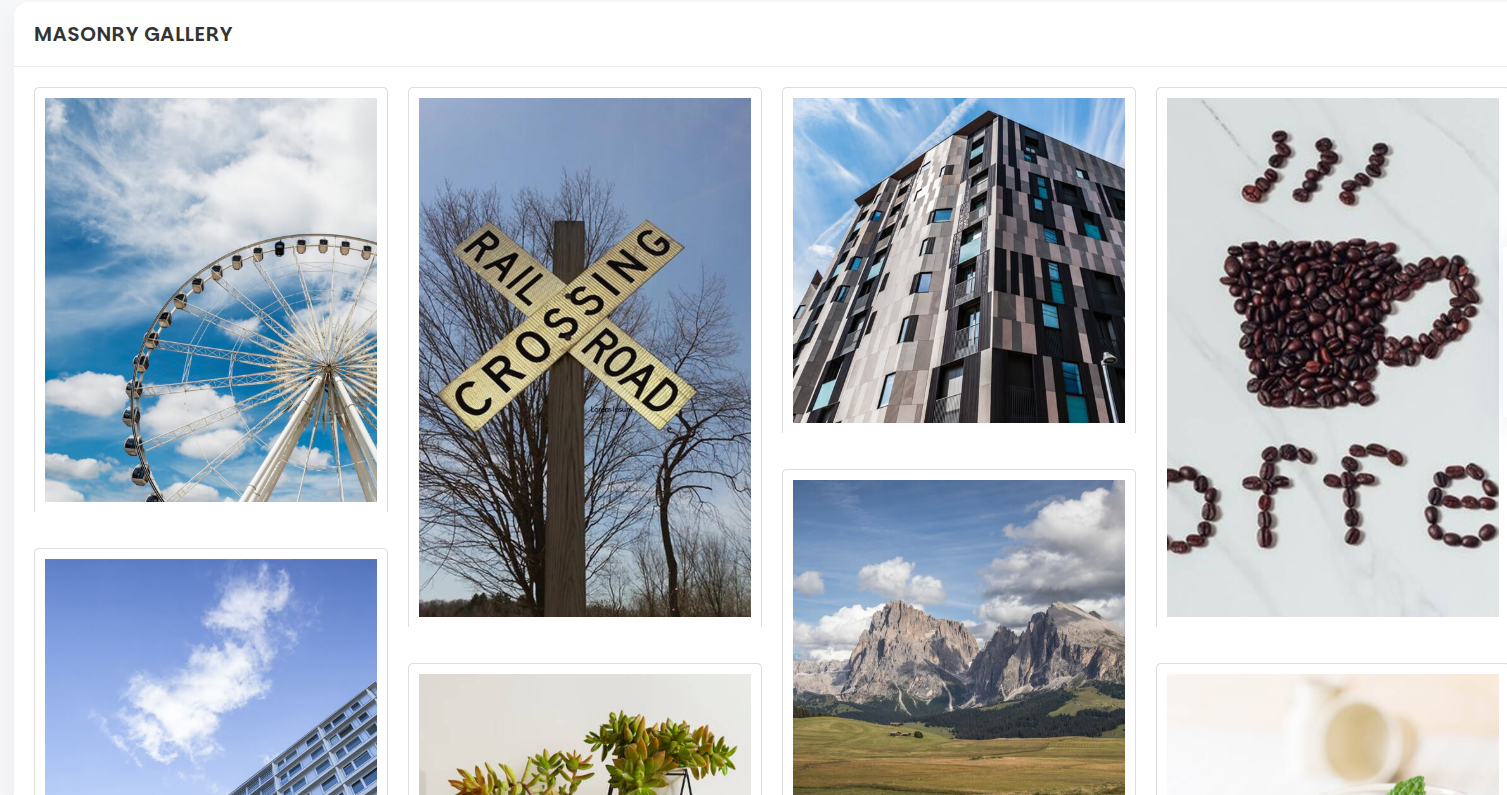
npm i vue-easy-lightbox
   npm i vue-masonry
In your main.ts file all the following code:
import Lightbox from 'vue-easy-lightbox'
   import { VueMasonryPlugin } from 'vue-masonry';
     .use(Lightbox)
     .use(VueMasonryPlugin)
Inside Your template tags add
  <div v-masonry class="my-gallery row grid gallery" id="aniimated-thumbnials" itemscope>
    <figure v-masonry-tile class="col-md-3 col-sm-6 grid-item" itemprop="associatedMedia" itemscope :key="index"
        v-for="(item, index) in imags" @click="() => showImg(index)">
        <a><img :src="getImgUrl(item.image)" class="img-thumbnail" /></a>
    </figure>
   </div>
   <template #light-box>
       <vue-easy-lightbox :index="indexRef" :visible="visible" :imgs="lightBoxImages" @hide="handleHide">
       </vue-easy-lightbox>
   </template>
Inside Your script tags add
 import { ref, onMounted, defineAsyncComponent } from "vue"
    import { imags } from "@/core/data/masonry"
   let lightBoxImages = ref([])
   let visible = ref(false)
   let indexRef = ref(0)


   function showImg(index: number) {
       indexRef.value = index
       visible.value = true
   }
   function handleHide() {
       visible.value = false
   }

   function getImgUrl(path: string) {
       return require('@/assets/images/' + path);
   }
   onMounted(() => {
       masonryItems.forEach(item => {
           lightBoxImages.value.push({ src: require('@/assets/images/' + item.image) })

       })
   })
Inside Your json tags add
interface item {
    image: string
  }
   export const imags: item[] = [
   {
       image: "masonry/1.jpg"
   },
   {
       image: "masonry/2.jpg"
   },
   {
       image: "masonry/3.jpg"
   },
   {
       image: "masonry/4.jpg"
   },
   {
       image: "masonry/6.jpg"
   },
   {
       image: "masonry/5.jpg"
   },

   {
       image: "masonry/7.jpg"
   },
   {
       image: "masonry/8.jpg"
   },
   {
       image: "masonry/9.jpg"
   },
   {
       image: "masonry/10.jpg"
   },
   {
       image: "masonry/11.jpg"
   },
   {
       image: "masonry/12.jpg"
   },
   {
       image: "masonry/13.jpg"
   },
   {
       image: "masonry/14.jpg"
   },
   {
       image: "masonry/15.jpg"
   },
   {
       image: "masonry/1.jpg"
   }
  ]
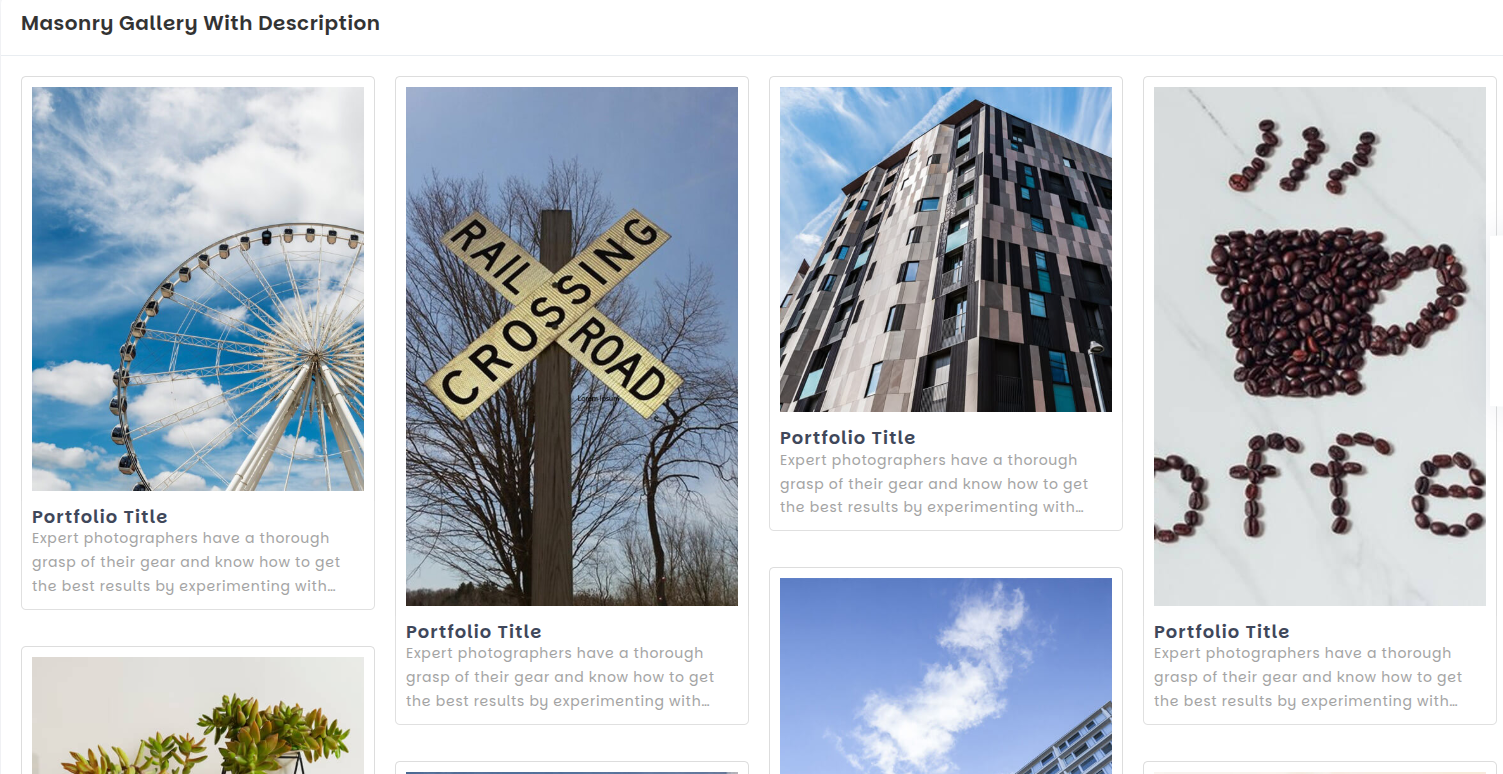
npm i vue-easy-lightbox
      npm i vue-masonry
In your main.ts file all the following code:
import Lightbox from 'vue-easy-lightbox'
  import { VueMasonryPlugin } from 'vue-masonry';
  .use(Lightbox)
  .use(VueMasonryPlugin)
Inside Your template tags add
  <div v-masonry class="my-gallery row grid gallery-with-description" id="aniimated-thumbnials" itemscope>
    <figure v-masonry-tile class="grid-item col-xl-3 col-sm-6" :key="index" v-for="(item, index) in imagearray"
    @click="() => showImg(index)">
        <a>
        <img :src="getImgUrl(item.image)" class="img-fluid" />
         <div class="caption description">
            <h4>{{ item.title }}</h4>
            <p>{{ item.descr }}</p>
         </div>
        </a>
     </figure>
    </div>
   <vue-easy-lightbox :index="indexRef" :visible="visible" :imgs="lightBoxImages" @hide="handleHide">
    </vue-easy-lightbox>
Inside Your script tags add
 import { ref, onMounted, defineAsyncComponent } from "vue"
    import { imagearray } from "@/core/data/masonry"

    let lightBoxImages = ref([])

    let visible = ref<boolean>(false)
    let indexRef = ref<number>(0)


    function showImg(index: number) {
        indexRef.value = index
        visible.value = true
    }
    function handleHide() {
        visible.value = false
    }

    function getImgUrl(path: string) {
        return require('@/assets/images/' + path);
    }
    onMounted(() => {
        masonry.forEach(item => {
            lightBoxImages.value.push({ src: require('@/assets/images/' + item.image), title: item.title })

        })
    })
Inside Your json tags add
interface photos {
   id?: number,
   title: string,
   descr: string,
   image: string
  }
   export const imagearray: photos[]  = [
  {
      image: "masonry/1.jpg",
      title: "Portfolio Title",
      descr: "is simply dummy text of the printing and typesetting industry. Lorem Ipsum has been the industry's standard dummy."
  },
  {
      image: "masonry/2.jpg",
      title: "Portfolio Title",
      descr: "is simply dummy text of the printing and typesetting industry. Lorem Ipsum has been the industry's standard dummy."
  },
  {
      image: "masonry/3.jpg",
      title: "Portfolio Title",
      descr: "is simply dummy text of the printing and typesetting industry. Lorem Ipsum has been the industry's standard dummy."
  },
  {
      image: "masonry/4.jpg",
      title: "Portfolio Title",
      descr: "is simply dummy text of the printing and typesetting industry. Lorem Ipsum has been the industry's standard dummy."
  },
  {
      image: "masonry/5.jpg",
      title: "Portfolio Title",
      descr: "is simply dummy text of the printing and typesetting industry. Lorem Ipsum has been the industry's standard dummy."
  },
  {
      image: "masonry/6.jpg",
      title: "Portfolio Title",
      descr: "is simply dummy text of the printing and typesetting industry. Lorem Ipsum has been the industry's standard dummy."
  },
  {
      image: "masonry/8.jpg",
      title: "Portfolio Title",
      descr: "is simply dummy text of the printing and typesetting industry. Lorem Ipsum has been the industry's standard dummy."
  },
  {
      image: "masonry/9.jpg",
      title: "Portfolio Title",
      descr: "is simply dummy text of the printing and typesetting industry. Lorem Ipsum has been the industry's standard dummy."
  },
  {
      image: "masonry/10.jpg",
      title: "Portfolio Title",
      descr: "is simply dummy text of the printing and typesetting industry. Lorem Ipsum has been the industry's standard dummy."
  },
  {
      image: "masonry/11.jpg",
      title: "Portfolio Title",
      descr: "is simply dummy text of the printing and typesetting industry. Lorem Ipsum has been the industry's standard dummy."
  },
  {
      image: "masonry/12.jpg",
      title: "Portfolio Title",
      descr: "is simply dummy text of the printing and typesetting industry. Lorem Ipsum has been the industry's standard dummy."
  },
  {
      image: "masonry/14.jpg",
      title: "Portfolio Title",
      descr: "is simply dummy text of the printing and typesetting industry. Lorem Ipsum has been the industry's standard dummy."
  },
  {
      image: "masonry/15.jpg",
      title: "Portfolio Title",
      descr: "is simply dummy text of the printing and typesetting industry. Lorem Ipsum has been the industry's standard dummy."
  },
  {
      image: "masonry/13.jpg",
      title: "Portfolio Title",
      descr: "is simply dummy text of the printing and typesetting industry. Lorem Ipsum has been the industry's standard dummy."
  }
  ]
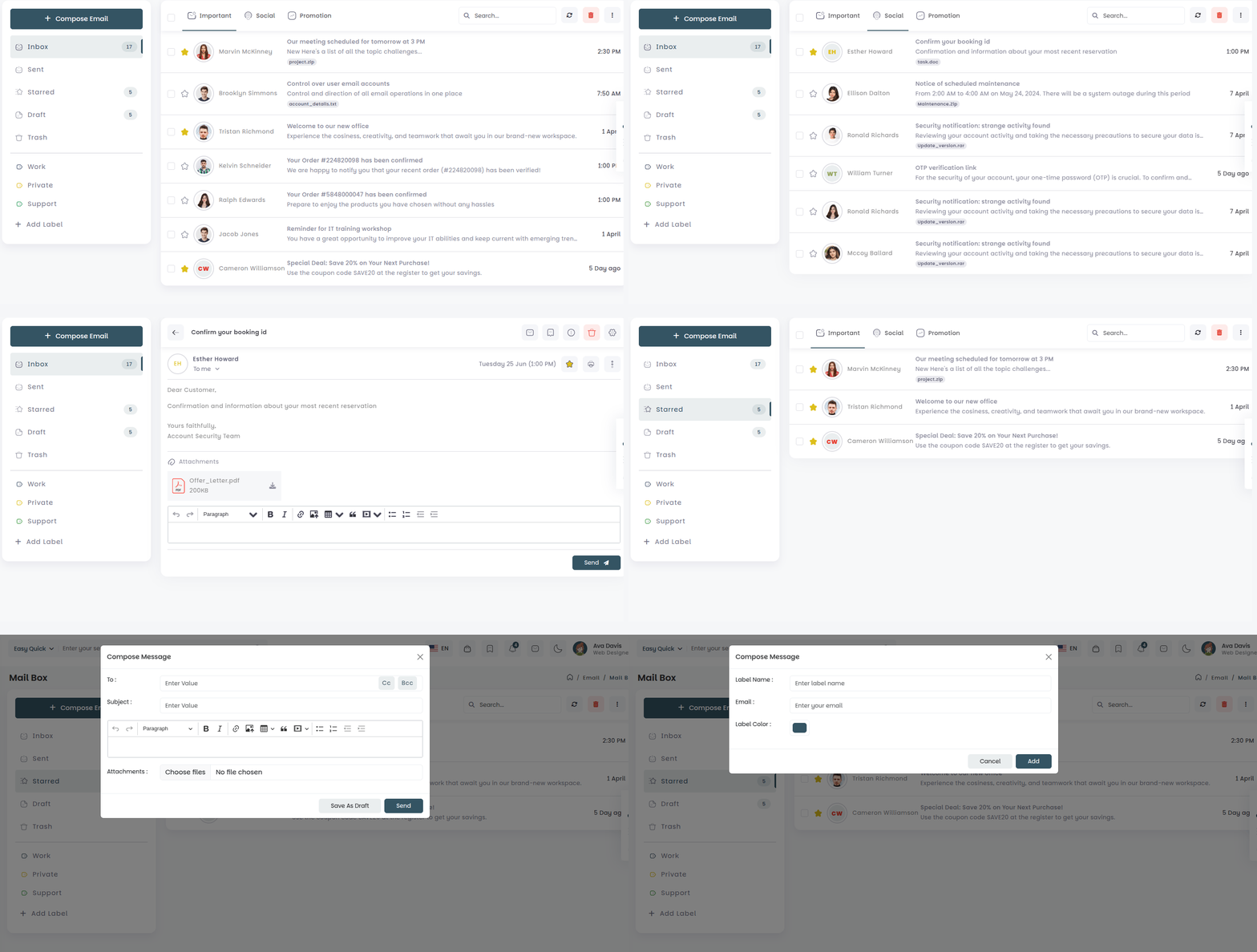
Letter Box Preview link
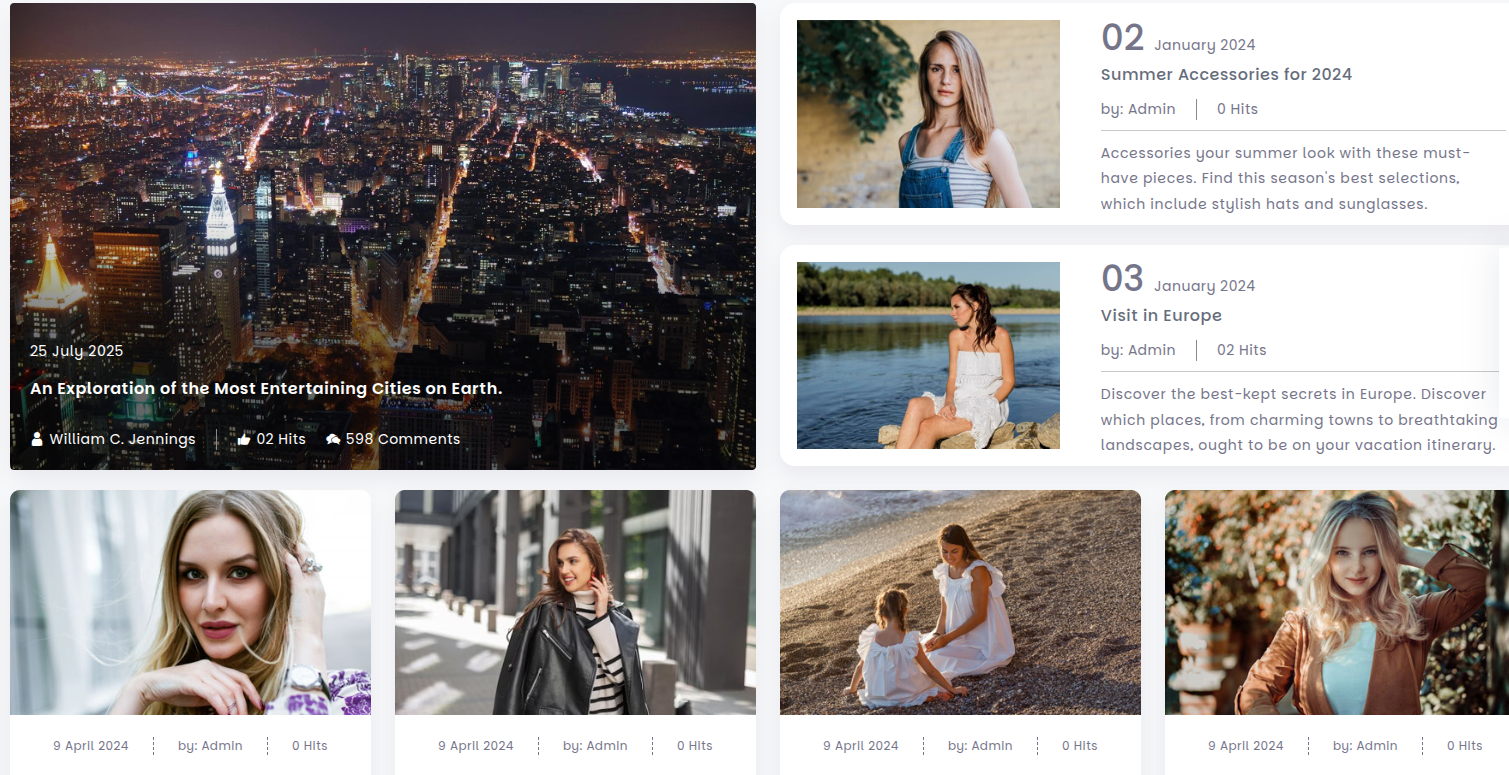
Blog Preview link
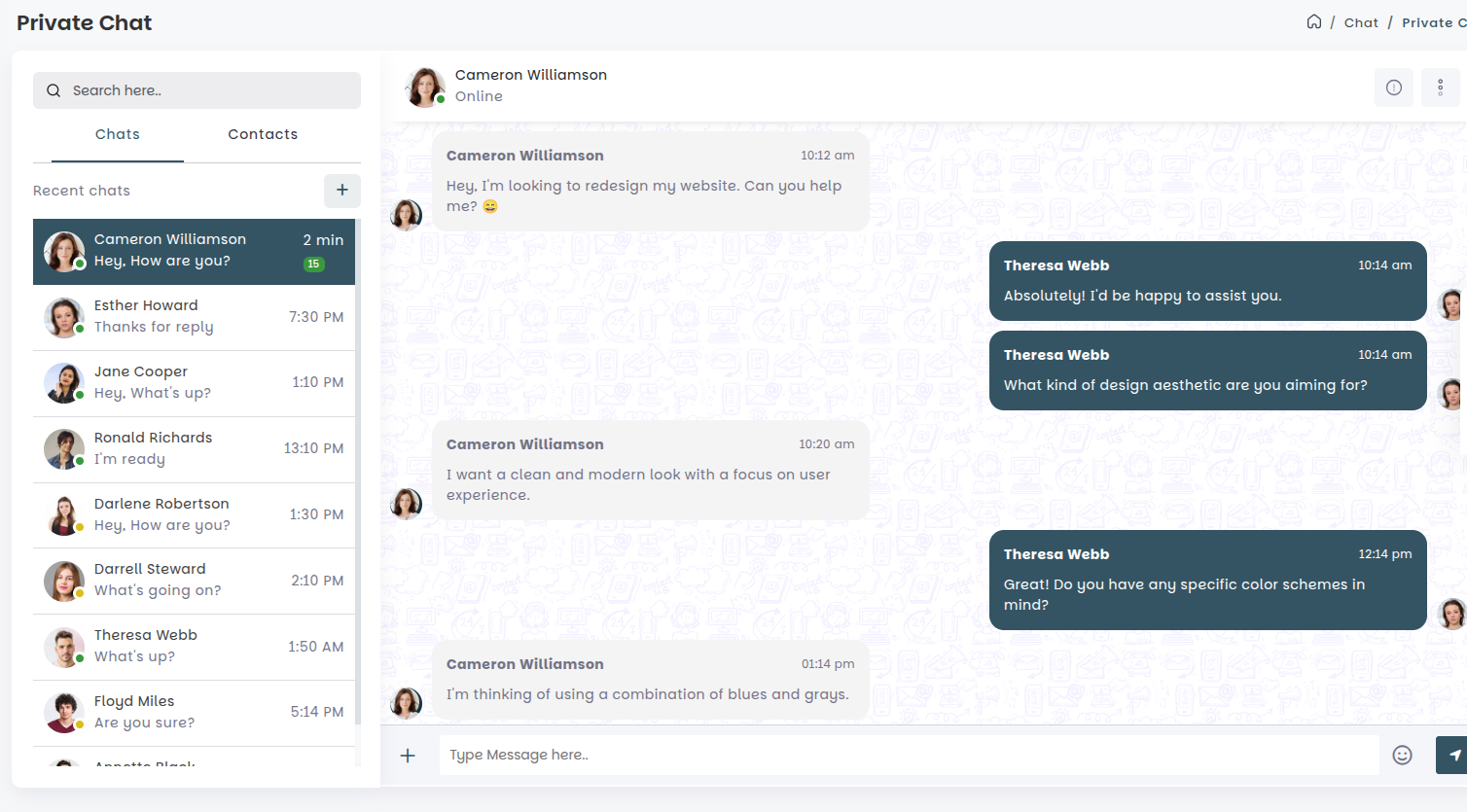
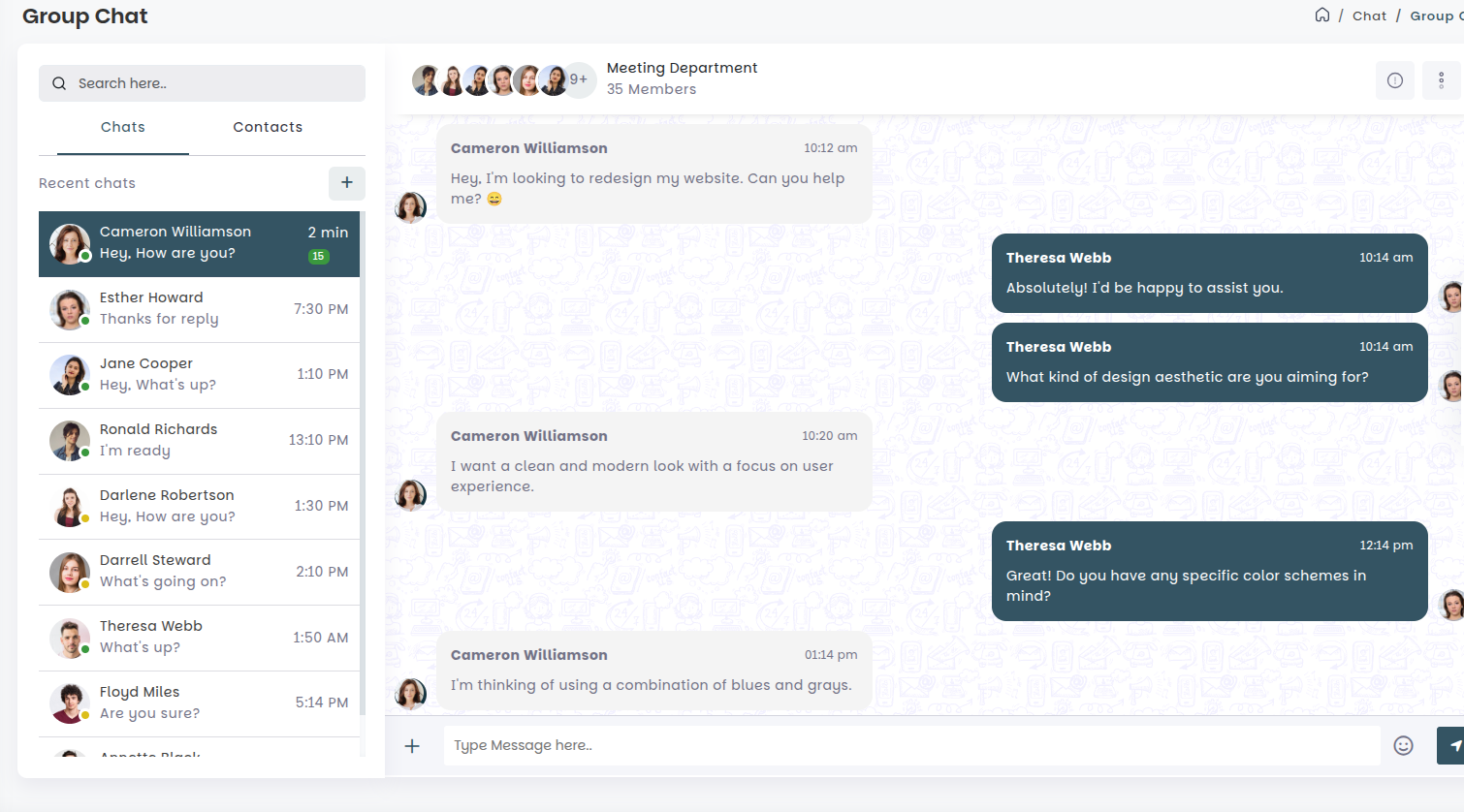
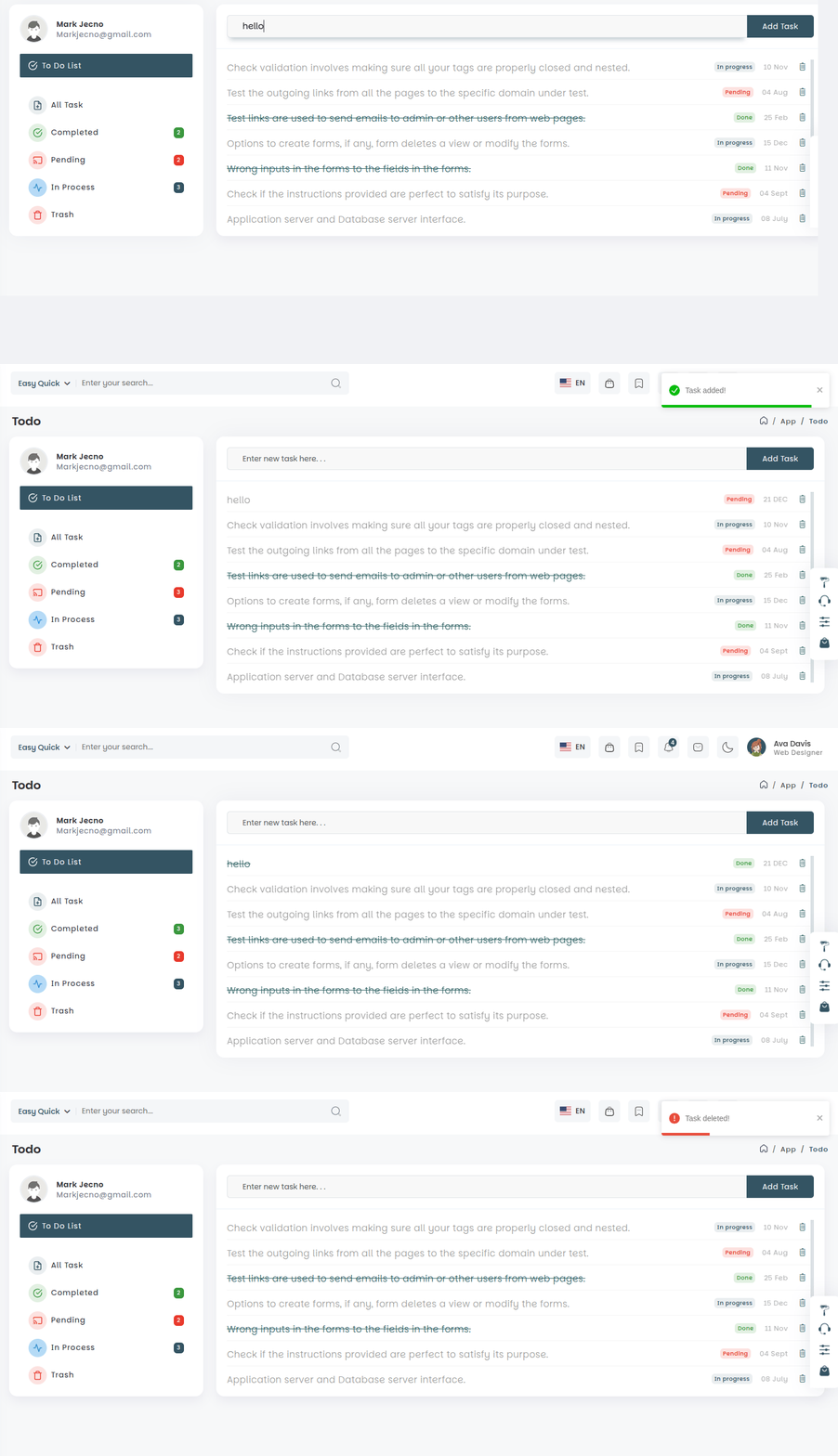
Chat Preview link
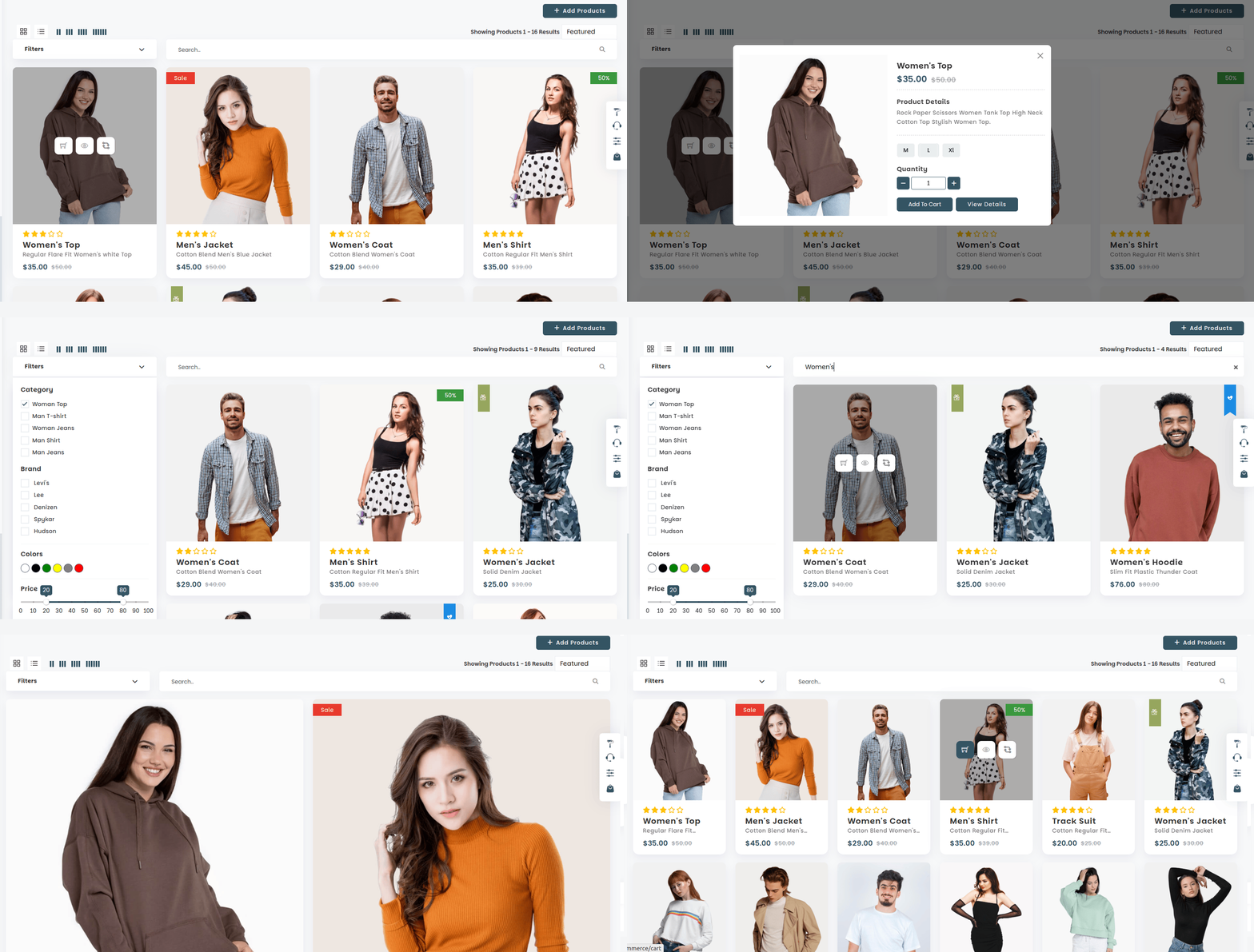
Ecommerce Preview link
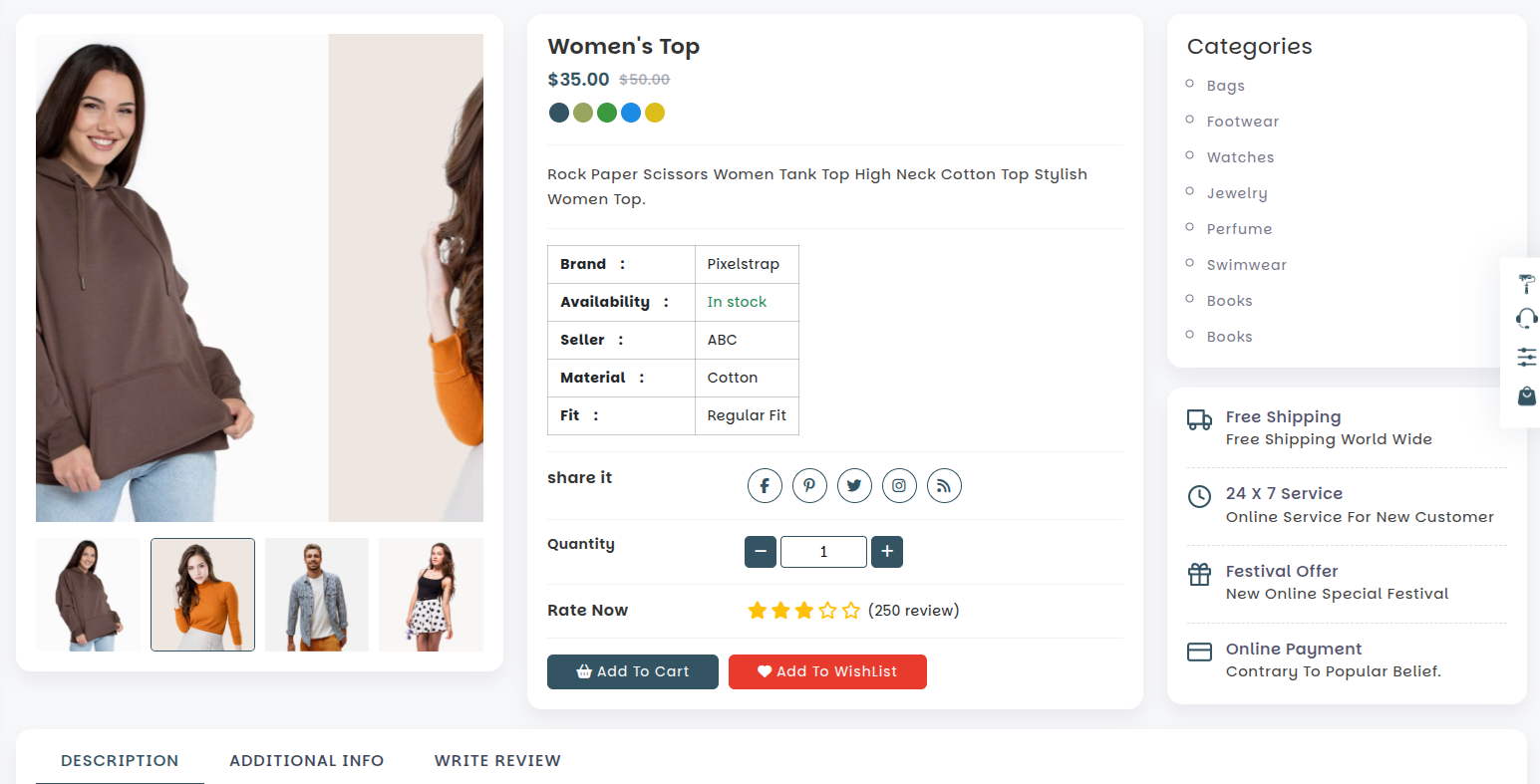
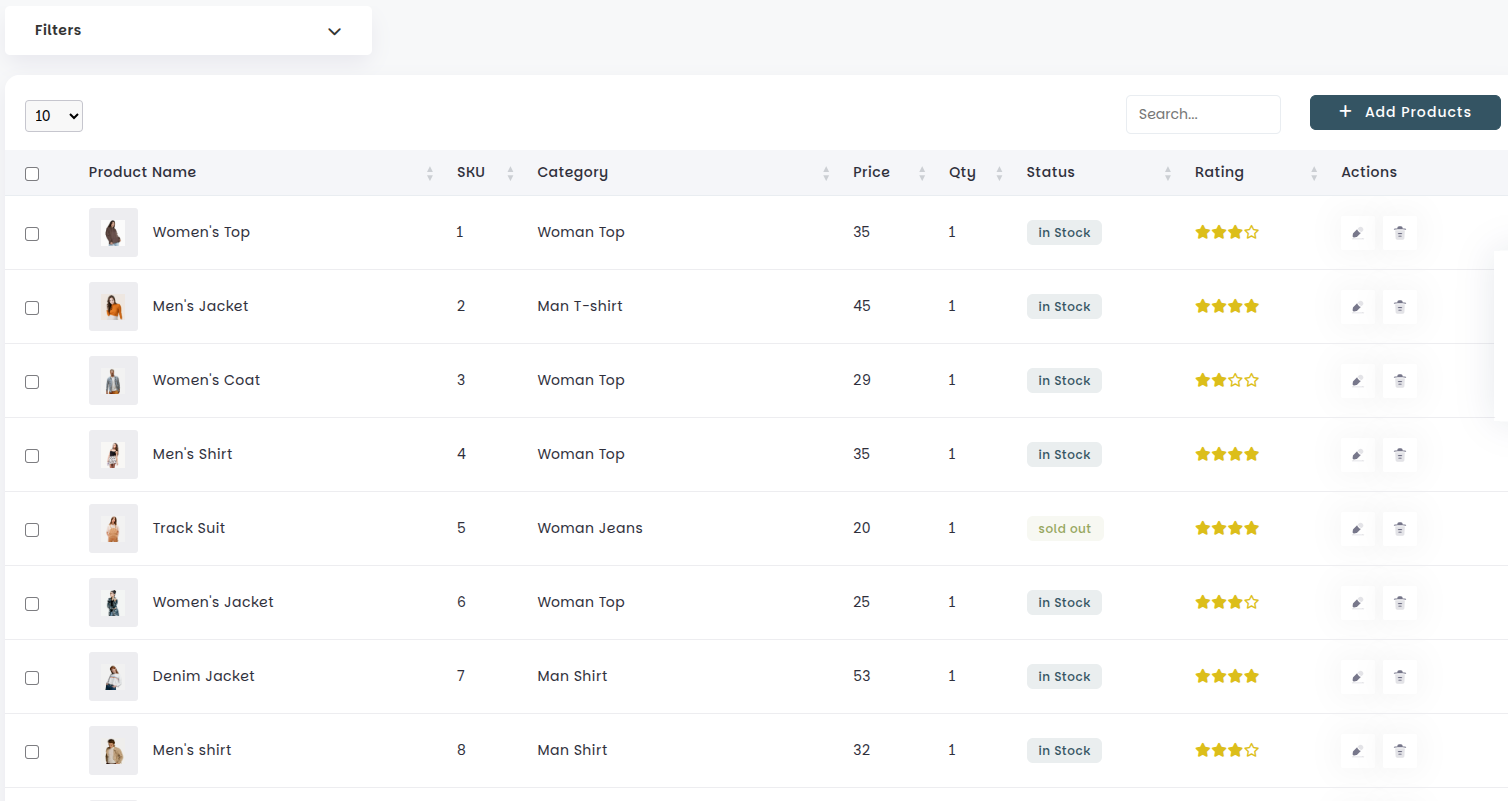
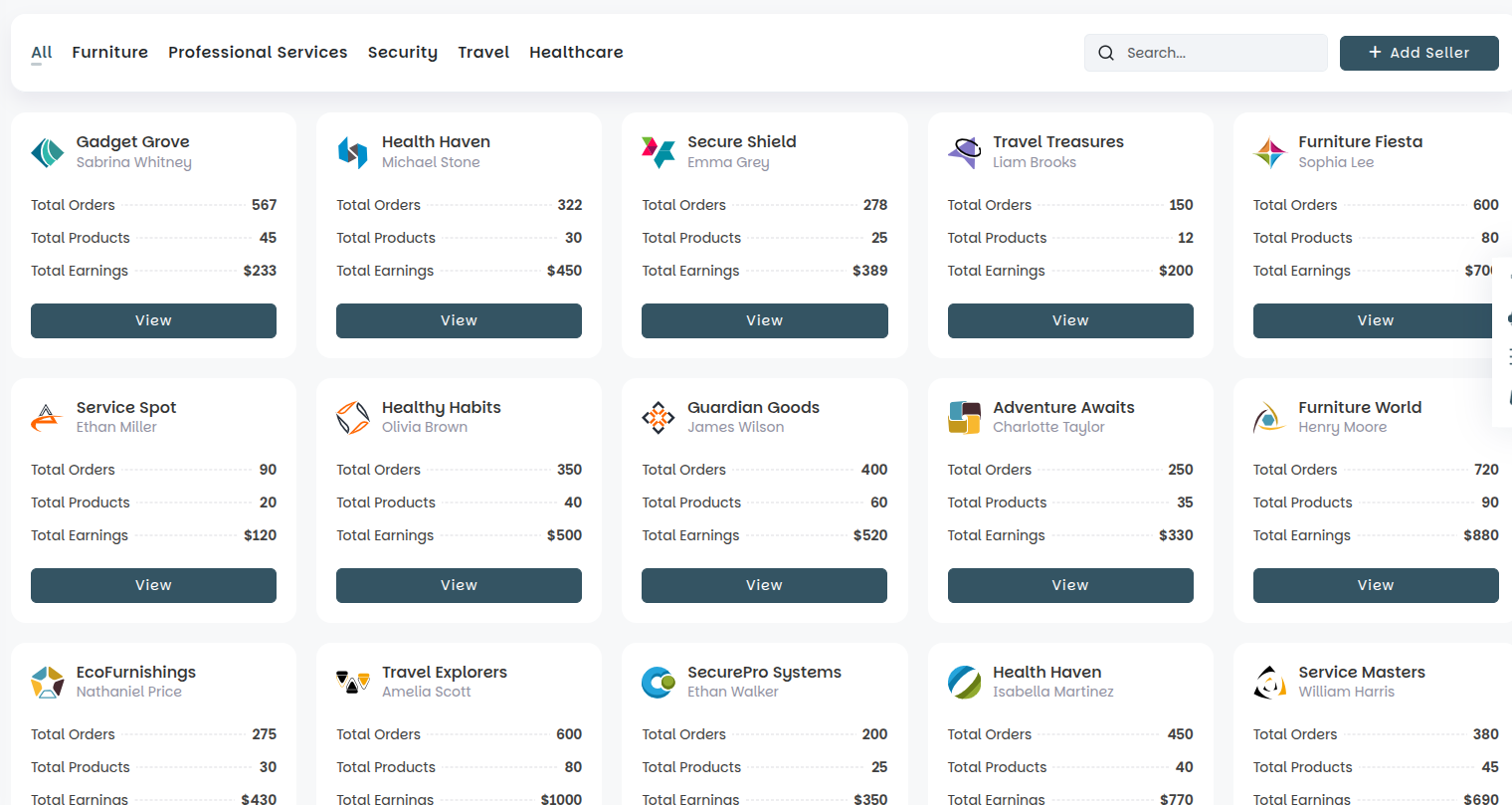
We have made many different applications to help you with your admin side work. Amongst those is an E-Commerce application
You can directly use complete E-commerce app to manage your E-commerce with ready-made functionality of Add to cart,Quick-view, and Checkout with Stripe as well as Paypal. Apart from that if you want to use it in your frontend application then you just need to change your json with your API data and you get complete workable E-commerce for your frontend.