Loader
How to Remove Loader from Application?
Go to Loader file in src>app>shared>components>loader
Remove design of loader from Loader Component between comment of Loader starts to Loader ends
<!-- Loader starts-->
<div class="loader-wrapper" [class.loderhide]="!show">
  <div class="typewriter">
    <h1>New Era Admin Loading..</h1>
  </div>
</div>
import {  } from '@angular/core';

@Component({
    selector: 'app-loader',
    templateUrl: './loader.html',
    styleUrls: ['./loader.scss'],
    standalone: true
})
export class Loader  {

  public show: boolean = true;

  constructor() {
    setTimeout(() => {
      this.show = false;
    }, 1500);
  }


}
Routing
One of the most important things while creating an Angular project is creating routes. Without routes you cannot render any page in the browser.
In this page we will learn how to create routes for our pages.
When creating angular project make sure that you select routing to setup router by default.
Defining routes
app.config.ts file will be created automatically, here we can
define our paths for each routes.
But when we are working on a large projects, such as Viho, number of paths will grow very fast, so we create a separate file routes.ts in routes folder to keep our routes more organized.
import { Routes } from "@angular/router";

export const content: Routes = [
  {
    path: "dashboard",
    loadChildren: () => import("../../components/dashboard/dashboard.routes"),
    data: {
      breadcrumb: "Dashboard",
    },
  },
  {
    path: "widgets",
    loadChildren: () => import("../../components/widgets/widgets.routes"),
    data: {
      breadcrumb: "Widgets",
    },
  }
]
We give the path for our routes, and in loadChildren function we provide our routes .
And then we will import this
routes.ts file in our app.config.ts file.
import { Routes } from '@angular/router';
import { Login } from './auth/login/login';
import { Content } from './shared/components/layout/content/content';
import { AdminGuard } from './shared/guard/admin.guard';
import { content } from './shared/routes/routes';
import { Full } from './shared/components/layout/full/full';
import { full } from './shared/routes/full.routes';

export const routes: Routes = [
    {
        path: "",
        redirectTo: "dashboard/default",
        pathMatch: "full",
    },
    {
        path: "auth/login",
        component: Login,
    },
    {
        path: "",
        component: Content,
        canActivate: [AdminGuard],
        children: content,
    },
    {
        path: "",
        component: Full,
        canActivate: [AdminGuard],
        children: full,
    },
    {
        path: "**",
        redirectTo: "",
    },
];
Now We are done setting our routes path, but when we create a component
inside a routes then path for those components are written in
route_name.routes.ts file. Please refer to Our
Create New Page Guide to see how paths for the components are
given.
Customize or Replace Menu Sidebar
There are Numerous links in sidebar and if we write whole code in html then number of lines will increase by a lot. So to prevent that we have created a service file for the sidebar links so that we can loop through the array links that we have made in this service file and render our links accordingly.
You can find nav.service.ts on the following path:
src/app/shared/services/nav.service.ts
Making changes in sidebar.
If you require to make any changes in the sidebar, you could follow the given instructions.
To add links in sidebar:
If you need to add or remove links in the sidebar, all you need to do is make changes in the nav.service.ts file.
For Example:
Lets say we want to change the previous sidebar to the new sidebar.
To achieve this we can add new object in nav.service.ts, where we want to add the new link. Here we want to add new link in between Dashboard and widget links so we will make the following changes.
{
      title: "General",
      path: "/dashboard/default",
      icon: "home",
      type: "sub",
      active: true,
      children: [
        {
          title: "Dashboard",
          type: "sub",
          active: true,
          children: [
            { path: "/dashboard/default", title: "Default", type: "link" },
            { path: "/dashboard/crypto", title: "Crypto", type: "link" },
            { path: "/dashboard/ecommerce", title: "E-commerce", type: "link" },
          ],
        },
        {
          title: "Widgets",
          type: "sub",
          active: false,
          children: [
            { path: "/widgets/general", title: "General", type: "link" },
            { path: "/widgets/chart", title: "Chart", type: "link" },
          ],
        },
      ],
    },
As you can see above, you will need add data in the predefined format. Title key will contain the text you need to display for the link. In the path key, you will need to add the path that you define in the router.
You can add icons before the link in ui by giving feather icon name in icon key. Here is the link for the feather icon you might want to you. https://feathericons.com/. Copy the name of the icon you want to show and paste it in before icon key.
Note:Make sure that the path you enter in the json is same as the one that you have given in the router, or else error will be thrown as same path will not be found.
If you want to remove links from the sidebar:
As we added code in the above section to add new links in the sidebar. You simply need to remove the whole object to make it disappear from the sidebar.
For Example: We added the following code in the menu,json file. If we want to remove the same then we will remove the object in the array of links in nav.service.ts.
  {
      title: 'New Link', icon: 'git-pull-request', type: 'sub', active: false,
      children: [
          {
              path:'/newLink/subLink1',
              title:'New Sub Link 1',
              type: 'link'
          },
          {
              path:'/newLink/subLink1',
              title:'New Sub Link2',
              type: 'link'
          }
      ]
  },
Style customization
Suppose you want to customize color and font as per your project then you can change it by:
Theme Color
-
Now we are come with unlimited color option so suppose you want to
customize your theme primary and secondary color then just select color
from customizer see in right side select color as per your choice and then
click on apply button, it will refresh your page and now you will get
color as per your choice, now if you want to add this color parmenently in
your project
- just copy your color code from above config and update in /src/assets/scss/style.scss
Variable customization of complete theme
Suppose you want to change color and size of card-body, Alert, Badge, Form input, breadcrumb,buttons, footer, sidebar and many more then you just need to change that particular color from _variable.scss in public>assets>scss>theme>_variables.scss
Google Font
You can change font of your theme from index.html in public folder
  <link href="https://fonts.googleapis.com/css?family=Nunito:200,200i,300,300i,400,400i,600,600i,700,700i,800,800i,900,900i" rel="stylesheet">
  <script src="//cdn.ckeditor.com/4.7.1/full/ckeditor.js"></script>
  <script src="https://maps.googleapis.com/maps/api/js?key=AIzaSyAjeJEPREBQFvAIqDSZliF0WjQrCld-Mh0"></script>
Theme Customize
Layouts
We have provided a bunch of page layouts and menu layouts that can be implemented with just a options change to body!
For creating your dream layout open customizer by click on setting icon
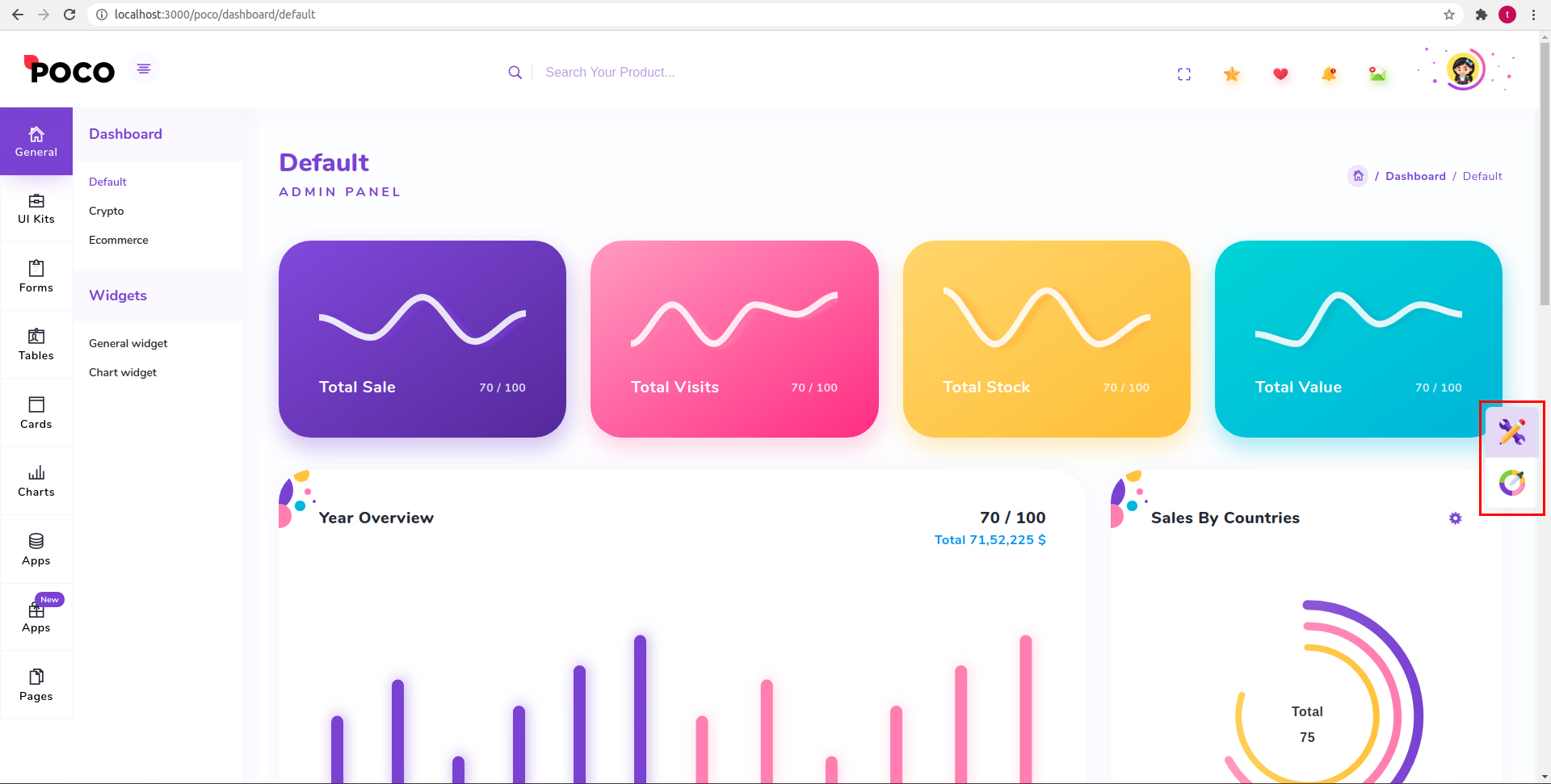
You can change your theme by clicking particular setting

Then you just need to click on configuration button
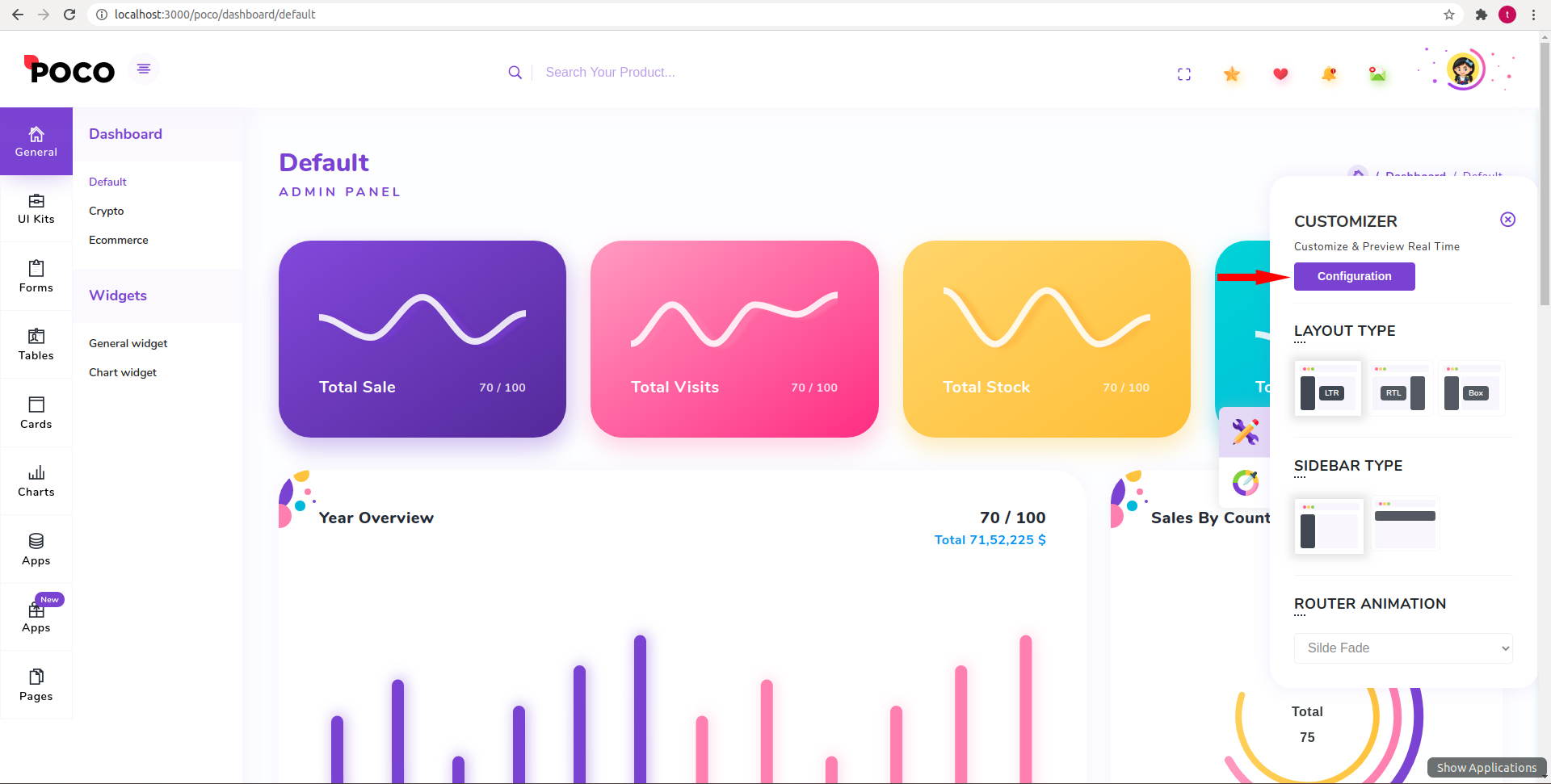
Configuration popup will be open then just click on copy json button which will copy configuration of theme which you want

Now go to our theme >> src >> shared >> services >> layout.service.ts and then just replace with your configuration.
  public config = {
          settings: {
            layout_type: ltr,
            layout_version: default,
            sidebar: default
          }
  }
Please refer the below table for corresponding classes. it is just for your inforamation you do not need to bother about this it's dynamically take particular classes according to your needs.
| Layout | Options |
|---|---|
| Boxed Layout | Class: box-layout |
| RTL Layout | Class: rtl |
| Light Layout | Class: light |
| Dark Sidebar | Class: dark-sidebar |
| Dark Layout | Class: dark-only |
Theme options
We have some inbuilt themes for sidebar that can be switched with just a class change
| Sidebar | Options |
|---|---|
| Horizontal Sidebar type | Class: "page-wrapper horizontal-wrapper" and "page-body-wrapper horizontal-menu" |
| Bordered Navigation | Attribute: sidebar-layout="border-sidebar" |
| Sidebar icons color | Attribute: sidebar-layout="iconcolor-sidebar" |