 Deploy on cPanel
Getting Started Multikart API Deployment
1. Open multikart-api directory that you downloaded from CodeCanyon.

2. Create a .zip file
- Zip all files and folders in the multikart-api folder and upload it to your cPanel server.

3. Create Subdomain
- Login to your cPanel server and click on domains in the domains section.
- Create separate subdomains for Laravel API, Angular frontend, and Angular backend.
store.your-domain.com -> angular frontend.
api.your-domain.com -> laravel API.
admin.your-domain.com -> angular backend.


4. Upload Zip file on cPanel:
- Upload the multikart-laravel zip file in the laravel's subdomain (api.your-domain.com).

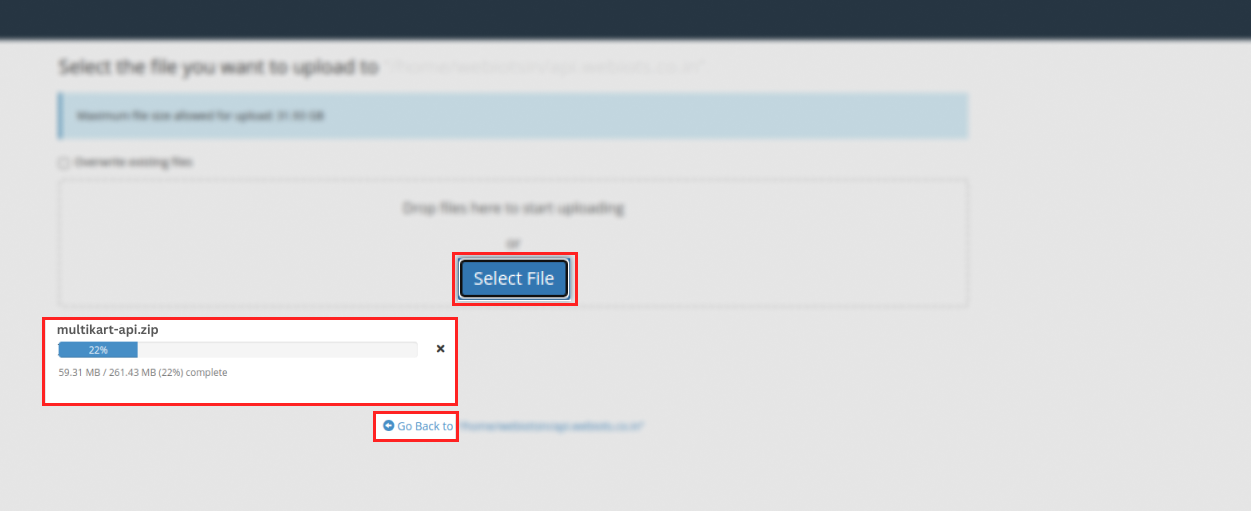
- Click on the Go Back link after the file is 100% uploaded.
5. Extract Laravel Zip File

6. Create MySQL Database:
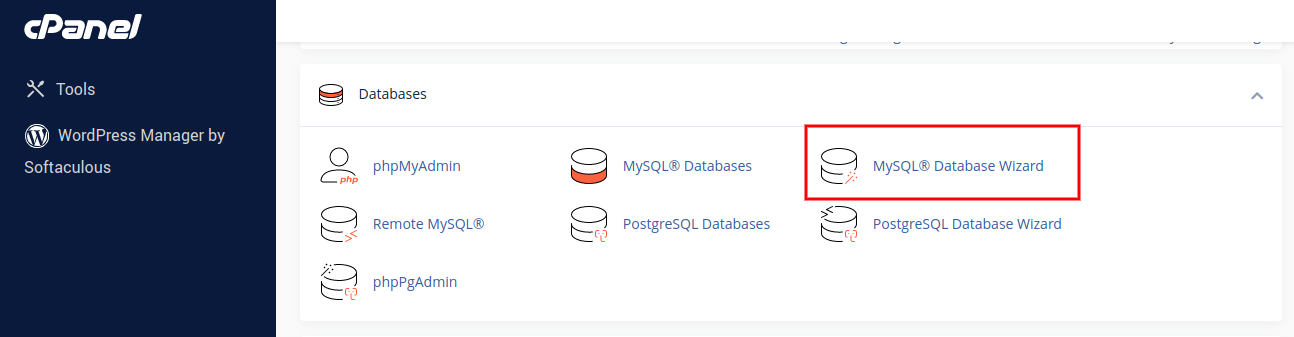
- Now move to cpanel manager and go to > MySQL Database Wizard
- Create database in MySQL Database Wizard
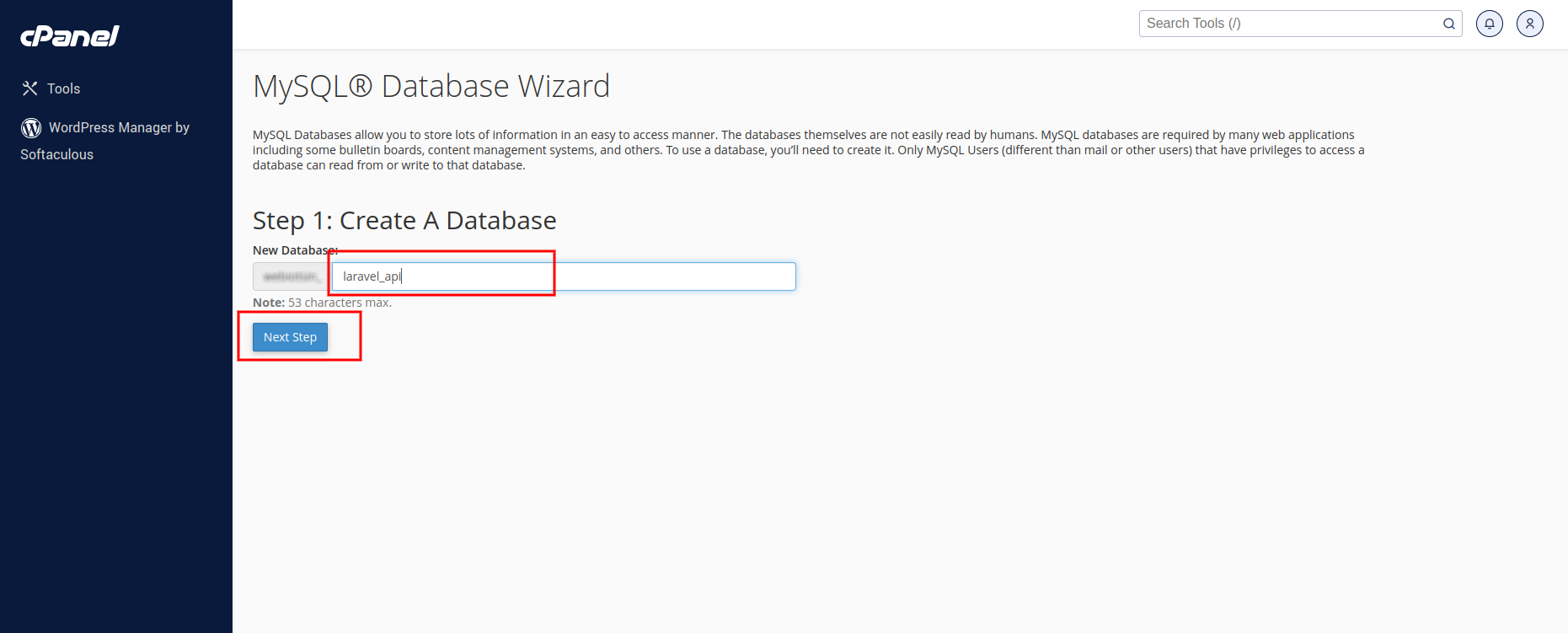
- Create database users and remember their passwords for the installation process.

- Add a user to the database, give them all the necessary permissions, and then click 'Make Changes.' After that, click 'Next Step.
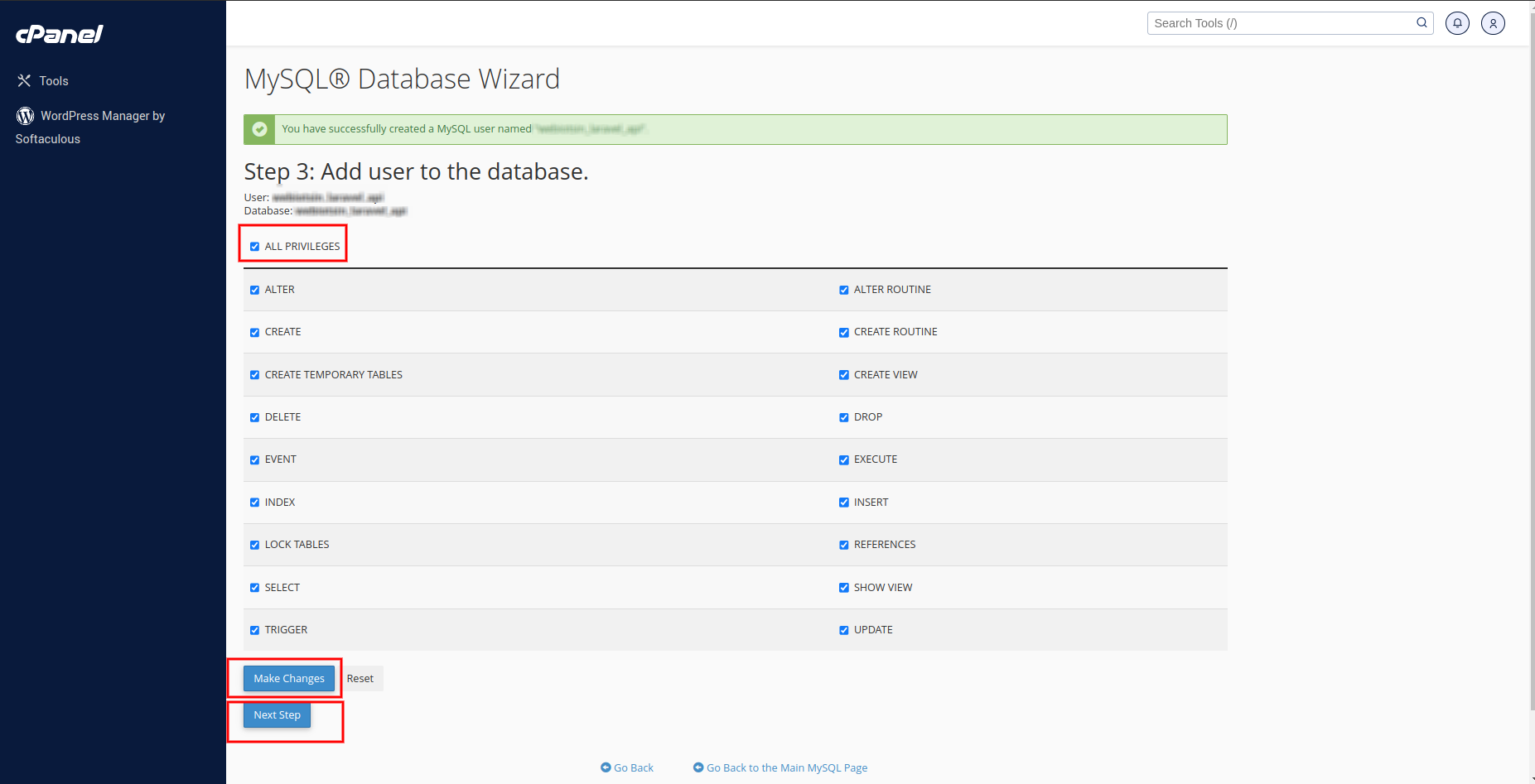
- Make a note of the database user, database name, and database password after creating the database.

7. Update Environment File
- After creating the MySQL database, go to multikart-laravel folder from your cPanel file manager and edit .env file.

- Add Laravel base url in APP_URL key.
- Also, change local to production in APP_ENV.
- Add MySQL database credentials.
Add you laravel API primary domain url like a APP_URL=http://api.your-domain.com
APP_URL=https://api.your-domain.com
APP_ENV=production
DB_DATABASE=your_db_name
DB_USERNAME=your_db_username
DB_PASSWORD=your_db_password
8. Open cPanel Terminal
- Enter terminal in cPanel search bar and select terminal.

- If you can't find the terminal, please log in to your local computer terminal or use Putty for Windows via SSH.

- Once you've opened the terminal, navigate to the root folder of laravel project.


9. Install Required Dependencies:
- In the laravel subdomain folder (api.your-domain.com), run this command to install the required dependencies.
composer install 
10. Generate Laravel APP KEY:
- After installing required dependencies, run this command to generate laravel app key.
php artisan key:generate
11. Installation of Multikart:
Warning: If you've previously run this command or migrated tables, be aware of the fact that it will erase all of your data.
- Then, run the command to install multikart database table.
php artisan multikart:install
During the installation, you'll be asked two questions:
1. Do you want to continue with the installation? If you say yes, Multikart will continue to install.
2. Do you want to import in sample data? If you say yes, the sample data will be imported. If you say no, the installation will go ahead without adding any sample data.
12. Link Storage folder to Public folder:
- To store and display images correctly, then run this command.
php artisan storage:link

Congratulations, Multikart has been successfully installed and configured in your system!🎉
14. Test Your Live Application:
- Visit your website in a web browser to ensure everything is working correctly.
References for deploying a Laravel project in cPanel
- Here are some references that can guide you through deploying a Laravel project on a cPanel server:
-
Laravel Official Documentation: It includes sections on deploying Laravel applications and provides insights into best practices.
-
cPanel's Documentation: Check for information related to hosting, databases, and other cPanel features.
-
Host-Specific Guides: Your hosting provider might have specific guides or documentation related to Laravel deployment.
Setup Cron Job
Below is a step-by-step guide on how to set up a cron job in cPanel for running a Laravel command.
1. Access cPanel
- Log in to your cPanel account using your credentials provided by your hosting provider.
2. Navigate to the Cron Jobs Section

- In the cPanel dashboard, scroll down to the "Advanced" section.
- Click on "Cron Jobs."
3. Configure the Cron Job
To configure the cron job to run your Laravel command, follow these steps:

- Select common settings which you want to run Laravel schedule command (e.g., every 5 minutes).
- In the "Command" field, enter the Laravel API's artisan path from the api subdomain's root folder (api.your-domain.com) and also include the schedule:run command.
- Click to Add New Cron Job Button, then add new cron job in cPanel.
Angular Frontend And Backend Deployment
-
For Frontend Store:
- Open multikart-frontend folder that you downloaded from CodeCanyon.
-
Open the environment.prod.ts file in your code editor by going to src > environments > environment.prod.ts and adjust the URL based on the reference image.

- baseURl: This represents the base URL for running our Multikart frontend project.
- URL: This represents the Laravel API server URL
- storageURL: Enter the laravel primary domain.
-
For Admin:
- Open multikart-admin folder:
-
Open the environment.prod.ts file in your code editor by going to src > environments > environment.prod.ts and adjust the URL based on the reference image.

-
For building your Angular application, utilize the following commands separately for both the frontend and admin
ng build
-
This will create a "dist" directory in your project with optimized files.


Note: Now, the below steps will be the same for frontend and admin project.
Upload zip file to respective domains on cPanel:
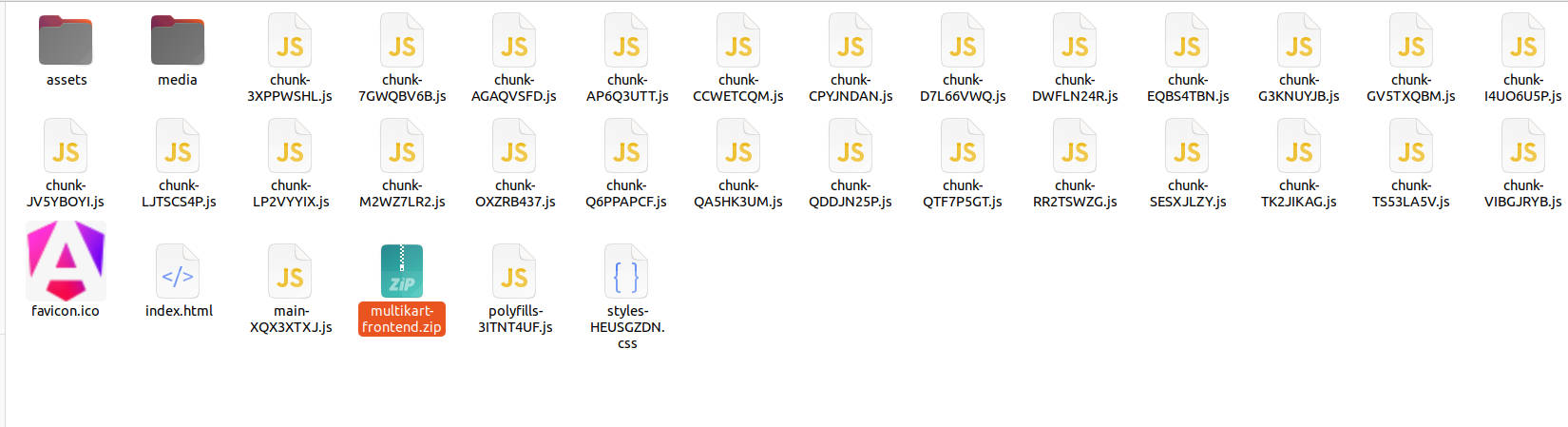
- Take the contents of the "dist" folder and upload them to your website's respective domain folder.
- Zip the Frontend project and upload it to the domain "store.your-domain.com."
- Zip the Admin project and upload it to the domain "admin.your-domain.com."
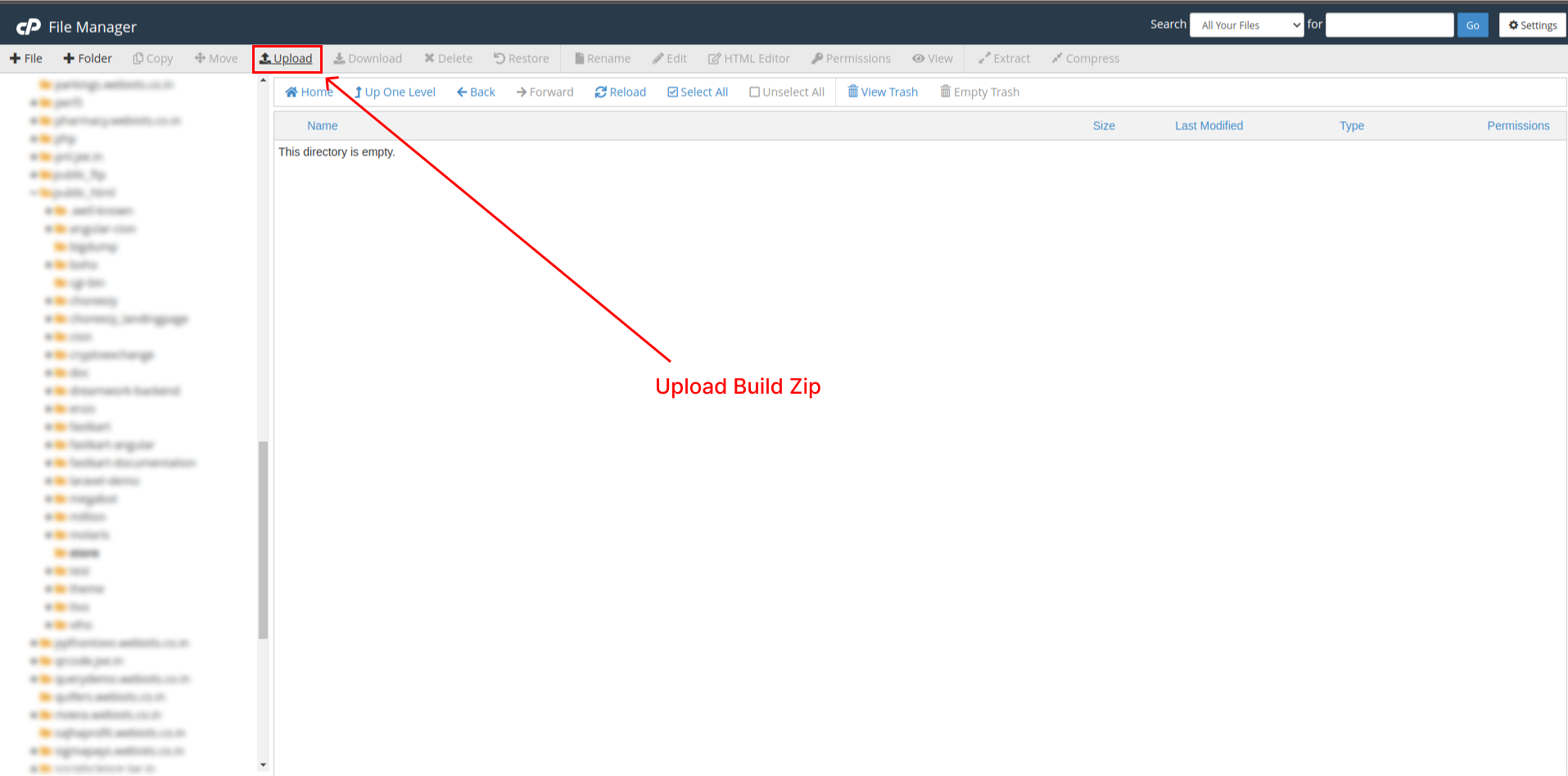
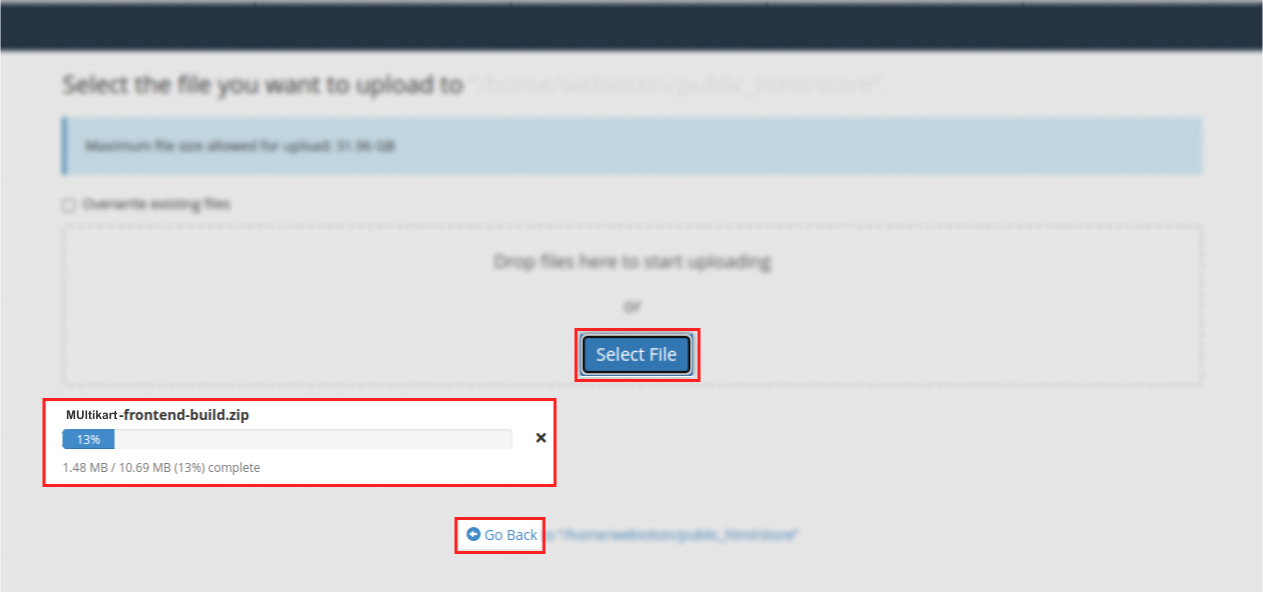
- Click on the Go Back link after the file is 100% uploaded.
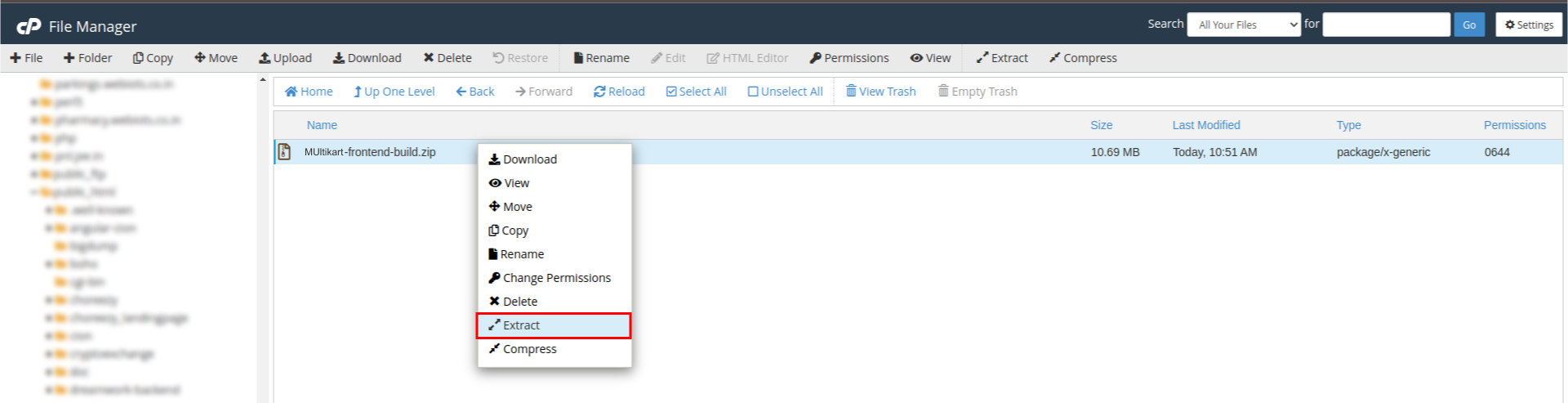
- Extract the uploaded zip folder.
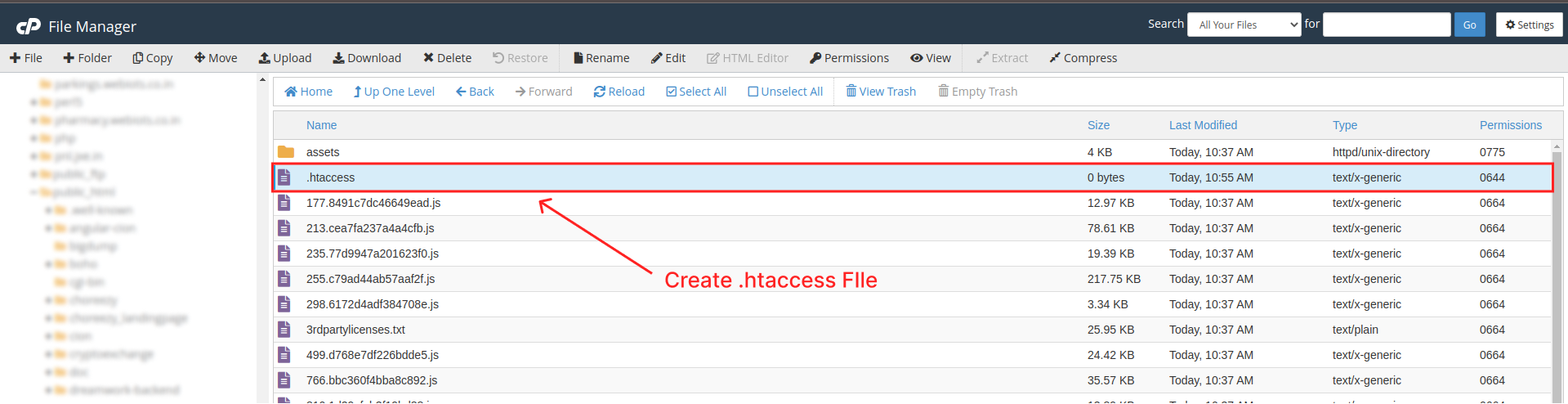
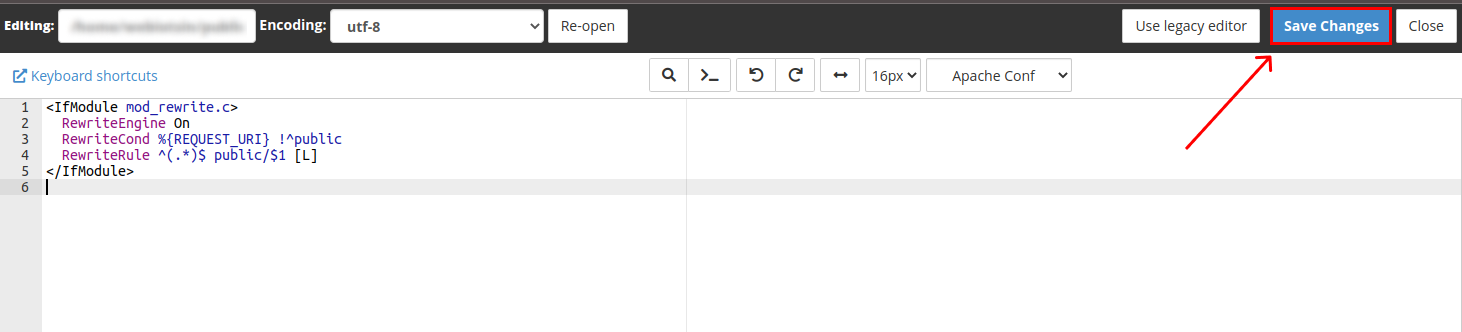
- Create a .htaccess file for both domain.
- Add the below code and click the click the Save Changes.
Congratulations on the successful installation of Multikart! After configuring the theme, you can proceed by using the default credentials.
Default Credentials
Admin Credential:
- Url: https://admin.your-domain.com/auth/login
- Email: admin@example.com
- Password: 123456789
Vendor Credential:
- Url: https://admin.your-domain.com/auth/login
- Email: john.store@example.com
- Password: 123456789
Customer Credential:
- Url: https://store.your-domain.com/auth/login
- Email: john.customer@example.com
- Password: 123456789