
Multi-Language Support
Considering that there will be users from multiple different countries,
you might want to add support for multiple languages.
Our theme uses @nuxtjs/i18n for seamless translation
management.
You can find the language switcher dropdown in the header.
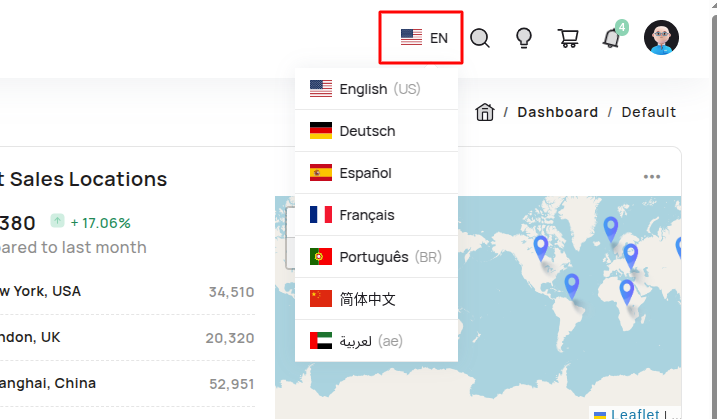
How does multi-language functionality work?
We use the official @nuxtjs/i18n module.
You can install it with:
npm install @nuxtjs/i18n
Below is an example configuration in nuxt.config.ts:
export default defineNuxtConfig({
  modules: ['@nuxtjs/i18n'],
  i18n: {
    locales: [
      { code: 'en', name: 'English', file: 'en.json' },
      { code: 'de', name: 'Deutsch', file: 'de.json' },
      { code: 'es', name: 'Español', file: 'es.json' },
      { code: 'fr', name: 'Français', file: 'fr.json' },
      { code: 'pt', name: 'Português', file: 'pt.json' },
      { code: 'cn', name: '简体中文', file: 'cn.json' },
      { code: 'ae', name: 'لعربية', file: 'ae.json' }
    ],
    defaultLocale: 'en',
    vueI18n: './i18n.config.ts'
  }
})
Translation files should be placed in:
i18n/locales/en.json, i18n/locales/de.json, etc.
Implementing Language Translate Feature:
After you finished installing above mentioned packages in your project, follow the below given steps to add the multi-language support.
Language.vue
Our Html component for language translate will look like this
<template>
  <div class="translate_wrapper" :class="{ active: layoutState.isLanguage }">
    <div class="current_lang" v-if="selectedLanguage">
      <div class="lang">
        <i :class="`flag-icon flag-icon-${selectedLanguage.icon}`"></i>
        <span class="lang-txt">{{ selectedLanguage.code }}</span>
      </div>
    </div>
    <div class="more_lang" :class="{ active: layoutState.isLanguage }">
      <div class="lang selected" v-for="(language, index) in languages" :key="index" @click="selectLanguage(language)">
        <i :class="`flag-icon flag-icon-${language.icon}`"></i>
        <span class="lang-txt"
          >{{ language.name }}
          <span v-if="language.country_code"> ({{ language.country_code }})</span>
        </span>
      </div>
    </div>
  </div>
</template>

<script setup lang="ts">
import { storeToRefs } from 'pinia';

import { language } from '~/data/header';
import { useLayoutStore } from '~/store/layout';

import type { Language } from '~/types/header';

const layoutStore = useLayoutStore();
const { layoutState } = storeToRefs(layoutStore);
const { setLocale } = useI18n();

let languages = ref(language);
let selectedLanguage = ref<Language>();

onMounted(() => {
    languages.value.filter(details => {
      if (details.active) {
        selectedLanguage.value = details;
      }
    });
});

function selectLanguage(language: Language) {
  selectedLanguage.value = language;
  setLocale(language.code);
}
</script>

<style scoped></style>
header.ts
language data:
export const language: Language[] = [
    {
        id: 1,
        name: 'English',
        code: 'en',
        icon: 'us',
        country_code: "US",
        active: true
    },
    {
        id: 2,
        name: 'Deutsch',
        code: 'de',
        icon: 'de'
    },
    {
        id: 3,
        name: 'Español',
        code: 'es',
        icon: 'es'
    },
    {
        id: 4,
        name: 'Français',
        code: 'fr',
        icon: 'fr'
    },
    {
        id: 5,
        name: 'Português',
        code: 'pt',
        icon: 'pt',
        country_code: "BR"
    },
    {
        id: 6,
        name: '简体中文',
        code: 'cn',
        icon: 'cn'
    },
    {
        id: 7,
        name: 'لعربية',
        code: 'ae',
        icon: 'ae',
        country_code: "ae"
    }
]
JSON files for different languages
To translate words we have to provide the translation for each word, that we will do in a json file.
languages JSON for English Language en.json
{
   "general": "General",
    "dashboards": "Dashboards",
    "default": "Default",
    "ecommerce": "Ecommerce",
    "Widgets": "Widgets",
    "Chart": "Chart",
}
languages JSON for Deutsch Language de.json
{
     "general": "Allgemein",
    "dashboards": "Dashboards",
    "default": "Standard",
    "ecommerce": "E-Commerce",
    "Widgets": "Widgets",
    "Chart": "Diagramm",
}
languages JSON for Spanish Language es.json
{
     "general": "General",
    "dashboards": "Tableros",
    "default": "Predeterminado",
    "ecommerce": "Comercio electrónico",
    "Widgets": "Widgets",
    "Chart": "Gráfico",
}
languages JSON for French Language fr.json
{
    "general": "Général",
    "dashboards": "Tableaux de bord",
    "default": "Par défaut",
    "ecommerce": "Ecommerce",
    "Widgets": "Widgets",
    "Chart": "Graphique",
}
languages JSON for Portuguese Language pt.json
{
     "general": "Geral",
    "dashboards": "Painéis de Controle",
    "default": "Padrão",
    "ecommerce": "Ecommerce",
    "Widgets": "Widgets",
    "Chart": "Gráfico",
}
languages JSON for Chinese Language cn.json
{
     "general": "常规",
    "dashboards": "仪表盘",
    "default": "默认",
    "ecommerce": "电子商务",
    "Widgets": "小部件",
    "Chart": "图表",
}
languages JSON for Arabic Language ae.json
{
    "general": "عام",
    "dashboards": "لوحات القيادة",
    "default": "افتراضي",
    "ecommerce": "التجارة الإلكترونية",
    "Widgets": "الأدوات",
    "Chart": "الرسم البياني",
}
Now we are all set to use language translation, you just have to use
$t('key') when you want a word to change when the language changes.
For Example:
Use a variable as follows:
{{ $t(some_variable) }}
Warning: Make sure that if you are using a
variable then you have added the translation for every word possible in
that variable in the json file.