 AI Provider
Management
AI Provider
Management
Overview
AI Providers help you connect your platform to external AI services. You can set up API keys, configure how requests are sent, and manage how results are received and processed.
With AI Providers, you can:
- Manage multiple AI service integrations in one place
- Store and use API keys securely
- Configure endpoints for different AI features (e.g., image, video)
Dashboard
The AI Providers Dashboard gives you a centralized view of all configured AI service providers in your system. It allows you to quickly monitor, manage, and access different AI capabilities from a single interface.
The Search Providers feature allows users to quickly find AI providers by name, making provider management faster and more efficient when handling multiple integrations. Each provider is displayed in a dedicated card that includes the provider name, supported AI services, and current operational status. Service badges visually highlight capabilities such as Text to Image, Image to Image, Video Motion, Image to Video and Text to Video. A built-in status indicator also helps users easily identify whether a provider is active and ready for use or currently inactive and disabled.

1. Add AI Provider
Go to AI Providers → Add AI Provider
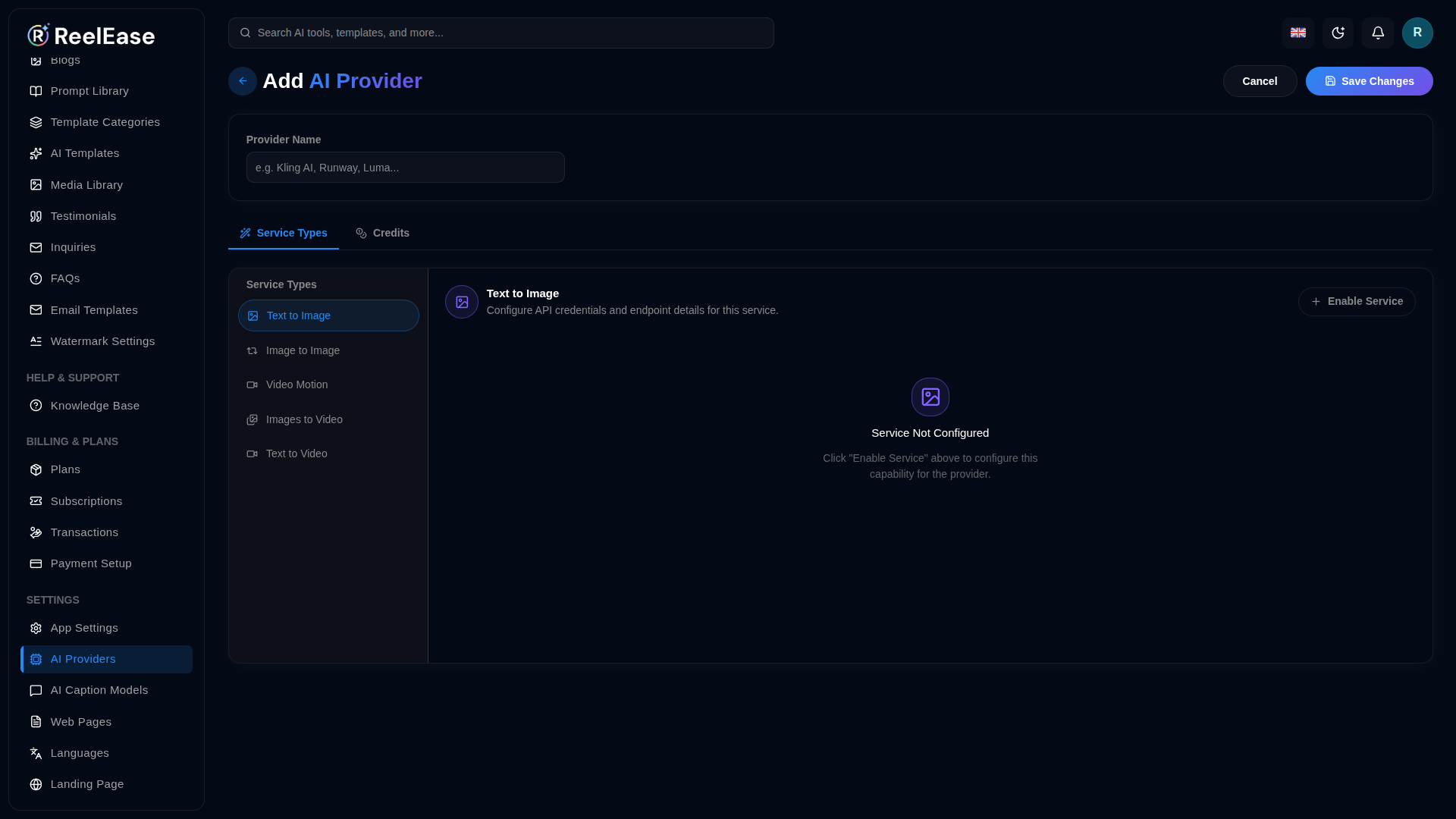
- Enter: Provider Name (e.g. OpenAI, Runway, Stability, etc.)
1. Configure Service Types
You must enable and configure at least one service, otherwise it won’t work.
Available services:
- Text to Image
- Image to Image
- Video Motion
- Image to Video
- Text to Video
Select a service (e.g. Text to Image) and configure it fully.
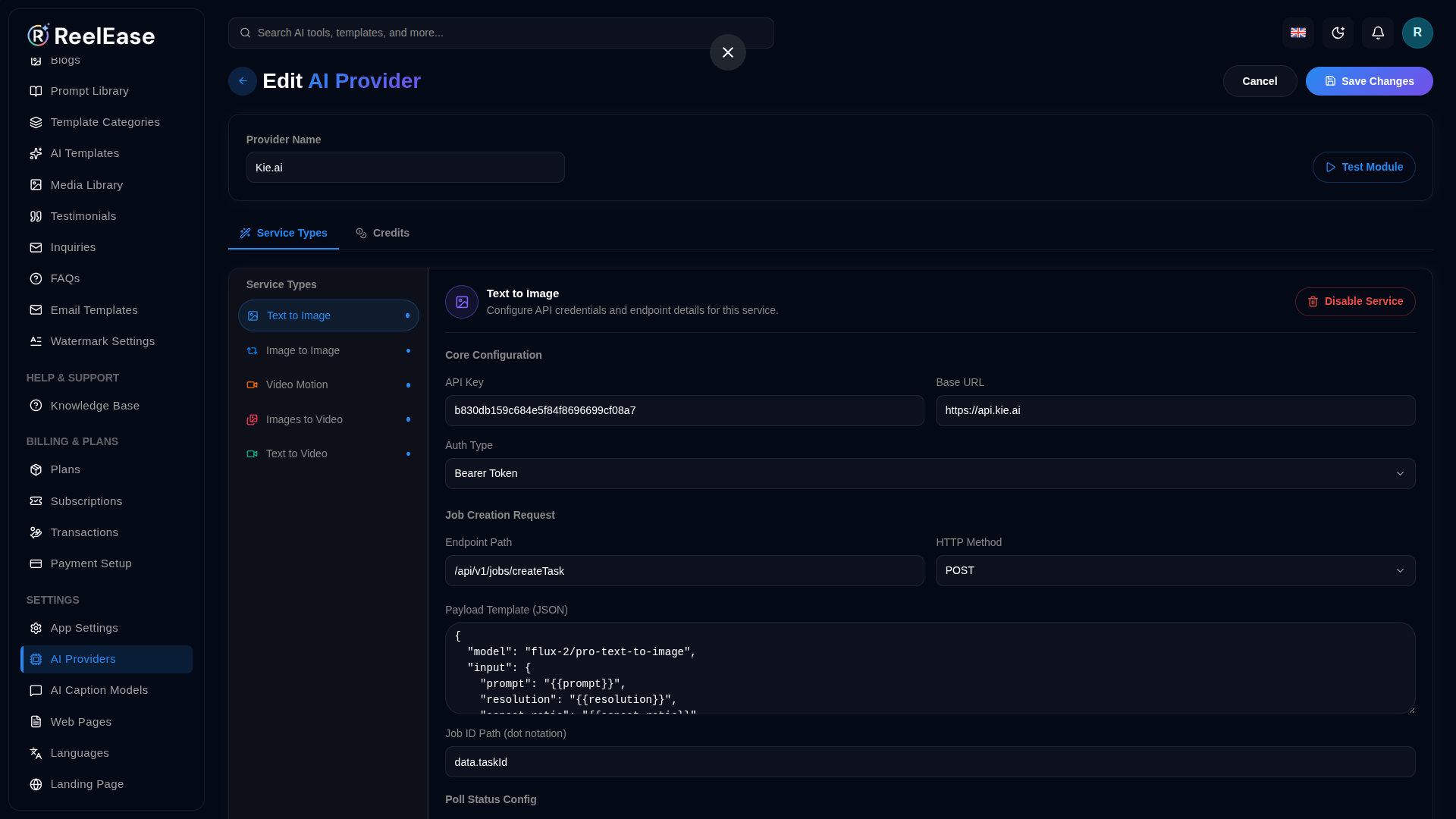
Core Configuration (Required)
API Connection
- API Key → Your provider key
- Base URL → Root API URL
- Auth Type
Example : https://api.openai.com
Usually: Bearer Token
Job Creation Request (How to start a generation)
This tells Reelease AI system how to send a request to the AI provider.
Endpoint Path
/v1/generate(depends on provider)
HTTP Method
POSTPayload Template (JSON)
Example :
{
  "prompt": "{{prompt}}",
  "aspect_ratio": "{{aspect_ratio}}"
}
Variables like {{prompt}} will be dynamically replaced.
Job ID Path (dot notation)
This extracts the job ID from the response.
Example :
data.task_id
Poll Status Configuration (Check progress)
Used when the API is asynchronous (most video/image APIs are).
Poll Endpoint
/v1/task/{{taskId}}/statusHTTP Method
GETState Path
data.statusSuccess State Value
completed
Failed State Value
failed
Result Media URL Path
data.output.url
2. Credits Configuration
Configure credits usage per enabled module
Go to Credits tab and define:
- Credits Cost
- Billing Type
After completing all configurations, click on the Save Changes button to apply and update the settings successfully.
2. Edit AI Provider
Go to the Dashboard to view all added AI Providers displayed in individual cards. Hover over a provider card and click the pencil icon to edit the AI Provider configuration and settings.
In the Edit section, you can update all AI Provider configurations and settings easily. Admins can enable or disable service types, modify credit costs, update billing types, and manage provider configurations as needed. After completing all changes, click the Save Changes button to update the AI Provider successfully.
3. Delete AI Provider
Go to the Dashboard to view all added AI Providers displayed in individual cards. Hover over a provider card and click the trash icon to Delete the AI Provider configuration and settings.
Once an AI Provider is deleted, its configuration and settings are permanently removed and cannot be accessed or restored again.

What's Next?
Let's get started — your journey with Reelease AI begins here!


