 Text to Image
Overview
Text-to-Image converts written descriptions into visual images. Users simply provide a prompt in text form, and the system generates a corresponding image based on the given details, style, and context.
Your ideas from your mind are converted into AI-generated images. Simply describe your imagination in text, and the system transforms it into a visual representation instantly.
1. Text-to-Image Dashboard
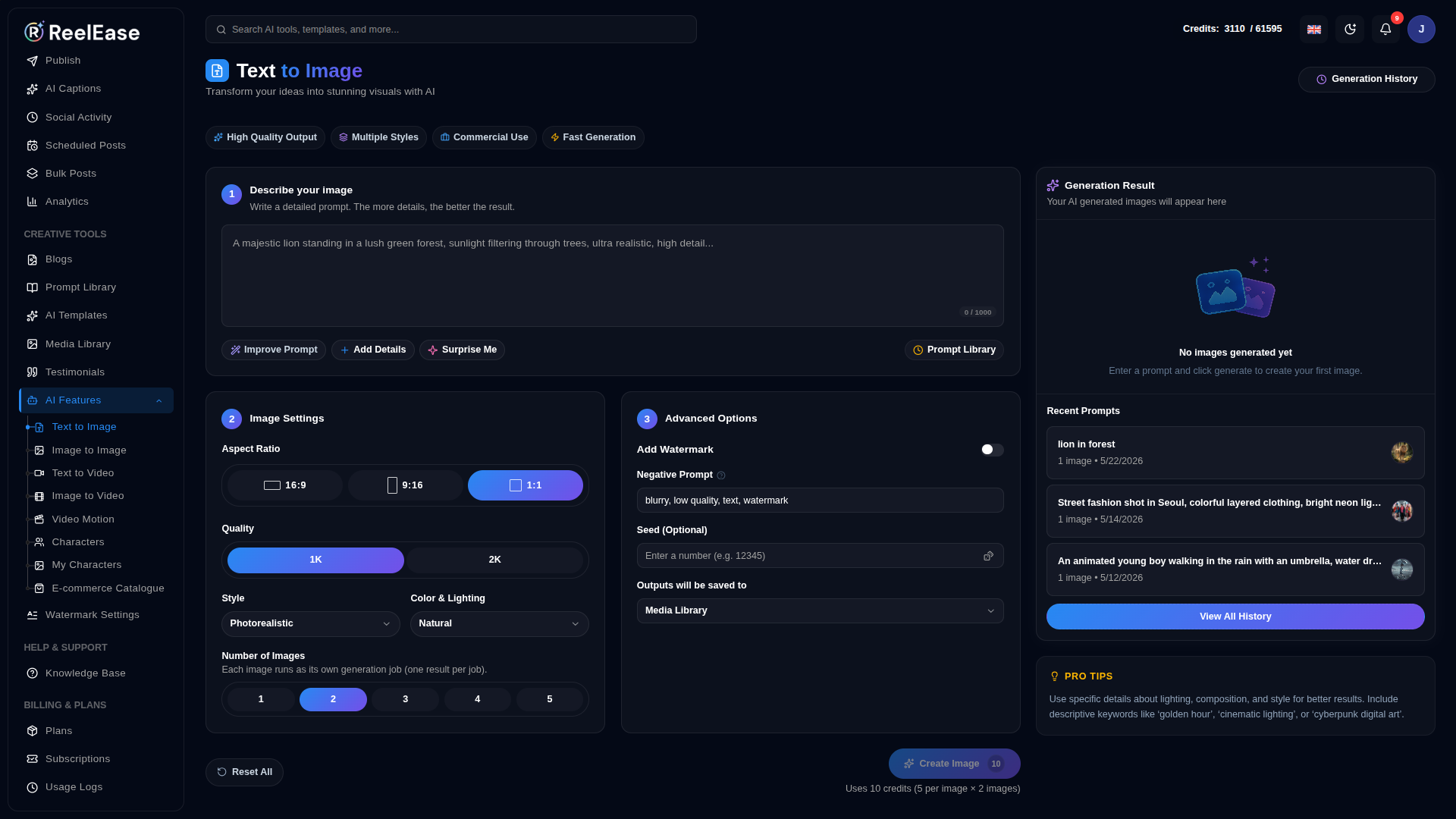
The Text to Image dashboard provides a user-friendly workspace for generating AI-powered images from text prompts. The interface is designed to help users quickly create high-quality visuals by simply describing their ideas in the prompt section. Integrated AI providers process the entered text and transform it into creative and visually appealing images within seconds.
The dashboard includes customization options such as multiple aspect ratios and image quality settings, allowing users to optimize generated images for social media, marketing materials, banners, thumbnails, and other creative projects. A dedicated Generation Result panel displays the final output for preview and further actions.
2. Create Image
To create an AI-generated image, enter a detailed description in the Creation Prompt section explaining the desired scene, style, colors, objects, or artistic concept. Users can select the preferred aspect ratio and image quality before starting the generation process.
The Prompt Library option provides ready-to-use prompt templates and creative suggestions to simplify content creation. After clicking the Create Image button, the platform processes the request and displays the generated image in the Generation Result section.
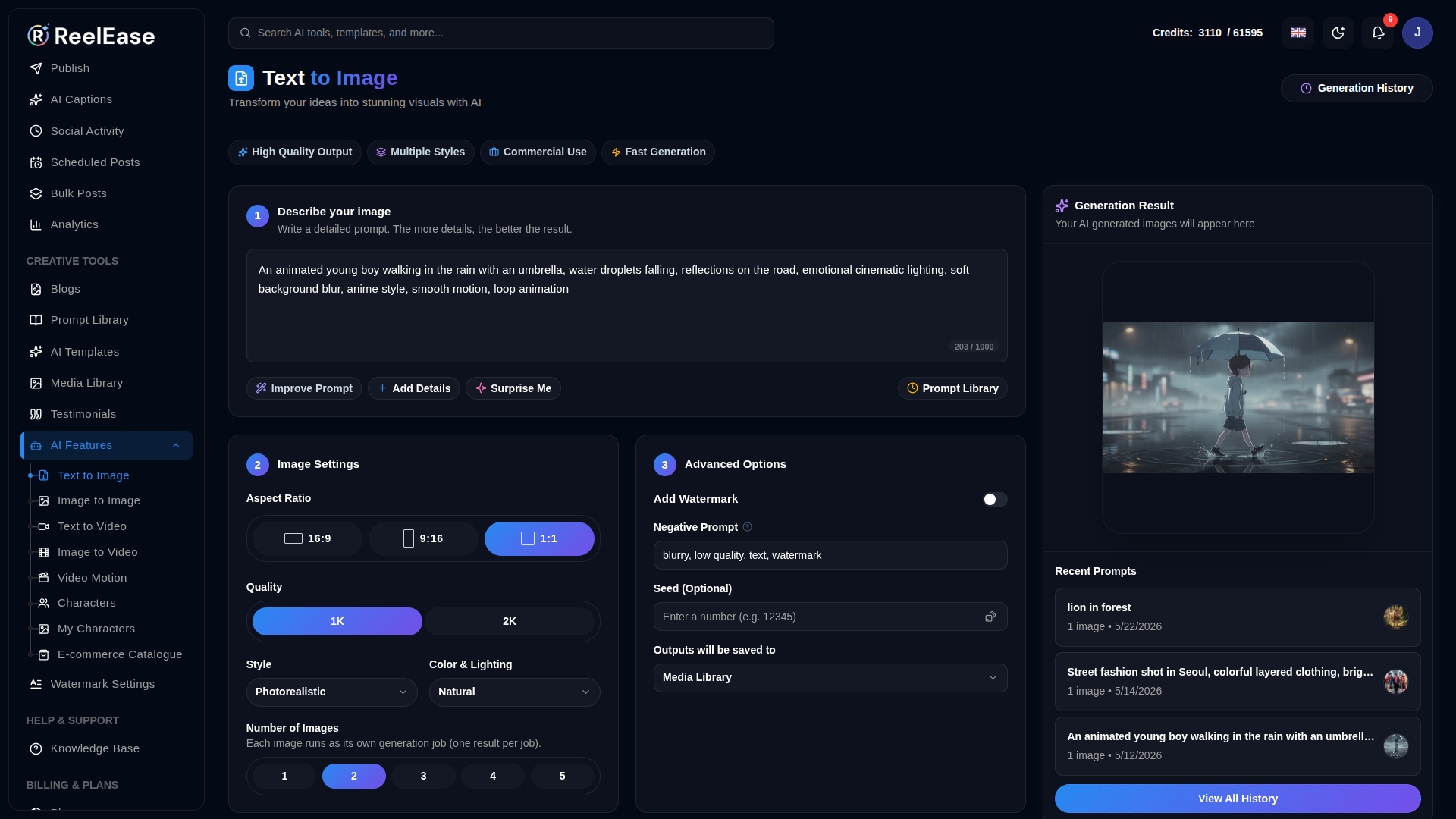
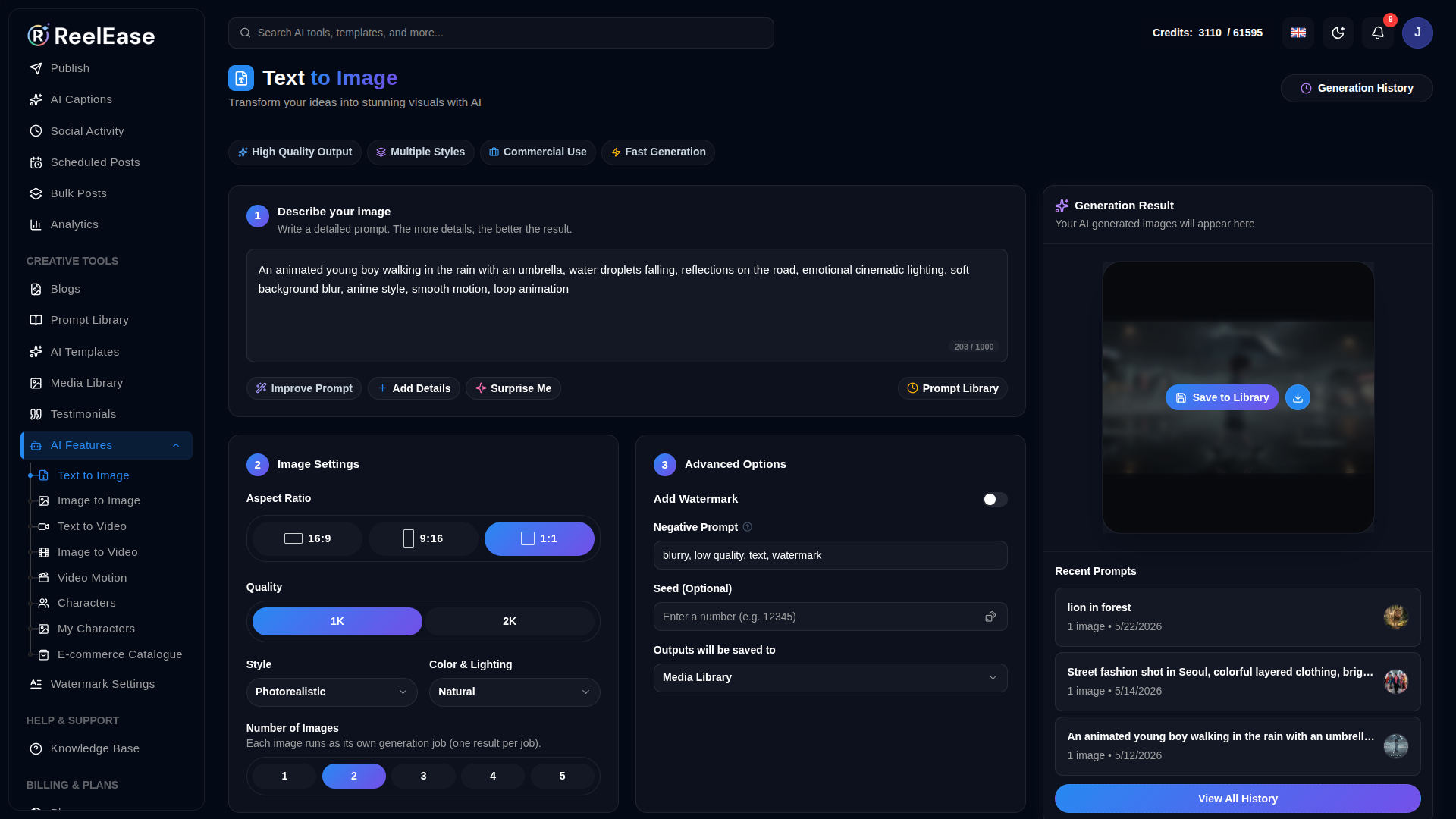
After generating the image, it is directly saved to the library and you can download it immediately.
3. View Generated Images
Users can preview, download or manage generated images directly from the Media Library section. The platform also allows users to instantly share generated images to connected social media platforms without requiring manual downloads or uploads.
4. Delete Image
Users can delete images directly from the Media Library section. If the deleted image has already been shared on connected social media platforms, the platform also removes the associated social media post and related publishing records automatically.
- Select multiple aspect ratios and image quality options.
- Manage all generated images from the Media Library
- Directly share images to connected social media platforms
What's Next?
Continue exploring the Admin Module tools.


