Frameworks
The Frameworks tab provides a variety of fields and options for customizing the Frameworks Section of the front-end landing page.
Framework Section
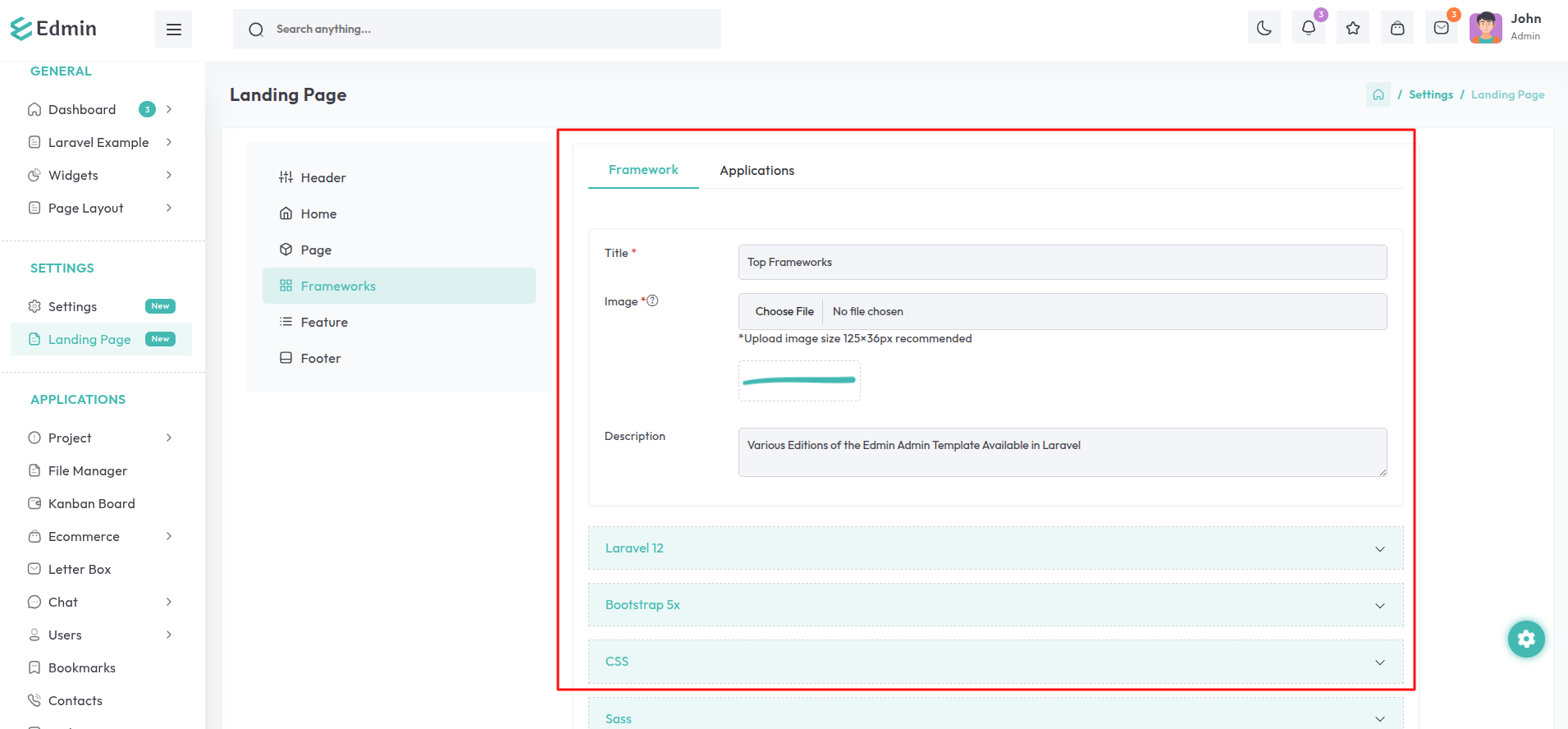
Navigate to the Landing Page option in the sidebar, select the Frameworks tab, and then choose the Framework sub-tab.
Title: Enter a title for the framework section.
Image: Upload an image to be displayed on the title of the framework section.
(Recommended dimensions: 125×36 pixels)
Description: Provide a short and descriptive text for the framework section.
Add Framework Banner Button: This button is used to add new framework banners to the Framework section, each with customizable details.
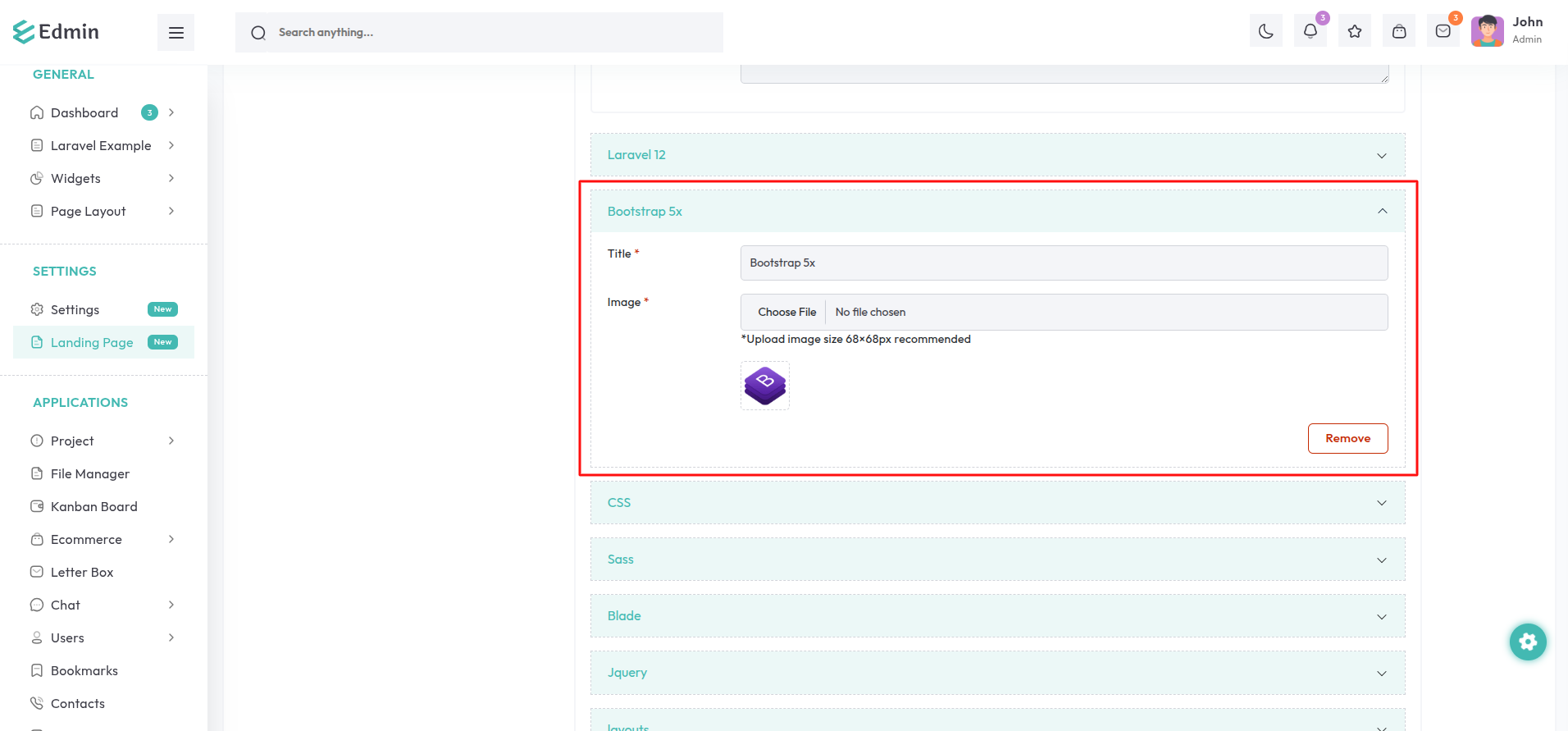
Fields for Each Banner:
Title: Enter a title for the framework banner.
Image: Upload an image to be displayed on the Framework banner.
(Recommended size:
68×68 pixels)
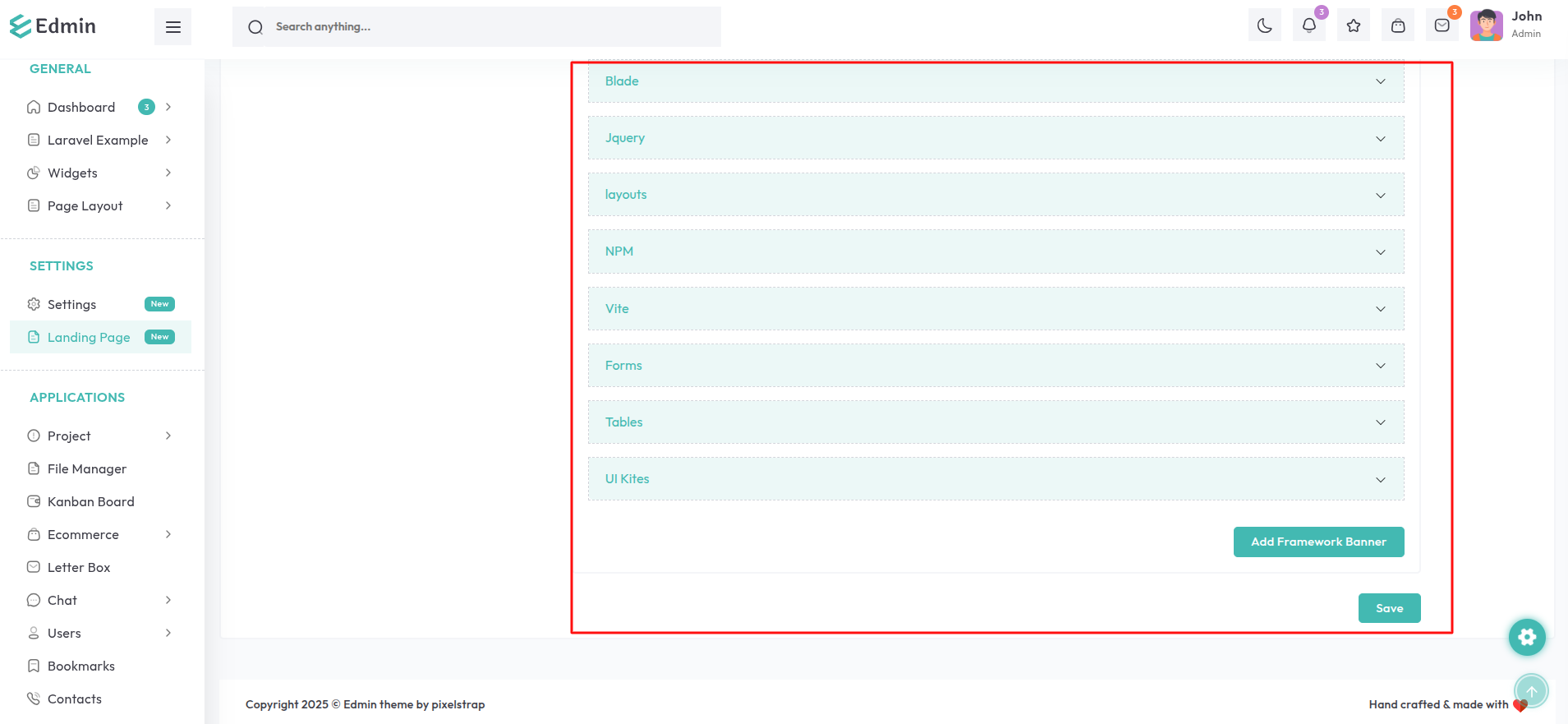
The framework banners are displayed as shown, and you also have the option to remove them.
Application Section
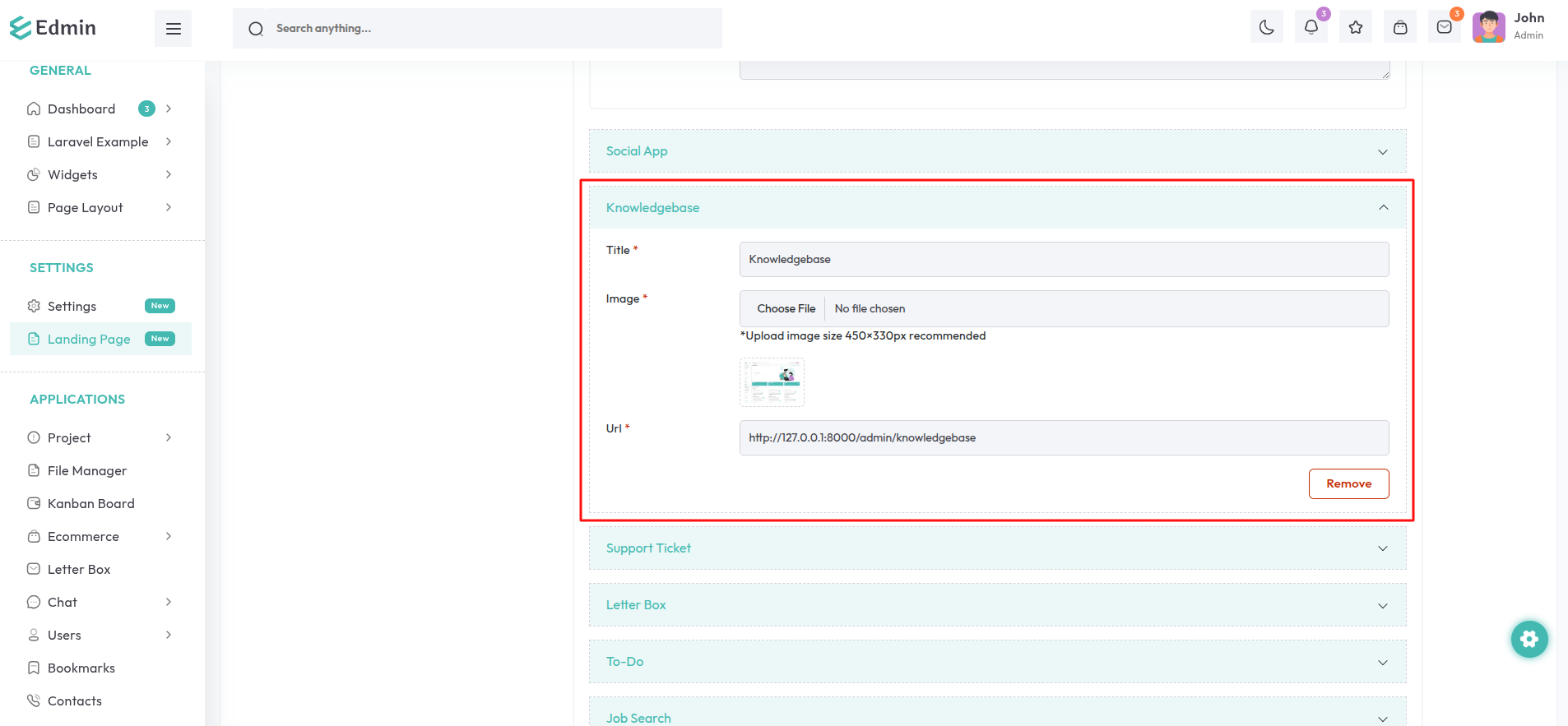
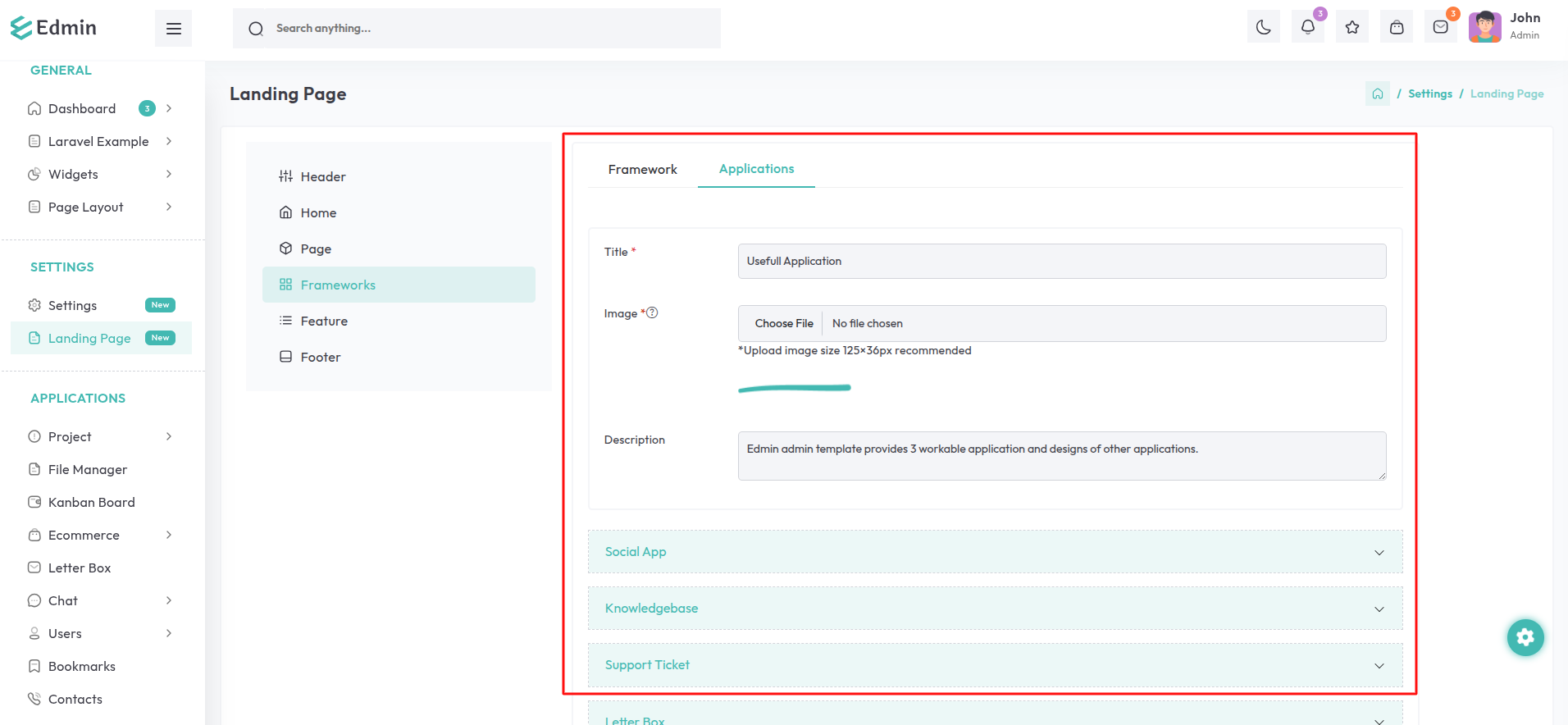
Navigate to the Landing Page option in the sidebar, select the Frameworks tab, and then choose the Applications sub-tab.
Title: Enter a title for the applications section.
Image: Upload an image to be displayed on the title of the applications section.
(Recommended dimensions: 125×36 pixels)
Description: Provide a short and descriptive text for the applications section.
Add Application Banner Button: This button is used to add new application banners to the Applications section, each with customizable details.
Fields for Each Banner:
Title: Enter a title for the applications banner.
Image: Upload an image to be displayed on the Application banner
(Recommended size: 450×330 pixels)
URL: Enter the destination URL for redirection when the banner is clicked.
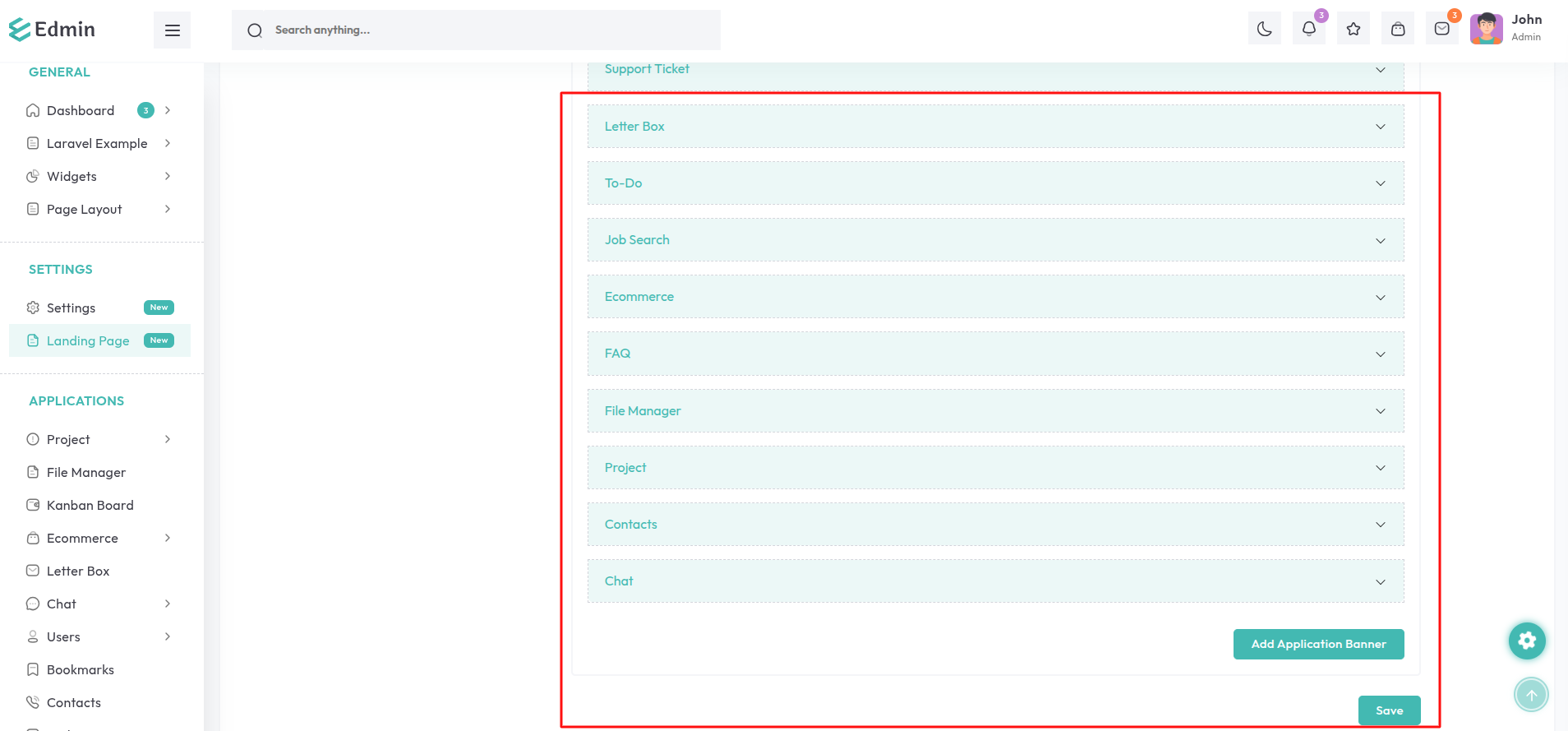
The application banners are displayed as shown, and you also have the option to remove them.