 Admob :
NOTE :
- Before running the app make sure you have import Collection json in Firestore database which we have provided.
- Before import json in firestore database remember to give rule permission or
create Firestore Data.
See the Firebase Rules for create
Firestore
Database and how to give
permission
in firebase.
Also you can check below video for how to import json in firebase:
VIDEO URL :
https://youtu.be/Jd0sW8Wrc5Y?si=AxC6BmWBFwZfZU4a
- For Quick start about go to https://developers.google.com/admob/flutter/quick-start
- Now search plugin in pub.dev google_mobile_ads
- Copy plugin with latest version go to your project => pubspec.yaml paste the plugin name with latest version and update run command flutter pub get
- Start using Admob by following link and fill data in this https://platform.openai.com/
-
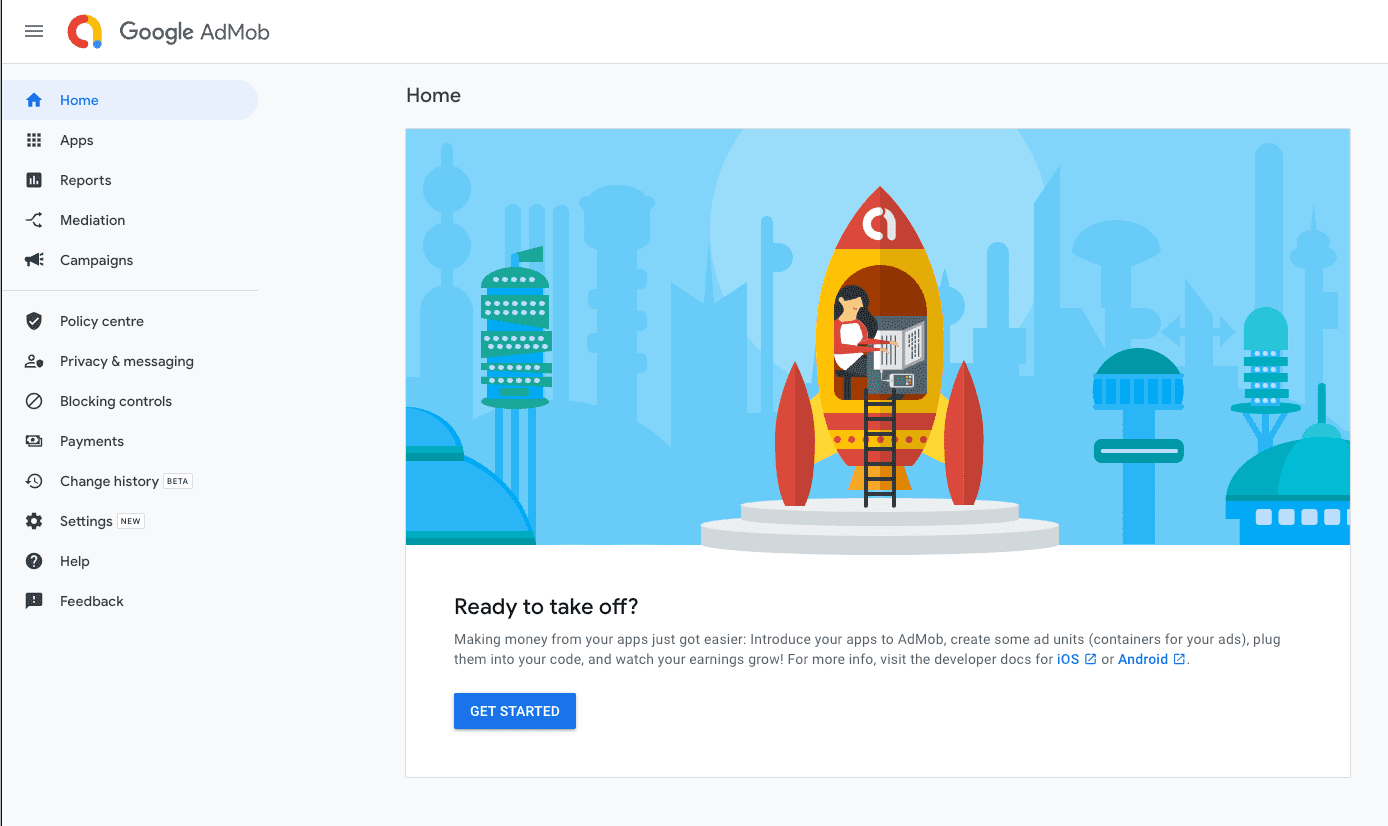
After Process complete go to admob dashboard
-
On left hand menu panel select Apps and click onADD YOUR FIRST APP

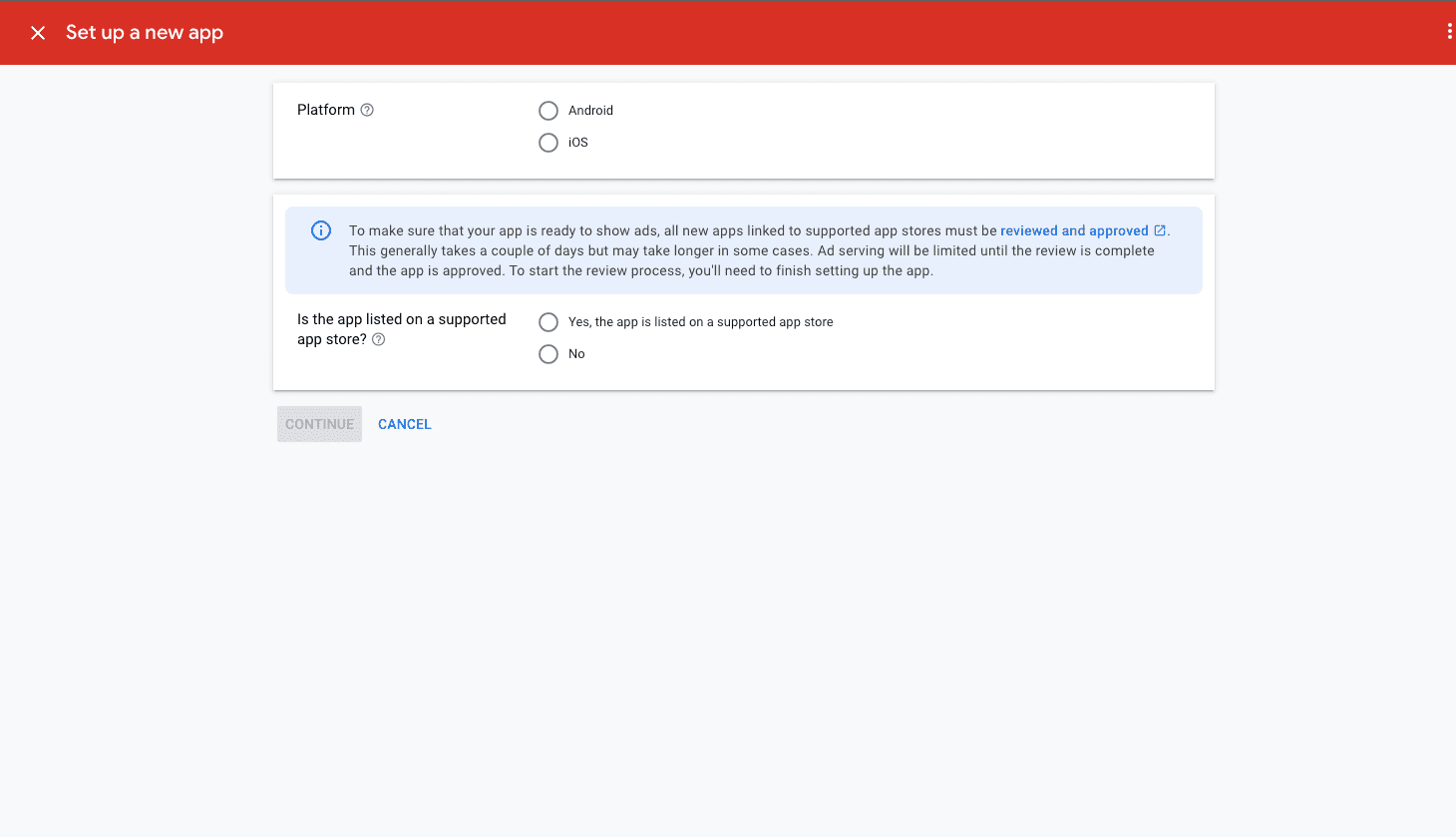
- Now select option as per your app requirement if you want to show for ANDROID select or
want for IOS select
IOS
-
If your App is live then select Yes, the app is listed on supported app store, if
not then select
no
-
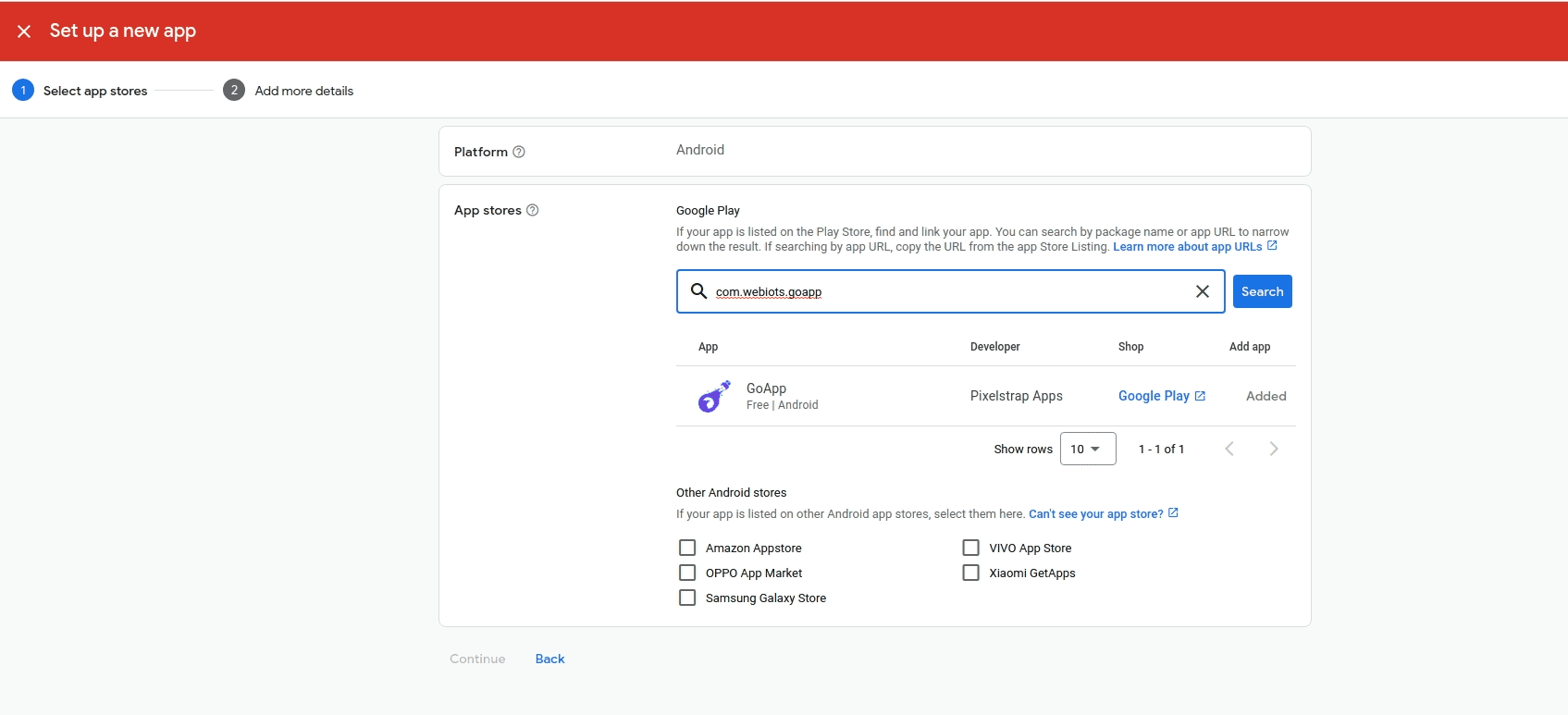
If you select Yes, the app is listed on supported app store, it will go to
another page for search your
app on play store, search by name or package name and select
-
If you select no then it will take to page where you provide app name

-
After complete process, on left hand panel click Add Unit, In that click Add an
Unit

-
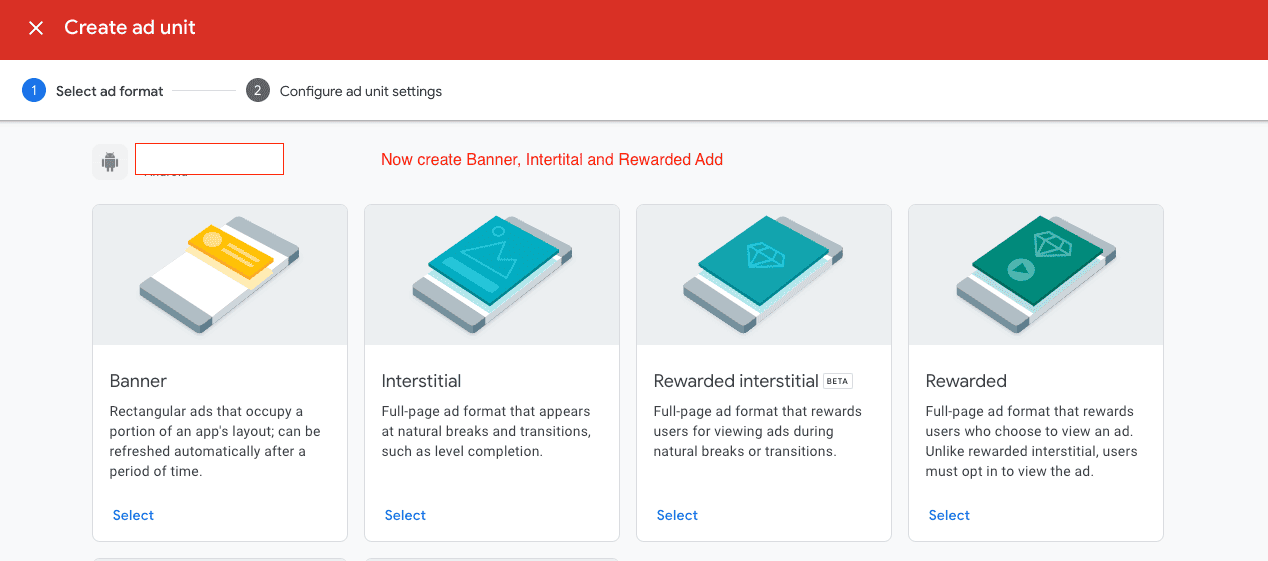
Now create Banner, Interstitial and Rewarded Add
-
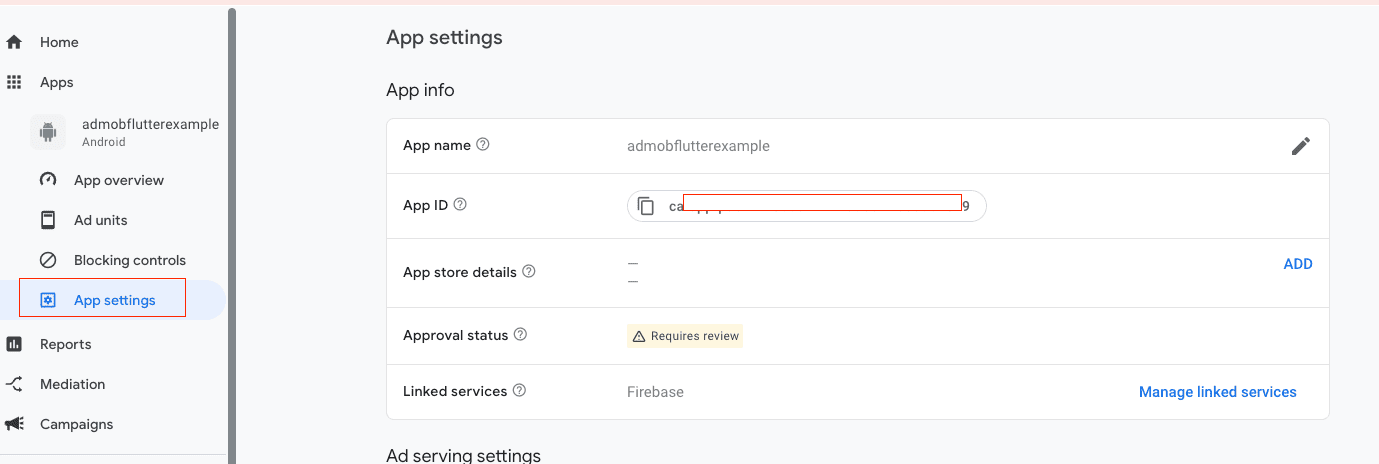
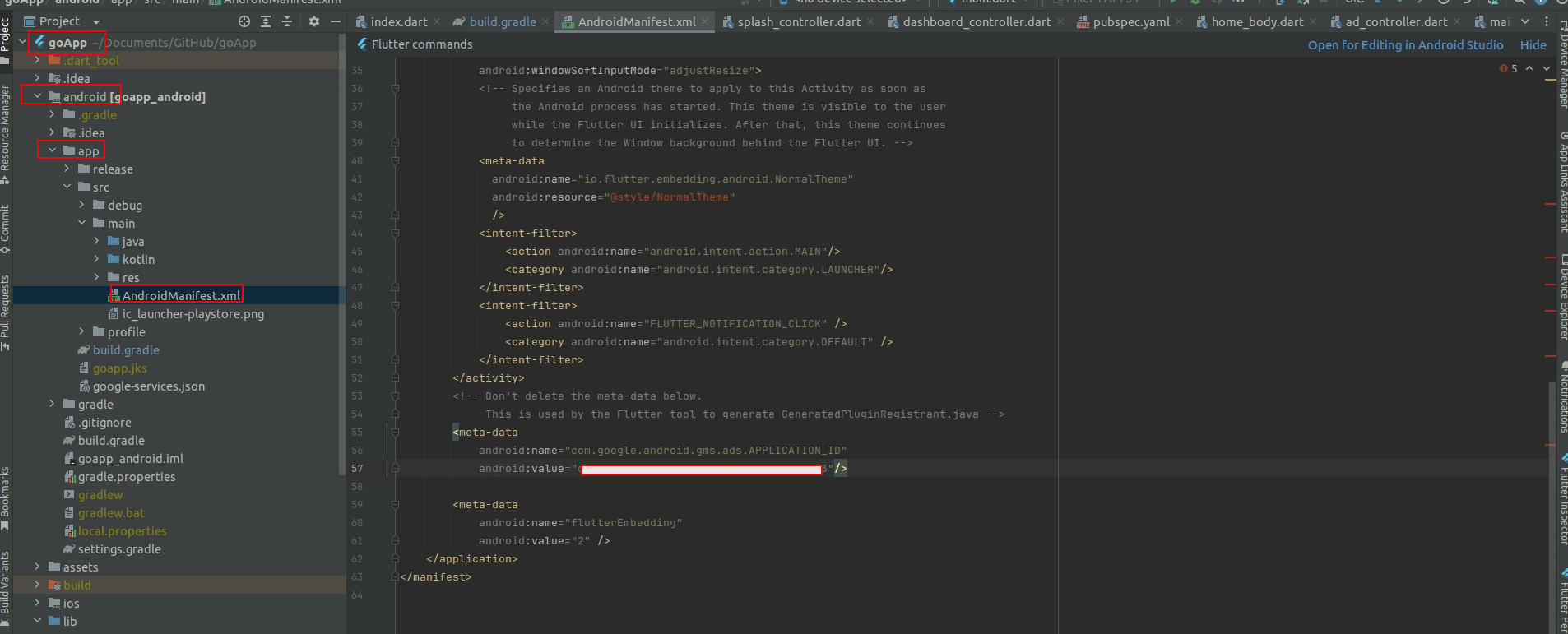
Now got to App Setting copy AppId and paste in AndroidManifest.xml
-
Now copy BannerId according android or ios and paste in firebase config as mention above
in config->
if android copy in bannerAddId in value or if ios paste in bannerIOSId

- Above 14. number point for BannerId Process do same process as Banner for Interstitial and Rewarded key and paste in firebase config.