Home
The Home Tab provides a variety of fields and options for customizing the Home Section of the front-end landing page.
Home Section
Navigate to the Landing Page option in the sidebar, select the Home Tab, and then choose the Home sub-tab.
Title: Provide a descriptive title for the home section.
Description: Include a short and descriptive text for the home section.
Sub Title: Provide a descriptive sub title for the home section.
Image: Upload an image to be displayed on the home section
.
(Recommended dimensions: 5176 × 2820 pixels)
Image: Upload an image to be displayed on the right side of the home section. (Recommended dimensions: 952 × 1957 pixels)
Image: Upload an image to be displayed on the left side top of the home section. (Recommended dimensions: 447 × 300 pixels)
Image: Upload an image to be displayed on the right side top of the home section. (Recommended dimensions: 536 × 236 pixels)
Image: Upload an image to be displayed on the left side bottom of the home section. (Recommended dimensions: 361 × 290 pixels)
Right Side Button
Text: Specify the text to be displayed on the right side button of the home
section.
Url: Enter the destination URL for redirection when the button
is clicked.
Left Side Button
Image: Upload an image to be displayed on the left side button of the home
section.
(Recommended dimensions: 68 × 68 pixels)
Url: Enter the destination URL for redirection when the button
is clicked.


Cruds Section
Navigate to the Landing Page option in the sidebar , select the Home Tab, and then choose the Crud sub-tab.
Title: Provide a descriptive title for the crud section.
Sub Title: Provide a descriptive sub title for the crud section.
Add Crud Banner Button: This button is used to add new banners to the crud section, each with customizable details.
Fields for Each Banner:
Background Color: Select the background color of the crud banner as per your choice.
Title: Provide a descriptive title for the crud banner.
Description: Include a short and descriptive text for the crud banner.
Image: Upload an image to be displayed on the crud banner.
(Recommended dimensions: 692 × 500 pixels)
Url: Enter the destination URL for redirection when the banner is clicked.

The Crud banners are displayed as shown. You also have the option to remove the banners.

Benefits Section
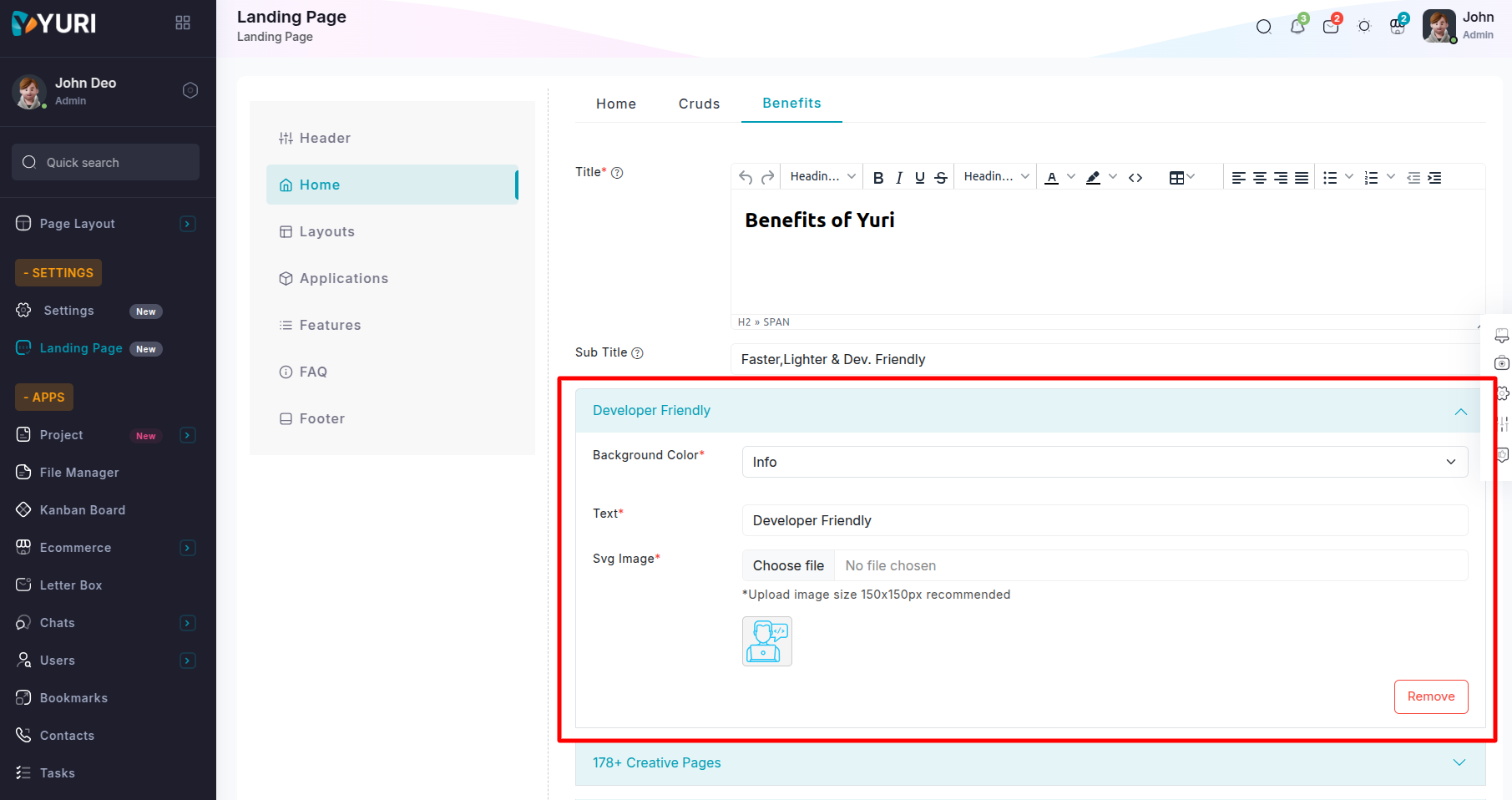
Navigate to the Landing Page option in the sidebar , select the Home Tab, and then choose the Benefits sub-tab.
Title: Provide a descriptive title for the benefits section.
Sub Title: Provide a descriptive sub title for the benefits section.
Add Benefits Banner Button: This button is used to add new banners to the benefits section, each with customizable details.
Fields for Each Banner:
Background Color: Select the background color of the benefits banner as per your choice.
Text: Provide text for the benefits banner.
Svg Image: Upload an SVG image to be displayed on the benefits banner.
(Recommended dimensions: 150x150 pixels)

The Benefit banners are displayed as shown. You also have the option to remove the banners.