 How to build APK or AAB ?
NOTE :
Before launching the app, ensure you have correctly set up the ReelEaseAI Node.js and have added all
necessary data through the admin panel.
Build APK Using Android Studio :
- Open Android Studio and navigate to the Android folder.
- Give the Gradle build process enough time to finish.
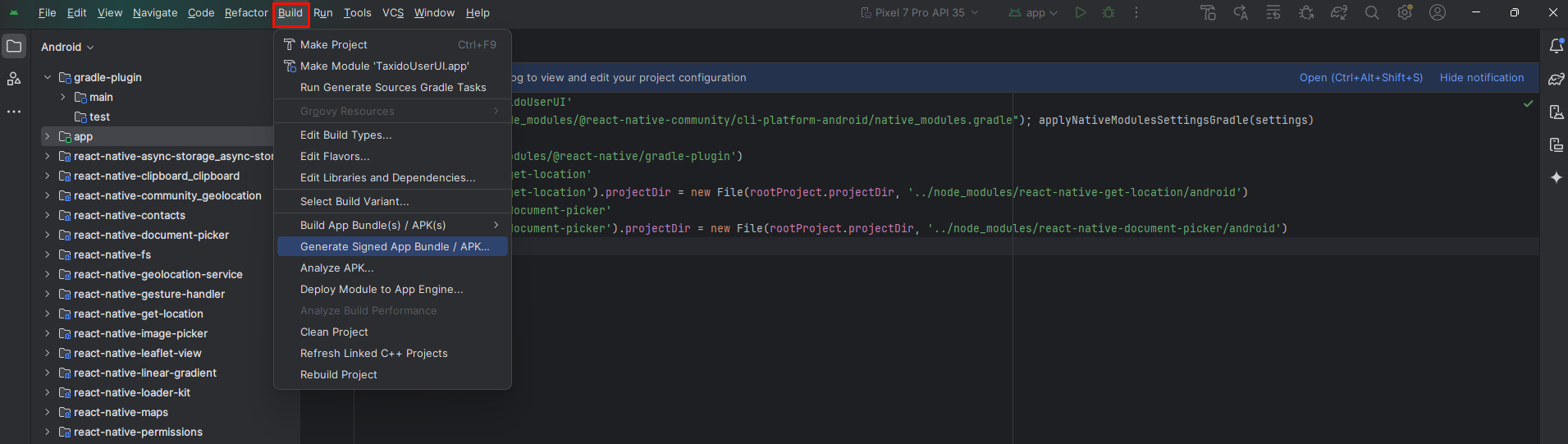
- From the menu bar at the top, choose "Build."
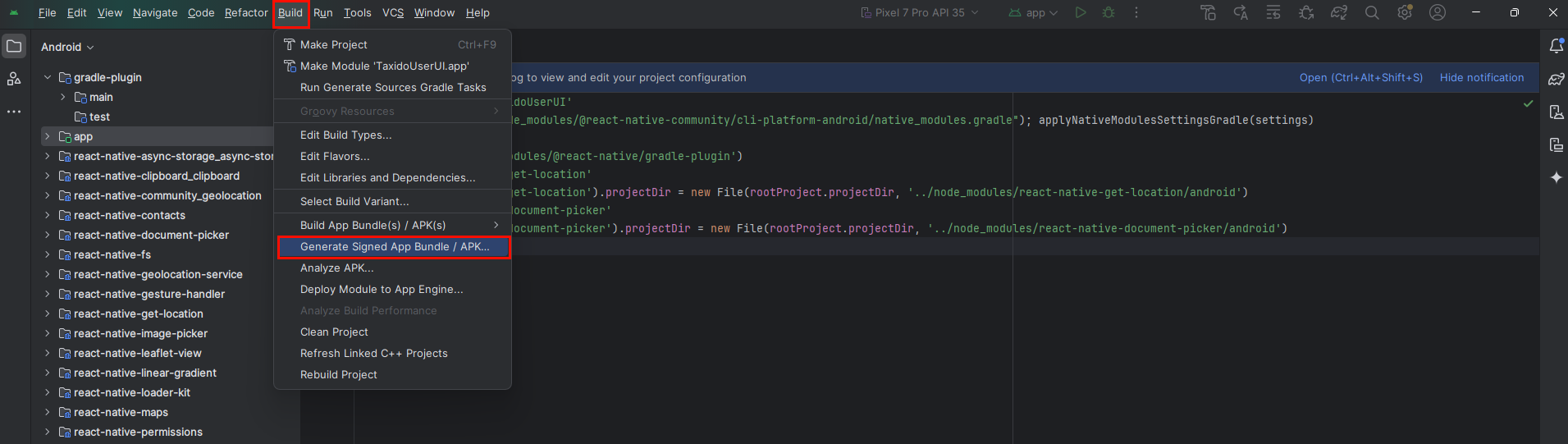
- Next, choose "Generate Signed Bundle / APK" from the options.
- Select Android App Bundle (AAB) for posting to the Google Play Store and APK for testing your app.
- After choosing an option, click the 'Next' button.
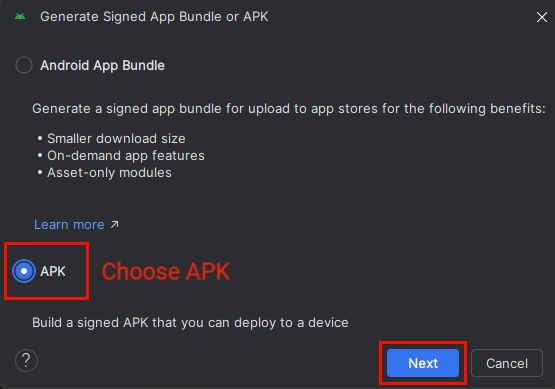
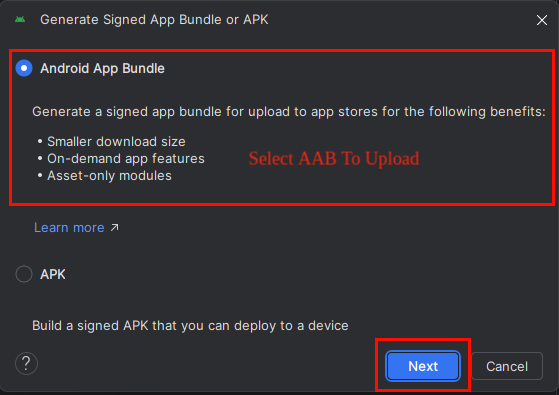
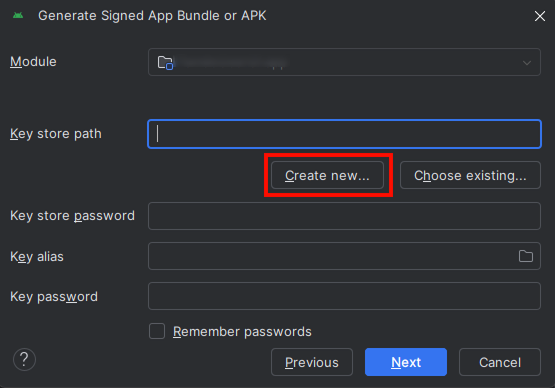
- If you don't already have a key store, click on "Create New" to set one up.
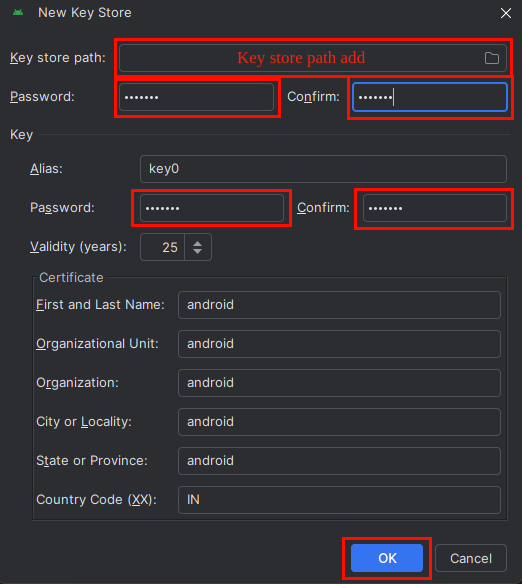
- Specify the location where you want to save the keystore, enter the keystore password, choose an
alias name and alias password, and then click the OK button.
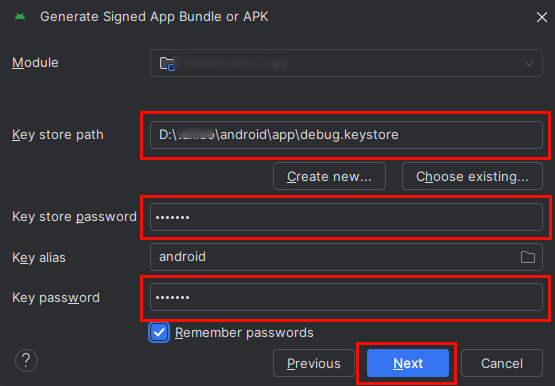
- If you’ve already created a keystore, simply choose the file path, enter the alias name and
password, and then click the Next button.
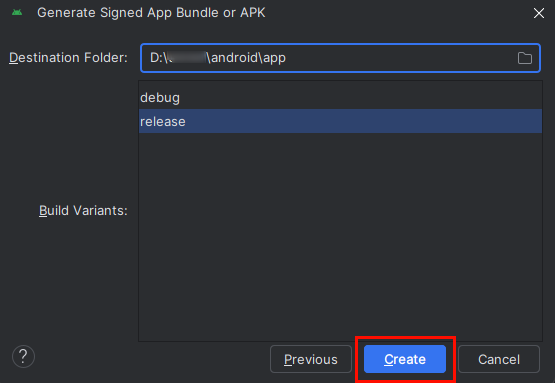
- Click "Create" after selecting "Release" from the Build
Variants menu.
- It may take a moment for the APK to be generated. Once it's ready, you can find it located in the bottom right corner.

NOTE :
Your keystore is essential when uploading your AAB to the Play Store. It is a one-time use;
if
you upload your app using a particular keystore and then lose it, you won't be able to upload
your
AAB again with a new keystore.
NOTE :
Ensure you remember your alias name and password, as they are required to generate the SHA
key
for the release.
Build APK Using Terminal :
- Open Terminal in Visual Studio Code
- Open Terminal in Visual Studio Code.
- Open the terminal in VS Code by pressing:
- Ctrl + ` (backtick) on Windows/Linux
- Cmd + ` on macOS
- Navigate to the Android Folder
- Build the APK
- Find the APK
Run the following command in the VS Code terminal :
cd androidThis changes the directory to the Android folder inside your React Native project.
Run the following command :
./gradlew assembleReleaseOnce the build is complete, your APK will be available at:
android/app/build/outputs/apk/release/app-release.apk
Configure Release Signing (Required for Production)
IMPORTANT :
The sample project may use the debug signing configuration during development.
Before publishing your application to the Google Play Store, you must create your own
release keystore and configure Android release signing.
-
Create a release keystore by running:
keytool -genkeypair -v -keystore my-release-key.keystore -alias my-key-alias -keyalg RSA -keysize 2048 -validity 10000 -
Move the generated keystore file into:
android/app/ -
Create a file named:
android/keystore.propertiesand add:storePassword=YOUR_STORE_PASSWORD keyPassword=YOUR_KEY_PASSWORD keyAlias=my-key-alias storeFile=app/my-release-key.keystore -
Open:
android/app/build.gradleand create a release signing configuration. -
Ensure your release build uses:
buildTypes { release { signingConfig signingConfigs.release minifyEnabled false } } -
Do not use the following configuration for production releases:
signingConfig signingConfigs.debug -
Generate the release APK:
cd android ./gradlew assembleRelease -
Generate the Android App Bundle (recommended for Google Play):
cd android
./gradlew bundleRelease
IMPORTANT :
Keep your keystore file and passwords in a secure location. If the keystore is lost,
you may not be able to publish future updates to the same application on Google Play Store.