 Change iOS Bundle Identifier :
NOTE :
The Bundle Identifier uniquely identifies your iOS application on Apple devices and
App Store Connect.
Before publishing your application, you must replace the default Bundle Identifier
with your own unique identifier.
Once an application is published on the App Store, the Bundle Identifier cannot be
changed.
-
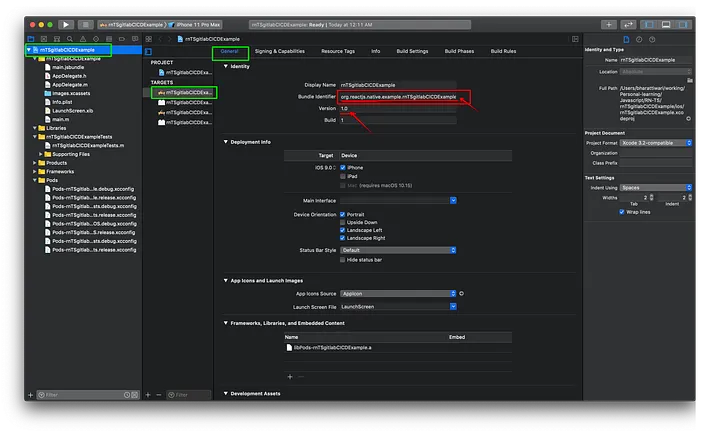
Open the iOS project in Xcode by navigating to:
ios/YourProject.xcworkspace
Always open the.xcworkspacefile instead of the.xcodeprojfile when CocoaPods are installed. - In the Project Navigator, select your project and then select your application target under the TARGETS section.
- Open the Signing & Capabilities tab from the top navigation menu.
-
Locate the Bundle Identifier field and replace the existing
identifier with your own unique identifier.
Example:
com.companyname.appname - Verify that the selected Apple Developer Team matches the account that will be used for App Store distribution.
- If Push Notifications, Sign in with Apple, Associated Domains, or any other Apple capabilities are enabled, update the corresponding App ID configuration in your Apple Developer account using the new Bundle Identifier.
-
If your application uses Firebase services such as Authentication,
Analytics, Cloud Messaging,
Crashlytics, or Firestore, you must register a new iOS application in
Firebase using the updated Bundle Identifier.
After registration:- Download the updated
GoogleService-Info.plistfile. - Replace the existing file in your iOS project.
- Clean and rebuild the application.
- Download the updated
-
Clean the Xcode build cache by selecting:
Product → Clean Build Folder - Build and run the application on a simulator or physical device to verify that the Bundle Identifier has been updated successfully.
Important Notes
- The Bundle Identifier must be unique across all applications published under your Apple Developer account.
- Use reverse-domain notation such as
com.companyname.appname. - Avoid spaces, special characters, and uppercase letters.
- The Bundle Identifier in Xcode must match the App ID configured in the Apple Developer account.
- If Firebase is integrated, the Bundle Identifier in Firebase must match the identifier configured in Xcode.
- Changing the Bundle Identifier after publishing creates a separate application and cannot be used for updating an existing App Store listing.