

3rd Party Plugins
NOTE :
- Before running the app make sure you have import Collection json in
Firestore database which we have provided.
- Before import json in firestore database remember to give rule permission or
create Firestore Data.
See the Firebase Rules for create
Firestore
Database and how to give
permission
in firebase.
Also you can check below video for how to import json in firebase:
VIDEO URL :
https://youtu.be/Jd0sW8Wrc5Y?si=AxC6BmWBFwZfZU4a
 GIPHY GIF
- This package allow to get gifs, sticker or emojis from GIPHY in pure dart code using Giphy SDK design guidelines.
- The fastest and easiest way to bring the full GIPHY experience directly to your app is with the GIPHY SDK.
- Go to GIPHY Developers Official Website https://developers.giphy.com/.
- Now create account or login account

- After Create Account or Login, Create An App.

- Before Create App, SignUp

- After Again click on Create App, one pop open for selection SDK or API,
click on API Selected

- After select Api Selected, click on Next Step
- Set your any App Name (Example: Chatzy) & Description
& press the Create App button.

-
Once you have created the GIPHY app successfully, you will find Your Apps
Name and Api
Key.

- Copy the API Key and Paste in your project

- Paste it in firebase in for that go to firebase project in that go to
Firestore Database -> go to config collection -> userAppSetting ->
gifAPI


- Yuppy 😊!!!!, Now you are ready to Use GIPHY Stickers, GIF & Emojis in your app
FOLLOW SIMPLE STEPS BELOW FOR QUICKLY SETUP GIPHY & GET GIPHY API KEY:
There are 2 ways to set your API Key
 AGORA AUDIO - VIDEO CALL
- This package allow Voice Calling enables you to add one-to-one or small-group voice communication with smooth, jitter-free streaming to your app. Agora's Voice SDK makes it easy
- People engage longer when they see, hear, and interact with each other. The Agora SDK enables you to embed real-time voice and video interaction in any app, on any device, anywhere. Follow the step as per given in document https://docs.agora.io/en/3.x/voice-calling/quickstart-guide/get-started-sdk?platform=flutter
- Go to Agora Developers Official Website https://www.agora.io/en/.
- Now, Get Started if Your are new or click on Login if you are already
register.

- Login with email, github or goole and continue
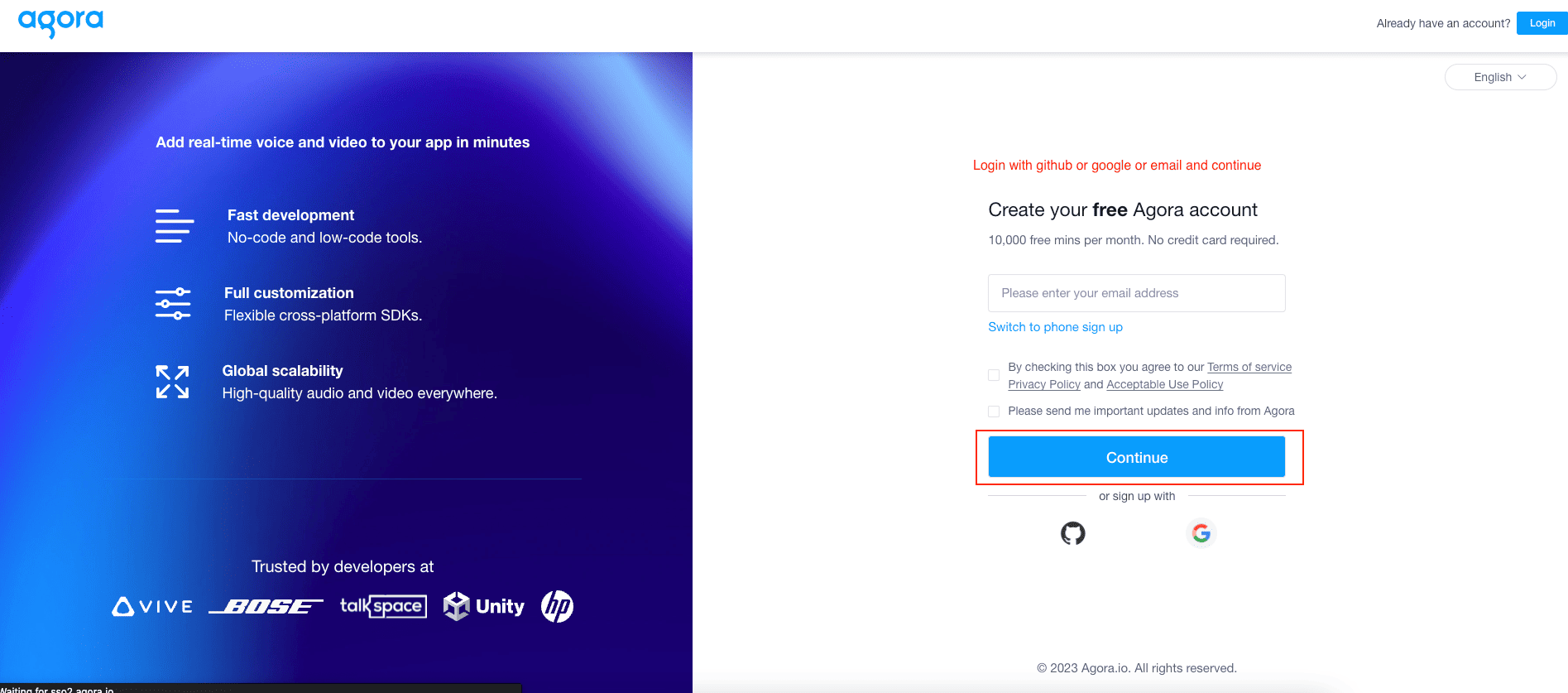
- Close the Pop-up Window (if it appears after creating New account, Close
the
window as
it may lead to error in Project).

- In Left hand menu click on Project Management

- Click on Create to create a new Agora Project.

-
- Set your any App Name (Example: Chatzy)
- Select the Use case as Others/Others.
- Select Testing Mode : APP ID since you only need an App ID only.
- After entering all data submit the data

-
Your app is in testing mode, for make click on config

- Now your app is live

- For access agora we need token and channelId/ channelName for that we
have
created Firebase Function for generating channelId/ channelName and
token
Note: For access Firebase Function you have billing account after that only function will work. - Firstly login to your firebase with command "firebase login" after that
select your project.

- After select your project run command "firebase init functions". After
apply
this command There are 2 option display for codebase selection. Options
are:
- Initialize
- Overwrite


- After that Again Option selection came for language selection for code
written in firebase . Option are
- JavaScript
- TypeScript
- Python

- After the option selected they will asked for ESLInt to catch probable
bugs
and enforce style so just write “y” and enter it

- Now they will ask for package.json file for overwrite this option is
show
because the functions folder is already there so just write “n”

- Now the will ask for index.js and .eslintrc.js file for overwrite in that also just write “y”
- Now again overwrite option came for .gitignore so same answer enter “n”

- Now last option is too install dependencies with npm so give ‘y’

- Now go to downloaded Chatzy project which you have downloaded from codecanyon. In that go to functions folder in that index.js file. Copy whole code and paste it in you functions -> index.js file
- Now time to deploy if facing issue while deploy like eslint command not
found or lint command not found then run command
npm install eslint —save-dev
- Now deploy the function by apply below command
- Go to Googgle Cloud Console select your project.
- Search Cloud Function and select it
- Now check on checkbox with generateToken name. After checkbox select click on Permission
- Now click on Add Principal
- Give new Principal title allUsers and select Role Cloud Functions Invoker
- Yuppy 😊!!!!, Now you are ready to Use Agora in your app
Note: For using Agora Token you need to have Firebase Billing Account because for access Firebase Function firebase billing account is compulsory.


                                    After complete your billing account deploy firebase function. Run the below command:
FOLLOW SIMPLE STEPS BELOW FOR QUICKLY SETUP AGORA and Get API KEY:
NOTE : If your are working in downloaded Chatzy project which you have downloaded from codecanyon then remember to take backup of functions folder and then follow below steps.
Follow below steps for deploy the functions:
firebase deploy --only functions 
NOTE : While audio or video call or while click on audio or video call button if any cloud function error: PERMISSION_DENIED: issue occur then follow the below steps :.