

 Firebase Collection:
NOTE :
- Before running the app make sure you have import Collection json in
Firestore database which we have provided.
- Before import json in firestore database remember to give rule permission or
create Firestore Data.
See the Firebase Rules for create
Firestore
Database and how to give
permission
in firebase.
Also you can check below video for how to import json in firebase:
VIDEO URL :
https://youtu.be/Jd0sW8Wrc5Y?si=AxC6BmWBFwZfZU4a
As you have know there are multiple collection has been used in firebase. Let's see what is the use of the collection and how it added
Note: If any error occur regarding QuerySnapshot then check in firebase if missing any below
                                            Required config is
                                            missing if not then check there field and datatype and key word same to same
                                            as given in document
There are 10 collections created in the firebase
- config -> {usageControls, userAppSettings, agoraToken} [REQUIRED] - Need to add manually
- users - [Auto generate]
- calls - [Auto generate]
- status - [Auto generate]
- groups - [Auto generate]
- messages - [Auto generate]
- broadcast - [Auto generate]
- wallpaper
- report - [Auto generate]
- languages

Let see detail about all the collections.
NOTE :
In above collection list [Auto generate] means this collections are
generate in firebase whenever any first user enter any data
. For other collections need to add manually in firebase. See the below 2
options for add collection data in firebase.
There are 2 ways to import Data in Firebase
- By Import Json which we have provided
- Collection Data add manually
* By Import Json which we have provided :- OPTION 1 *
NOTE :
Before import json in firestore database remember to Configure or create.
See the Firebase Rules for create Firestore
Database and how to give
permission
in firebase.
Also you can check below video for how to import json in firebase:
VIDEO URL :
https://youtu.be/Jd0sW8Wrc5Y?si=AxC6BmWBFwZfZU4a
- Firstly download our chatzy.json and keep it in one folder or desktop
- Now go to your Firebase project, On left hand side panel click on setting
icon. On click Setting button pop open open. In that click on Project
Settings

- Now go to Service accounts

-
Now click on button Generate new private key

-
After click on button on pop-up appear int that click on Generate
key

-
After click on Generate
key your json will be download copy that json and paste in the
folder where you have kept chatify.json
If you kept chatify.json in desktop and keep downloaded json in desktop and rename that json file - Now open terminal or command prompt go to the path you have kept both json For example : c:\desktop\
-
Now Copy below command in that remeber to change your rename json name
Example :npx -p node-firestore-import-export firestore-import -a [your rename file name].json -b chatify.json
npx -p node-firestore-import-export firestore-import -a chatapp.json -b chatify.json - After enter above command confirmation for import will be ask just type "y" and enter it
- Wait until import and check in firestore database by refreshing after command run successfully
* Collection Data add manually :- OPTION 2 *
1. config: [REQUIRED] - Need to add manually
In config collection there are 3 more documents
Note: You have to add config collection data manually in Firebase in Firestore Database
- usageControls
- userAppSettings
- agoraToken
- usageControls
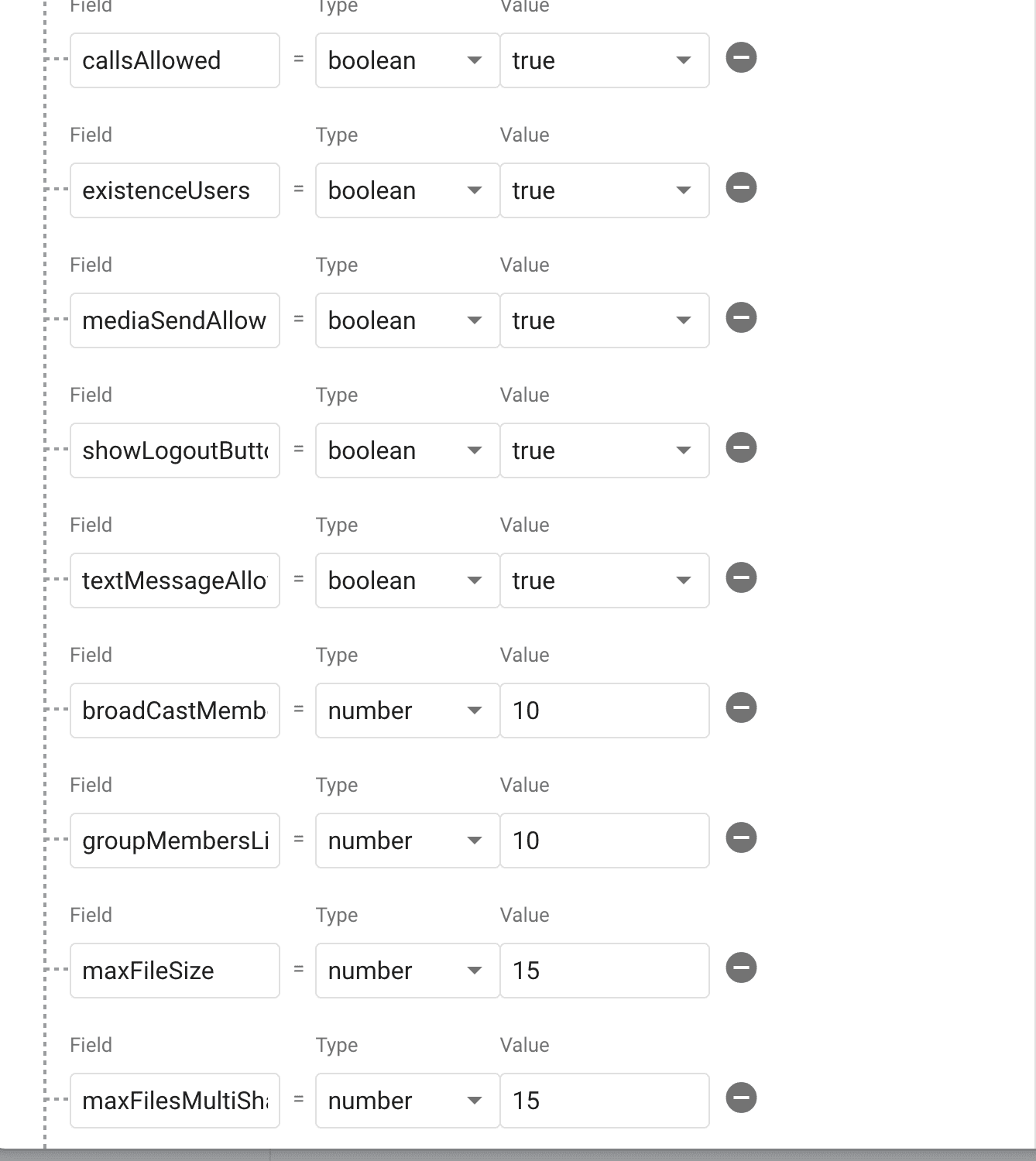
usageControls for controlles your whole app for accessing limited data like if you want hide or enter limited media sharing etc.
No. Fields  -> datatype
 statusDeleteTime -> string -> /// set your status delete time;
 allowCreatingBroadcast -> bool -> /// If you want to create brodcast just give true else false in value;
 allowCreatingGroup -> bool -> /// If you want to create group just give true else false in value;
 allowCreatingStatus -> bool -> /// If you want to create status just give true else false in value;
 allowUserSignup -> bool -> /// If you want to Users to Sign up just give true else false in value;
 callsAllowed -> bool -> /// If you want to Users can call just give true else false in value;
 existenceUsers -> bool -> /// If you want to add existence user just give true else false in value;
 mediaSendAllowed -> bool -> /// If you want to Users can send media just give true else false in value;
 showLogoutButton -> bool -> /// If you want to show logout button just give true else false in value ;
 textMessageAllowed -> bool -> /// If you want to user can text message just give true else false in value;
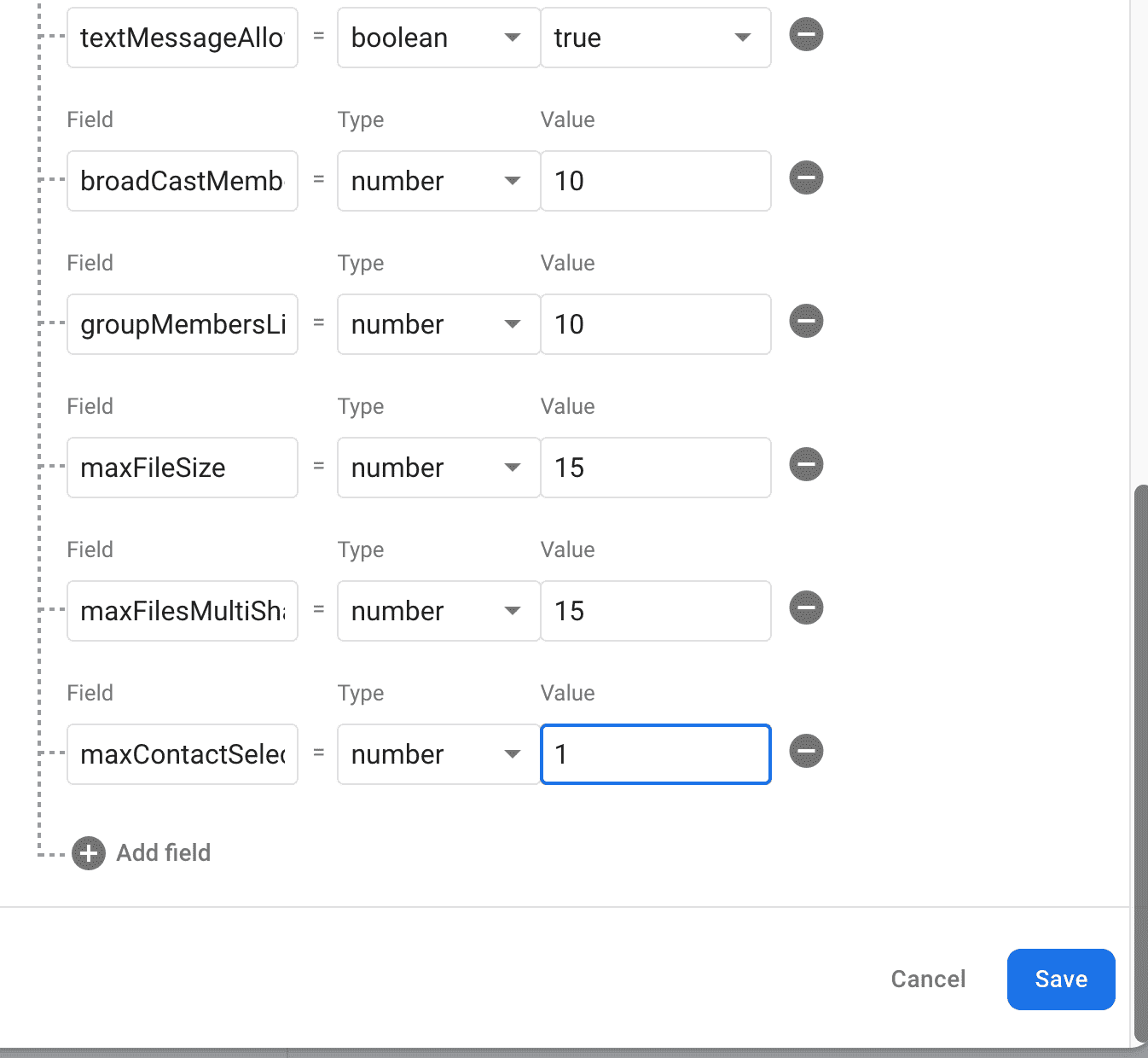
 broadCastMembersLimit -> number -> /// set your brodcast mamber limit;
 groupMembersLimit -> number -> /// set your group mamber limit;
 maxFileSize -> number -> /// set your maximum file size share limit;
 maxFilesMultiShare -> number -> /// set your maximum multi share file limit;
 maxContactSelectForward -> number -> /// set your maximum selected contects forward limit;
- userAppSettings
userAppSettings for change some ID's like banner Ad Id etc.
No. Fields  -> datatype
allowUserBlock -> bool -> /// If you want user can block other user you just give true else false in value;
approvalMessage -> string -> /// Add your custom message for user user
approvalNeeded ->  bool -> /// If approval needed from admin you just give true else false in value;
firebaseServerToken -> string -> /// Your Firebase server token for send notification;  How to fetch api click on Firebase Messaging
gifAPI -> string -> /// Your Gif Api Key; How to fetch api click on 3rd Party Plugin
isAdmobEnable -> bool -> /// If approval needed from admin you just give true else false in value;
isGoogleAdEnable -> bool -> /// If you want user can show Ads just give true else false in value;
isMaintenanceMode -> bool -> /// If you want user can show Maintenance Mode just give true else false in value;
maintenanceMessage -> string -> /// Your Maintenance Message;
rateApp -> string -> /// Your App Id;
rateAppIos -> string -> /// Your IOS App Id;


- agoraToken
Add your Agora App id and Certificate
No. Field  -> datatype
agoraAppId -> string -> /// Your agora App id; How to fetch api click on 3rd Party Plugin
appCertificate -> string -> /// Your agora Primary App Certificate;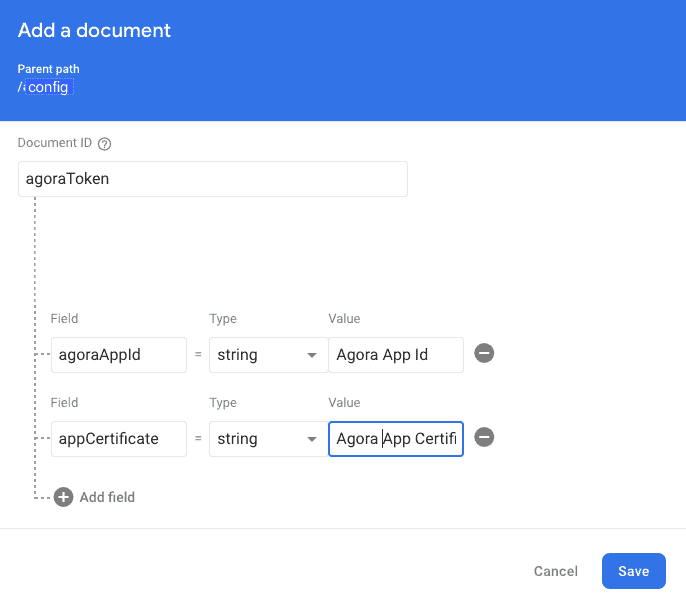

2. users:
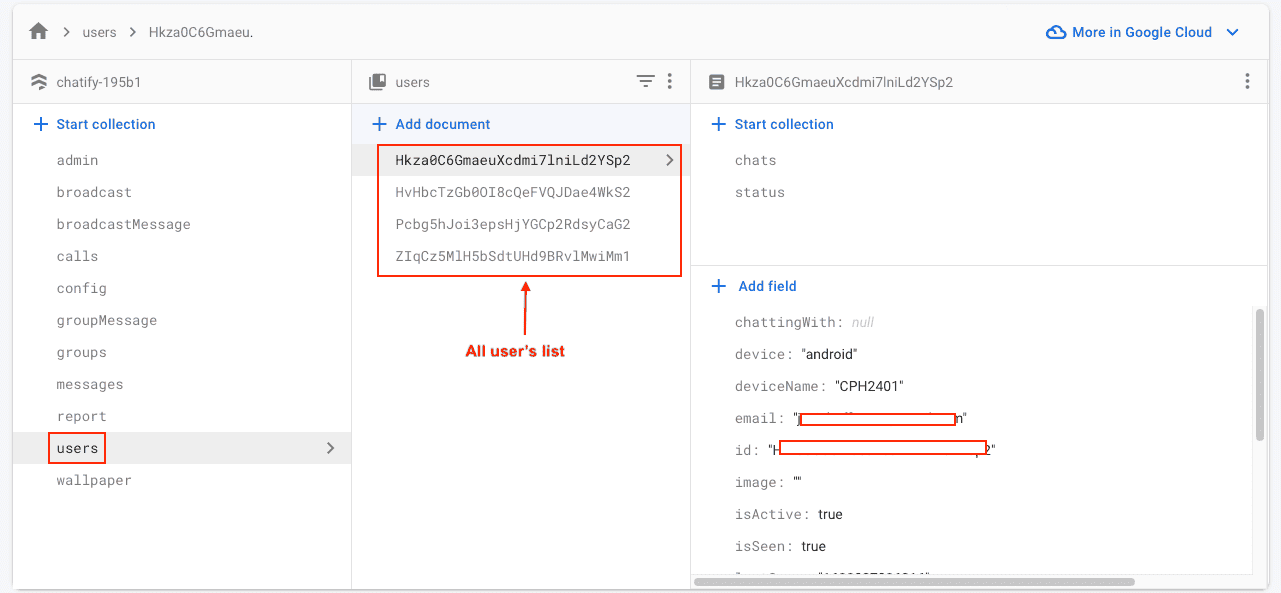
- All register are stored in users collection and will show in users
collections
3. calls:
- Your all users Calls list show in your calls collections

4. Status:
- Your all users Calls list show in your calls collections
5. groups:
- Whenever any user add stories are stored in status collection

6. groupMessage:
- Your app users all group messages list

7. messages:
- Your app users all chat Messages list

8. broadcast:
- Your app users created broadcasts list

9. broadcastMessage:
- Your app users Broadcast's Message list

9. report:
- Whenever any user report any other users or group are stored in report
collection
