Phone Login
NOTE :
- Before running the app make sure you have import Collection json in
Firestore database which we have provided.
- Before import json in firestore database remember to give rule permission or
create Firestore Data.
See the Firebase Rules for create
Firestore
Database and how to give
permission
in firebase.
Also you can check below video for how to import json in firebase:
VIDEO URL :
https://youtu.be/Jd0sW8Wrc5Y?si=AxC6BmWBFwZfZU4a
- For Firebase Phone Authentication, you need to enable billing on your
Firebase account, as it is required. Please refer to the url below for
instructions on enabling billing for your firebase account.
URL :
https://youtu.be/Jd0sW8Wrc5Y?si=AxC6BmWBFwZfZU4a
If you haven’t Firebase Project Account ? Click here for create project see the steps show in Firebase Setup.
Follow below steps for Phone Login in your project:
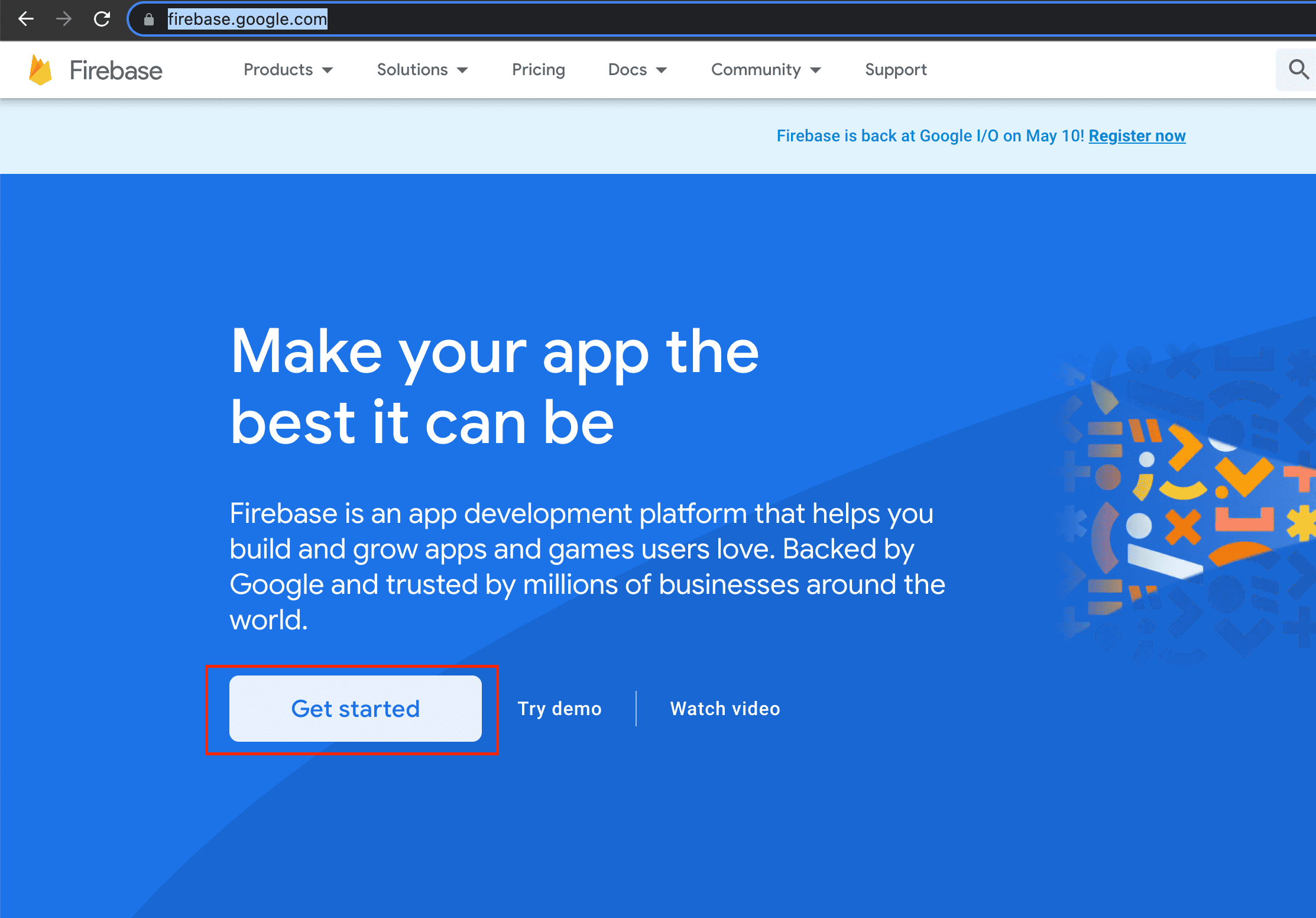
- Go to Firebase https://firebase.google.com/.
- Now click on Get Started button
- Now select your project if created or create your project by click on + Add
Project
and
google-services.json
NOTE : How to create Project and set google-services.json setup show in above Firebase Setup
-
On left hand side panel click on setting icon. On click
Setting
button pop open open.
In that click on Project Settings

- Scroll down click on your package and add SHA-1 and SHA26 Key for debug and
release.
NOTE : How to generate SHA-1 and SHA26 steps are mention above. You can see in document left hand menu panel and click on Firebase SHA Key

- Now click on Add New Provider button and click on Phone for add
new
provider.

- Now Enable the toggle give support Phone and click on Save> button.
- Remeber to add all the dependencies in build.gradle which mention in above Firebase Setup


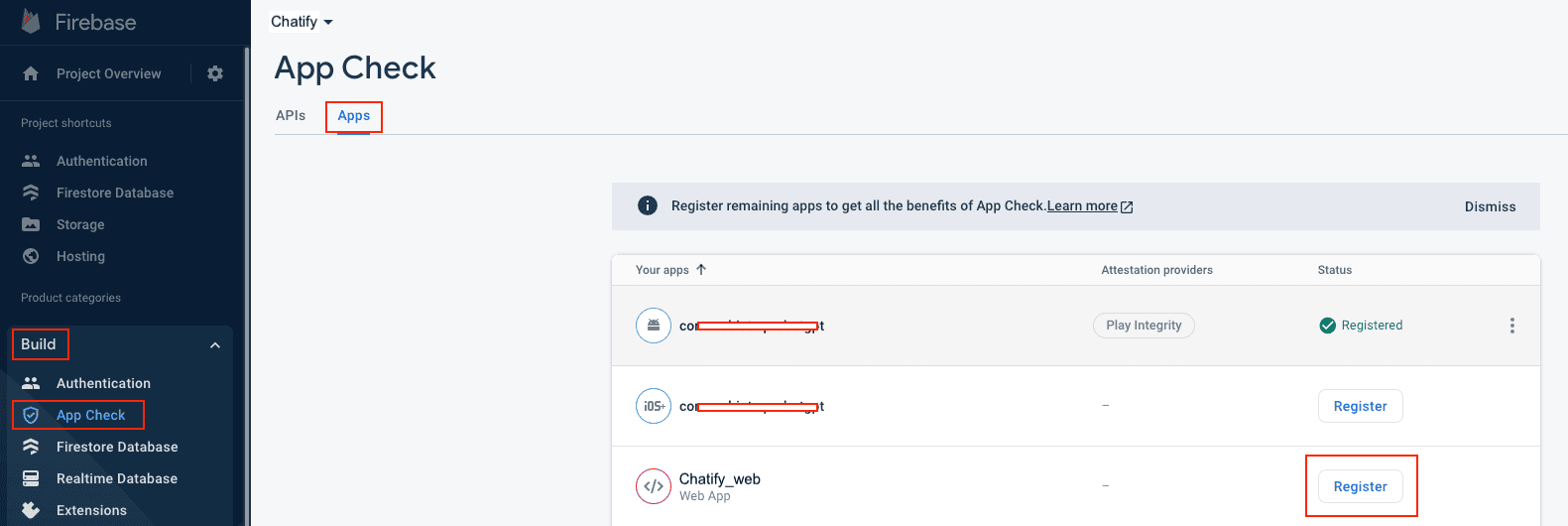
- Now you need to app check for firebase security purpose, so go to your firebase console and click on register button so you can see 2 options reCAPTCHA & reCAPTCHA Enterprise
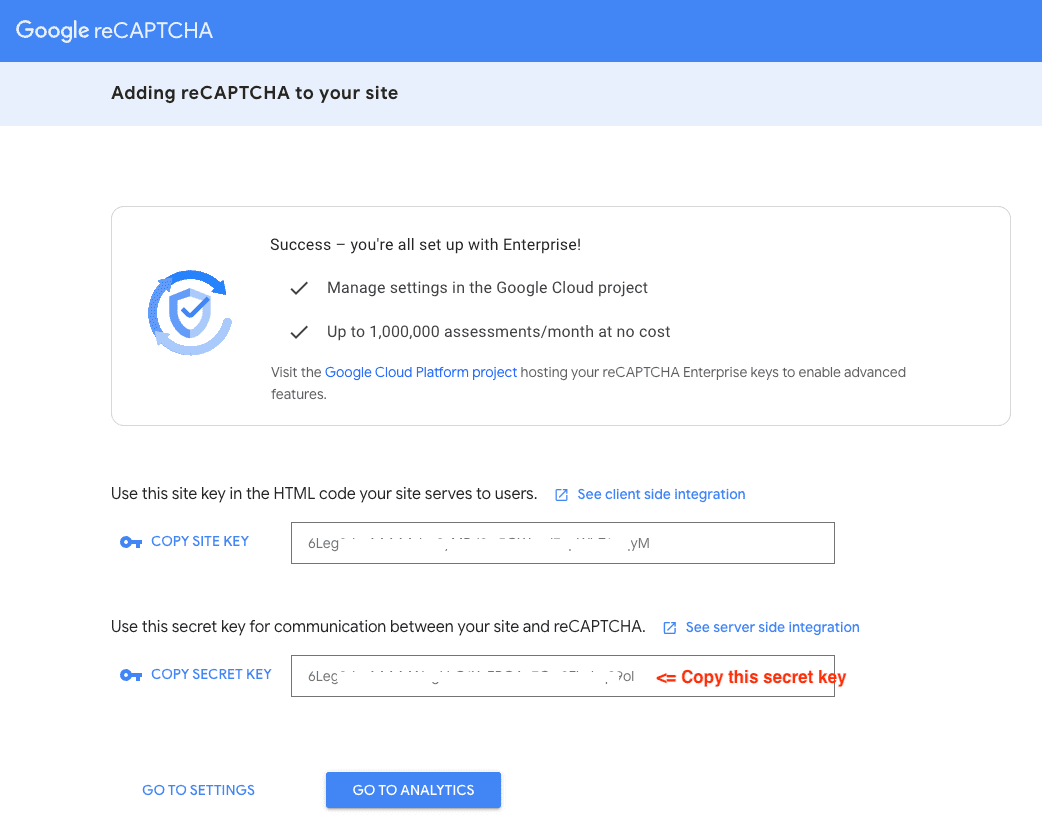
- First start with reCAPTCHA verification to follow those stapes
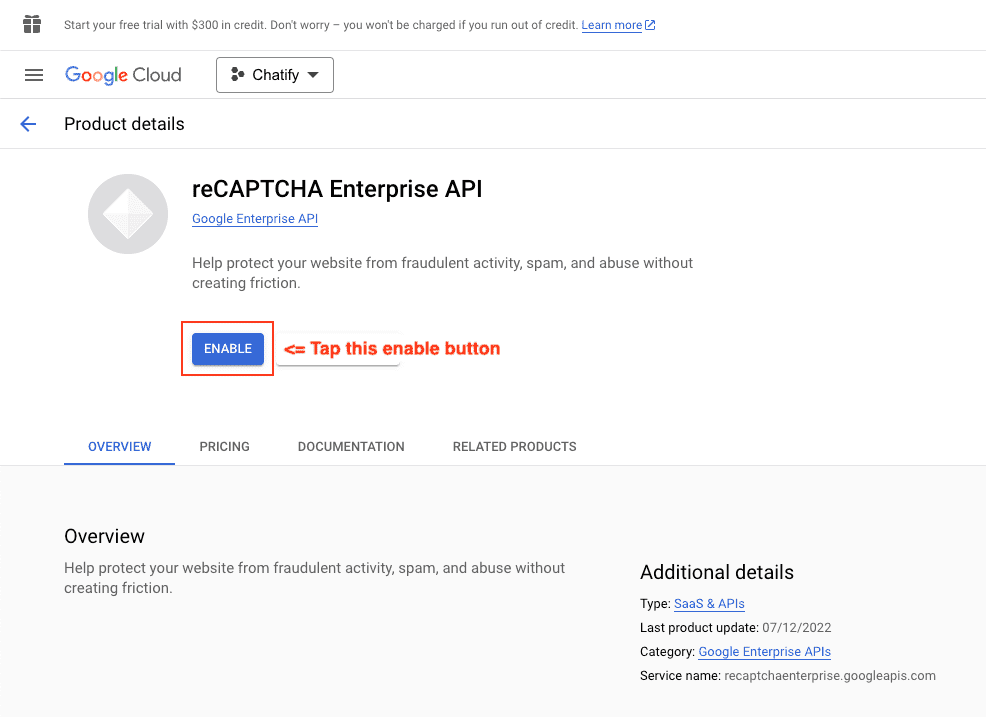
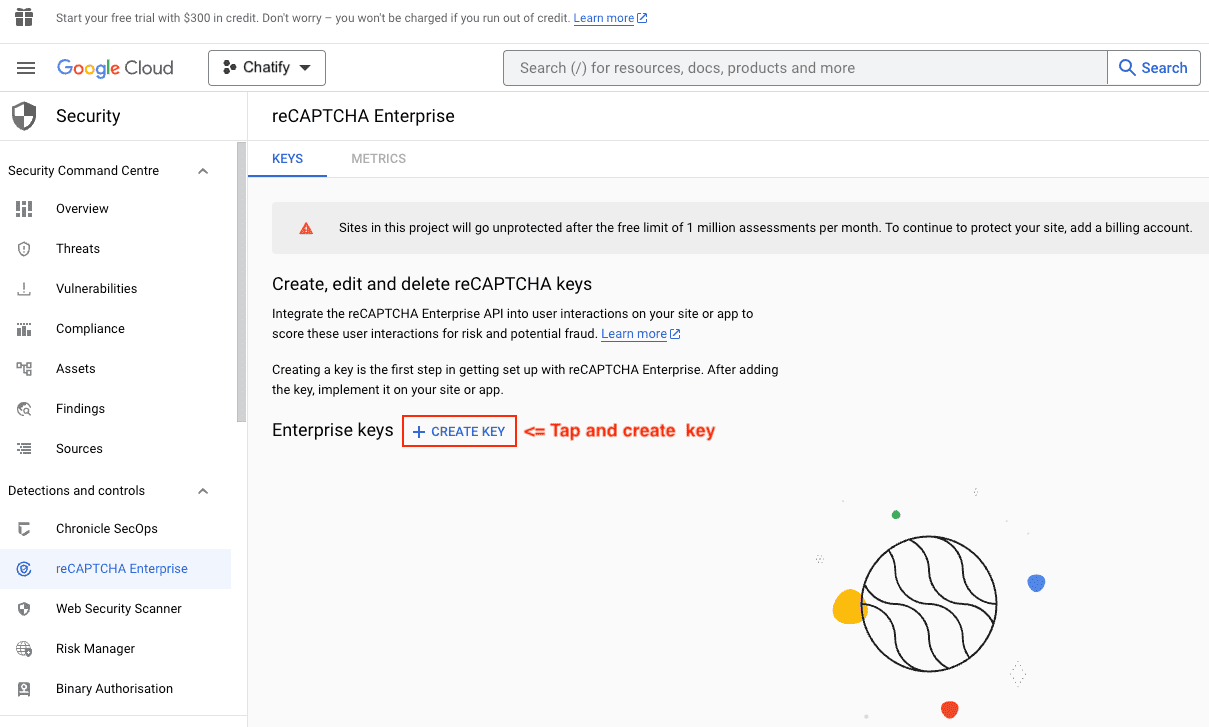
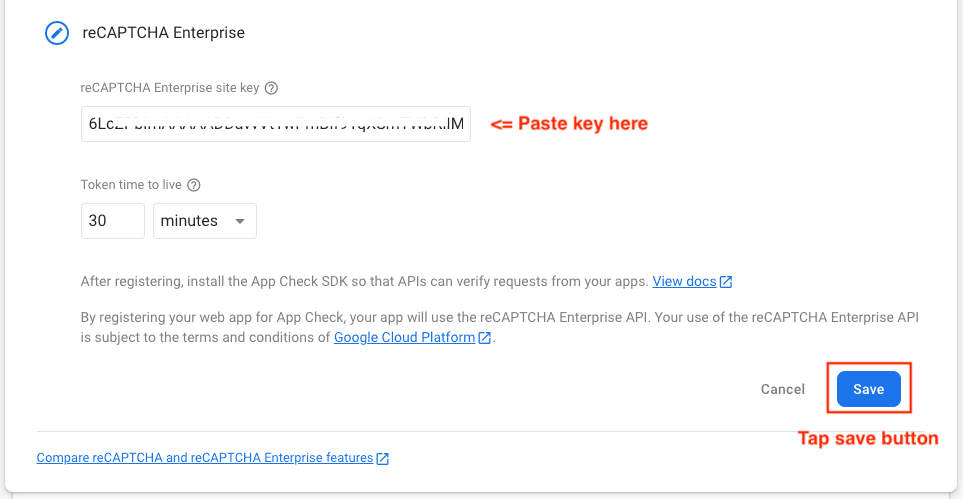
- Now start verification of reCAPTCHA Enterprise to follow those steps
- Now Stop your web app from your device and the run web app again and try to do Phone Login.