 Member Management
The Member Management module empowers administrators to create, update, monitor, and secure member accounts. Features include manual member creation, profile editing, status toggling (active/inactive), and bulk operations for efficient administration.
1. Members List View
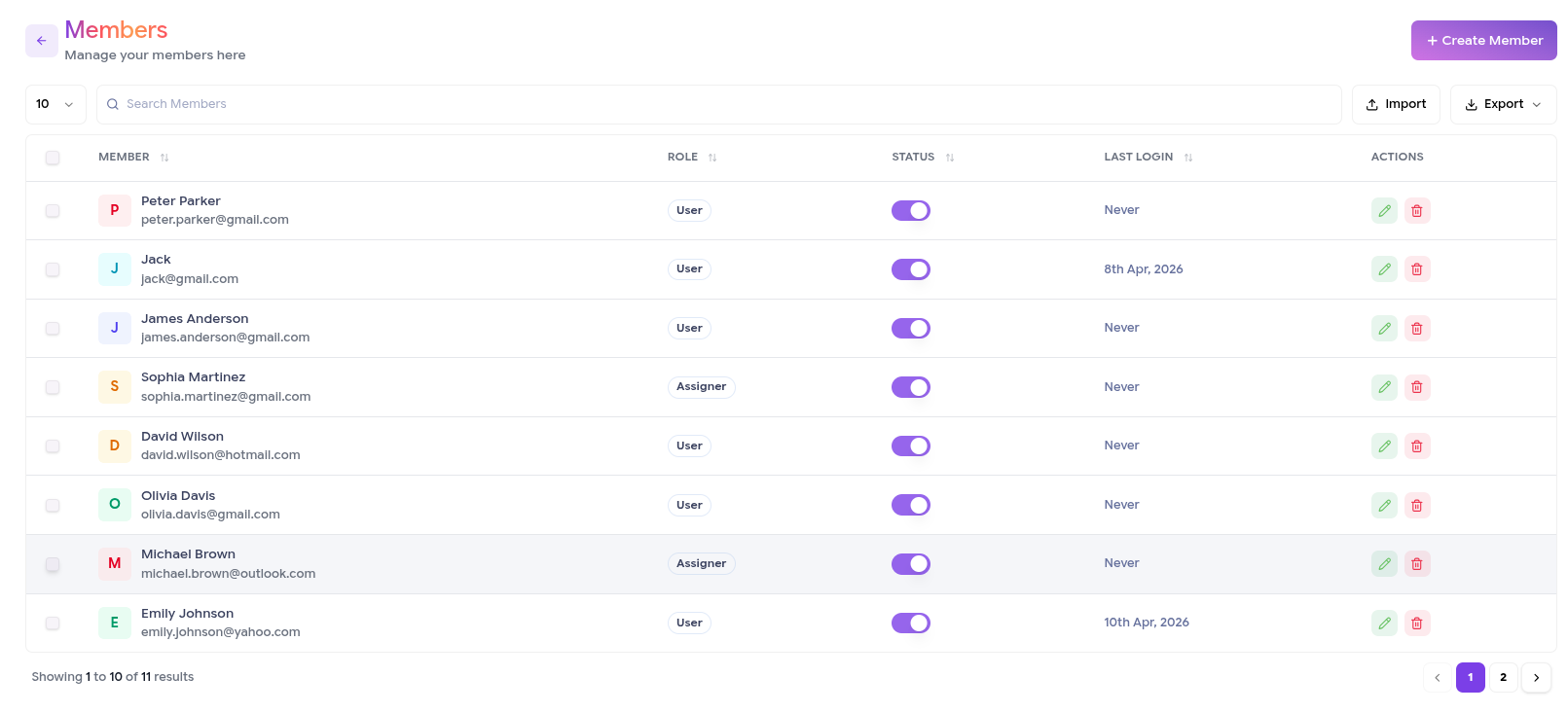
The main dashboard displays all registered members in a searchable, filterable table. Columns include avatar, full name, email, role, status (Active/Inactive), registration date, last login, AI credits usage summary, and action buttons. Selecting rows enables bulk actions; clicking a row may open a quick-view sidebar with detailed stats and recent activity.
2. Create Member
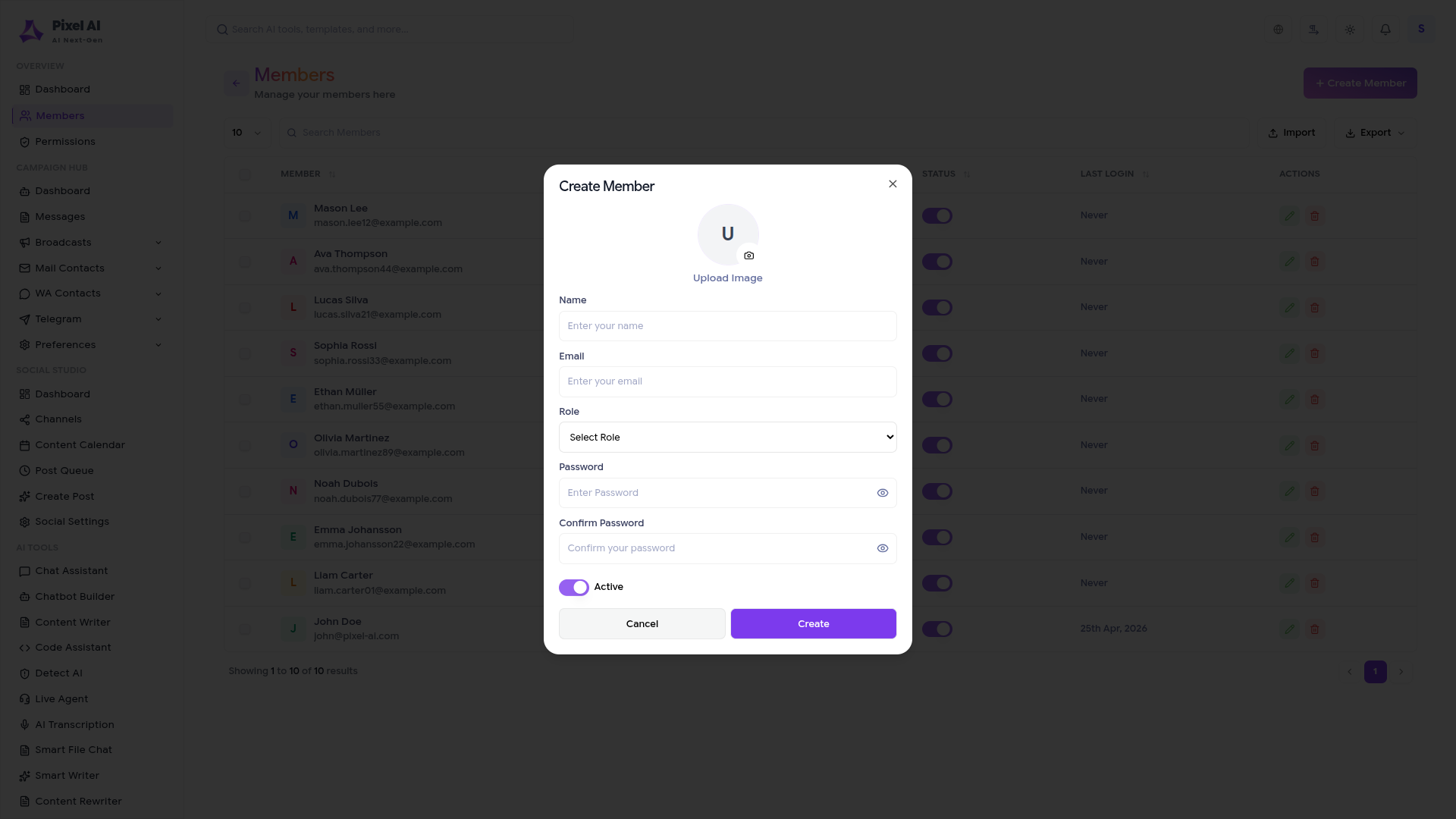
Clicking the “Create Member” button opens a modal form. Super Admins can enter full name, email, password (or send invitation link), assign role, set initial subscription plan/credits, and define custom fields if configured.
3. Edit Member Details
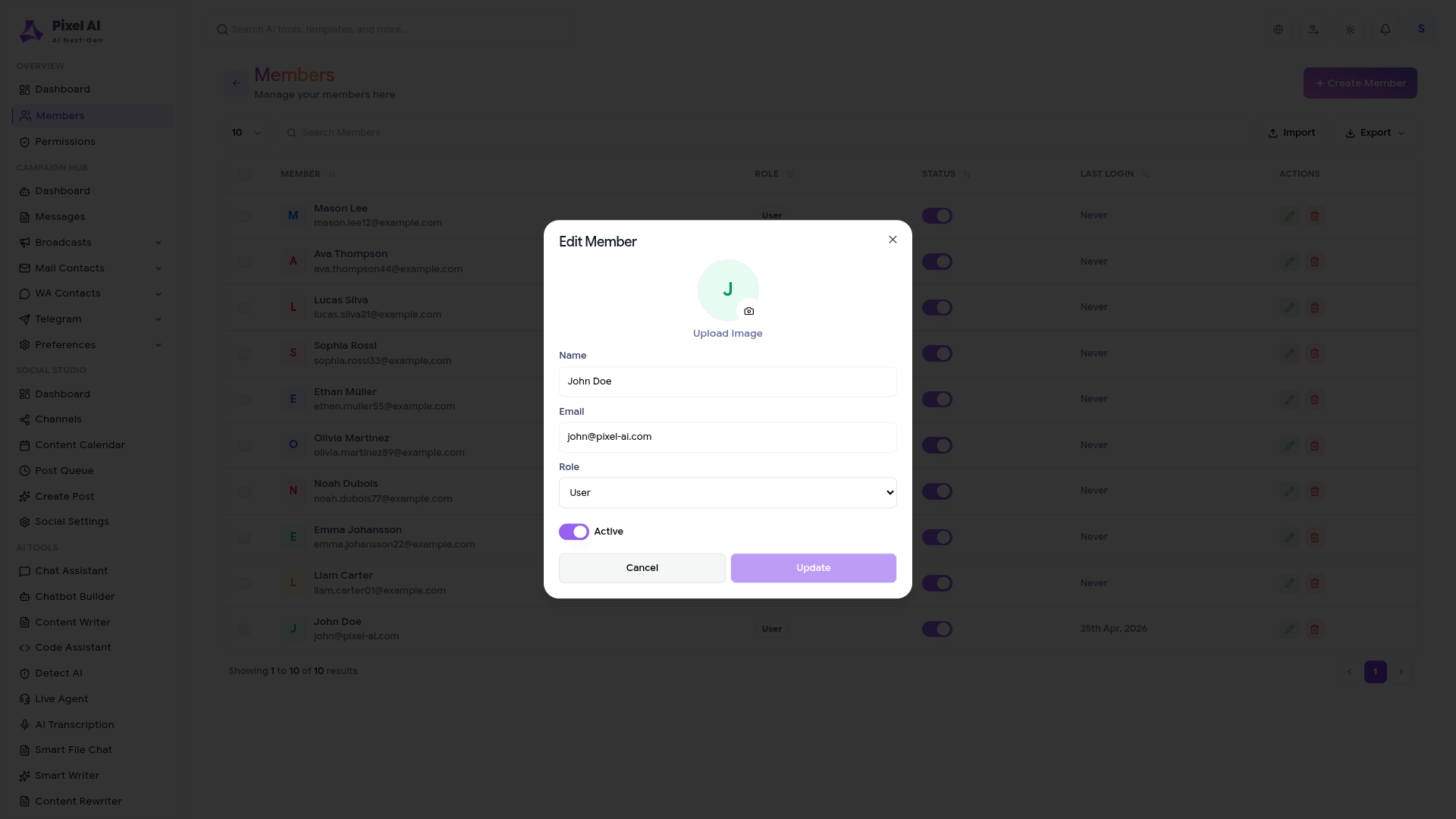
The Edit button opens a detailed form allowing updates to personal info (name, email, avatar), role assignment, status, subscription plan, credit balance, custom metadata, and security notes. Changes are saved instantly with audit logging. Role changes take effect immediately for permissions.
4. Activate / Deactivate Member
Admins can quickly toggle a member's status using an inline switch or dedicated button. Deactivating (blocking) prevents login and API access while preserving data. A confirmation modal appears explaining the impact (e.g., “Member will be logged out immediately and unable to access services”). Status updates trigger email notifications if configured.

5. Bulk Delete Members
Select multiple members via checkboxes, then choose “Bulk Delete” from the actions dropdown or toolbar. A guarded confirmation modal warns about permanent data loss (profiles, usage history, generated content — depending on system settings) and may require typing a confirmation phrase. Successful deletion shows a toast notification and refreshes the list.

6. Filters, Search & Bulk Toolbar
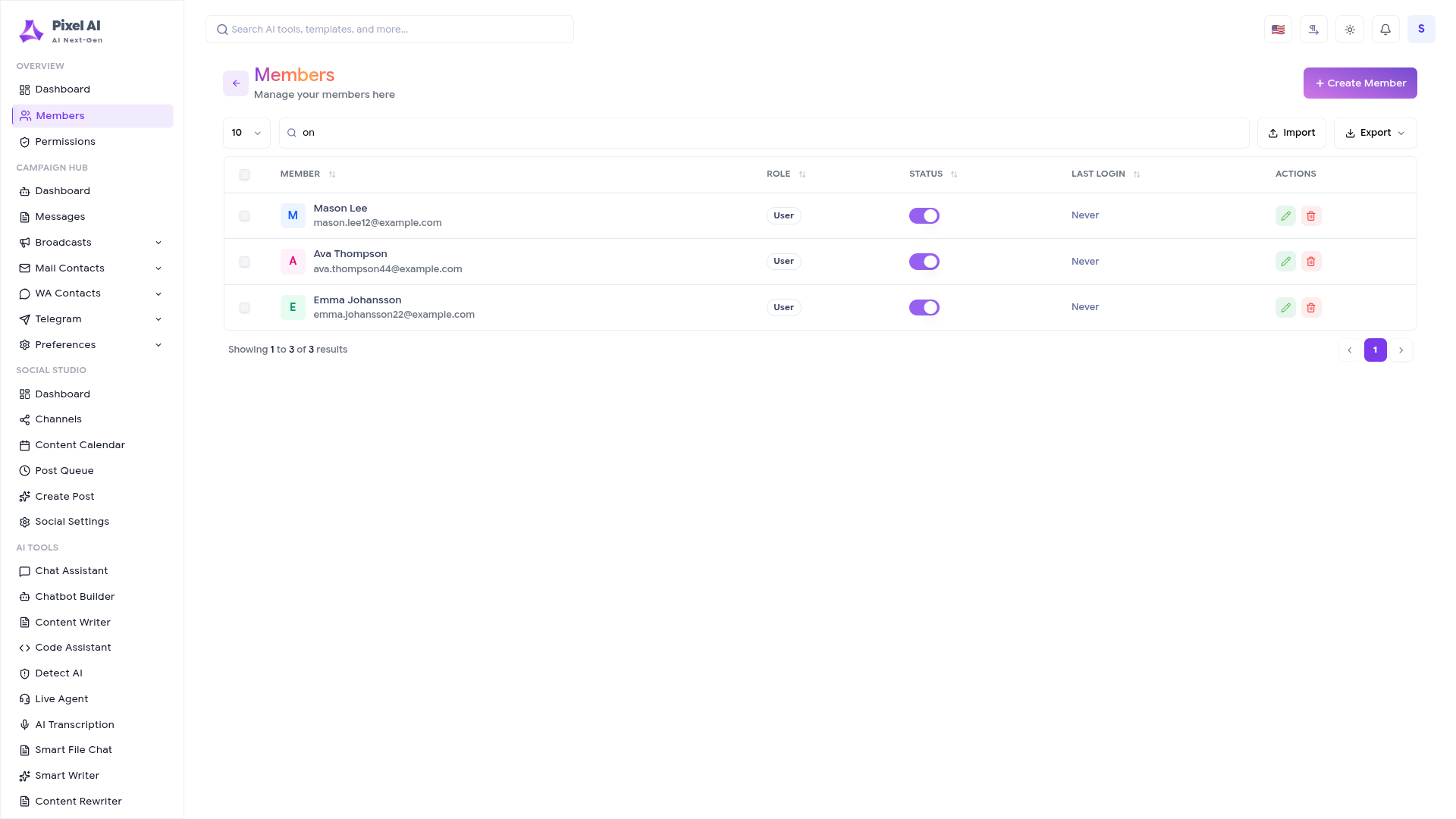
Use the top search bar for quick keyword lookup (name, email, role). Advanced filters allow narrowing by status, role, registration date, last activity, or credit usage. When rows are selected, a bulk toolbar appears offering actions like Activate, Deactivate, Change Role, Reset Credits, or Delete.
Key Points
- All destructive actions (status change, delete) require explicit confirmation modals to prevent mistakes.
- Inactive members retain their data but cannot log in or consume credits.
- Role changes update permissions instantly across the platform.
- Bulk operations include summary previews before execution (e.g., “Delete 12 members permanently?”).
- Every admin action is logged for audit purposes (visible in system logs if enabled).
What's Next?
Continue exploring the Admin Module tools.


