 Slide Maker
The Slide Maker streamlines the process of building visually engaging slide decks using the AI's API. It converts your ideas, topics, or written content into well-organized presentations with appealing layouts and visuals in just a few clicks.
From business proposals to educational materials and marketing reports, this feature offers a fast and efficient way to create high-quality presentations directly within Pixel AI.
Generating a Presentation
- Sign in to your Pixel-AI dashboard.
- Navigate to the AI Tools section and open the Slide Maker.
- Enter your prompt, choose the desired options, and generate the slides.
1. Presentation Prompt
Enter your presentation topic, idea, or outline in the input field to get started.
You can provide a title, short description, or key points. The AI will use this information to generate a structured and well-designed presentation.

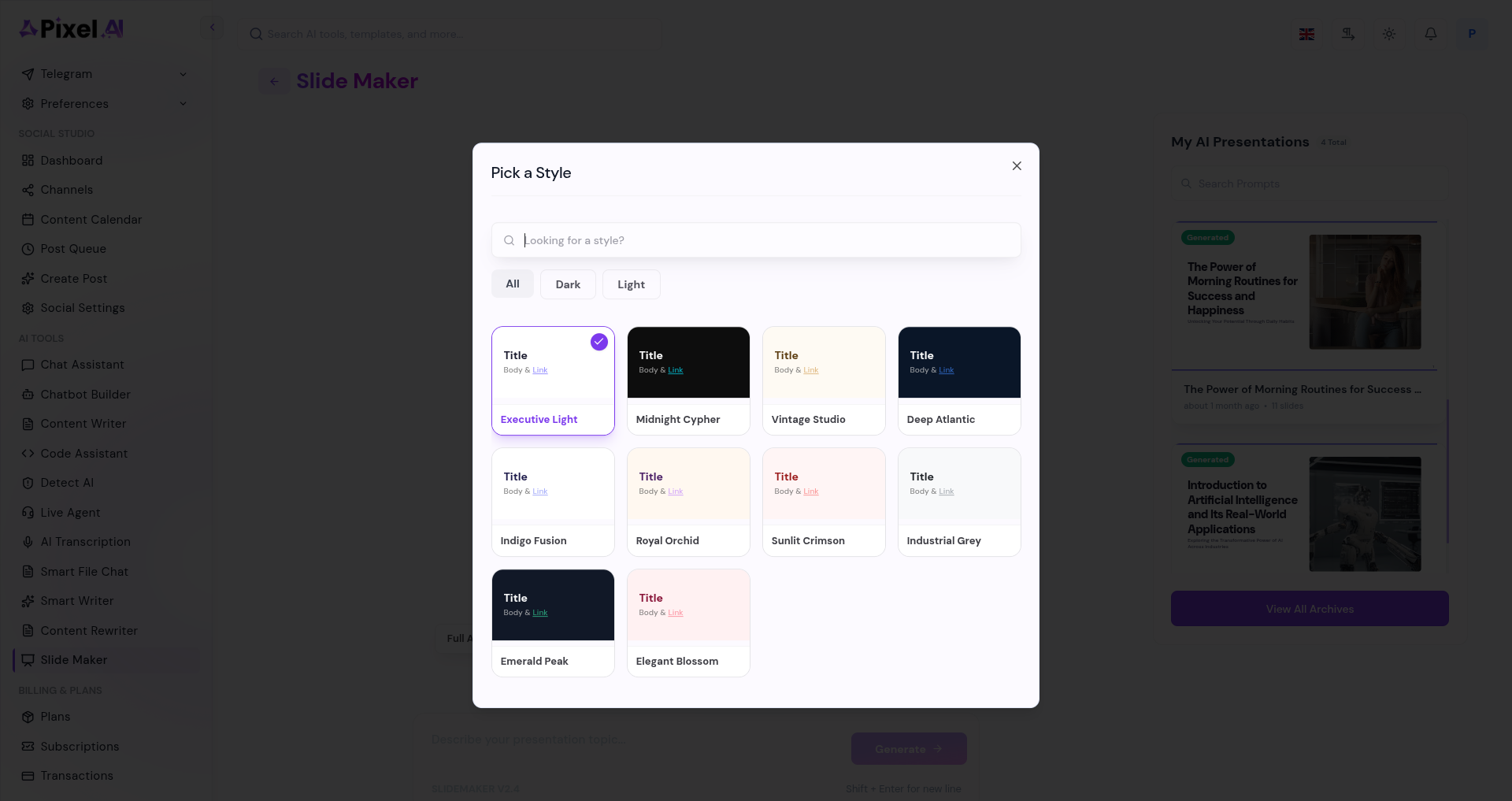
2. Design Themes Selection
Select a presentation style that fits your content and preference.
Select from various themes, including light and dark styles, to set the overall appearance of your presentation.
3. Customization Options Selection
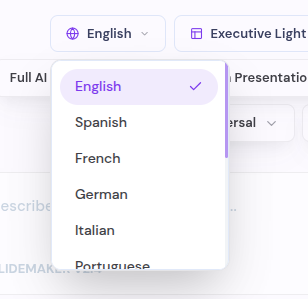
Language
Select the language for your presentation content.
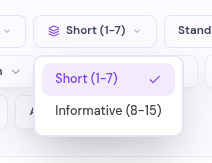
Slide count
Select the number of slides you want in your presentation.
Visual Style
Choose how your slides should appear by selecting a visual style.

After selecting your preferred settings, click Generate to create the presentation.
4. Generate Presentation Preview
Preview your presentation before finalizing it.
Review the slide structure, content, and design to ensure everything looks correct before downloading or using it.

5. Presentation History
View and manage all your previously generated presentations in one place.
Access past presentations, revisit content, and reuse or update them as needed.

What's Next?
Let's get started — your journey with Pixel AI begins here!


