 Deploy on Vercel
Pixel AI Frontend & Dashboard
Note: The deployment steps on Vercel are streamlined for the Pixel AI Next.js frontend. Ensure your backend is already deployed and accessible.
1. Open the pixel-ai-next directory from your project source.

2. Environment Settings:
Create or update your .env.local file with production URLs.
Note: Replace placeholders with your actual live backend API domain to ensure connectivity.
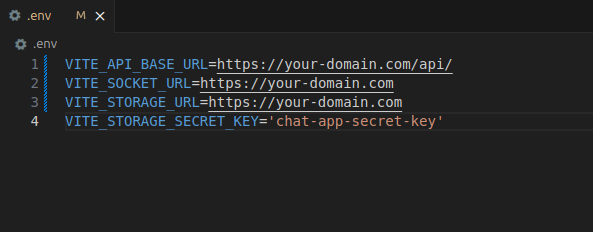
-
NEXT_PUBLIC_API_BASE_URL: Live backend API endpoint (e.g.,
https://api.pixel-ai.com/api). -
NEXT_STORAGE_URL: Base URL for media and file access (e.g.,
https://api.pixel-ai.com).
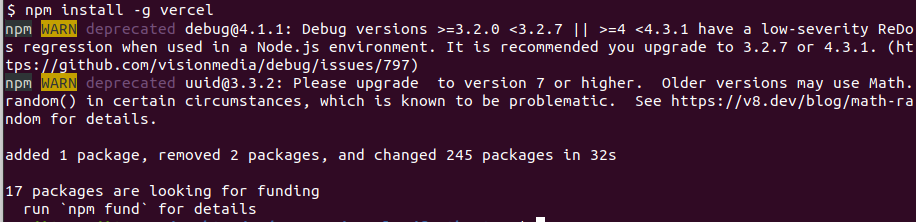
3. Install Vercel CLI:
Install the Vercel CLI globally using npm to enable terminal-based deployments.
- npm install -g vercel
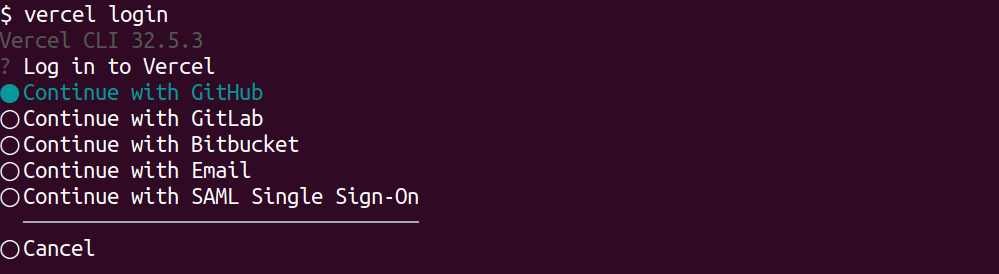
4. Login to Vercel
Authenticate your local machine with your Vercel account.
- vercel login

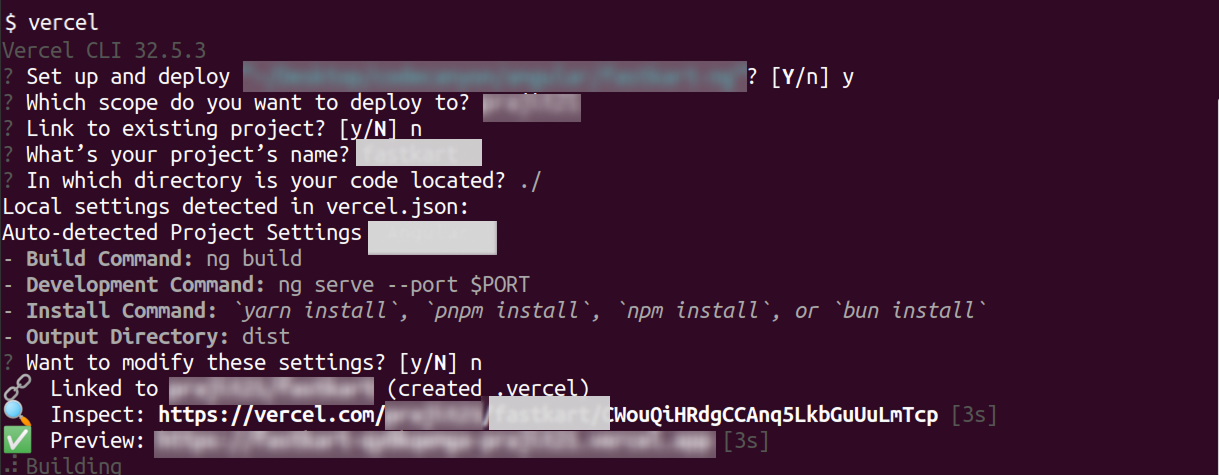
5. Deploy Project:
Navigate to the pixel-ai-next root and run the deployment command.
- vercel
What's Next?
Let's get started — your journey with Pixel AI begins here!

