 Live Agent for External Chatbot
The Human Support for External chatbot widget enables users to switch from automated AI responses to a real human conversation instantly. When activated, your chatbot can escalate discussions to a live agent without interrupting the chat experience.
This ensures better customer satisfaction by combining automation with real-time human assistance.
Overview
With this feature enabled:
- Visitors start with AI-powered responses.
- If additional help is needed, they can request live support.
- Human agents manage conversations directly from the Pixel-AI dashboard.
- All interactions happen in real-time.
Setup Guide
Follow the steps below to activate Human Support in Pixel-AI.
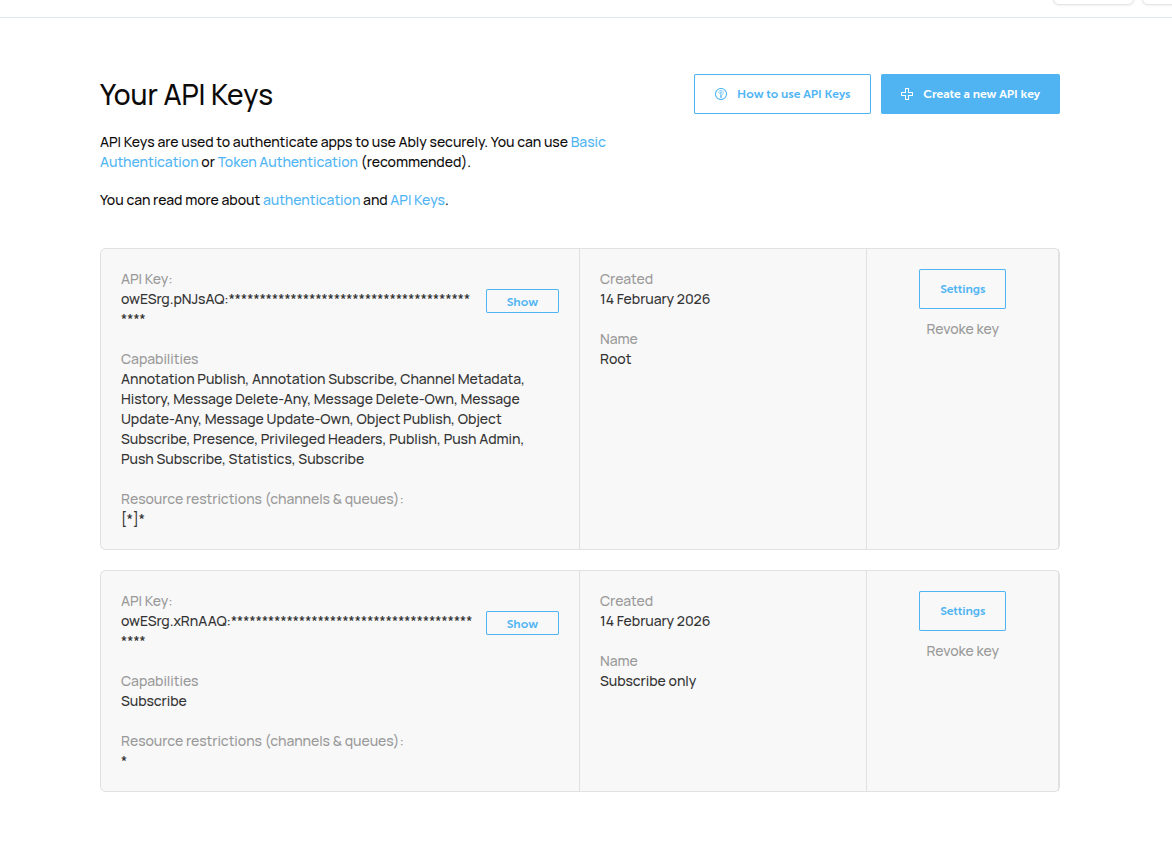
Step 1: Create & Configure Your Ably Account
Pixel-AI uses Ably’s real-time messaging infrastructure to power live chat.
- Sign in to your Ably dashboard.
- Open the API Keys section.
- Generate two keys:
- Root Key → Used as your Private Key
- Subscribe-Only Key → Used as your Public Key
Step 2: Add Ably Credentials to Pixel-AI
Once your keys are ready:
- Go to your Pixel-AI Admin Dashboard.
- Navigate to: API Keys → Ably Key.
- Paste your Private Key (Root).
- Click Save Changes.

Your real-time connection layer is now active.
Step 3: Enable Live Chat in a Chatbot
To allow human takeover inside a chatbot:
- Open the Bots section in Pixel-AI.
- Create a new bot or edit an existing one.
- Locate the Interaction Mode setting.
- Choose one of the following:
- 🤖 AI Only
- 💬 Human Only
- 🔄 Hybrid (Recommended)

If Hybrid is enabled, users will see a support request option (such as “Talk to a Human” or similar) inside the chat widget.
Step 4: Managing Conversations as a Human Agent
To handle live chats:
- Go to the Live Agent Panel in your Pixel-AI dashboard.
- View incoming assistance requests.
- Join the conversation.
- Chat with users in real time.
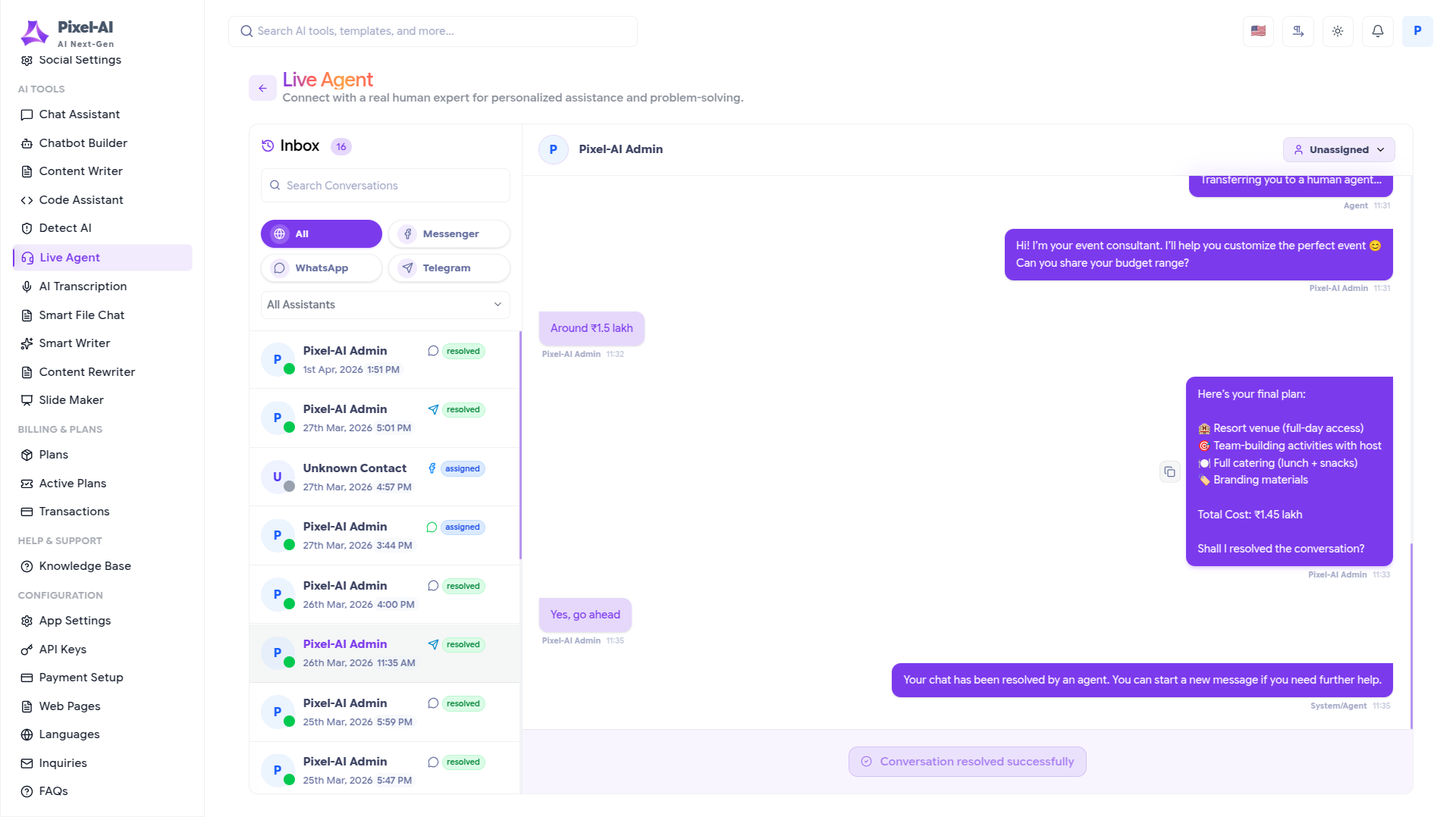
Agents can reply instantly, take over from AI, and close chats when resolved.
What's Next?
Let's get started — your journey with Pixel AI begins here!

