 System Settings
The System Settings module is the control center for Pixel AI, providing granular control over application identity, resource constraints, brand aesthetics, and communication channels.
1. General Application Settings
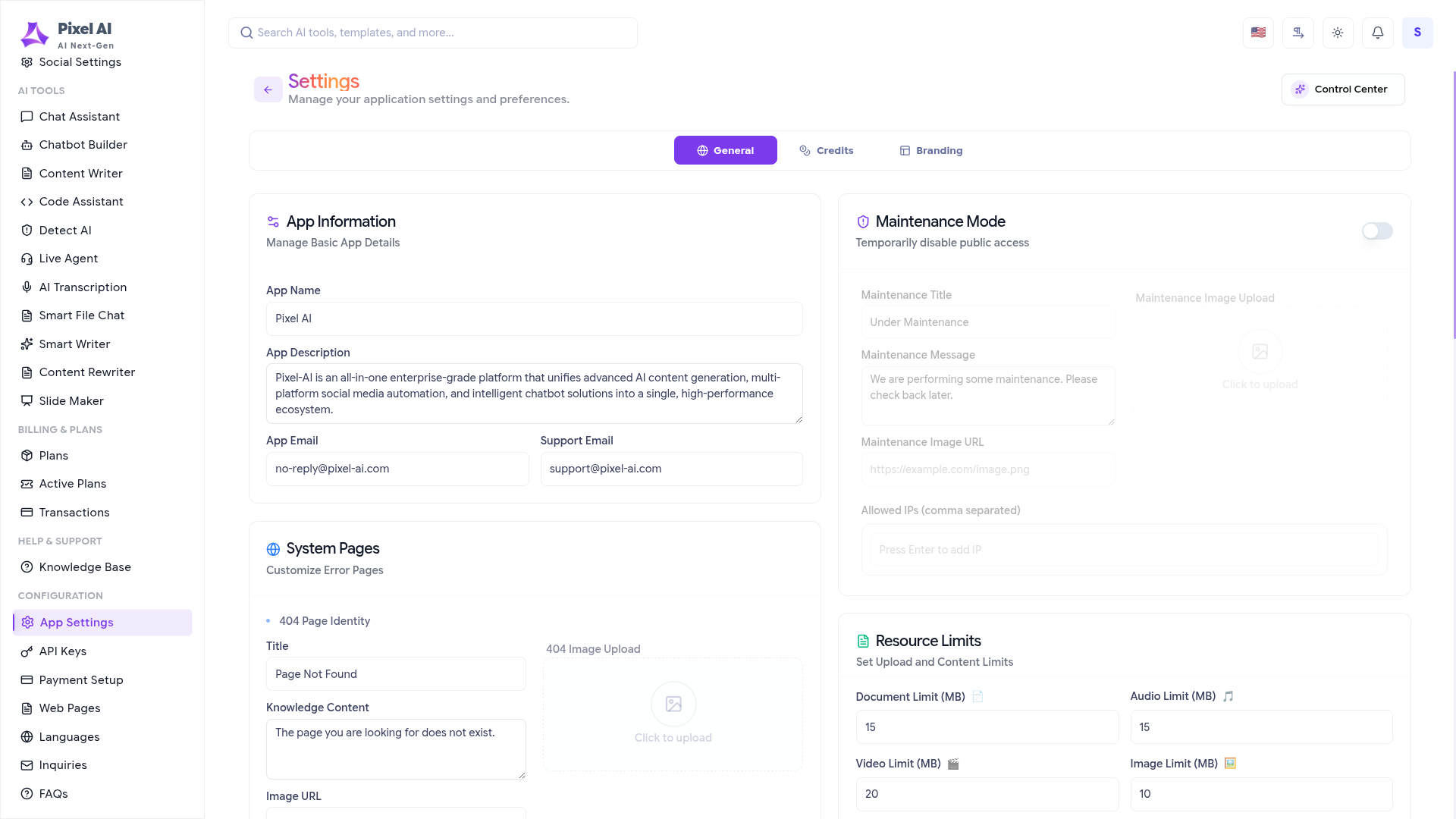
This section allows administrators to define the primary identity and availability of the platform. It covers basic app details, maintenance states, and system-critical page content.
- App Information: Manage the application's public name, SEO description, and support email addresses used in platform communications.
- Maintenance Mode: Temporarily take the platform offline for updates. You can set a custom maintenance title, message, and image while whitelisting specific IP addresses for administrative access.
- System Pages: Customize the identity of the "404 Not Found" and "No Internet" pages to ensure a consistent user experience even during errors.
2. Resource Limits & Credit Configuration
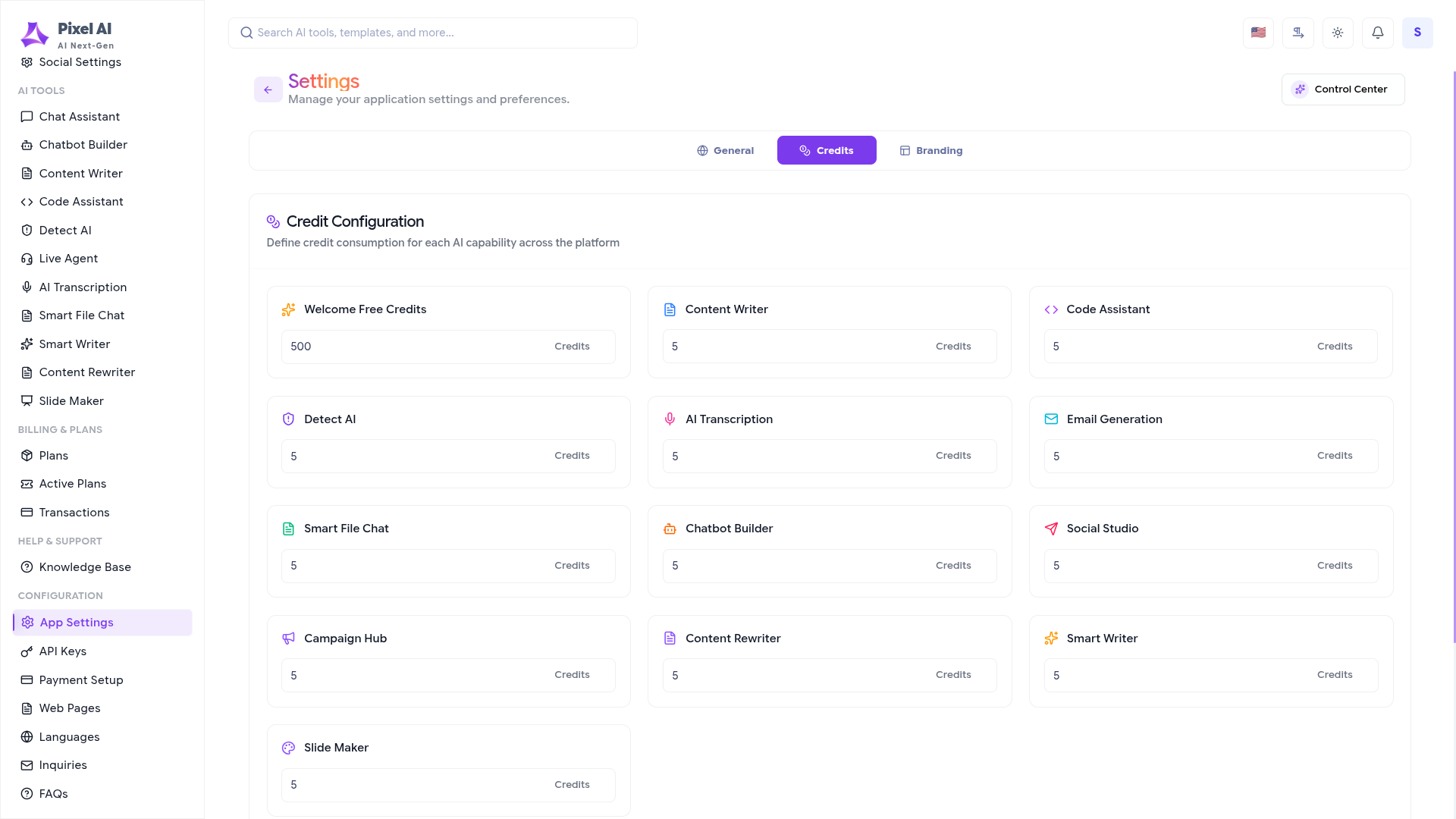
Control the platform's operational scalability and AI consumption model by setting global limits and Capability-based credit costs.
- Resource Limits: Set hard limits (in MB) for Documents, Audio, Video, and Image uploads. You can also define session expiration days and device login limits to enhance security.
- Credit Configuration: Define the "Economy" of your platform by setting specific credit costs for every AI action, such as Article Generation, Content Analysis, and Campaign limits.
3. Logo & Branding Identity
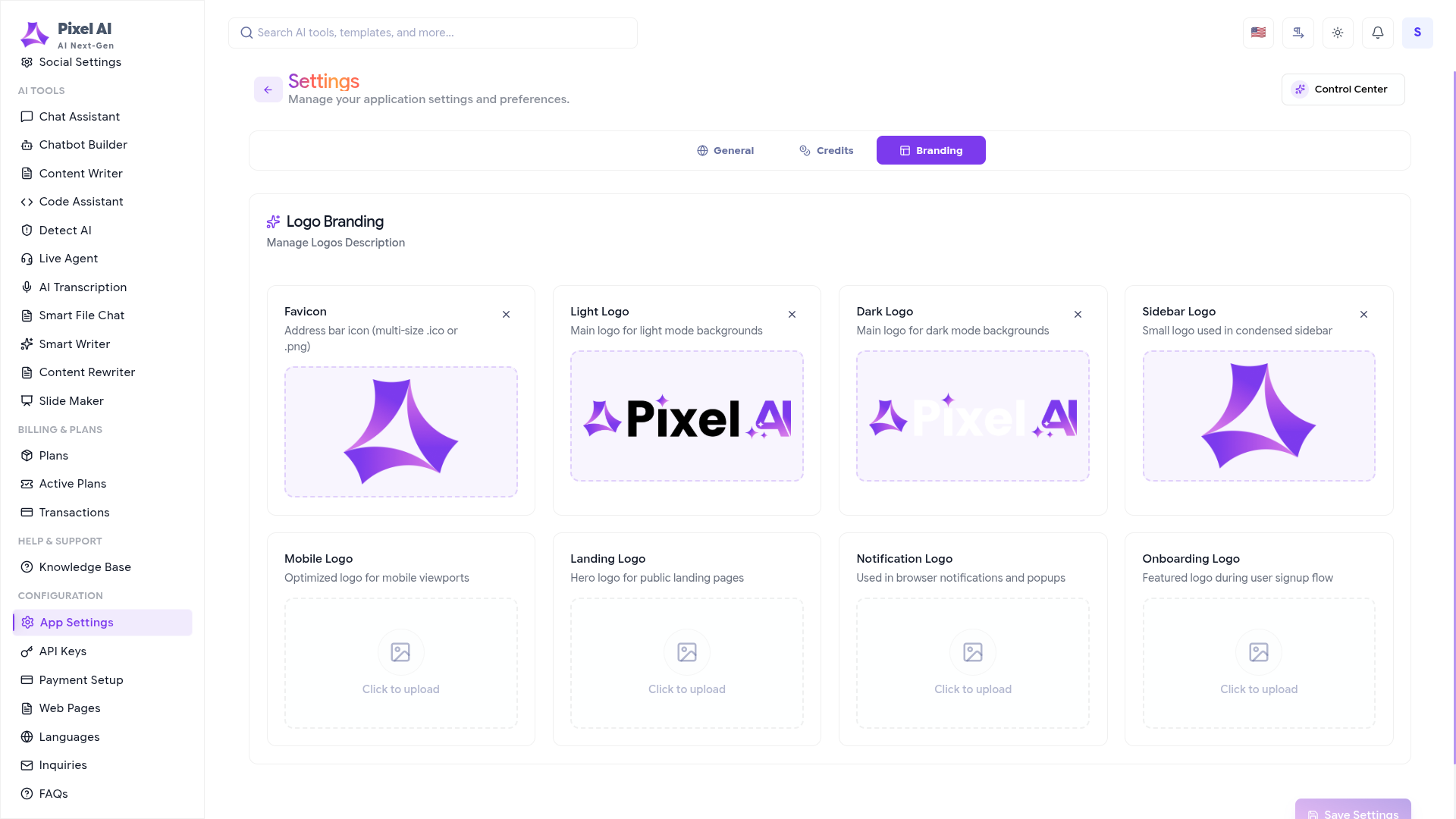
Establish a consistent visual brand across all user touchpoints. Upload specifically sized assets to ensure your logo looks sharp in every part of the application.
- Logo Suite: Manage specifically optimized logos for Light/Dark themes, Sidebar navigation (collapsed/expanded), and Mobile viewports.
- System Icons: Upload your platform's Favicon and specific branding for Landing pages, Notifications, and the User Onboarding flow.
4. System Email & SMTP Setup
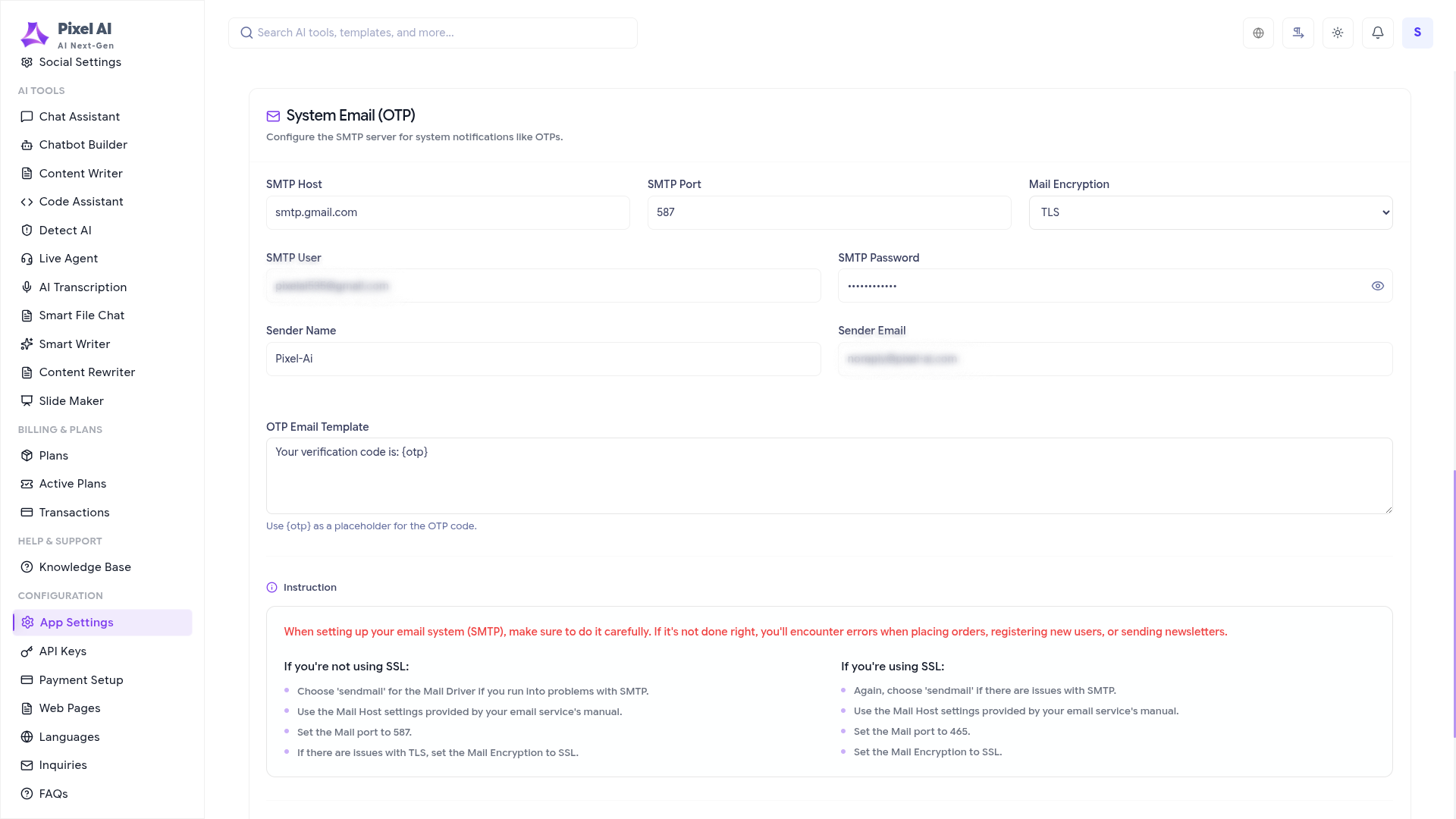
Configure the backbone of your platform's communication. This section manages how users receive OTPs, notifications, and support emails.
- SMTP Server: Connect your email service provider (e.g., SendGrid, Mailgun) by entering Host, Port, Encryption (TLS/SSL), and credentials.
- Email Templates: Customize the dynamic templates for system messages like the OTP (One-Time Password) email, ensuring professional deliverability.
5. Localization & Additional Tools
Expand your platform's global reach and manage user engagement through dedicated localization and support tools.
- Language Management: Translate platform strings and manage multiple locale files to cater to an international audience.
- Contact Inquiries: Track and respond to user messages sent through the platform's contact forms.
- Testimonials: Curate and display real user feedback on your landing pages to build trust and social proof.
Key Points for Administration
- Verify SMTP: Always use the "Test Mail" feature after changing SMTP settings to prevent user lockout.
- Branding Dimensions: Use transparent PNG or SVG files for logos to ensure compatibility with both light and dark modes.
- Credit Balances: Ensure credit costs align with your subscription pricing to maintain platform profitability.
- Maintenance: Enable Maintenance Mode before performing large-scale database migrations or updates.
What's Next?
Continue exploring the Admin Module tools.


