 Campaign Hub & Setup
The Campaign Hub allows you to manage multi-channel communication across Email, WhatsApp, and Telegram. From this module, you can monitor incoming replies via the Campaign Inbox, configure your channel settings, and launch targeted marketing campaigns.
Campaign Inbox
The Campaign Inbox is your central hub for monitoring real-time replies from your WhatsApp and Telegram campaigns. It allows you to track engagement and respond to leads instantly.
- Channel Identifier: Visual icons indicate whether the reply came from WhatsApp or Telegram.
- Subscriber Details: View the name or contact info of the person who replied.
- Last Message: A preview of the most recent interaction.
- Actions: Quick links to jump into the full conversation.

Email Marketing
1. Setup & Configuration
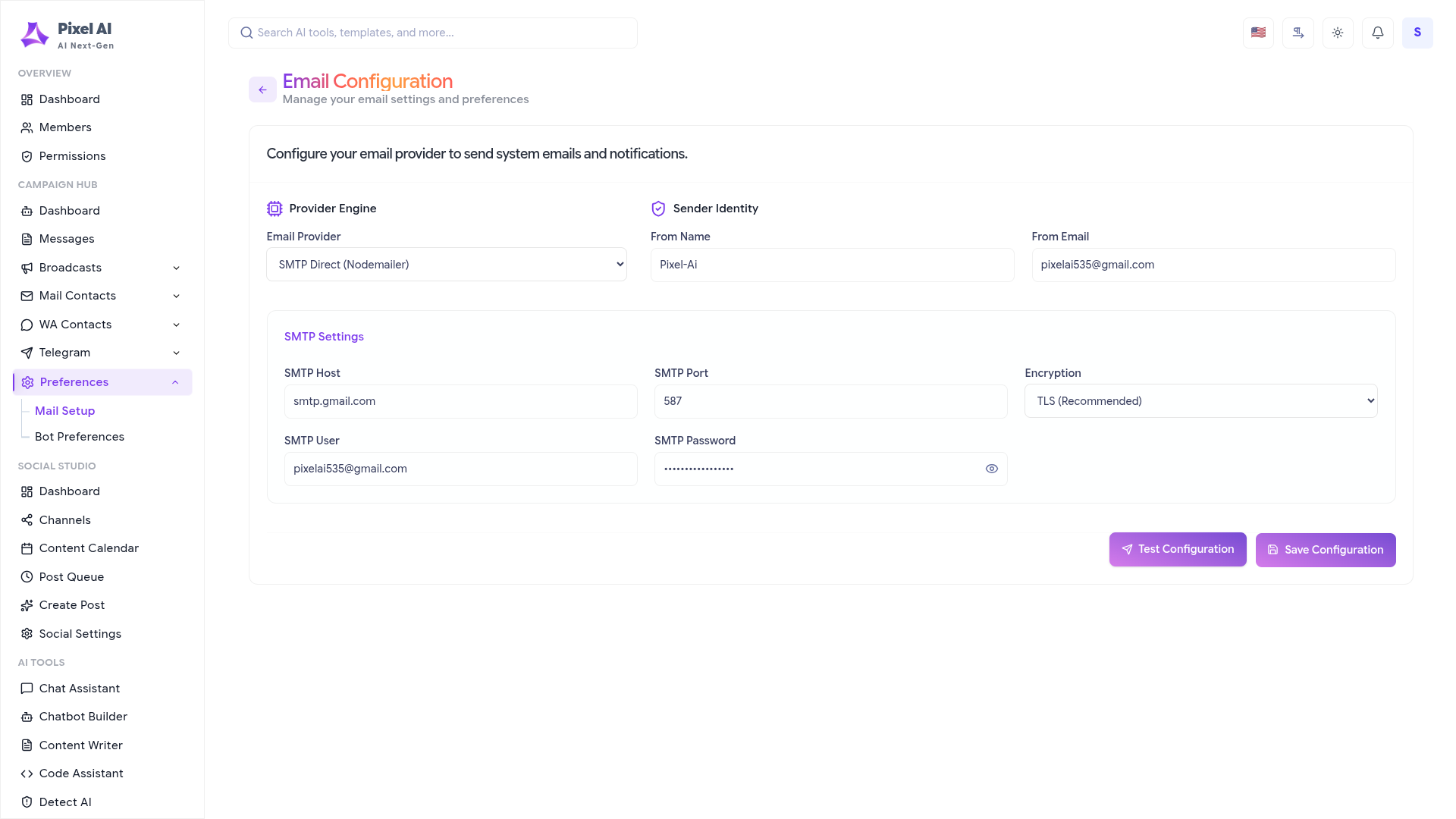
Configure your SMTP or SendGrid API credentials in the Campaign Hub settings. Define your "From Name" and "From Email" to maintain brand consistency.
2. Campaign Creation (4-Step Wizard)
- Details: Define Campaign Name and Email Subject.
- Audience: Select from your Contact Lists or rule-based Segments.
- Content: Use the HTML editor or AI Content Generator to draft your email.
- Review: Verify all details and choose to send immediately or schedule for later.
3. Manage Email Campaigns
Track the performance of your sent emails. The management table provides real-time stats on successful deliveries, failures, and pending items.

WhatsApp Marketing
1. Prerequisite: Connect to Twilio
To enable WhatsApp broadcasting, you must have a valid Twilio account. Follow these steps to connect your account:
- Login to Twilio: Go to Twilio Console and sign in to your account.
- Get API Credentials: On the dashboard, locate your Account SID and Auth Token.
- WhatsApp Sender: Navigate to the Messaging > Senders > WhatsApp Senders section to find your verified sender phone number.
- Enter Details in Settings: Go to Campaign Hub > Settings > Campaign Hub Setting in Pixel AI. Enter your Account SID, Auth Token, and WhatsApp Number.
- Environment: Choose between Sandbox for testing or Live for sending real messages.

2. WhatsApp Campaign Creation
Once connected, you can build your campaign by selecting your WhatsApp profile and drafting your message with text, emojis, and media.
3. Manage WhatsApp Campaigns
Monitor your WhatsApp broadcasts. View stats for Success, Failed, and Pending messages for each campaign.

Telegram Marketing
1. Prerequisite: Setup Telegram Bot
To send Telegram campaigns, you first need to create a bot using @BotFather. Follow these steps:
- Search @BotFather: Open Telegram and search for the verified @BotFather account.
- Start the Bot: Click the /start button to see a list of available commands.
- Create New Bot: Send the /newbot command and follow the instructions to provide a name and a unique username for your bot.
- Copy API Token: Once created, @BotFather will provide an HTTP API Access Token. Copy this token carefully.
- Update Settings: In Pixel AI, navigate to Campaign Hub > Settings > Campaign Hub Setting and paste the token into the **Access Token** field.
- Start Interaction: Ensure your subscribers have started a chat with your bot so it can broadcast messages to them.

2. Telegram Campaign Creation
Choose your **Telegram Bot** and select whether to broadcast to individual Subscribers or specific Telegram Groups.
3. Manage Telegram Campaigns
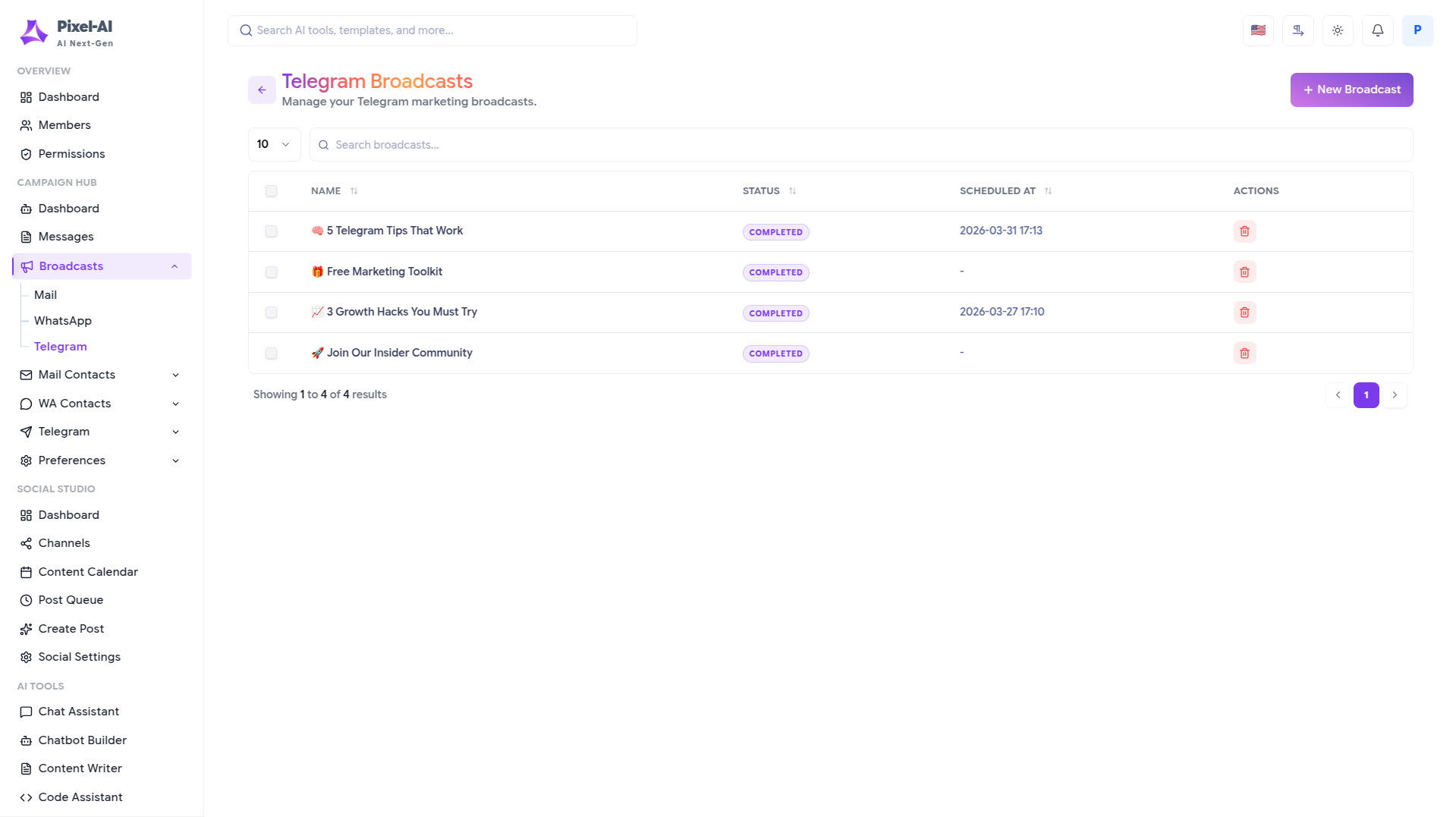
Review the reach of your Telegram broadcasts. The table lists all campaigns with detailed transmission logs and status updates.
What's Next?
Manage your audience to grow your campaign reach.


