 Welcome to WAPI!
Overview
The **Languages & Localization** module empowers administrators to scale their WAPI instance for a global audience. This feature enables multi-language support by allowing the dynamic addition, customization, and management of system languages through a robust JSON-driven translation engine.
By leveraging this module, you can ensure that the platform remains accessible and inclusive, adapting to regional linguistic variations and script directions (including RTL support for Arabic and Hebrew). Admins can directly modify UI text strings via localized JSON files, eliminating the need for developer intervention when updating terminology or labels.

Localization Hierarchy
The master list provides an overview of all installed linguistic profiles:
| Metadata Field | Functional Description |
|---|---|
| Language Name | The friendly display name (e.g., "Spanish - Modern"). |
| Language Code | The standard ISO code (e.g., `es`, `hi`, `ar`). |
| Default Indicator | Marked 'YES' for the system-wide fallback language. |
| Active Status | Determines if the language is selectable by end-users in the UI. |
| Actions | Options to Edit translations, Set as Default, or Delete the profile. |
Language Creation Workflow
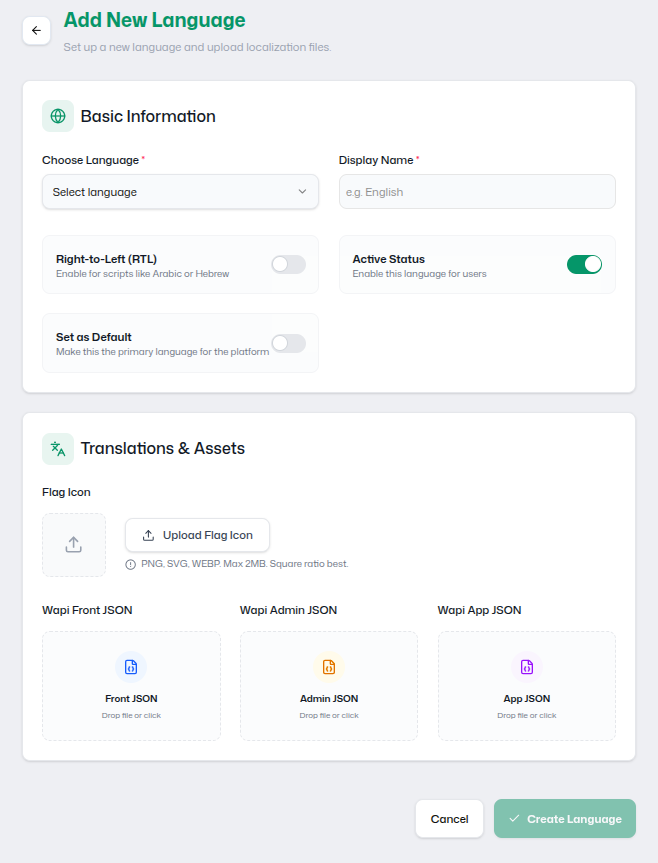
JSON Translation Architecture
Translations are managed via a structured key-value JSON format, allowing for precise UI mapping:
{
  "welcome": "Bienvenido",
  "login": "Iniciar sesión",
  "logout": "Cerrar sesión",
  "dashboard": "Tablero"
}- Dynamic Updates: Re-uploading a JSON file updates all UI labels instantly.
- Custom Wording: Tailor the platform's terminology to match specific regional dialects.
Visual Assets (Flags)
- Supported Formats: PNG, SVG, WEBP.
- Size Constraint: Maximum 2MB per icon.
- Ratio Recommendation: 1:1 (Square) for optimal circular/box rendering.
Flag icons improve recognition speed by over 40% in multi-lingual UIs.
Localization Best Practices
- Key Consistency: Never alter the "Keys" (left side) of the JSON file, as these are linked to system code. Only translate the "Values".
- RTL Validation: Always verify layout integrity in a private tab after enabling RTL script directions.
- Default Integrity: Ensure the 'Default' language is never deactivated or deleted to prevent UI text breakdown.
- File Size Management: Keeping JSON files under 5MB ensures rapid page load times for low-bandwidth users.
TROUBLESHOOTING TIP
If a translation does not appear, check the JSON for trailing commas or syntax errors. Use an online JSON validator before uploading to ensure 100% platform compatibility.