 Welcome to WAPI!
Get an AI summary of this page
Meta Platform
Meta Limits
Meta imposes certain restrictions and limits on the WhatsApp Business Platform to ensure high-quality communication and prevent spam. Understanding these limits is crucial for scaling your business operations on WAPI.
1
1. What are Messaging Limits
- Messaging limits define how many business-initiated conversations you can start.
- Limits apply only when sending template messages (outside 24h window).
- User-initiated messages are NOT counted.
Important
Limits are based on unique users per 24-hour rolling period.
2
2. Messaging Limit Tiers
| Tier | Limit (24 Hours) | Description |
|---|---|---|
| Default (Unverified) | 250 | Starting limit |
| Tier 1 | 1,000 | After verification |
| Tier 2 | 10,000 | Medium scale |
| Tier 3 | 100,000 | High scale |
| Tier 4 | Unlimited | Enterprise level |
Limits increase automatically based on:
- Message quality
- Usage
- Engagement
3
3. How to Check Messaging Limit
Via Meta Business Suite:
- 1. Open Meta Business Manager.
- 2. Go to WhatsApp Manager.
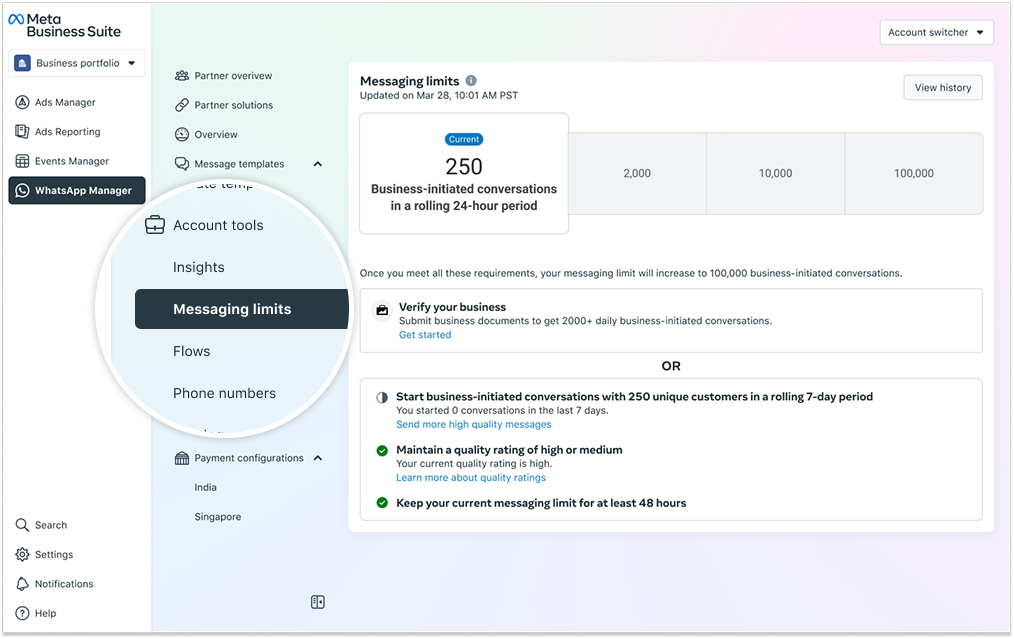
- 3. Navigate to: Account Tools → Messaging Limits.
- 4. View: Current limit (e.g., 250, 1K, 10K), Scaling progress, and Quality rating.
Your business phone number's current messaging limit is displayed in the WhatsApp Manager → Account Tools → Messaging Limits panel.
- Limits are shared across all numbers in the same business portfolio.
business.facebook.com/wa/manager
4
4. What Counts Against Limit
✅ Counts:
- Sending a template to a NEW user (outside the 24h window).
❌ Does NOT count:
- Replies within 24h.
- Multiple messages in the same conversation.
- Incoming messages.
5
5. Example
- Send template to 1000 new users → counts as 1000.
- Send 5 messages to the same user → counts as 1.
6
6. Important Notes
- Limits apply only to business-initiated messages.
- Based on unique users, not message count.
- Portfolio-based limit (shared across numbers).
7
7. Best Practices
- Maintain high quality rating.
- Avoid spam.
- Increase gradually.
- Monitor limits before campaigns.
Per-User Marketing Limits
Overview
- Meta applies limits per user (not just per business).
- Applies ONLY to: Marketing template messages.
What Happens & Behavior:
- If a user receives too many marketing messages, Meta may block new messages.
- This block can occur even if your account has remaining messaging limits.
- Limits depend on user engagement and recent marketing exposure.
- Meta considers messages from ALL businesses (not just yours).
Important Rules & Examples:
- Marketing templates → limited.
- Utility templates → NOT limited.
- Authentication → NOT limited.
- Example: User receives many promo messages → next marketing message fails. Utility message → still delivered.
- Error Scenario: Message may fail even if your messaging tier is high and quality rating is good.
Best Practices
- Avoid over-sending marketing messages.
- Focus on engagement.
- Use utility messages where possible.
Meta Limits & Charges Table
| Feature | Limit Applies | Charge Applies | Condition | Notes |
|---|---|---|---|---|
| User-initiated messages | No | No | Within 24h | First 1,000 per month are free; triggers service window. |
| Business-initiated (template) | Yes | Yes | Outside 24h | Opens new conversation and counts against tier limits. |
| Marketing templates | Yes | Yes | Always chargeable | Highest cost; subject to per-user limits by Meta. |
| Utility templates | Yes | Yes | Always chargeable | Lower cost; not subject to per-user limits. |
| Authentication templates | Yes | Yes | Always chargeable | Medium cost; not subject to per-user limits. |
| WhatsApp Flows | No | No | If inside 24h | Flows are free; charges apply only if sent via a template. |
| Interactive messages | No | No | If inside 24h | Free inside conversation window; charges apply via templates. |
| Per-user marketing limit | Yes | N/A | Meta-controlled | Blocks excessive marketing messages to users. |