 Welcome to WAPI!
Overview
The Manage FAQs module is a central command center for controlling the frequently asked questions displayed on your marketing site and within the application dashboard. This module is essential for reducing support ticket volume, improving user onboarding, and providing immediate self-service assistance to end-users.
By maintaining an up-to-date FAQ library, administrators can ensure that users have instant access to practical solutions regarding billing, technical configurations, and platform features.
Key Features
- Dynamic Publishing: Create and publish FAQs instantly or save them as drafts for later review.
- Centralized Management: Single-pane view for editing, updating, or deleting existing FAQs.
- Smart Search: Quickly locate specific queries by searching through questions or answer content.
- Visibility Governance: Granular control over publish settings to ensure only verified content is live.
- Categorized Support: Organize content by topic to help users scan for answers efficiently.
Navigation Flow
FAQ List Page
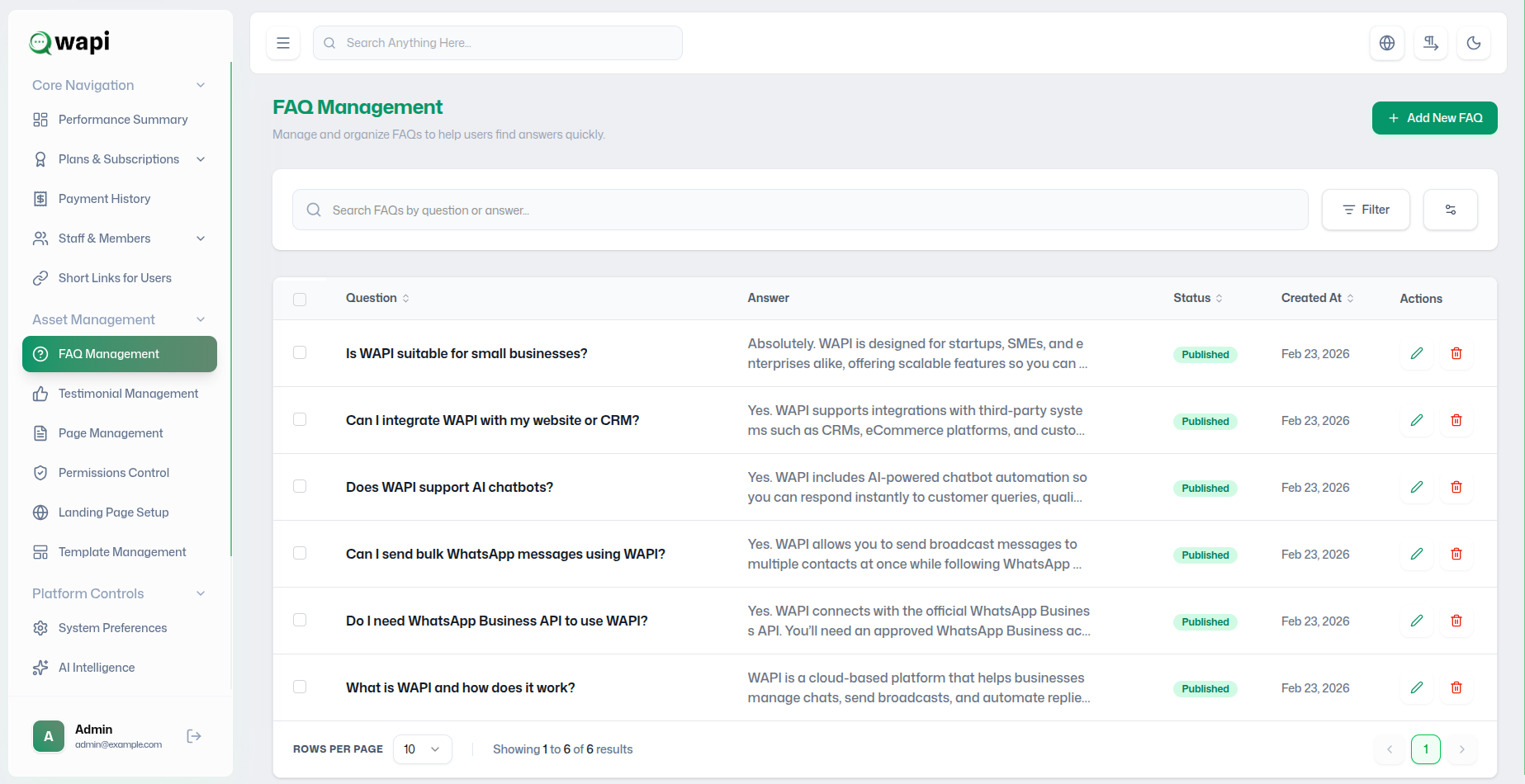
The FAQ List provides a comprehensive overview of all established queries:
- Question & Preview: Displays the query title and a snippet of the interactive answer.
- Status: Clear visual indicators for Published or Draft states.
- Timeline: Shows the exact date the FAQ was created or last published.
- Search Bar: Real-time filtering to locate FAQs by keyword.
- Action Menu: Direct access to the Edit and Delete protocols.
How to Create a New FAQ
Step 1: Initiation
Step 2: Core Details
| Field | Instruction | Required |
|---|---|---|
| Question | Enter the clear, concise question exactly as a user might phrase it. | Yes |
| Answer | Provide a practical, helpful response (rich text supported in UI). | Yes |

Step 3: Visibility & Synchronization
| Option | Functional Impact | Required |
|---|---|---|
| Publish Immediately | Toggle ON to make the FAQ live for website visitors instantly. | Optional |
Step 4: Finalization
Managing Existing FAQs
Update questions or answers to reflect feature changes or user feedback.
Completely remove outdated or redundant FAQs from the administrative system.
Quickly flip between Published and Draft states to manage visibility without deletion.
Best Practices
- Brevity: Keep answers short, actionable, and free of jargon.
- Topic Grouping: Use clear categories so users can scan rapidly.
- Continuous Review: Update FAQs every time you ship a major update.
- Self-Service Focus: Direct users to detailed guides via links in the answer text.
Provisioning Notes
Draft FAQs remain completely hidden from the frontend marketing site. Always perform a final visibility check after publishing significant help content.