 FAQ Management
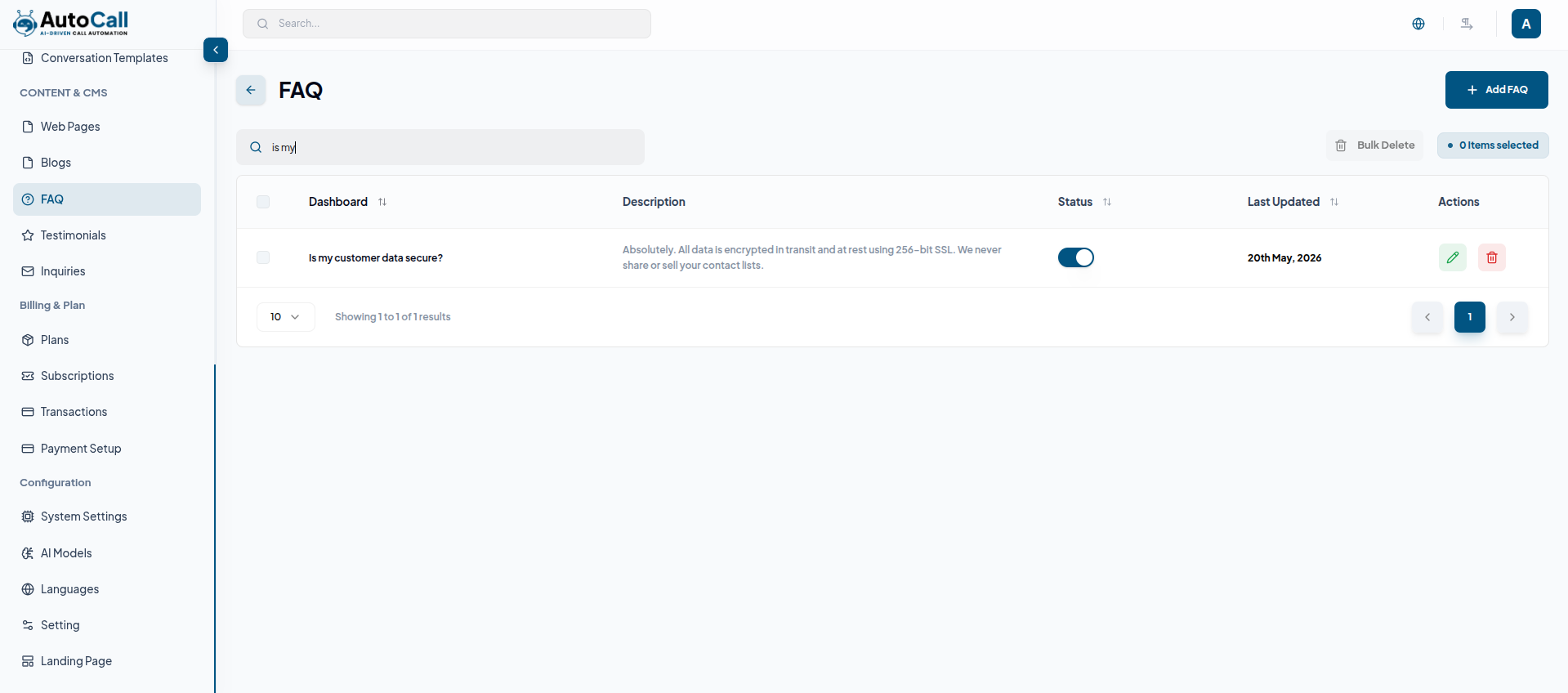
The FAQ Management module enables administrators to build and maintain a structured knowledge base for users, with support for rich text editing, category-wise organization, and bulk management controls for efficient updates.
1. FAQs List View
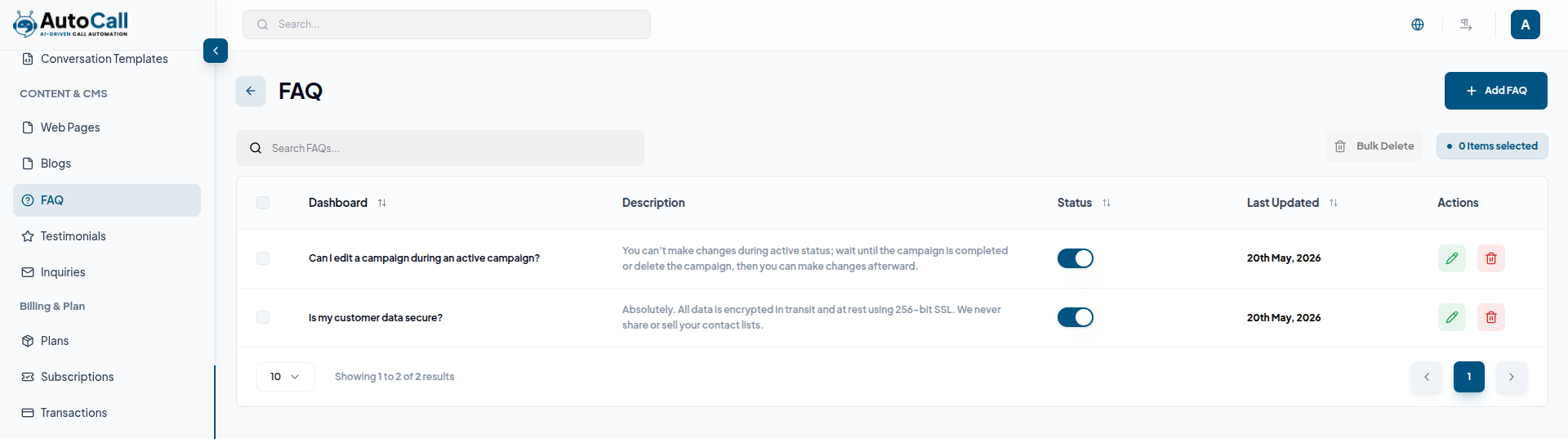
The FAQs table displays key information including question title, visibility status, and created date, along with quick action controls for easy management of each entry.
2. FAQ Status & Priority Controls
Each entry includes a status badge (Draft, Published, Archived) and a priority chip. Clicking the status badge opens a confirmation modal explaining how visibility will be affected. Updating priority automatically reorders the FAQ within its category and is instantly reflected on the front end. Bulk actions are also supported when multiple rows are selected for efficient management.
3. Add FAQ
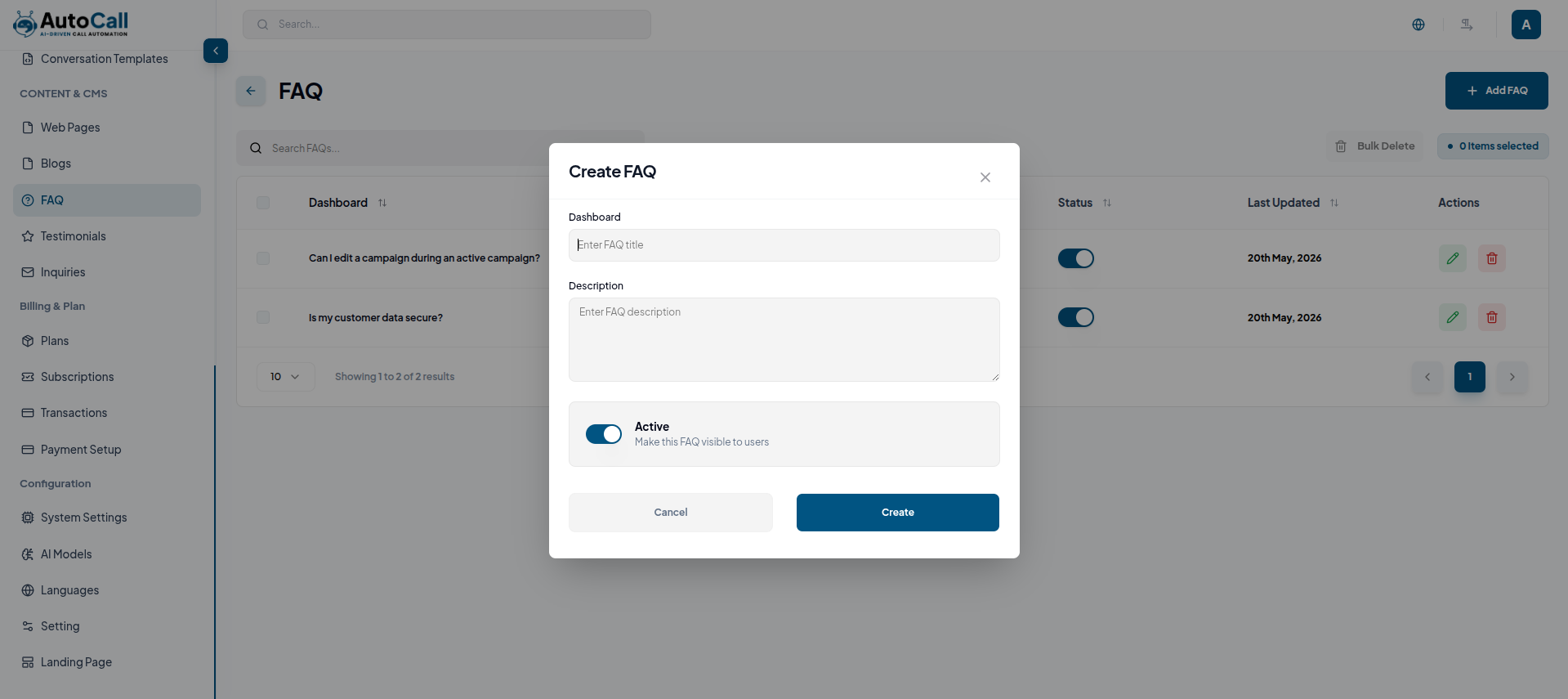
Add a FAQ by entering a title and description. Use the Active Toggle to enable or disable visibility of the FAQ, then create and save it for immediate use.
4. Edit FAQ Entry
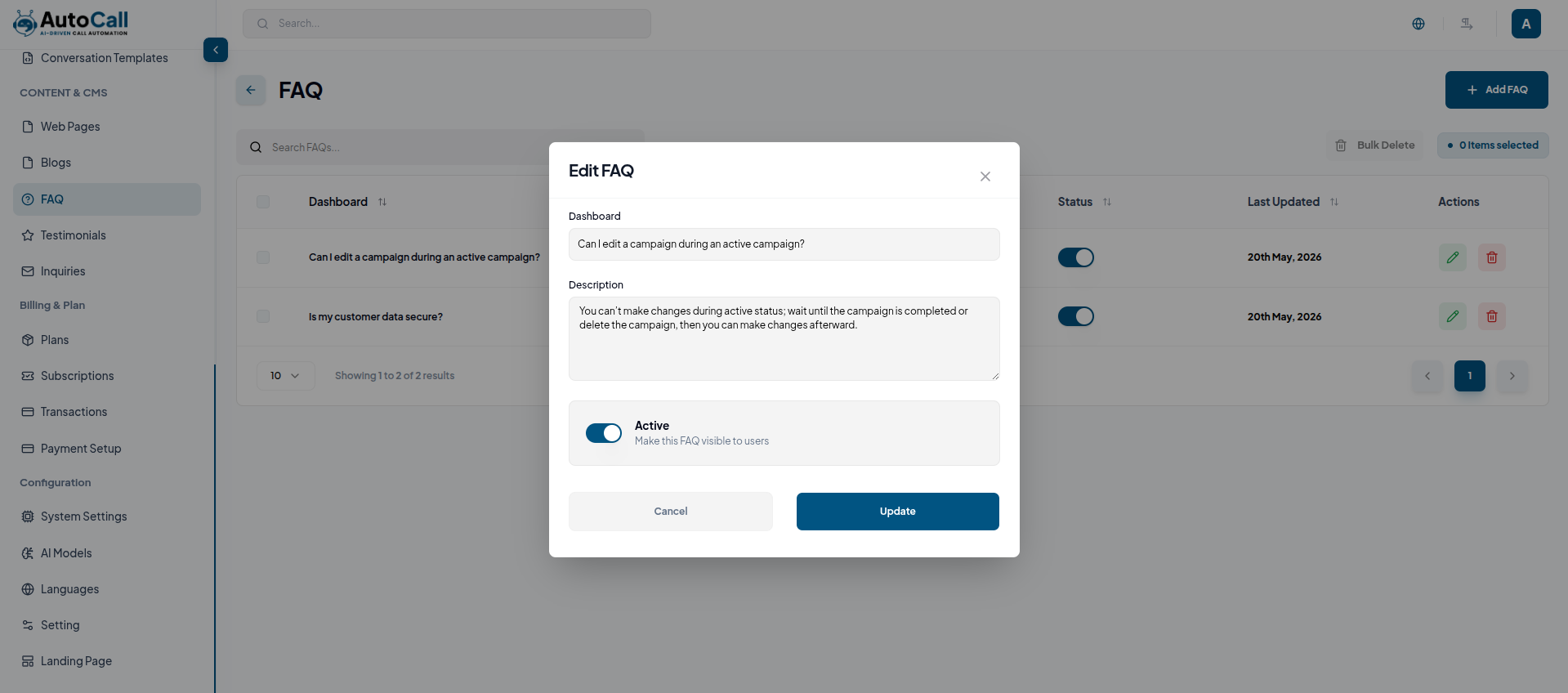
The Edit icon navigates to the FAQ form, where Admins can update the question, edit the rich-text answer, and configure visibility settings, including scheduling the FAQ as active or disabling it as needed.
5. Delete
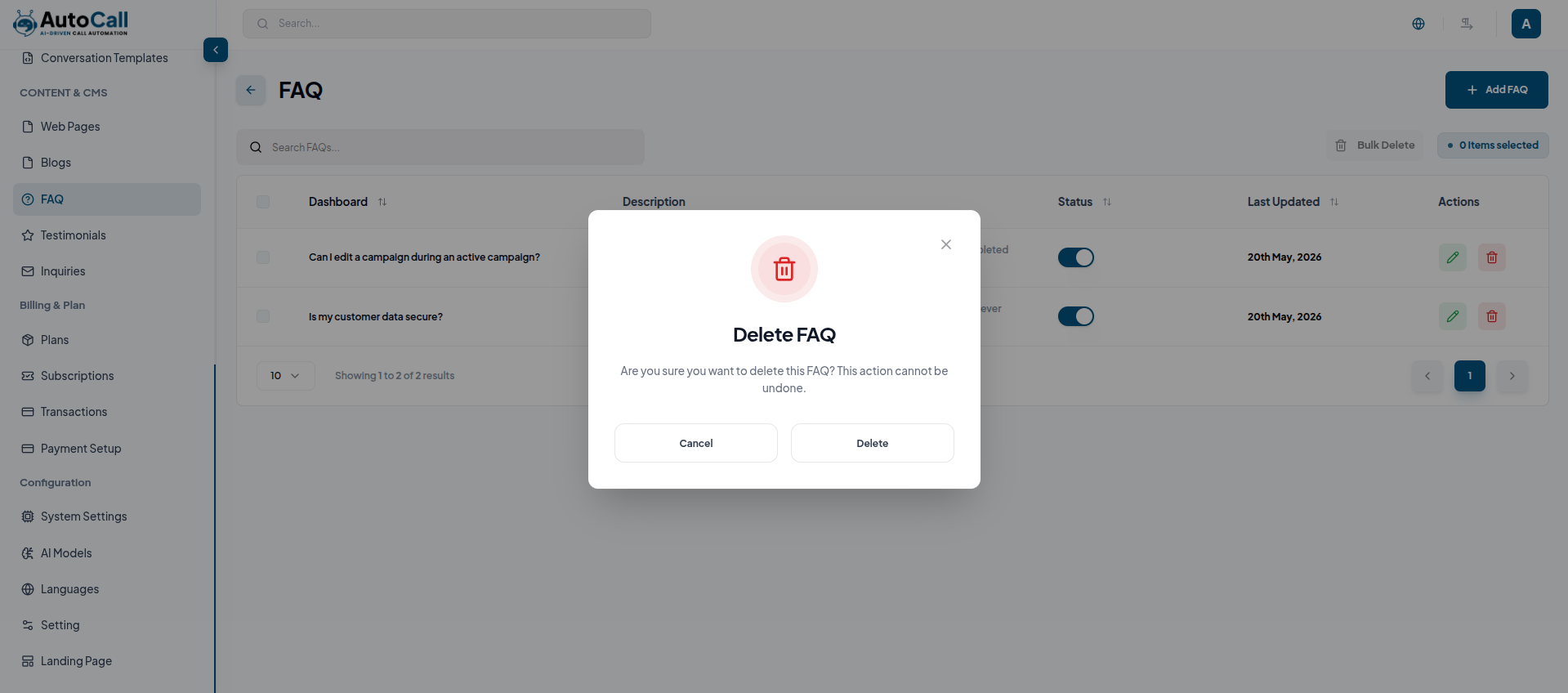
Selecting Delete opens a confirmation dialog explaining whether the FAQ will be archived (soft delete) or permanently removed. User confirmation is required before proceeding, and a Toast message confirms the outcome.
6. Bulk Actions & Filters
Multi-select checkboxes allow bulk updates of FAQ status or priority. Filters above the table enable admins to search by category, keyword, status, making it easy to navigate and manage large knowledge bases efficiently.
Key Points
- Every status change, publish, or delete requires explicit confirmation and surfaces a toast notification.
- Draft FAQs remain invisible until published, but can be previewed via the row drawer.
- Priority chips determine the ordering on the public FAQ page and update immediately.
- The preview drawer provides fast QA without leaving the list view.
- Bulk actions respect the selected rows and summarize changes before execution.
What's Next?
Continue exploring the Admin Module tools.


