 SMS Assistance
Overview
SMS Assistance in AutoCall are intelligent, text-based AI assistants designed to handle dynamic SMS conversations. Powered by LLMs, these agents automatically interact with users via text, answering questions, providing support or capturing leads.
You can assign a Knowledge Base to an agent to give it context about your business and seamlessly hand off the conversation to a real human when needed.
SMS Assistance Dashboard
The SMS Assistance Dashboard lists all of your configured AI text agents. The interface provides a clear overview of each agent's configuration, including language, human transfer status and the underlying AI model.
The dashboard features include:
- Search Bar : Quickly locate specific agents by name.
- Agent Information : View the agent's name, description, assigned language, transfer keyword and the active LLM Model (e.g., Gemini).
- Action Buttons : Quickly edit or delete agents directly from the list.
Click the + Create SMS Assistance button at the top right to set up a new AI text assistant.

1. Create SMS Assistance
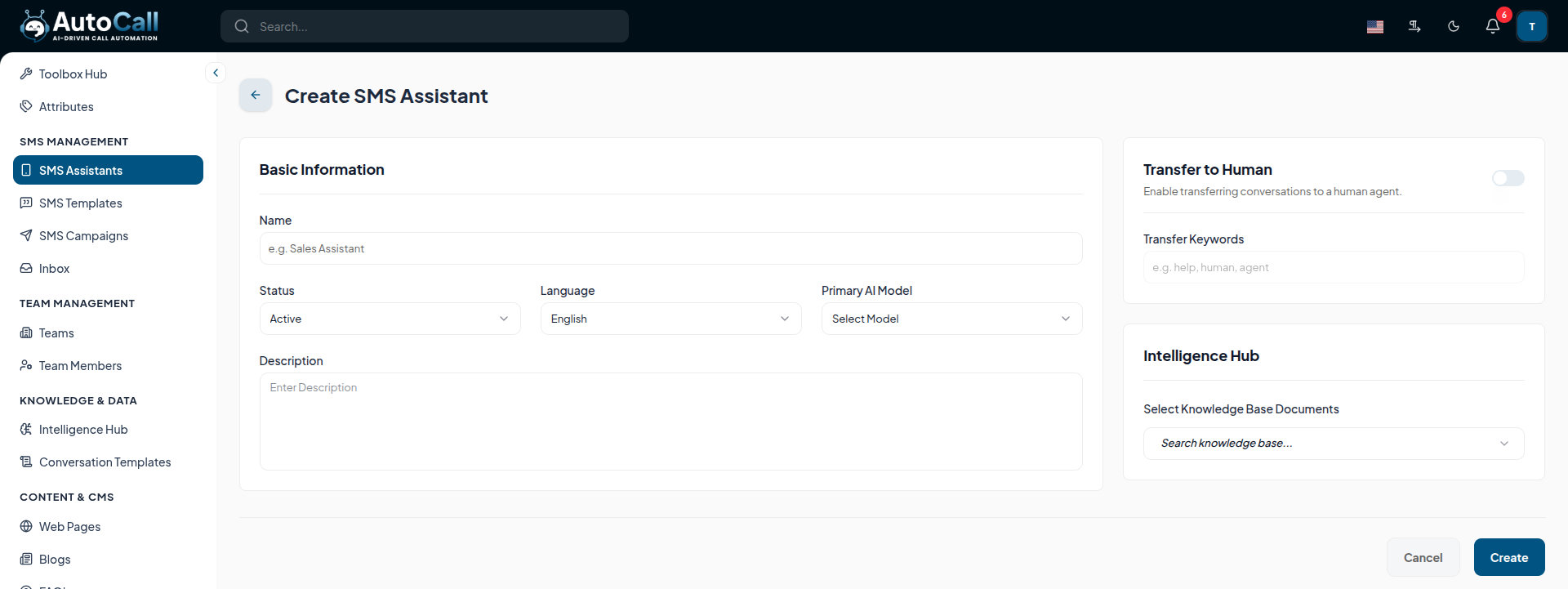
Click + Create SMS Assistance to open the configuration interface. Here, you define how the AI behaves and handles conversations.
Basic Information:
- Name : Set a clear name for the agent (e.g., Sales Assistant).
- Status : Set to Active or Inactive.
- Language : Choose the primary language (e.g., English).
- Primary AI Model : Select the LLM engine powering the agent.
- Description : Provide the agent's prompt or specific behavioral instructions.
Transfer to Human:
If Human Transfer is enabled, the AI will stop responding when a user requests human assistance, passing the conversation to your team.
- Transfer Keywords :If Human Transfer is enabled, type the exact keywords (e.g., help, human, agent) that will trigger the transfer. If the user types the same keyword, the SMS conversation is handed over to a human.
- Transfer Team & Member : Select the specific team or member who will receive the transferred conversation.
Intelligence Hub:
- Knowledge Base : Select documents to provide the AI with specific business context or FAQs.
2. Edit SMS Assistance
Click the Edit (Pencil) icon to modify an existing agent. You can adjust its underlying AI model, update the knowledge base, change transfer keywords or tweak the behavioral description.

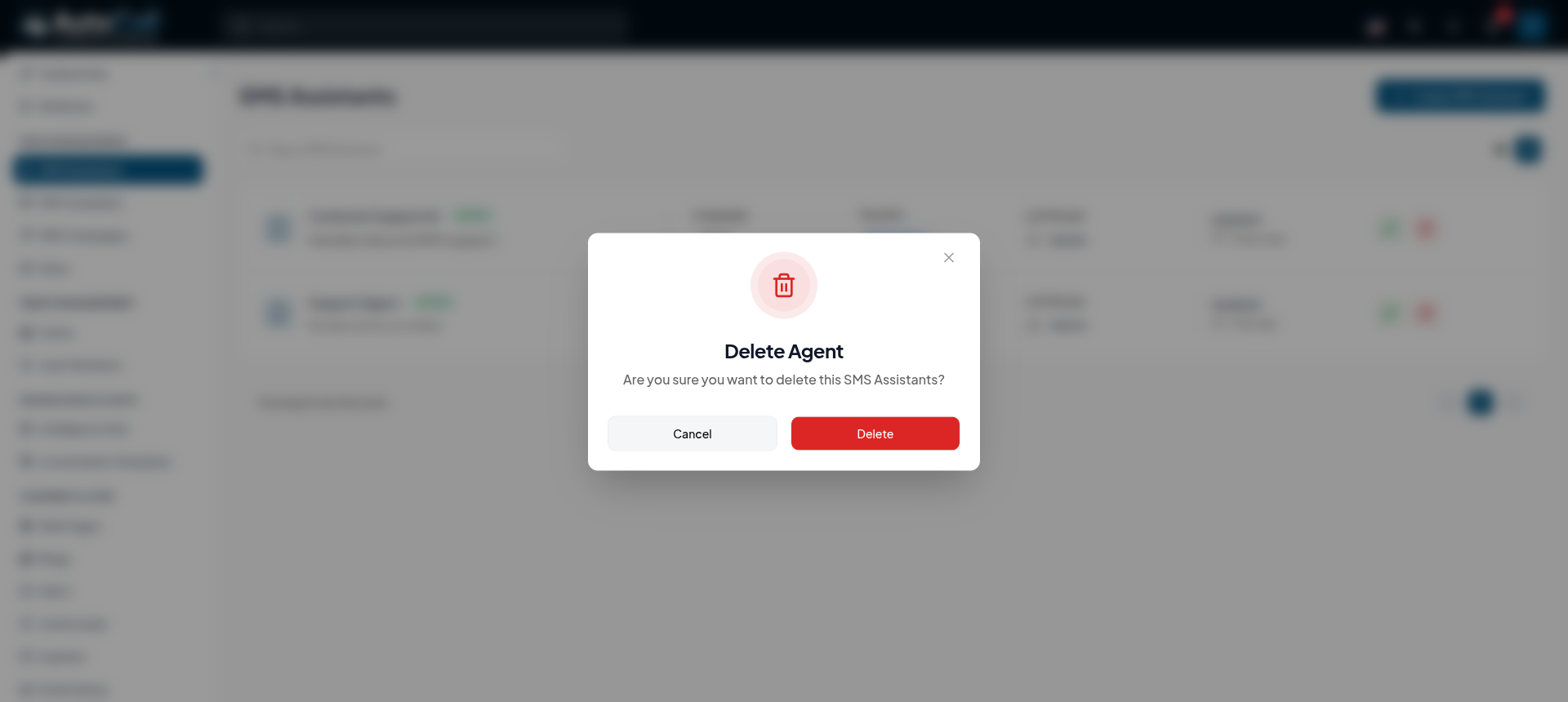
3. Delete SMS Assistance
If an agent is no longer needed, click the Delete (Trash) icon. Confirm your choice in the modal. Deleting an agent is permanent and cannot be undone.
Key Points
- Automated Conversations: Leverage powerful LLMs (like Gemini) to autonomously chat with users, answer FAQs and qualify leads via SMS.
- Seamless Human Handoff: Keep control over sensitive conversations by enabling human transfer, allowing the AI to step back exactly when requested.
- Custom Knowledge Base: Empower your agents with your own business data by attaching relevant documents from the Intelligence Hub.
- Multilingual Support: Easily configure agents in multiple languages to support a diverse, global customer base.
What's Next?
Let's get started — your journey with AutoCall begins here!


