 Google
Workspace
Google
Workspace
Overview
Authenticate your Google environment to enable frictionless sync across Sheets, Drive, and Calendar. By integrating Google Workspace, you can effortlessly push leads to Google Sheets, pull dynamic data, and manage documents seamlessly within AutoCall.
Google Cloud API Setup
Before connecting your Google Account, you need to create a Google Cloud Project and obtain OAuth credentials.
Step 1: Create a Google Cloud Project
- Go to console.cloud.google.com.
- Click Select a project → New Project.
- Name your project (e.g.,
Autocall) and click Create.
Step 2: Enable Required APIs
- In the sidebar, go to APIs & Services → Library.
- Search for and Enable these two APIs:
- Google Calendar API
- Google Sheets API
Step 3: Create OAuth 2.0 Credentials
- Go to APIs & Services → Credentials.
- Click Create Credentials → OAuth client ID.
- If prompted, configure the OAuth consent screen first:
- Set User Type to External.
- Fill in App name, User support email, and Developer contact.
- Under Scopes, add:
https://www.googleapis.com/auth/calendarandhttps://www.googleapis.com/auth/spreadsheets - Under Test users, add the Google account you want to use.
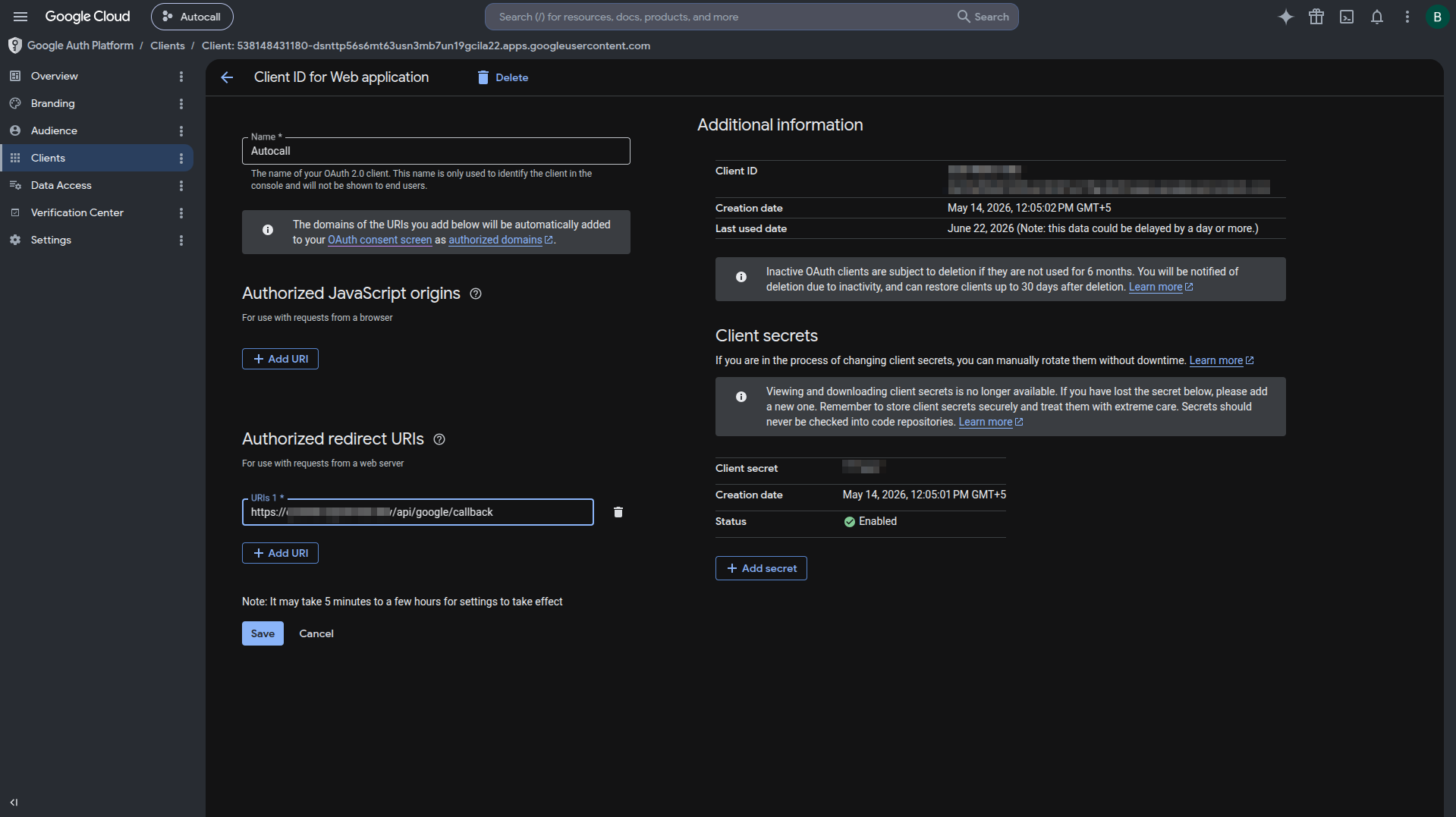
- Back in Create OAuth client ID:
- Application type: Web application.
- Add an Authorized redirect URI (e.g.,
https://yourdomain.com/api/appointments/google/callback).
- Click Create. Copy your Client ID and Client Secret.
Adding Credentials to AutoCall
Once you have your credentials, navigate to the Settings → Google Accounts section in your AutoCall Dashboard. Paste your Client ID, Client Secret, and configure the Redirect URI to complete the integration.
Google Workspace Dashboard
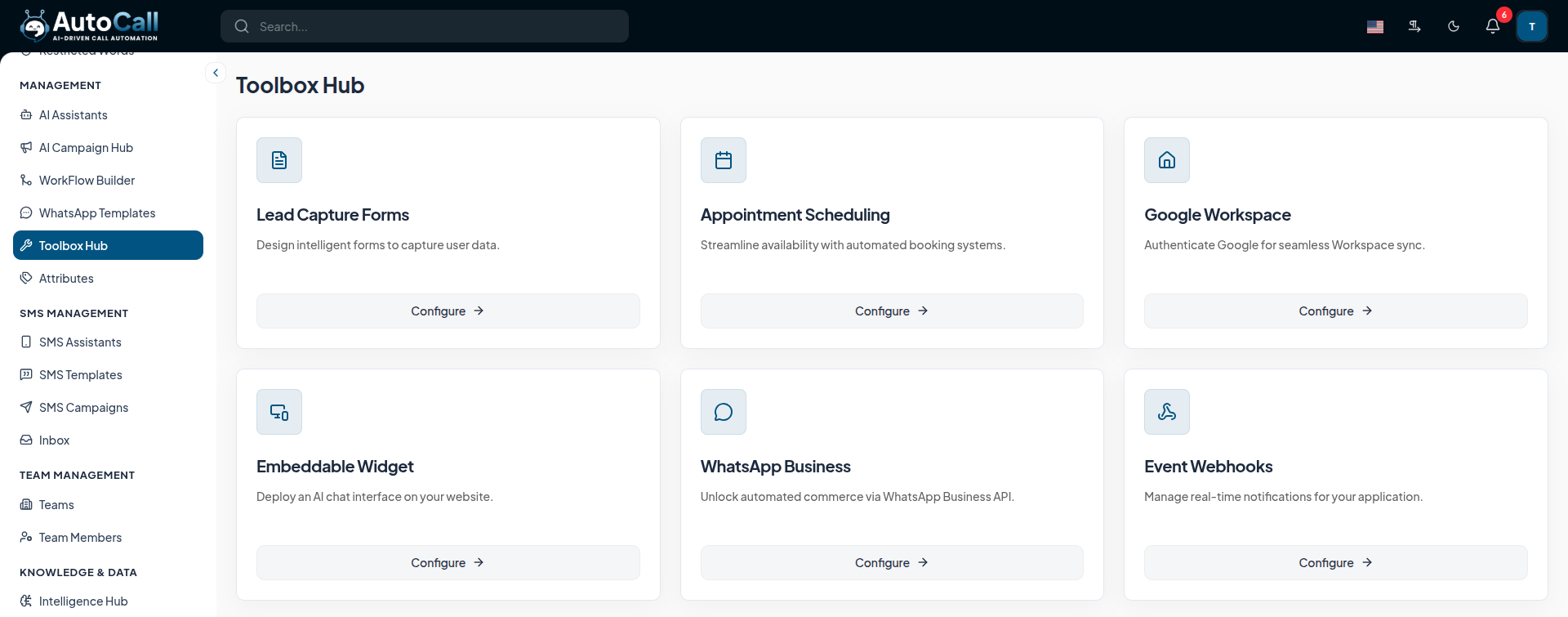
Access the Google Workspace module from:
- Toolbox Hub > Google Workspace > Configure
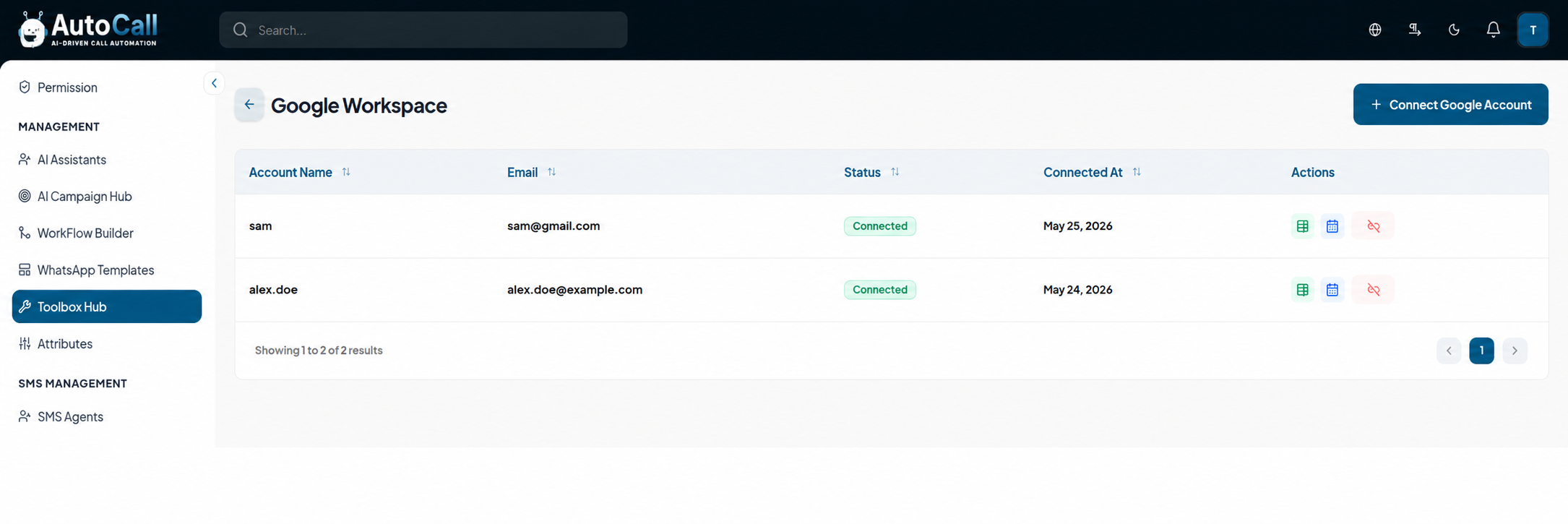
The main dashboard lists all connected Google Accounts. From here, you can manage the sync status and access individual apps like Google Sheets.
The dashboard actions include:
- Manage Google Sheets (First Icon) : Click the green spreadsheet icon to view and manage all sheets linked to this specific Google Account.
- Manage Google Calendar (Second Icon) : Click the blue calendar icon to view and manage all calendars linked to this specific Google Account.
- Remove Account : Disconnect the Google account entirely from your AutoCall workspace.
Click on + Connect Google Account at the top right to authenticate a new workspace.
1. Manage Google Sheets
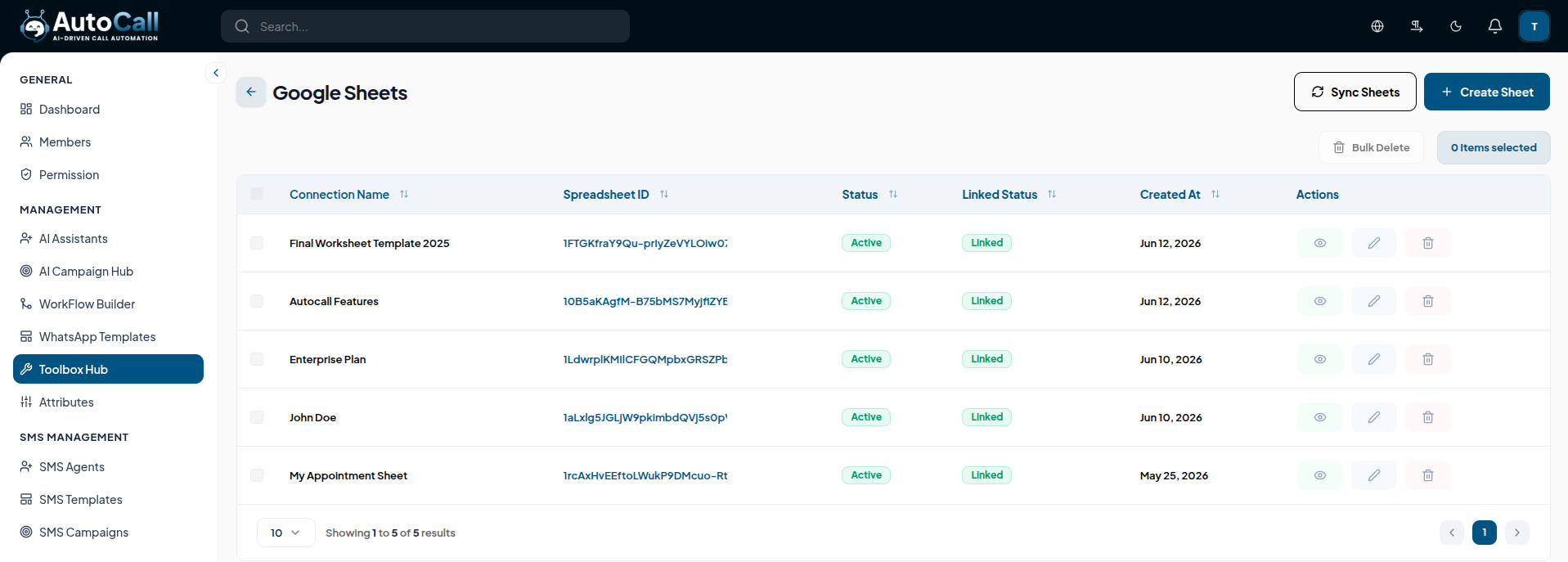
Clicking the Manage Google Sheets icon opens the Sheets Dashboard for that account. This view displays all your configured spreadsheets, showing their connection status and Google Spreadsheet ID.
- Connection Name : Your internal label for the spreadsheet.
- Spreadsheet ID : The unique identifier linking the sheet.
- Linked Status : Indicates whether the sheet is actively linked to AutoCall.
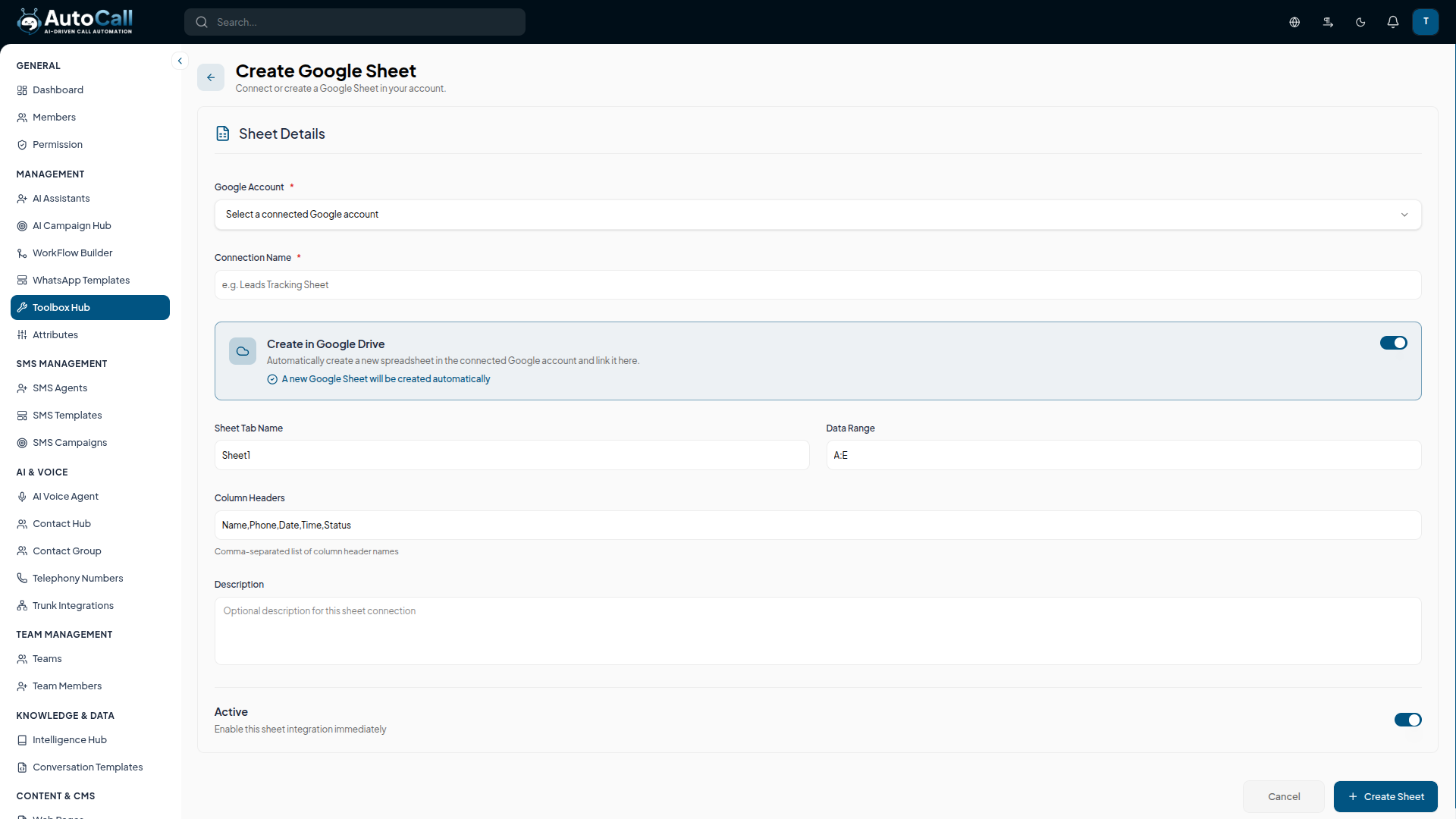
2. Create Google Sheet
Click + Create Sheet to link an existing sheet or automatically create a new one in your Google Drive.
- Google Account : Ensure the correct account is selected.
- Create in Google Drive : Toggle this on to have AutoCall instantly generate a new spreadsheet in your Drive, instead of linking an old one.
- Data Range & Tab Name : Specify exactly where AutoCall should read/write data (e.g., "Sheet1", range "A:E").
- Column Headers : Define a comma-separated list of columns (e.g., Name, Phone, Date, Time, Status). AutoCall uses these headers to structure the data.
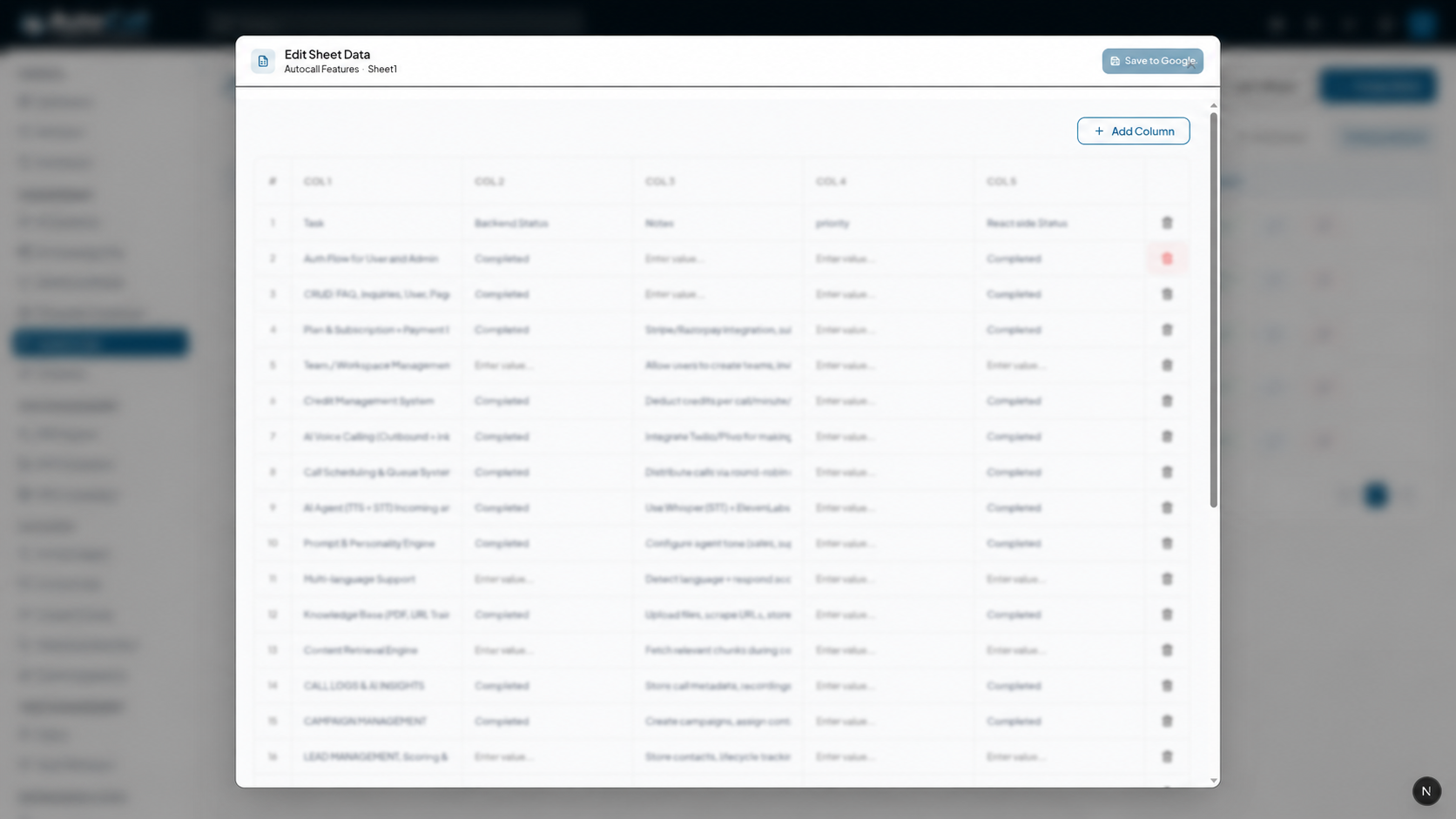
3. Edit Sheet Data
You can view and modify the sheet data directly within AutoCall by clicking the Edit (Pencil) icon. Add rows, adjust columns, and click Save to Google to push changes instantly back to your live Google Sheet.
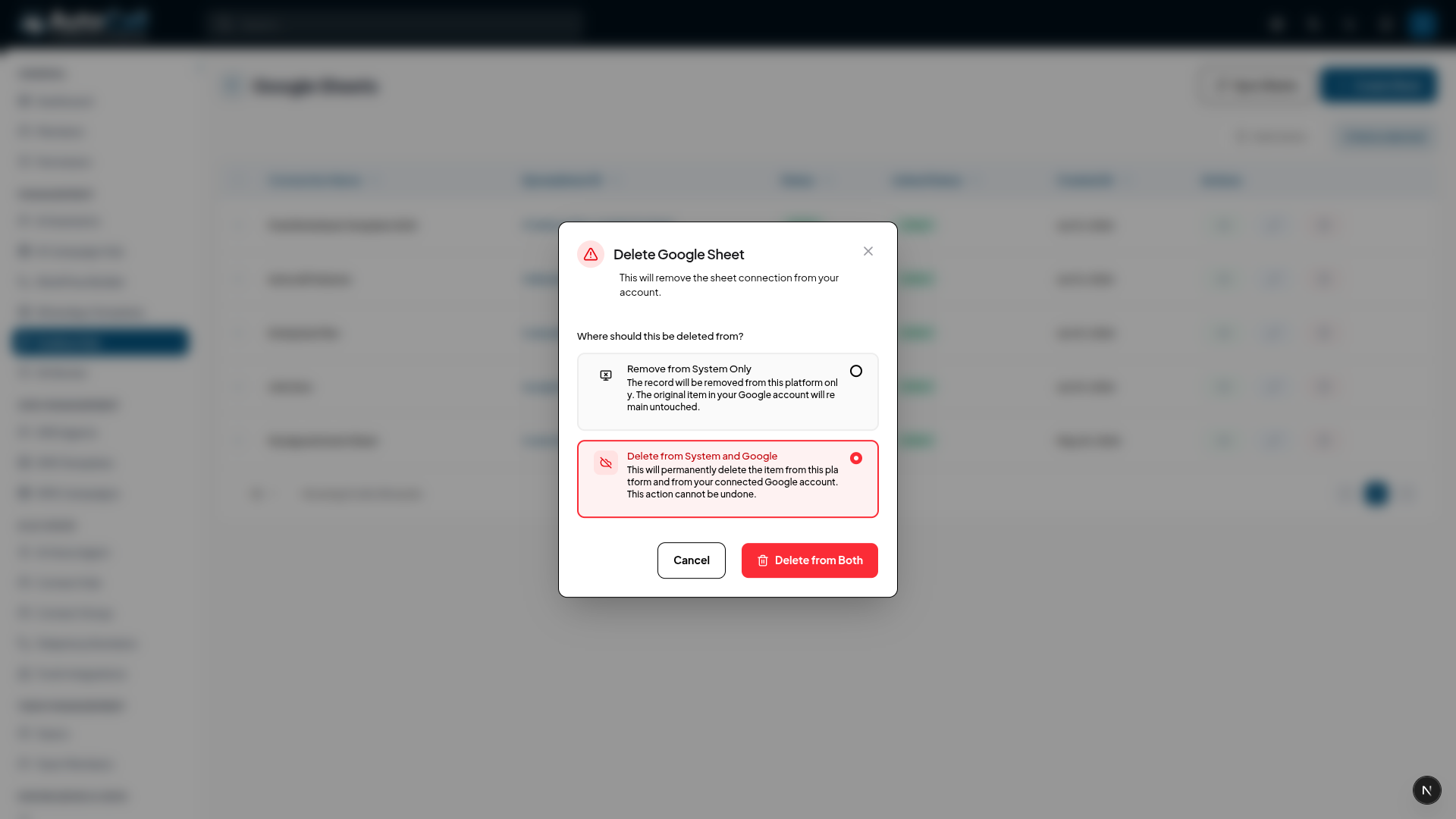
4. Delete Google Sheet
If you need to remove a connection, click the Delete (Trash) icon. You will be prompted with two safe choices:
- Remove from System Only : Deletes the connection in AutoCall but keeps the actual file untouched in your Google Drive.
- Delete from System and Google : Permanently deletes the file from both AutoCall and your Google Drive account.
Key Points
- Frictionless Sync: Keep your leads and call data in perfect harmony with your Google Workspace.
- Direct Creation: Generate properly formatted Google Sheets directly from the AutoCall interface.
- In-App Editing: Make quick data adjustments without ever needing to open a new tab for Google Sheets.
- Safe Deletion: Protect your data by choosing whether to delete files entirely or just unlink them.
What's Next?
Let's get started — your journey with AutoCall begins here!


