 Testimonials
Management
Testimonials
Management
Testimonials Overview
The Testimonials Module allows administrators to manage and display customer feedback in a professional and organized way. It helps showcase user experiences, improve credibility, and build trust with visitors by presenting real customer reviews and ratings on the platform.
The module offers a smooth and organized management experience, making it easy to maintain testimonial content while ensuring a professional presentation throughout the platform.
Dashboard
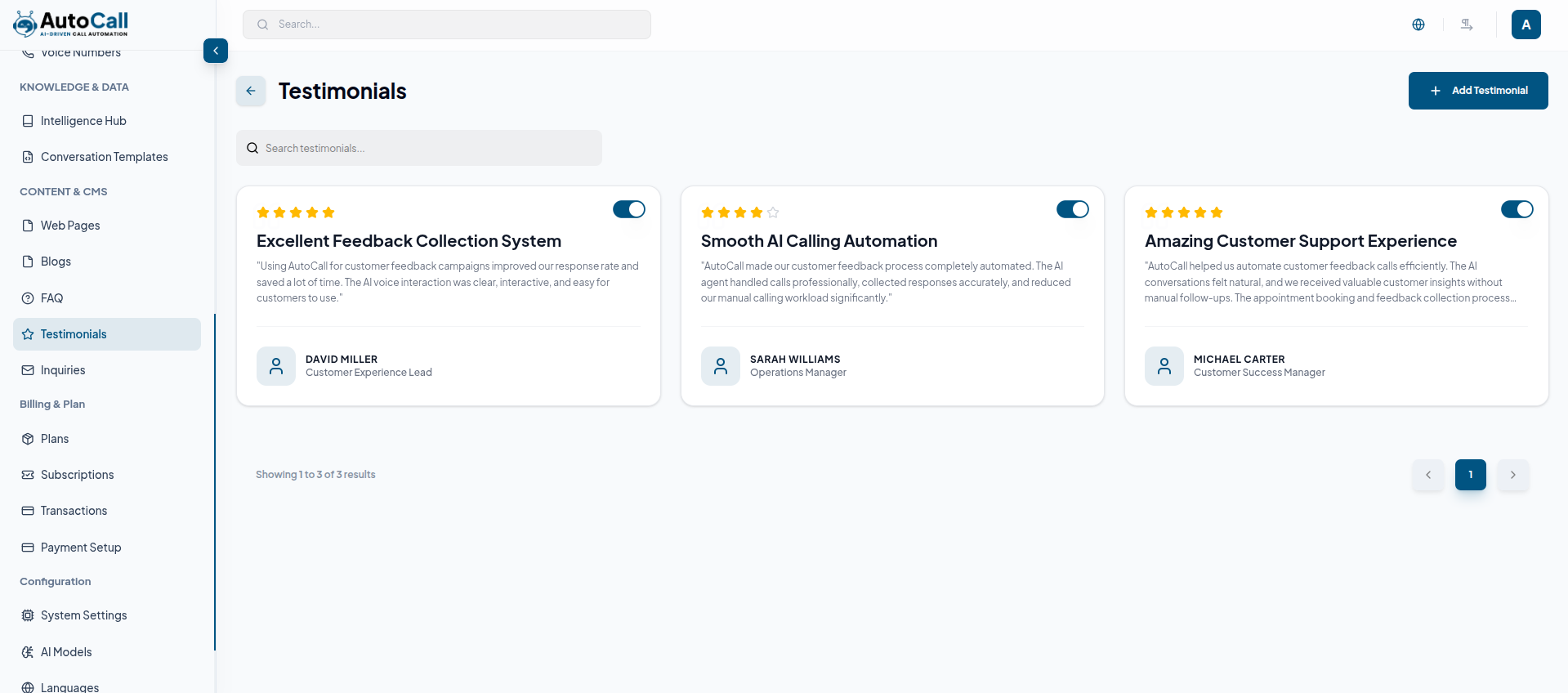
The Testimonials Dashboard provides a centralized interface for managing all testimonial content efficiently. Administrators can view, organize, and control testimonials from a single screen with easy access to all management actions.
The dashboard displays testimonial cards containing customer ratings, feedback, user information, and profile images in a clean and structured layout. It also includes search functionality, pagination support, and quick action buttons for editing or deleting testimonials.
Additionally, the dashboard features a toggle button that allows administrators to instantly enable or disable testimonial visibility without deleting the testimonial permanently. This helps manage which testimonials are displayed on the platform in real time.
1. Add Testimonial
The Add Testimonials feature allows administrators to create and publish new customer testimonials through the Testimonials Dashboard. This functionality helps showcase customer experiences, feedback, and ratings in an organized and professional format.
Administrators can add testimonial details such as customer name, designation, rating, feedback description, and profile image. Once submitted, the testimonial is added to the dashboard and can be managed further using edit, delete, or toggle actions.
Steps to Add a Testimonial
- Navigate to the Testimonials Dashboard from the sidebar menu.
- Click the Add Testimonial button located at the top right corner.
- Fill in the testimonial details including name, designation, rating, feedback, and profile image.
- Click Create Testimonial to save the testimonial.
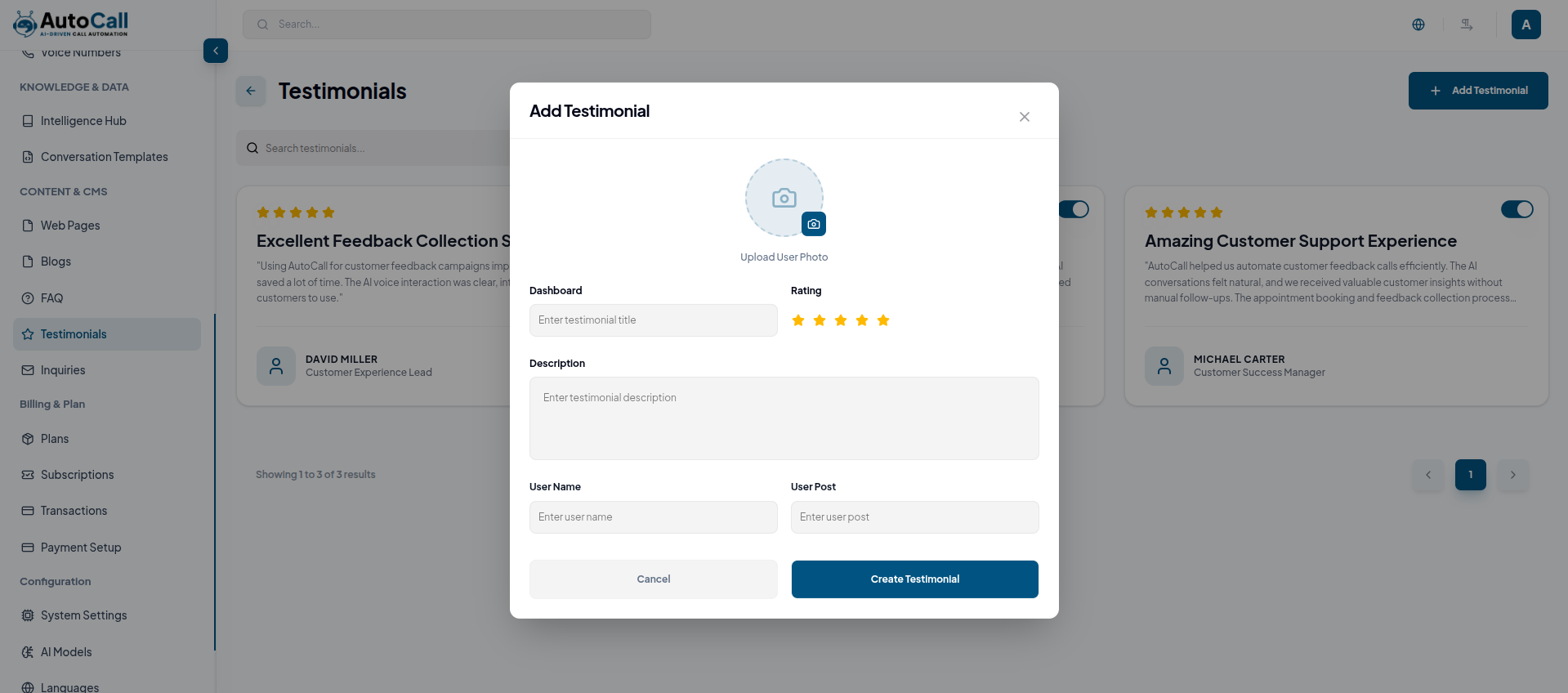
After successful submission, the newly created testimonial will appear in the Testimonials Dashboard and can be managed at any time.
2. Edit Testimonial
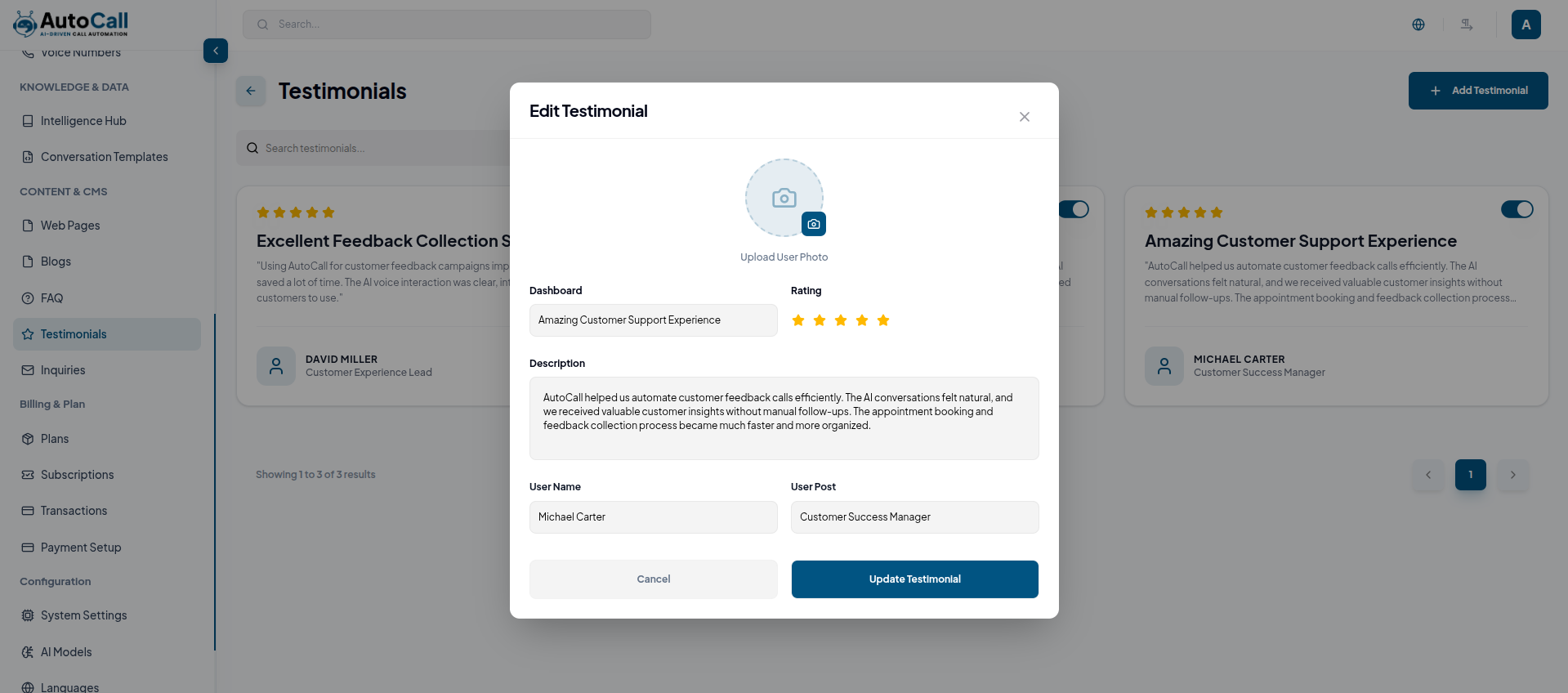
Edit existing testimonials by clicking the Edit icon. Update the customer name, testimonial title, rating, feedback description, or profile image as needed, then click the Update Testimonial button to save the changes instantly.
3. Delete Testimonial
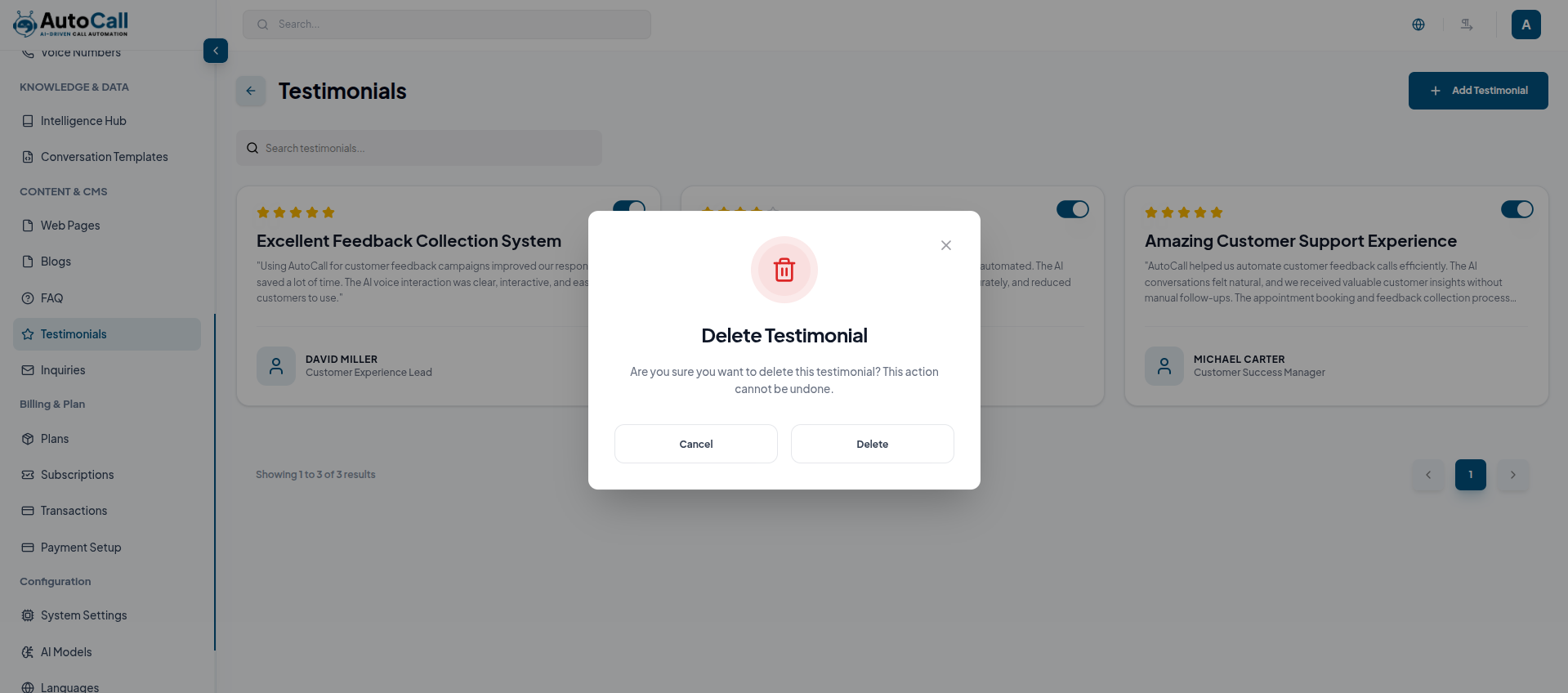
Delete existing testimonials by clicking the Delete icon. Confirm the action when prompted, and the selected testimonial will be permanently removed from the dashboard instantly.
4. Status Control
The status control allows administrators to manage the visibility of testimonials directly from the dashboard. It helps in quickly activating or deactivating testimonials without removing them.
Use the toggle switch on each testimonial card to change its status as needed. When set to active, the testimonial will be visible on the platform, and when inactive, it will be hidden from users instantly.
- Controls the visibility of testimonials from the dashboard
- Uses a simple toggle switch for easy activation or deactivation
- Provides quick and efficient content visibility control
What's Next?
Let's get started — your journey with AutoCall begins here!


