 AI Campaign
Hub
AI Campaign
Hub
Overview
AI Campaigns Hub in AutoCall allows users to create, manage, and execute automated outbound calling campaigns using AI Voice Agents. It helps businesses run large-scale voice campaigns for lead generation, appointment booking, surveys, reminders and customer outreach efficiently.
Dashboard
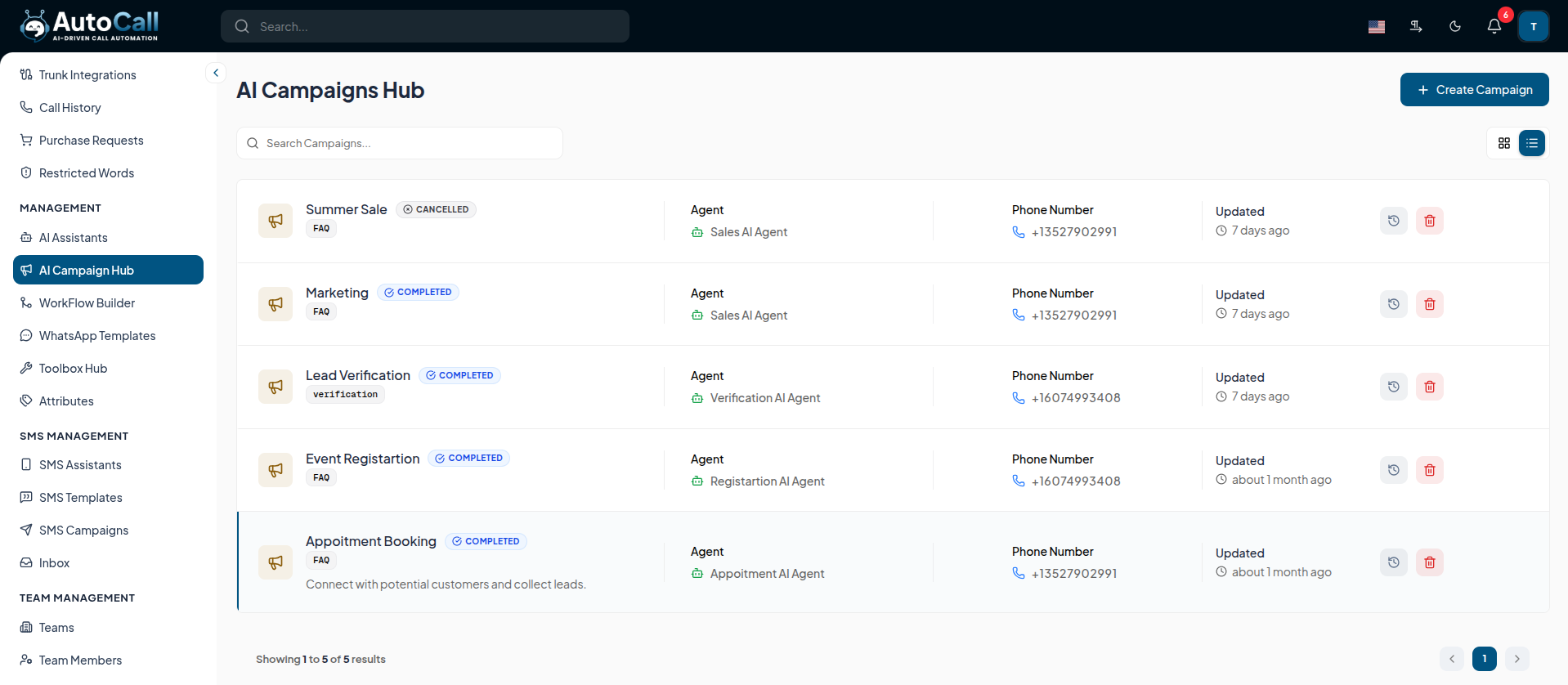
The Campaigns Hub Dashboard displays all created campaigns in a clean, structured table layout. Each campaign entry shows the campaign name, campaign type, associated flow agent, phone number, status and quick action options.
The dashboard also includes:
- Search functionality for quick campaign lookup
- Campaign status tracking (Completed, Active, Draft)
- Bulk selection and bulk delete support
- Quick actions on each campaign: Edit, Delete, and View Details
- Real-time campaign performance overview
- Also display Campaign Types, Flow Agent and Phone Number
Users can quickly manage existing campaigns or create new campaigns using the Create Campaign button.
1. Add Campaign
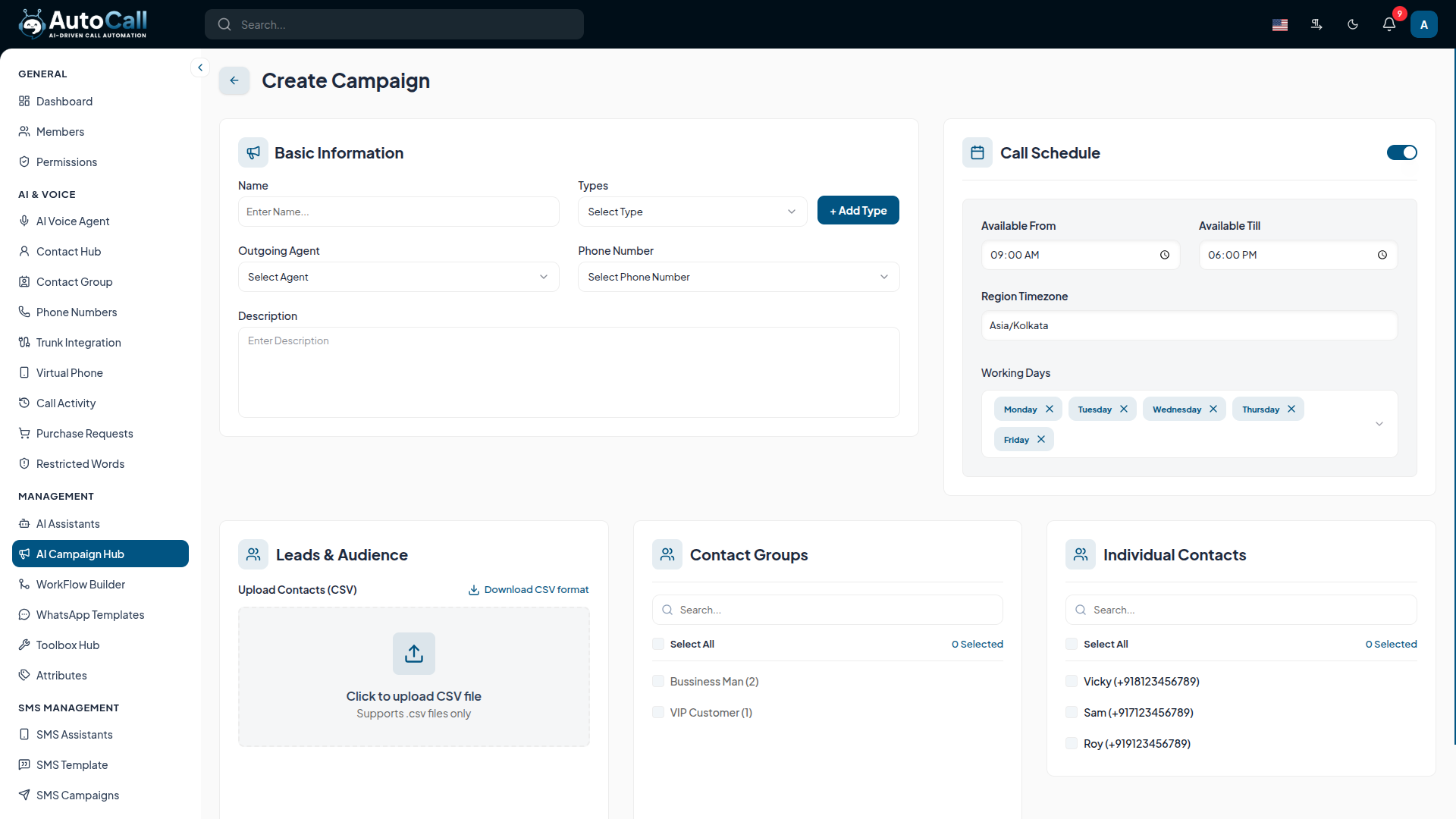
Click the Create Campaign button on the Campaigns Hub to open the campaign creation interface.
The form includes the following sections:
- Basic Information
- Campaign Name : Enter a unique name for the campaign
- Campaign Types : Select the type from the already created options.
- Flow Agent : Select the AI Agent that will execute the campaign
- Phone Number : Choose the outbound phone number
- Description : Add details about the campaign purpose
- Leads & Recipients
- Upload Contacts via CSV file
- Or select existing contacts from Contact List
- Call Schedule
- Set Start Time and End Time
- Select Timezone
- Choose Days of the Week for calling
- Enable/Disable Auto Retry option
After filling all required details, click the Create Campaign button. The campaign will be saved with Draft status and will appear on the dashboard. You can then review it and change the status from Draft to Active using the Start Campaign icon to begin sending the campaign.
Once a campaign has started, you can Pause it at any time. A paused campaign can later be resumed (changed back to Active) or Cancelled entirely.
2. Edit Campaign
Click the Edit (pencil icon) button in the Campaign Hub Dashboard to open the Campaign editor.
In the campaign editor, you can change the campaign name, select a different flow agent, adjust the schedule, add or remove recipients, and modify call timing or other configurations. After making changes, click Save Changes to apply the updates.

3. Delete Campaign
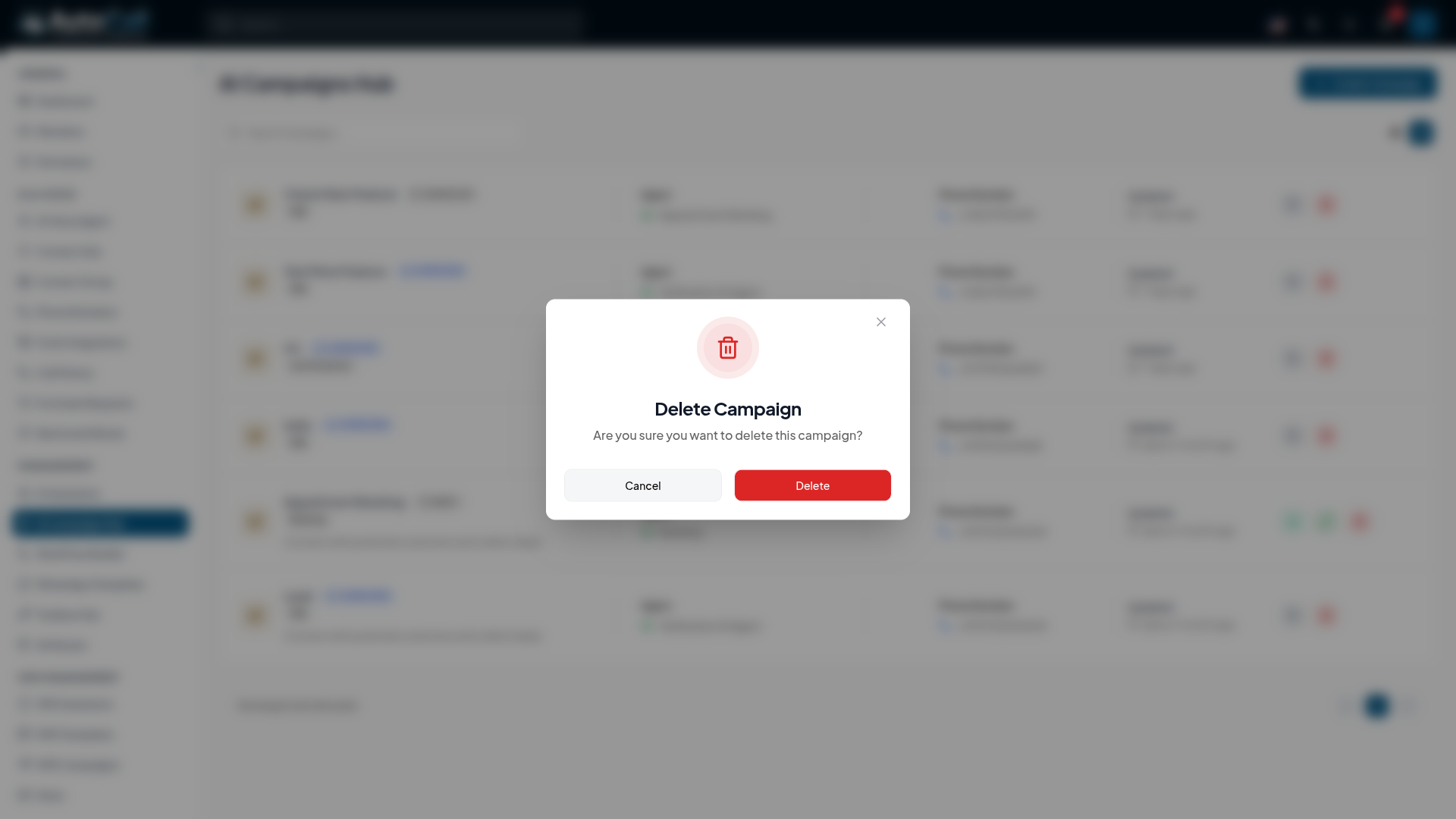
Click the Delete (trash icon) next to any campaign in the Campaigns Hub to permanently remove it. A confirmation dialog will appear to prevent accidental deletion. Once confirmed, the campaign will be permanently deleted from the system.
History & Analytics
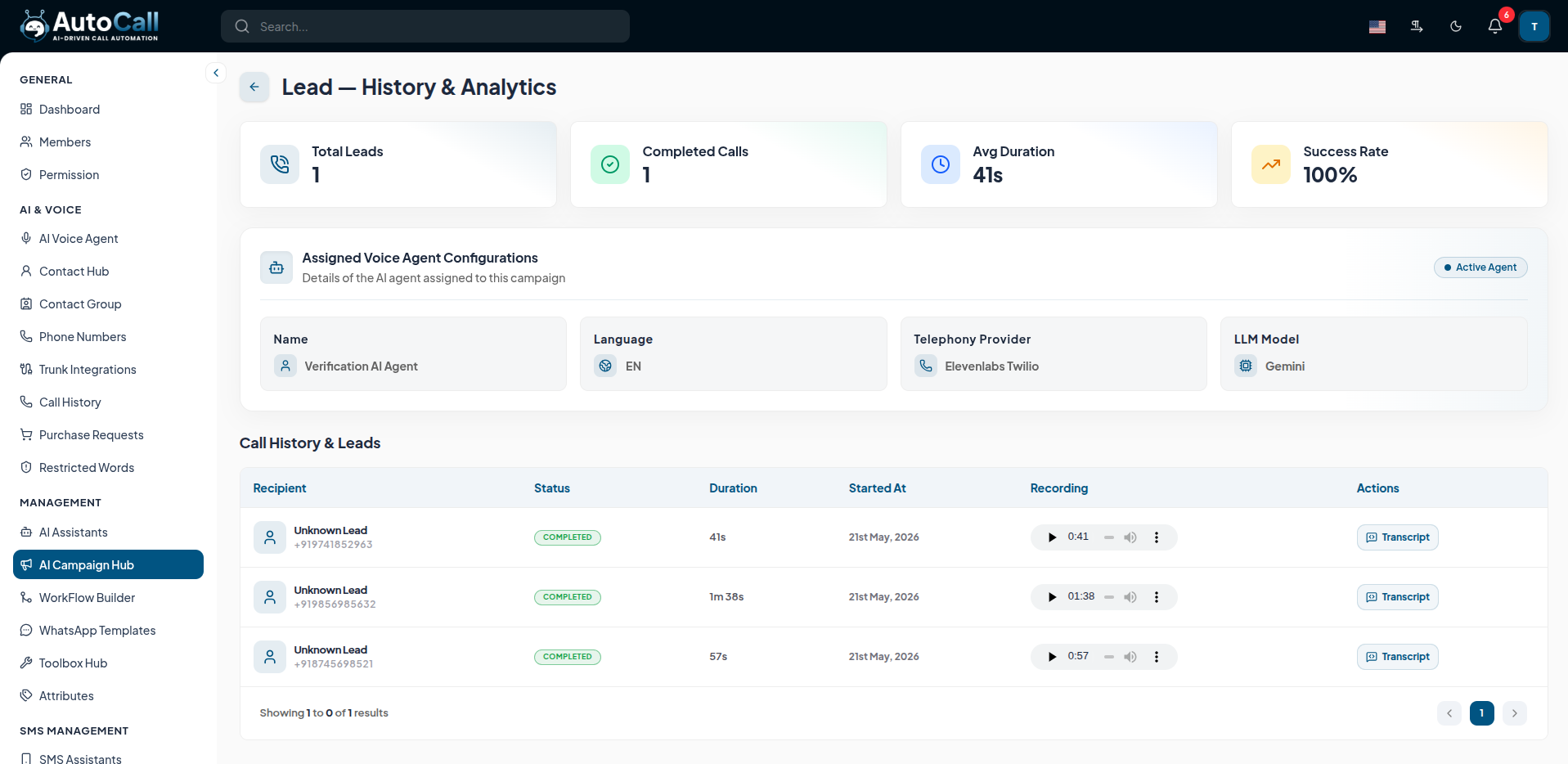
When you click the History icon on any campaign in the Campaigns Hub, it opens the Lead — History & Analytics page. This page provides detailed insights and complete call logs for that specific campaign.
Key Metrics & Reports
The Analytics view shows:
- Total Leads: Total number of contacts targeted in the campaign
- Completed Calls: Total number of calls successfully completed
- Avg Duration: Average Time Duration of completed calls
- Success Rate: Percentage of successful calls
Assigned Voice Agent Configurations
This section shows the AI Agent details used in the campaign:
- Agent Name: The name of the AI Voice Agent assigned to the campaign.
- Language: The language used for the agent(e.g., English).
- Telephony Provider: The telephony provider used for the campaign(e.g., ElevenLabs + Twilio).
- LLM Model: The Large Language Model used for the agent(e.g., GPT-4o Mini).
Call Logs & Leads
This Section displays a complete record of all recipients with the following columns:
- Recipient: Contact name and phone number.
- Status: Call status (Queued, Completed, Failed, In-Progress, etc.)
- Duration: The duration of the call(e.g., 02:34).
- Date & Time: The date and time of the call.
- Started At: Date and time when the call was initiated
- Recording: Link to call recording (if available)
- Actions: Transcript button to view the full conversation transcript.
Key Points
- Flow Agent Integration connects campaigns directly with AI voice agents.
- Smart Scheduling allows precise call timing and weekly scheduling.
- Real-time Analytics provides complete campaign performance and call activity.
- Automated Outbound Calling runs large-scale AI voice campaigns efficiently.
What's Next?
Let's get started — your journey with AutoCall begins here!


