 Contact Group
Overview
The Contact Group module allows you to organize individual contacts from the Contact Hub into logical segments. By creating contact groups (such as "Business Marketing Customers" or "VIP Customers"), you can efficiently target specific audiences during campaign creation without having to select contacts one by one.
Dashboard
The Contact Group Dashboard displays a list of all your created groups. For each group, it shows the Group Name, an optional description, the Total Contacts assigned to it, and quick Actions to edit or delete the group.

1. Create Contact Group
Click the Create Contact Group button to define a new segment.
In the creation modal, you can configure:
- Group Name: Enter a clear, descriptive name (e.g., "VIP Customer").
- Group Description: Add an optional description to define the group's purpose.
- Group Contacts: Use the search bar to find specific contacts from your Contact Hub and check the boxes next to their names to add them to the group.
Once you have selected all desired contacts, click Create to save the group.

2. Edit Contact Group
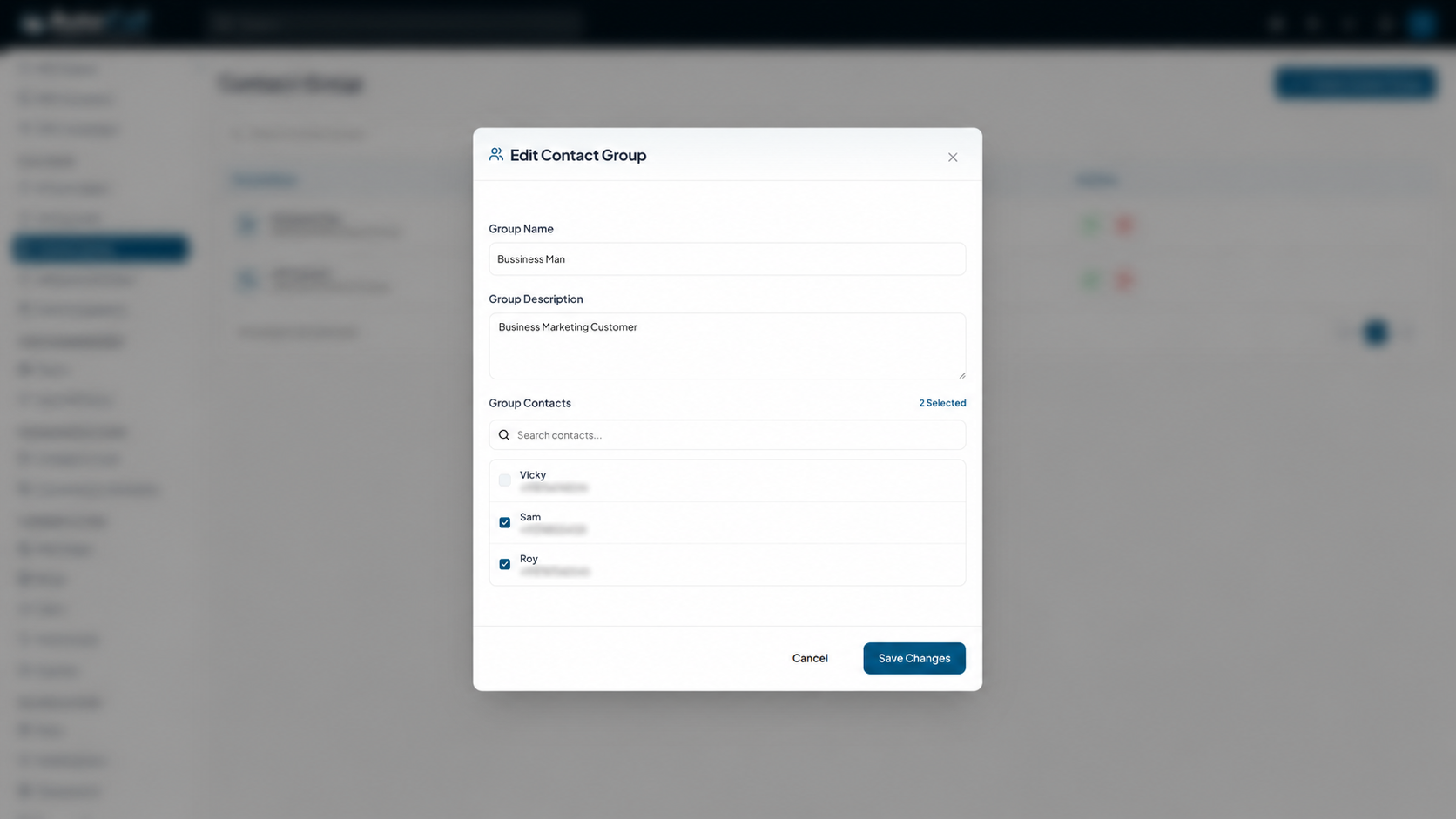
Click the Edit (pencil icon) next to any group to update its details. You can rename the group, update its description, or modify the list of assigned contacts by checking or unchecking the contact boxes.
Click Save Changes to apply your updates.
3. Delete Contact Group
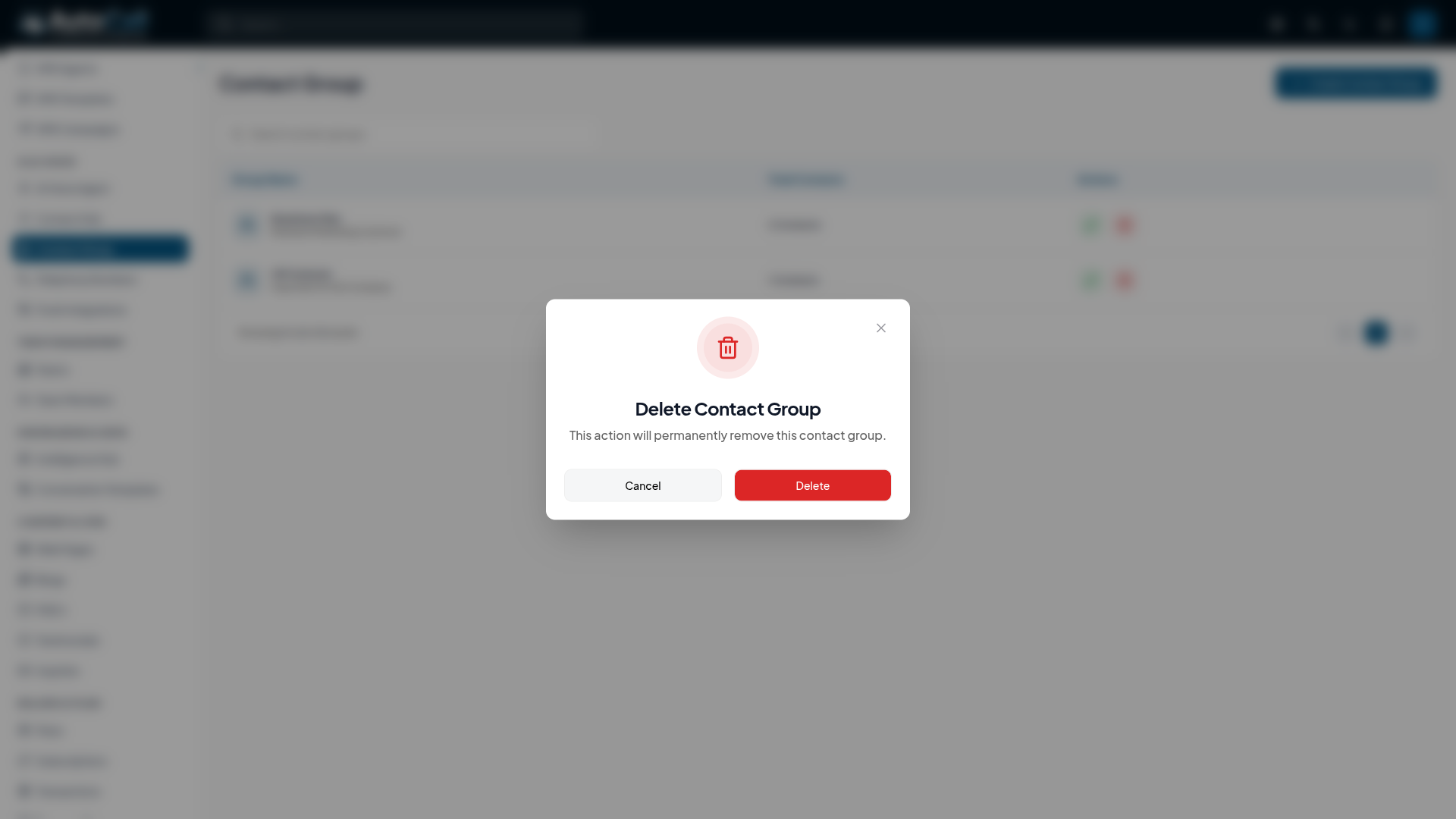
Click the Delete (trash icon) to permanently remove a contact group. A confirmation dialog will appear. Deleting a group will NOT delete the individual contacts from your Contact Hub, but it will remove the group segment itself.
Key Points
- Easily organize contacts into targeted segments for campaigns.
- Search and add contacts dynamically while creating or editing groups.
- Deleting a group does not affect the actual contacts stored in the Contact Hub.
What's Next?
Let's get started — your journey with AutoCall begins here!

