 Teams
Teams
Overview
The Teams section allows administrators to create and manage groups of team members. These teams are essential for managing organizational access and play a critical role during active campaigns.
When the "Human Transfer" option is enabled within a Call or SMS Campaign, you can select a specific team. The system will then dynamically route the conversation and assign an available team member to take over as a human agent.
Dashboard
The Teams Dashboard lists all existing teams in a comprehensive table. It displays details such as Team Name, Description, Status, Created At and available Actions.
You can use the search bar to quickly find a specific team or use the bulk delete action to remove multiple teams at once.

1. Create New Team
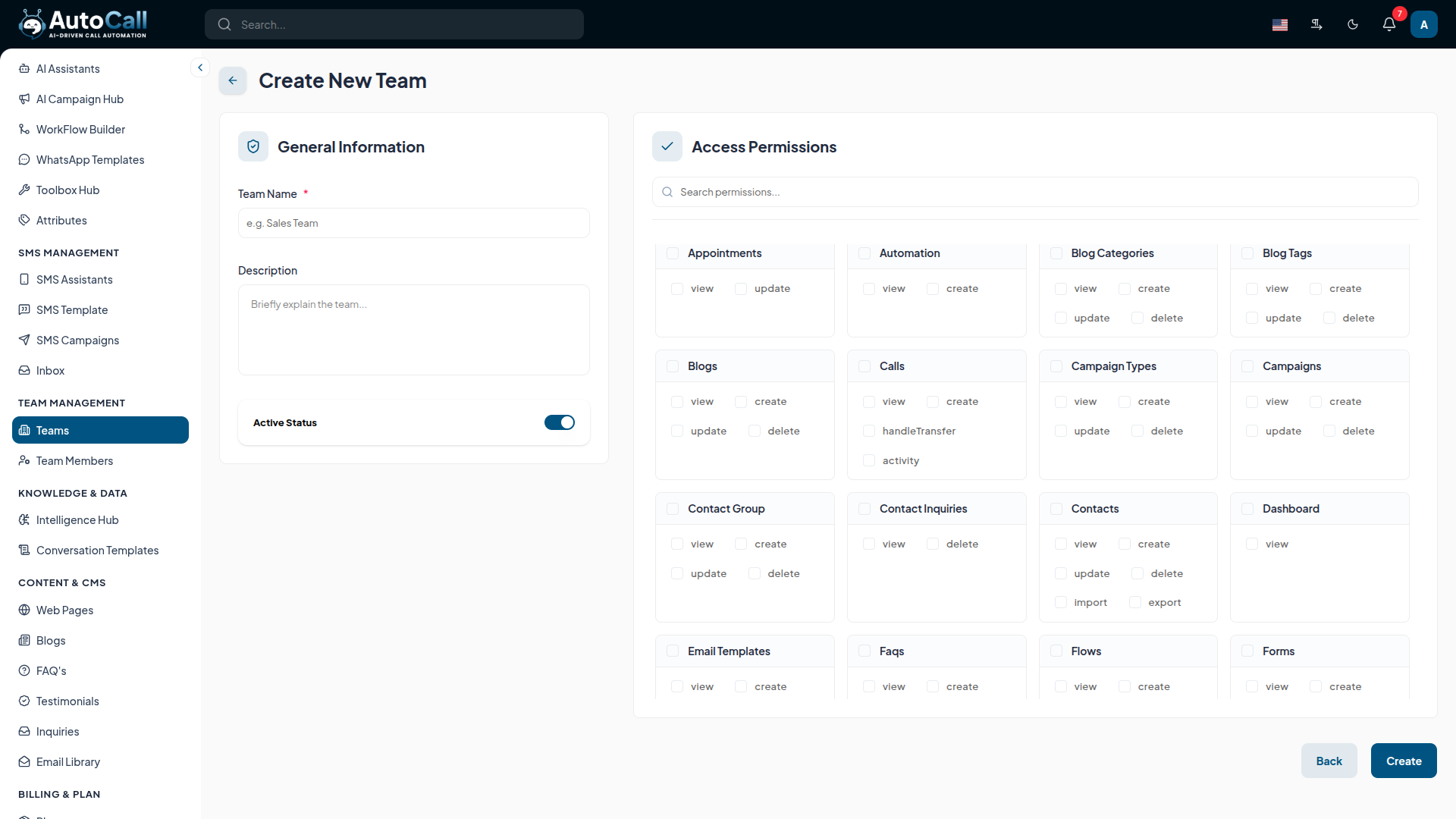
Click the Create Team button to establish a new team. In the "General Information" section, define the Team Name, Description and toggle its Status.
In the "Access Permissions" section, you can define exactly what the team has access to. Select specific checkboxes for viewing, creating, updating or deleting records across different platform modules (such as Agents, Calls, Contacts, SMS Campaigns and more).
2. Edit Team
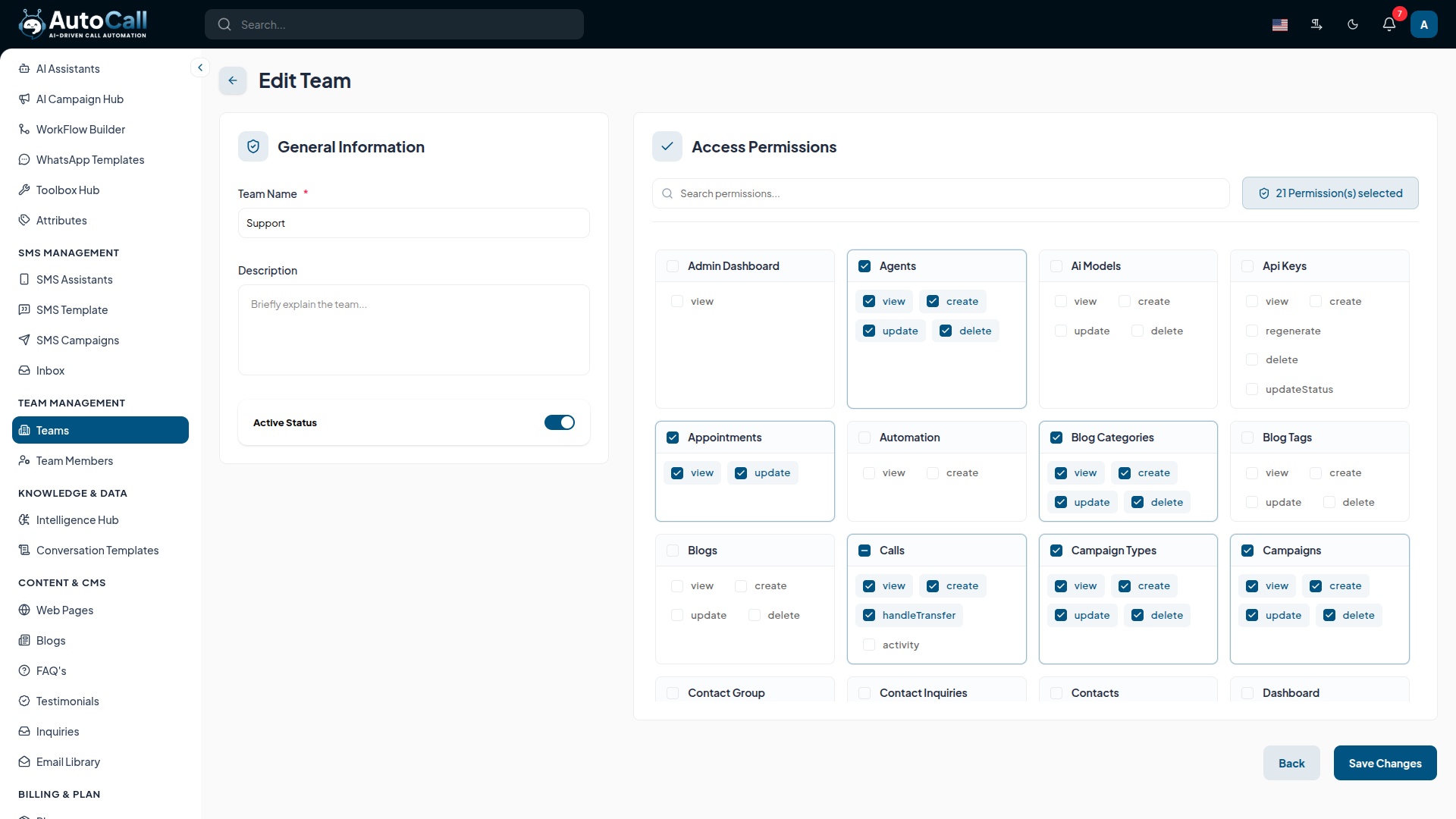
Click the Edit (pencil icon) next to any team in the dashboard to modify its details. You can update the general information or adjust the specific access permissions.
Once you've made your adjustments, click the Save Changes button to instantly update the permissions for all members belonging to the team.
3. Delete Team
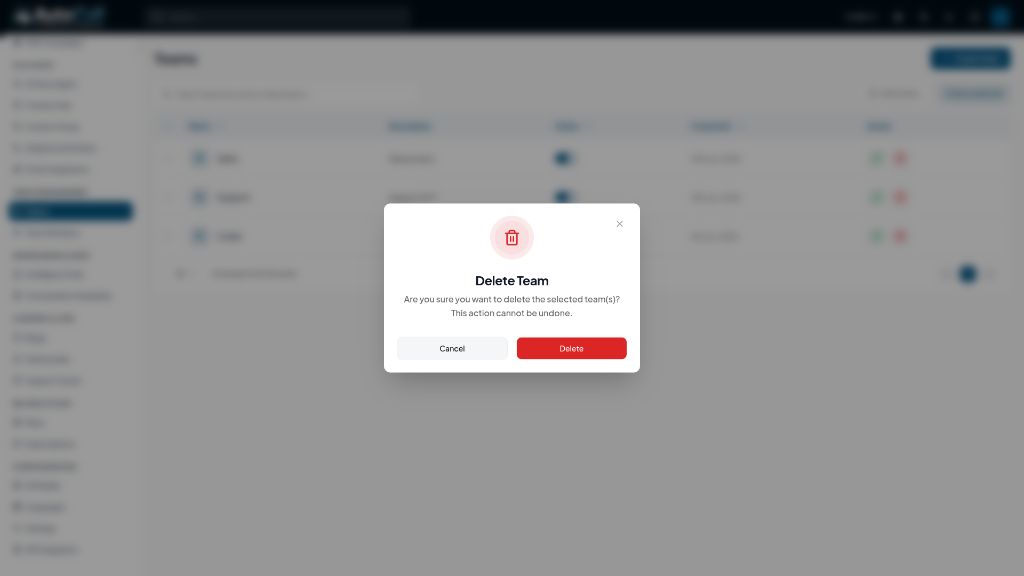
Click the Delete (trash icon) to permanently remove a team from the system. A confirmation dialog will ensure you don't accidentally delete an active team.
4. Bulk Delete
If you need to remove multiple teams at once, select them using the checkboxes on the left side of the table and click the Bulk Delete button.

Key Points
- Easy access control for all members.
- Update permissions for all team members.
- Easily toggle a team's active status.
- Secure confirmation dialogs for actions.
What's Next?
Let's get started — your journey with AutoCall begins here!

