 Virtual Phone
Overview
The Virtual Phone module enables one-to-one human conversations directly through the AutoCall platform. Users can make real-time virtual calls to clients without needing an external physical device, seamlessly blending human interaction with automated tracking and logging capabilities.
Virtual Phone Number Sync
To make calls, you need to select a Caller ID. The phone numbers displayed in this section are synchronized directly from your integrated Twilio or Plivo accounts via the Phone Numbers section.
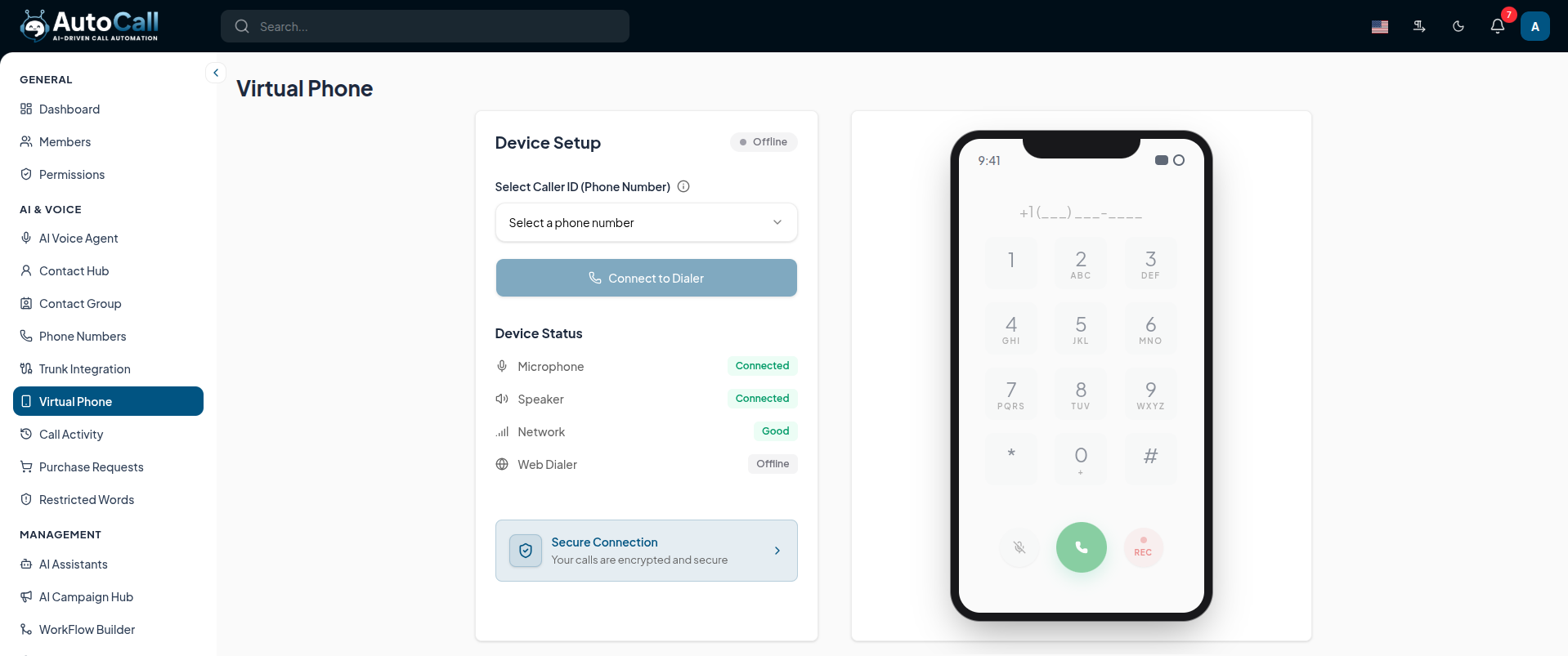
Device Setup & Connection
Before initiating a call, ensure your device is properly configured:
- Select a synced Virtual Phone Number from the dropdown.
- Click Connect to Dialer to initialize the web client.
- Check the Device Status indicators to ensure your Microphone, Speaker, and Network are properly connected and ready.

Making Calls & Recording Option
Once connected, use the integrated dialpad to enter a destination number and initiate a real conversation. During the call, you have access to several in-call features:
- Mute: Temporarily silence your microphone.
- Recording Option: Manually toggle call recording using the REC button.
History & Recording: All interactions made via the Virtual Phone, along with any enabled recordings, are automatically logged and saved in the Call Activity section for later review and auditing.

What's Next?
Let's get started — your journey with AutoCall begins here!


