 Languages
Overview
The Languages module allows you to configure localization and multi-language support for your platform. You can define active languages, set up translations, define default locales, and handle Right-To-Left (RTL) layouts seamlessly.
1. Languages Dashboard
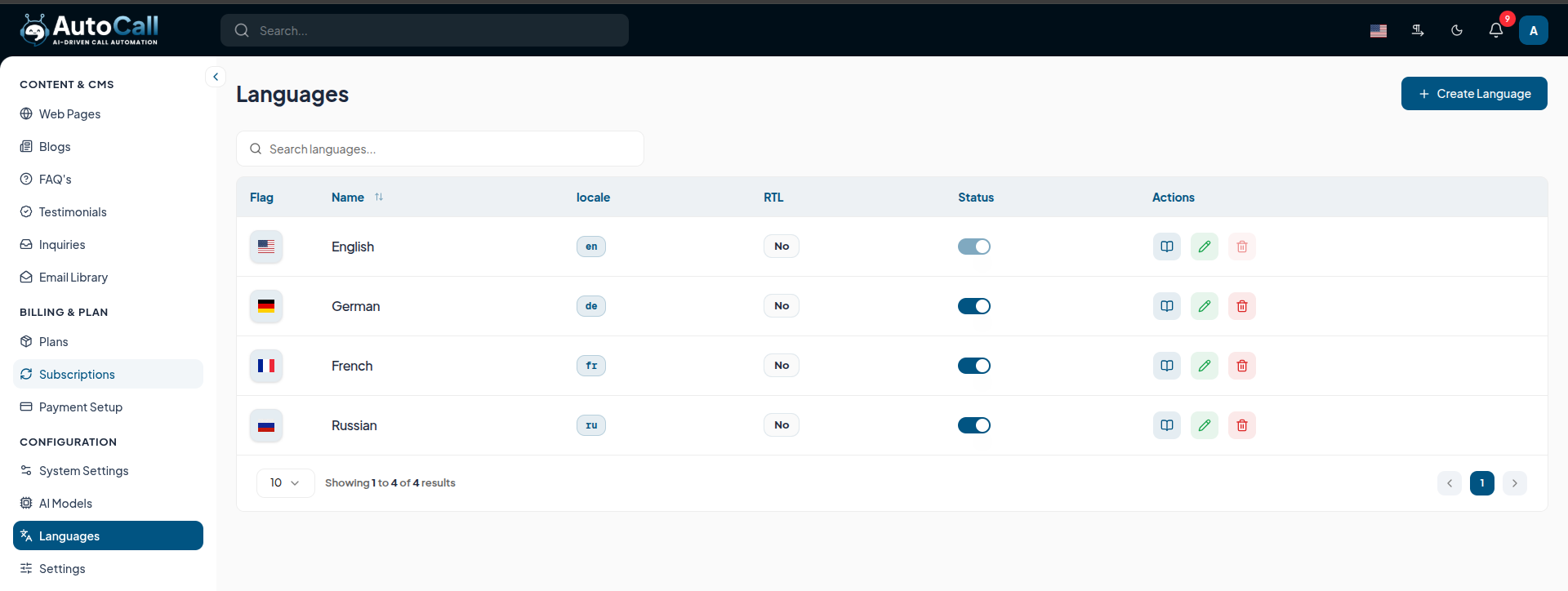
The main dashboard displays all configured languages with their respective properties:
- Flag & Name: Visual indicator and display name of the language (e.g., English, French).
- Locale: The specific locale code (e.g.,
en,fr,es). - RTL & Status: Indicators for Right-To-Left layout and whether the language is active for users.
2. Create New Language
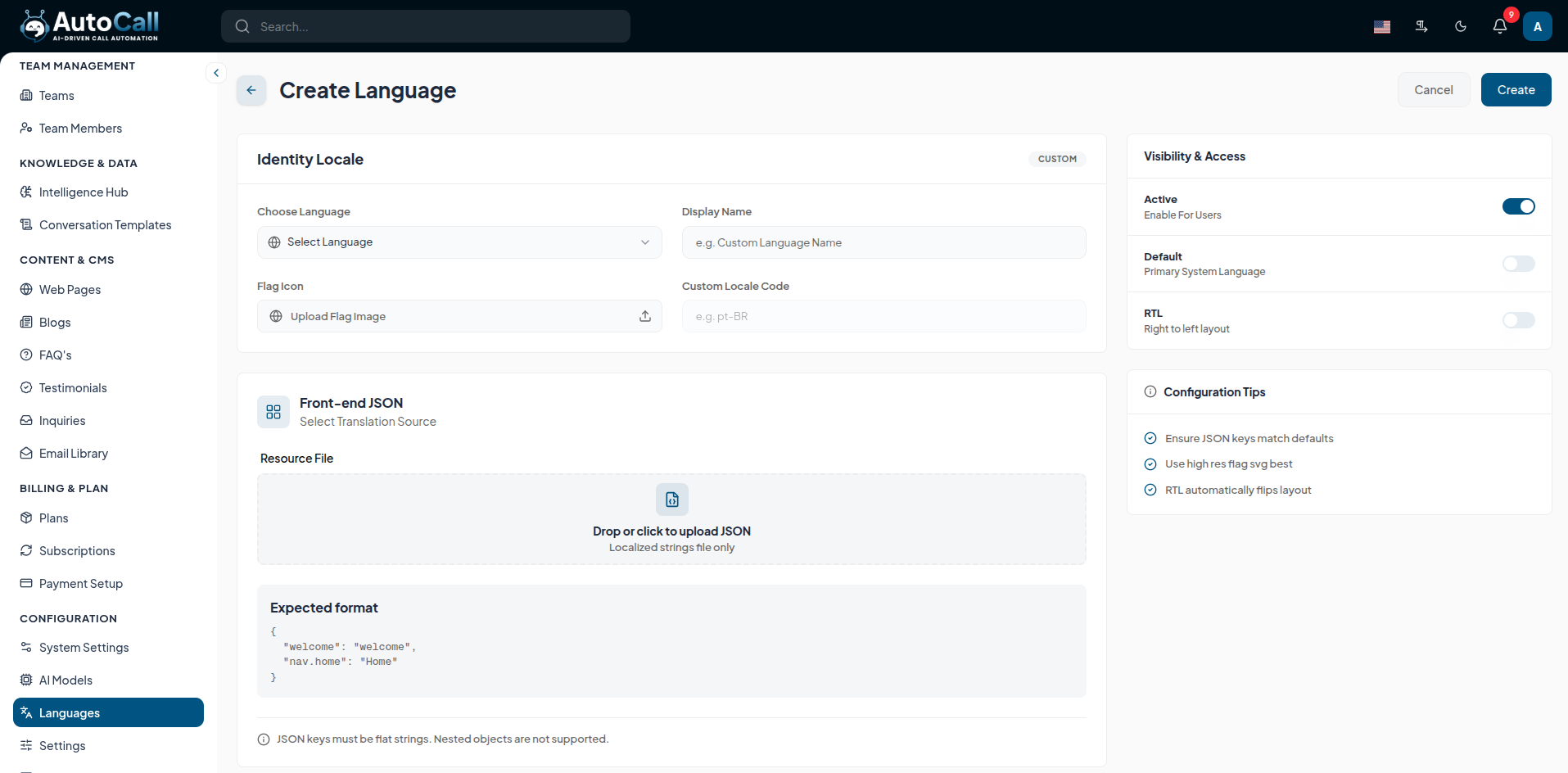
Click the + Create Language button to configure a new locale for the platform.
Identity Locale
- Choose Language & Display Name: Select the target language and specify how it appears in UI menus.
- Flag Icon: Upload a high-resolution SVG icon to visually represent the language.
System Translations
- Front-end JSON & App JSON: Select or upload the corresponding translation files that contain the localized string key-pairs. Ensure JSON keys match system defaults.
Visibility & Access
- Active: Toggle to enable this language for user selection.
- Default: Set as the primary fallback system language.
- RTL: Automatically flips the layout alignment for languages like Arabic or Hebrew.
3. Edit Language Configuration
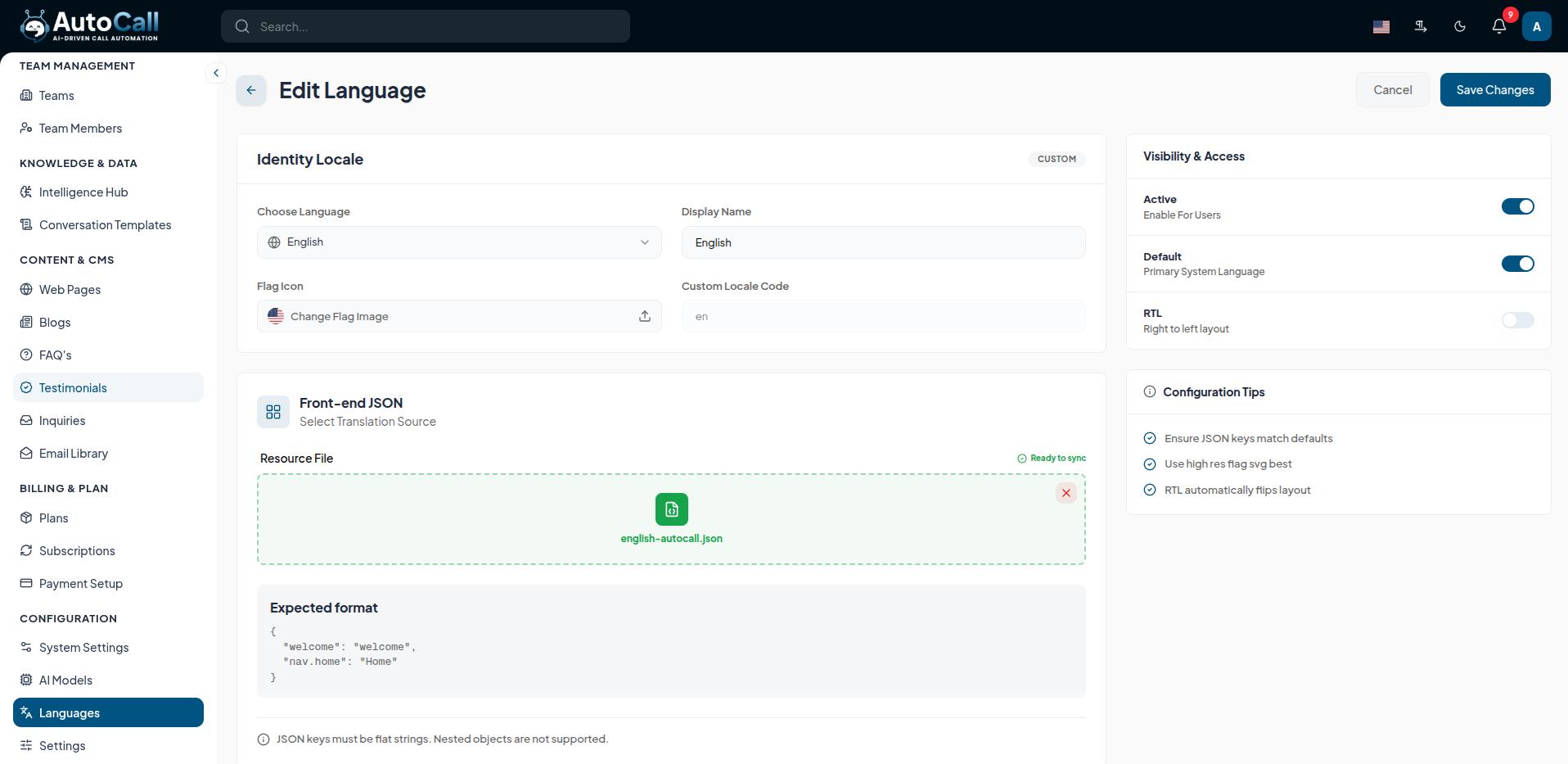
Click the Edit (pencil icon) to modify existing properties, such as updating translation JSON files, toggling RTL behavior, or changing the default system language. Click Save Changes when finished.
4. Delete Language
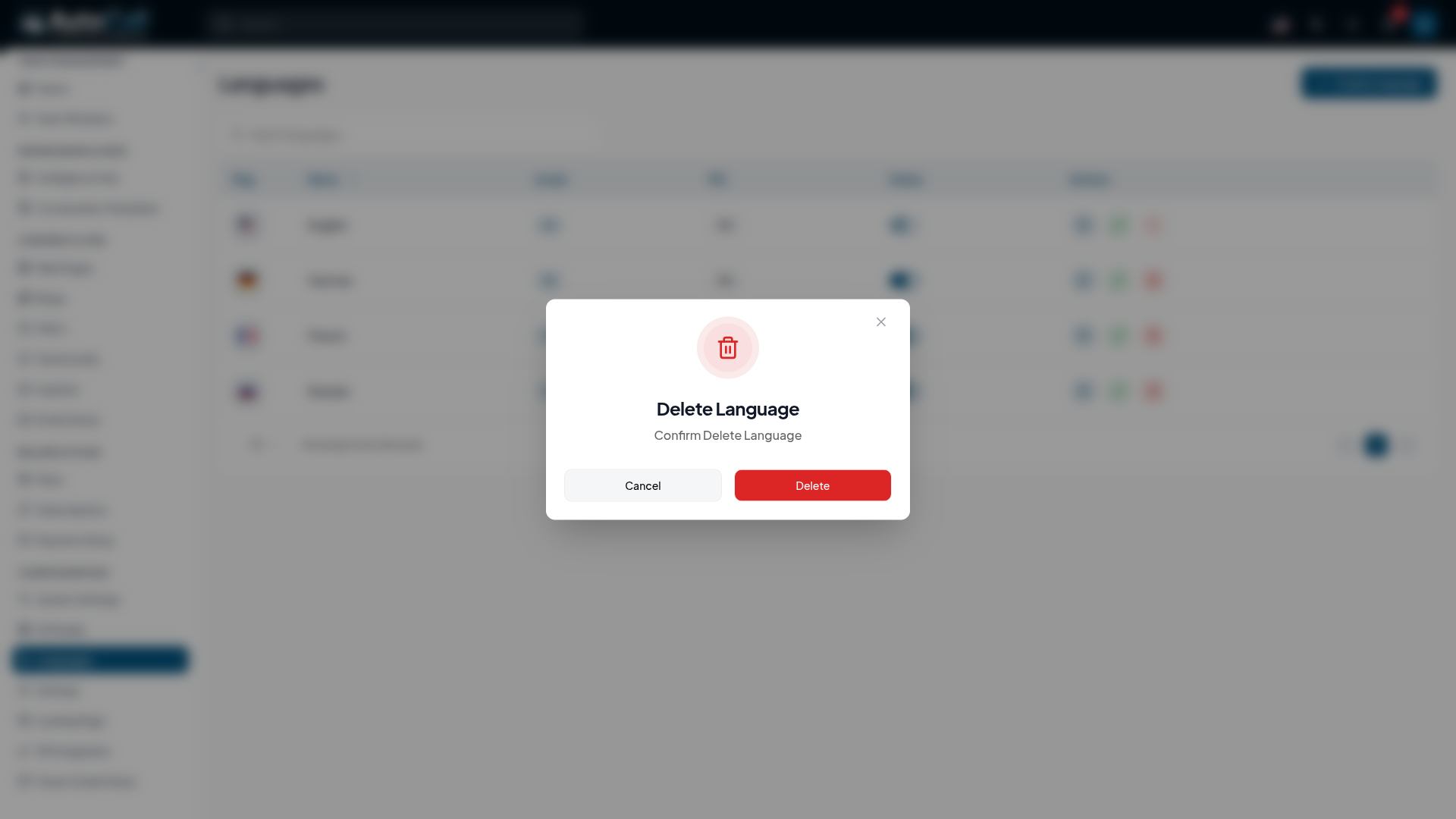
Click the Delete (trash icon) to remove a language from the system. A confirmation warning will prompt you.
Note: The default system language usually cannot be deleted without reassigning the default status to another active language first.
Configuration Tips
- Always ensure translation JSON keys precisely match the platform defaults to avoid missing texts.
- Use high-resolution SVG files for flags to maintain clarity across all devices.
- Enabling the RTL toggle will automatically flip the platform layout seamlessly.
What's Next?
Let's get started — your journey with AutoCall begins here!


