 AI Model
Configuration
AI Model
Configuration
Overview
The AI Models module allows administrators to manage and configure large language models used across the platform. Users can add multiple AI providers, define model configurations, manage model status, and select a default AI model for system-wide usage.
The AI Model management system helps control which AI services are available for workflows, agents, and automation features.
Dashboard
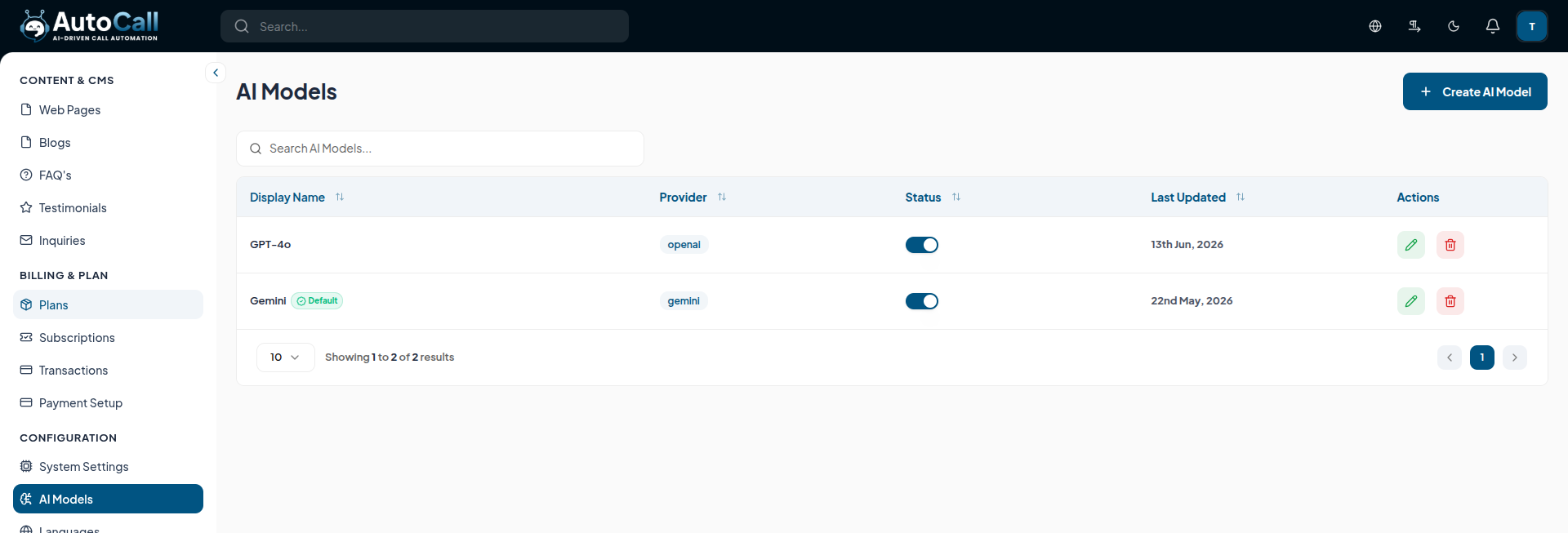
The AI Model Dashboard displays all configured AI models in a table view with important details such as Display Name, Provider, Status, Last Updated date and available Actions. Users can search models using the search bar and quickly manage configurations from a single place.
1. Add AI Model
Click the Add AI Model button to register a new AI model provider in the system. Users can configure details such as Model Slug, Display Name, Provider, Model ID, Status, and Description. You can also enable the Default AI Model option to set the selected model as the system-wide default AI provider.
After entering all required details, click the Save AI Model button to save the configuration and make the model available for use in workflows and AI agents.

2. Edit AI Model
Click the Edit (pencil icon) option in the dashboard to modify its configuration. You can update the display name, provider, model ID, status, description, and default model settings. Once changes are completed, click Save AI Model to apply the updates.

3. Delete AI Model
Click Delete (trash icon) to any AI model in the dashboard to permanently remove it from the system. A confirmation dialog will appear before deletion to prevent accidental removal.

Key Points
- Multiple Provider Support allows integration with different AI services.
- Real-Time Status Management helps control active and inactive models.
- Quick Search and Filtering make finding AI models faster.
- Secure Delete Function removes unused AI models safely.
What's Next?
Let's get started — your journey with AutoCall begins here!

