 SMS Campaigns
Overview
The SMS Campaigns module allows you to launch, schedule and track mass text messaging campaigns. By leveraging your predefined SMS Templates and AI Agents, you can seamlessly broadcast messages to contact groups or uploaded CSV lists.
Whether you are sending marketing blasts, transactional notifications or triggering interactive AI chats, SMS Campaigns provide full control over delivery timing and recipient engagement.
SMS Campaigns Dashboard
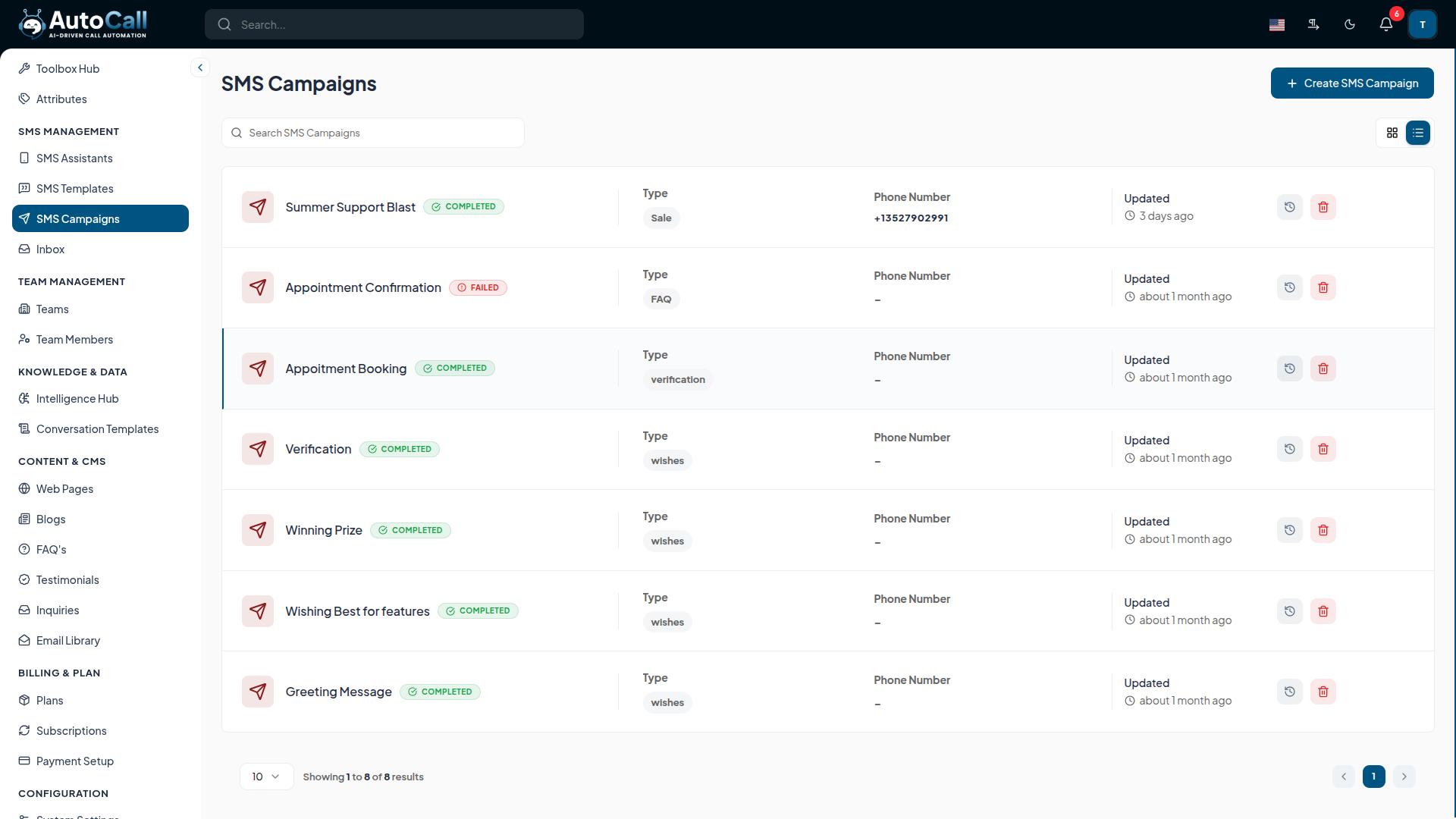
The SMS Campaigns Dashboard provides a high-level view of all your text message broadcasts. From here, you can monitor the status of ongoing campaigns, review past broadcasts and initiate new ones.
The dashboard features include:
- Search Bar : Quickly locate specific campaigns by name.
- Campaign Status : Instantly see if a campaign is Completed, Failed or Scheduled.
- Campaign Details : View the assigned Phone Number, Campaign Type and the last updated timestamp.
- Action Buttons : Access detailed History & Analytics or Delete past campaigns.
Click on the + Create SMS Campaign button to start a new broadcast.
1. Create SMS Campaign
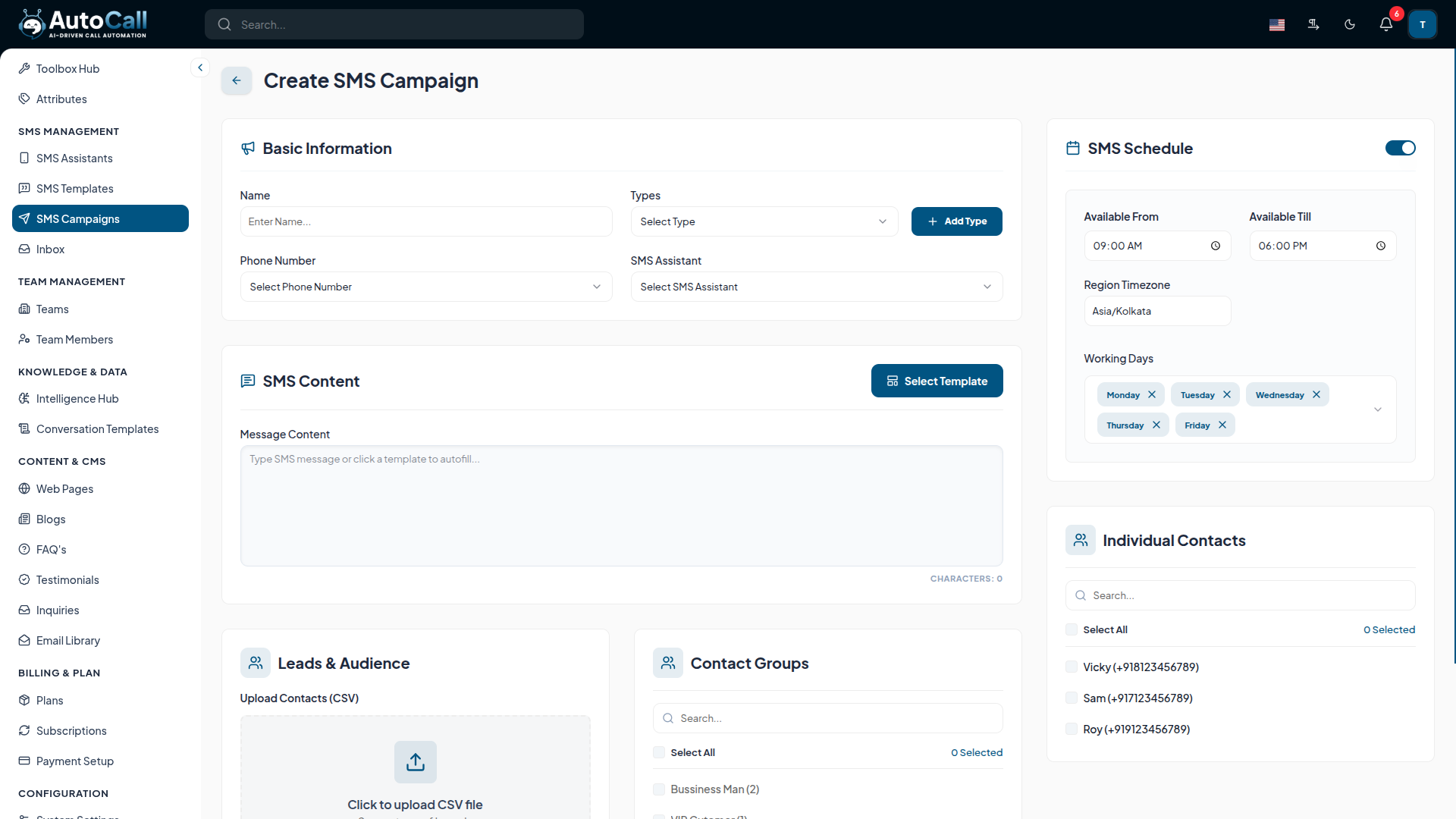
Clicking + Create SMS Campaign opens a comprehensive setup wizard broken down into four key sections:
Basic Information:
- Campaign Name : Provide a descriptive name for internal tracking.
- Campaign Types : Select the objective or category (e.g., Marketing, Verification, Support).
- Phone Number : Choose the outbound phone number to send messages from.
- SMS Assistance : Optionally assign an AI SMS Assistance to handle replies dynamically.
SMS Schedule:
- Toggle the schedule to run immediately or set specific Start/End Times, Timezone and Days of Week for automated delivery.
Leads & Recipients:
- Upload Contacts : Directly upload a CSV file containing your target audience.
- Select Contacts from Hub : Pick individual existing contacts from your database.
- Contact Group : Broadcast to an entire pre-segmented Contact Group.
SMS Content:
- Select Template : Instantly load a pre-approved message from your SMS Templates.
- Message Content : Alternatively, type a custom message directly into the editor.
Once a campaign has started, you can Pause it at any time. A paused campaign can later be resumed (changed back to Active) or Cancelled entirely.
2. History & Analytics
When you click the History (Clock) icon on any campaign in the SMS Campaigns Dashboard, it opens the History & Analytics page. This page provides detailed insights and complete SMS logs for that specific campaign.
Key Metrics & Reports
The Analytics view shows:
- Total Leads: Total number of contacts targeted in the campaign
- Completed SMS: Total number of SMS messages successfully delivered
- Success Rate: Percentage of successful message deliveries
Assigned SMS Assistance Configurations
This section shows the AI Agent details used in the campaign:
- Agent Name: The name of the AI SMS Assistance assigned to the campaign.
- Language: The language used for the agent (e.g., English).
- LLM Model: The Large Language Model used for the agent (e.g., GPT-4o Mini).
- Campaign Message: Review the exact text content that was sent out.
SMS Logs & Leads
This Section displays a complete record of all recipients with the following columns:
- Recipient: Contact name and phone number.
- Status: Message status (Sent, Failed, Queued, etc.)
- Date & Time: The date and time when the message was sent.
- Actions: View Chat button to view the full SMS conversation history with the recipient.

3. Delete SMS Campaign
To remove old or failed campaigns, click the Delete (Trash) icon. A confirmation prompt ensures you do not accidentally remove active data. This action is permanent.

Key Points
- Multi-Source Targeting: Effortlessly send to uploaded CSVs, manual contact lists or predefined Contact Groups.
- AI Agent Integration: Attach SMS Assistance to campaigns so your AI immediately takes over and replies when recipients text back.
- Advanced Scheduling: Run campaigns exactly when your audience is active with timezone-aware scheduling.
- Granular Analytics: Track individual delivery statuses and overall success rates to measure campaign effectiveness.
What's Next?
Let's get started — your journey with AutoCall begins here!


