 Call Activity
Overview
The Call Activity module provides a comprehensive log of all interactions made through the AI campaigns. It includes details such as timestamps, call durations, involved contacts, and call dispositions.
Core Features
The Call Activity page allows administrators and team members to review the outcomes of AI voice campaigns. Key features include:
- Detailed Call Logs: View logs of every call, including the start time, end time, and total duration.
- Call Dispositions: Instantly see whether a call was answered, missed, failed, or transferred to human agents.
- Recordings & Transcripts: Play back the audio recordings of AI interactions and read the full AI-to-Contact transcripts.
- Search & Filtering: Easily filter history by specific campaigns, contacts, dates, or call outcomes to analyze performance.
Scanning for Restricted Words
A key feature in the Call Activity is the Scan All button. Clicking this button initiates a full scan across the call activity to detect the usage of any predefined restricted words during conversations.
- When you click on the Scan All button, the system checks all transcripts.
- Any detected restricted words are immediately displayed at the top of the history view for quick visibility.
- This allows administrators to quickly identify problematic interactions and take necessary actions without manually reading through transcripts.

Restricted Action Features
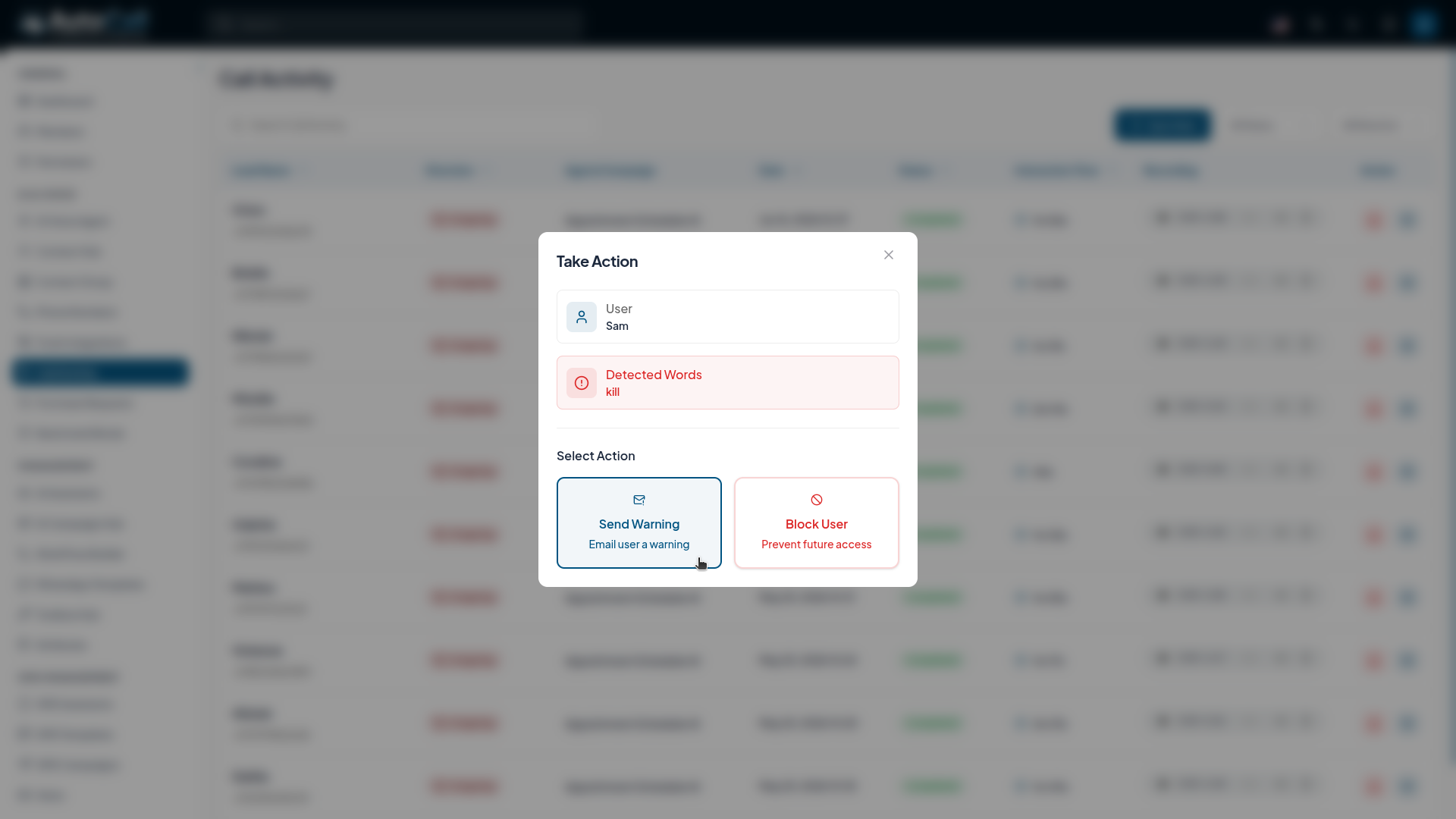
When viewing a detected restricted word in the Call Activity (which displays an extra 'Action' option), you will have access to two key features:
- Send Warning via Mail: Dispatches an automated warning email to the user indicating that they have used restricted language and further infractions may lead to an account block.
- Block the User: Immediately blocks the user from making or receiving further communications through the platform. This is a severe action and stops campaigns from processing this contact.
What's Next?
Let's get started — your journey with AutoCall begins here!


